
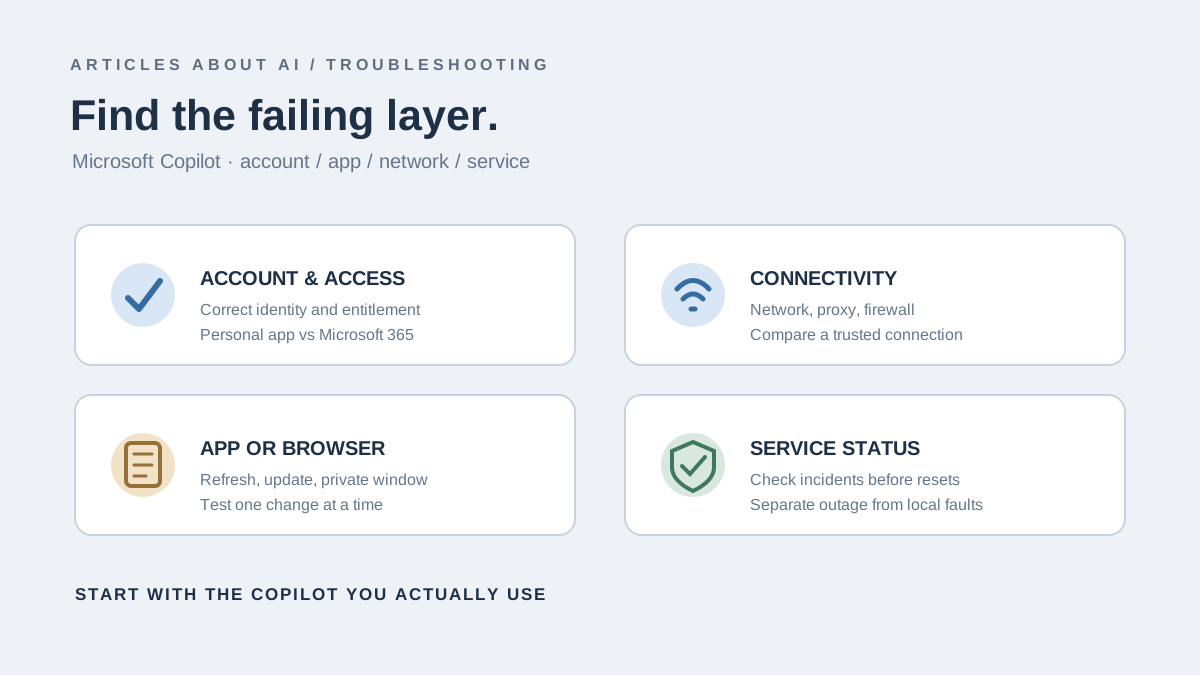
When Microsoft Copilot is not working, the right fix depends on which Copilot experience you are using and what fails. The consumer Copilot website or app, Copilot inside Microsoft 365 apps, and organization-managed Copilot features do not have identical licensing, sign-in, and connectivity requirements. A missing Copilot button is different from a page that will not load or a prompt that produces an error.
If Copilot loads but the problem happens specifically inside Excel, use our focused guide to Microsoft Copilot in Excel; its licensing and workbook-related checks are different from general Copilot connectivity troubleshooting.
Use this guide to identify the product first, then test account access, browser or app behavior, connectivity, and service availability. Microsoft provides official troubleshooters for common Copilot licensing and connectivity problems; use those when they match your symptom. (Microsoft Support: Copilot troubleshooters)
Quick checklist
- Identify whether the problem is on Copilot.com or inside a Microsoft 365 app.
- Confirm that you are signed in with the intended Microsoft account or work/school identity.
- Reload the page or restart the app and test a short prompt.
- Try a private browser window or a different supported browser.
- Compare a trusted alternate network if connectivity seems to be the problem.
- If Copilot is missing from Microsoft 365, verify the required license and organization settings.
- Use the official Copilot connectivity or license troubleshooter when applicable.
- If the issue persists, record the exact error and contact Microsoft support or your administrator.
Do not reinstall every Microsoft app or reset your whole network before identifying which product and symptom are affected.
1. Identify the Copilot product
“Copilot” can refer to more than one Microsoft experience. Begin by recording where the problem occurs:
- Copilot on the web or in its consumer app: focus first on sign-in, browser/app state, connectivity, and whether the service loads.
- Copilot in Word, Excel, PowerPoint, Outlook, or other Microsoft 365 apps: licensing, account identity, app version, and organizational policy may be relevant.
- Copilot in a work or school environment: your administrator may control licenses, data access, network rules, and feature availability.
- GitHub Copilot: this is a separate developer product with its own account, extension, and licensing diagnostics. Do not use this article as a substitute for a GitHub Copilot-specific fix.
If you see a clear license or access message, preserve its exact wording. The message often points toward a more relevant fix than a generic “Copilot is not working” description.
2. Check your account and sign-in method
Open the profile menu and verify which account is active. If you have both personal and work accounts, make sure the product is using the identity that has the required access. Signing in with a personal Microsoft account does not automatically grant access to an organization’s Microsoft 365 Copilot features.
For the consumer Copilot app, use the account and sign-in method associated with the experience you expect. If you previously signed in with a third-party identity, choose that same sign-in option rather than assuming that typing the same email address will always produce the same account context.
For work or school Copilot, confirm with your administrator that the correct license and policies are assigned. If the icon is missing only in one Microsoft 365 app, compare that app with another eligible app, but remember that features and licensing can differ. Do not purchase a new subscription or remove a work account simply because a button is missing; first confirm what access your plan or organization should provide.
3. If Copilot will not load or answer
Refresh the page once or close and reopen the app. Then send a simple, non-sensitive test prompt. This helps distinguish a general loading problem from an issue with a specific long prompt, conversation, attachment, or feature.
If a response is stuck, wait briefly for an explicit error before retrying. Copy any unsent prompt into a safe place before refreshing. Avoid repeatedly sending the same request, especially if it contains a large attachment or complex instruction.
If a new chat works but an existing chat fails, the problem may be limited to that conversation. Keep the original thread while troubleshooting. If all chats fail, move to browser, network, account, and status checks.
4. Test the browser or app
For the web version, open Copilot in a private or incognito window and sign in with the same account. If it works there, something about the normal browser profile may be involved—such as an extension, stored session, cookie setting, or site data.
Try these steps in order:
- Refresh the page.
- Open a private window and test a short prompt.
- Update the browser if an update is available.
- Temporarily disable extensions that block scripts, tracking, cookies, or page requests, testing one at a time.
- Try another supported browser or device.
- Only if the problem appears limited to the original browser, consider clearing site data for the Copilot site.
Clearing site data can sign you out or reset site preferences, so it should not be the first step. If the app itself is failing, check for updates through the official app store or Microsoft’s update mechanism, then restart the app. Do not install unofficial modified versions or “Copilot repair” utilities.
5. Diagnose a connection problem
If Copilot displays a connection error, test whether the problem follows the network. If it is safe and practical, compare your usual Wi-Fi with mobile data or another trusted connection while keeping the same device and account.
- Copilot works on another network: your usual network, proxy, firewall, DNS filter, or VPN may be involved.
- Copilot fails across different networks and browsers: a local browser issue becomes less likely; check service status and account access.
- Other websites also fail: troubleshoot the general internet connection first.
- Only a work or school network fails: contact the network administrator rather than changing managed firewall settings yourself.
Microsoft provides a dedicated Copilot connectivity troubleshooter through the Get Help app. Open Get Help and search for “Copilot connectivity troubleshooter,” then follow the results. Microsoft says this tool checks for firewall rules or other blockers affecting the connection. Use the official instructions at Copilot troubleshooters.
Do not disable your firewall permanently or change router security settings to make one test succeed. If a security product appears to be blocking traffic, use its documented diagnostic options or ask the administrator.
6. If Copilot is missing from Microsoft 365 apps
A missing Copilot button is not necessarily a connection failure. Check that you are signed into the Microsoft 365 app with the account that has the relevant entitlement, then confirm with your organization or subscription information that the feature is included and enabled.
Microsoft offers a Copilot license troubleshooter for cases where a user believes they have a license but cannot see the Copilot icon in eligible Microsoft 365 apps. In the Get Help app, search for “Copilot License Troubleshooter” and follow the steps. See Microsoft’s official troubleshooter guide.
If the troubleshooter identifies a license or policy problem, use the result to guide the next step. A personal subscription cannot necessarily resolve a work-account policy issue. Organization administrators may need to verify license assignment, app eligibility, or service configuration.
7. Check for a service-side issue
If the problem occurs across devices, browsers, and networks, look for an official Microsoft service-health notice relevant to the Copilot product you use. For work accounts, an administrator may have access to service health information in the Microsoft 365 admin center. A general consumer web problem and a Microsoft 365 tenant incident may be tracked differently.
A status notice can explain a widespread incident, but the absence of a notice does not prove that your account is configured correctly. If there is an active incident, wait for updates before performing disruptive resets. After the incident is resolved, test a short prompt again.
8. Collect useful details before contacting support
If Copilot still does not work, record:
- The exact product and location where it fails.
- The exact error message or code.
- The approximate time and time zone.
- Whether the issue affects one prompt, one conversation, one app, or every Copilot experience.
- Browser/app version, device type, and operating system.
- Whether a private window, alternate browser, or alternate network changes the result.
- For a managed account, whether the administrator has checked licensing and policy.
Use Microsoft’s official support route or contact your organization’s administrator. Redact private content from screenshots and never share passwords, verification codes, or confidential work data in public forums.
Frequently asked questions
Why does Copilot work on the web but not in Word?
The two experiences can have different account, license, app, and organization requirements. Confirm that Word is signed in with the expected account and check the entitlement for Microsoft 365 Copilot rather than assuming the web app guarantees in-app availability.
Should I reset my router?
Not as the first step. Compare another network and use the Copilot connectivity troubleshooter if the symptom points to connectivity. Resetting a router can interrupt other devices and may not fix an account, license, or service problem.
Why is the Copilot icon missing?
Possible causes include the wrong signed-in account, licensing, app eligibility, or administrator settings. Use Microsoft’s license troubleshooter and consult the administrator for a work or school account.
Is GitHub Copilot the same product?
No. GitHub Copilot is a separate developer tool with its own troubleshooting path. If your issue occurs in an IDE or GitHub Copilot extension, identify that product specifically before applying fixes intended for Microsoft Copilot.
Bottom line
For Microsoft Copilot problems, follow this order: identify the product → verify account → test the app/browser → compare networks → check service health → run Microsoft’s official troubleshooter → contact support. The right diagnosis depends on whether you have a loading error, a missing feature, a license message, or a connectivity failure.