
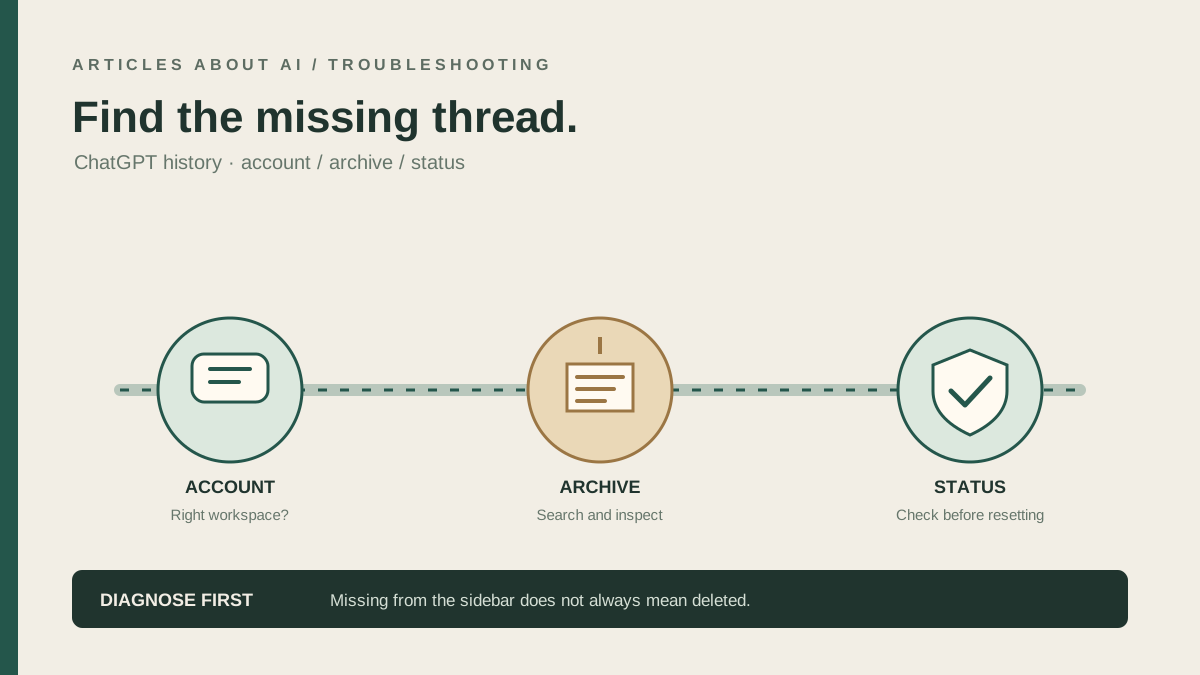
If your ChatGPT conversation history suddenly looks empty, do not assume that every conversation has been deleted. A missing thread can have several explanations: you may be signed into a different account or workspace, the conversation may be archived, the history view may not have refreshed, or an active service incident may be affecting history. OpenAI recommends checking the account and workspace, reviewing archived chats, refreshing or signing back in, checking the service status, and requesting a data export when needed. Deleted chats, however, cannot be restored through the normal interface. (OpenAI’s official guidance on missing chats)
If you are unsure whether the issue is missing history or a separate account-access problem, first review our guide to fixing ChatGPT login problems. If you are trying to understand the difference between saved memories and the list of conversations, see how ChatGPT Memory works.
This guide helps you distinguish a display or account problem from a conversation that was actually deleted. Follow the checks in order and avoid destructive actions—especially deleting chats, clearing broad browser data, or changing account settings before you know what happened.
Quick checklist
- Confirm the exact account and sign-in method you used when you created the conversation.
- If you use multiple workspaces, switch to the workspace where the conversation was created.
- Search for a distinctive word or phrase from the conversation.
- Open Settings → Data controls → Archived Chats and review the archive.
- Refresh ChatGPT, then sign out and back in if necessary.
- Check OpenAI Status for a current incident involving ChatGPT or conversation history.
- If the conversation is still missing, request a data export through Settings → Data controls.
- If you confirmed that the chat was deleted, understand that OpenAI says deleted chats cannot be restored.
Do not start by deleting or resetting anything. The purpose of these steps is to identify which account and storage state you are looking at before making changes.
1. Make sure you are in the original account
The first and most useful check is the account. People sometimes create an account using an email and password, then later sign in through Google, Apple, or Microsoft. They may also have a personal account and a separate work or organization account. Similar-looking email addresses do not guarantee that you have opened the same account or workspace.
Open the profile menu and confirm the account currently shown. Then consider how you originally signed in. If you used Continue with Google, test that same method; do not assume that entering the same email through a different sign-in route necessarily opens the same account. If you use Apple’s private relay address, check that you have selected the same Apple sign-in identity.
If you have another browser, phone, or tablet where ChatGPT is already signed in, compare the account shown there before signing out of that device. A second active session can help you identify the correct account without risking access to the one you still have.
What the result means: if the conversation appears after switching to the original account, the chat was not missing from that account—it was simply not visible in the account you first opened. If it remains absent, continue to the workspace and archive checks.
2. Check the correct workspace
ChatGPT can present different workspaces, depending on your account and organization. A conversation created in one workspace may not appear when you are looking at another. This can happen when a user has personal and work access or belongs to an organization.
Open the workspace switcher, if one is available, and check the personal workspace and any organization workspace you are permitted to use. Do not leave an organization or delete a workspace just to troubleshoot missing history. If your account is managed by an employer or school, follow the organization’s policies and contact its administrator if you cannot access the workspace that previously held the chat.
If the missing thread belonged to a shared or managed environment, access can also depend on the workspace’s configuration and your membership. A workspace switch is a diagnostic check, not a way to recover conversations that were deleted.
3. Search for the conversation instead of relying only on the sidebar
A conversation may be difficult to find in a long history list. Use ChatGPT’s conversation search and enter a distinctive term, a phrase you remember, or the subject discussed. Try more than one specific phrase if the first search produces no result.
Search is especially useful when you remember the topic but not the conversation title. Use a term likely to appear in the conversation rather than a generic word such as “help” or “question.” If you find the thread, open it and confirm that it is the expected conversation.
A search result can also help distinguish a navigation problem from a missing record. If search finds the chat but the sidebar does not make it obvious, the conversation may simply be hard to locate in the list. If search finds nothing, do not immediately conclude that the chat is permanently gone; move on to the archive, account, and service checks.
4. Review Archived Chats
Archiving removes a conversation from the regular chat list without deleting it. That makes the archive one of the first places to check when a thread disappears from the sidebar.
In ChatGPT, open Settings, go to Data controls, and find Archived Chats or Manage archived chats (the exact label can vary by interface). Review the list for the conversation. If you find it, use the available unarchive action to return it to the regular history.
Do not choose a delete option while inspecting the archive. Archive and delete are different actions: an archived conversation can be brought back, while OpenAI says a deleted conversation cannot be restored through the standard ChatGPT interface or support.
For the official explanation of the two actions, see Deleting and archiving chats in ChatGPT.
5. Refresh ChatGPT and sign in again
If you have verified the account and workspace and the conversation is not archived, the visible history may need to reload. First refresh the page or close and reopen the mobile app. Give the history a moment to load, especially if your connection is slow.
If refreshing does not help, sign out and sign back in using the original sign-in method. Before signing out, make sure you know how to access the account again and can complete any required authentication. If you are unsure of the password or recovery method, resolve that access issue before ending a session that still works.
On a browser, a private window or a different supported browser can help determine whether the issue is limited to one browser profile. If the history appears in another browser but not the first one, extensions, stored session data, or browser settings may be contributing. Only consider clearing ChatGPT site data after simpler tests, and understand that this may sign you out.
Avoid clearing all browser data as the first step. That can remove useful sessions and preferences without recovering a chat that is archived, stored in another workspace, or deleted.
6. Check whether OpenAI reports a service incident
Sometimes the problem is not specific to your device or account. Visit OpenAI Status and review current and recent incidents affecting ChatGPT. Look for an incident that matches the time you noticed the missing history or the affected feature.
A status incident can help explain why history is not loading normally, but it does not prove that a particular conversation is intact or deleted. If an incident is active, avoid making multiple account or browser changes at once. Wait for the incident to be resolved, then refresh ChatGPT and search again.
If the status page reports normal operation, that does not rule out every account-specific or local issue. Continue with the remaining checks rather than repeatedly refreshing indefinitely.
7. Use a data export to investigate what is still associated with your account
If the conversation remains missing, OpenAI recommends requesting a data export to help confirm which chats are still stored in your account. In ChatGPT, open Settings → Data controls → Export data and follow the prompts. The available steps and delivery timing may vary.
An export is an investigative step, not an undelete feature. If the conversation is present in the export, you have evidence that it is still associated with the account even if it is not easy to find in the interface. If it is absent, that does not by itself identify the exact cause; double-check that you requested the export from the correct account and workspace.
Treat the export as private. It may contain conversation content and other account information, so download it only to a device you trust and do not share the file publicly. If you need help interpreting the result, redact personal or confidential material before sharing excerpts.
8. Understand the difference between archived, temporary, and deleted chats
These states should not be treated as interchangeable:
- Archived: the conversation is hidden from the normal list but can be reviewed and unarchived.
- Not currently visible: the conversation may be hidden by the wrong account or workspace, a display issue, or a service incident. Further checks are needed.
- Deleted: OpenAI says deleted chats cannot be restored, including chats removed through the “Delete all chats” action.
- Temporary Chat: a conversation started in a temporary mode is handled differently from regular saved history and should not be expected to appear like a normal saved conversation.
If you know you deliberately deleted the conversation, repeated sign-ins and browser resets will not bring it back. If you are uncertain whether it was archived or deleted, inspect the archive and data controls before concluding that it is gone.
For a broader explanation of ChatGPT’s saved conversations and account controls, use the official ChatGPT Help Center.
9. When to contact OpenAI Support
If you checked the correct account and workspace, searched the history, reviewed archived chats, refreshed the session, checked service status, and considered a data export, contact support through the official Help Center.
Include the approximate date or time when the conversation disappeared, the sign-in method you use, the workspace involved if applicable, and the troubleshooting steps already completed. Explain whether all history is missing or only one conversation. A concise report helps support distinguish an account-wide display problem from a single missing thread.
Do not send your password, one-time verification codes, recovery codes, or full private conversations unless support specifically provides a secure and appropriate method. If a screenshot is useful, hide personal details that are not needed to explain the issue.
Frequently asked questions
Can ChatGPT restore a conversation I deleted?
OpenAI states that deleted chats cannot be restored through the interface or support. Check the archive first if you are unsure whether you archived or deleted the conversation.
Why is my history empty on one device but not another?
Check that both devices use the same account, sign-in method, and workspace. If they do, refresh the affected device and check the service status. Different visible histories can result from different account or workspace contexts.
Does turning Chat History & Training on bring back older conversations?
Do not assume that changing a history setting will restore a missing conversation. First check the account, workspace, archive, and official data controls. Use OpenAI’s current guidance for the specific setting rather than changing settings blindly.
Should I clear the app cache or reinstall ChatGPT?
Not as the first step. Check the account and workspace, search and archive, refresh, and compare another browser or device first. Reinstalling an app cannot restore a conversation that was deleted from the account.
Is a missing sidebar entry proof that the chat was deleted?
No. The sidebar alone does not establish the conversation’s state. Search, Archived Chats, account/workspace checks, service status, and—if needed—a data export provide more useful evidence.
Final checklist
When ChatGPT conversation history is missing, work through the problem in this order: account → workspace → search → archive → refresh/sign in → status page → data export → support. This order starts with reversible checks and avoids wasting time on destructive browser resets.
Most importantly, do not delete additional chats while troubleshooting. A conversation that is archived or hidden in another workspace may still be available; a conversation that was actually deleted cannot be restored under OpenAI’s published guidance.