
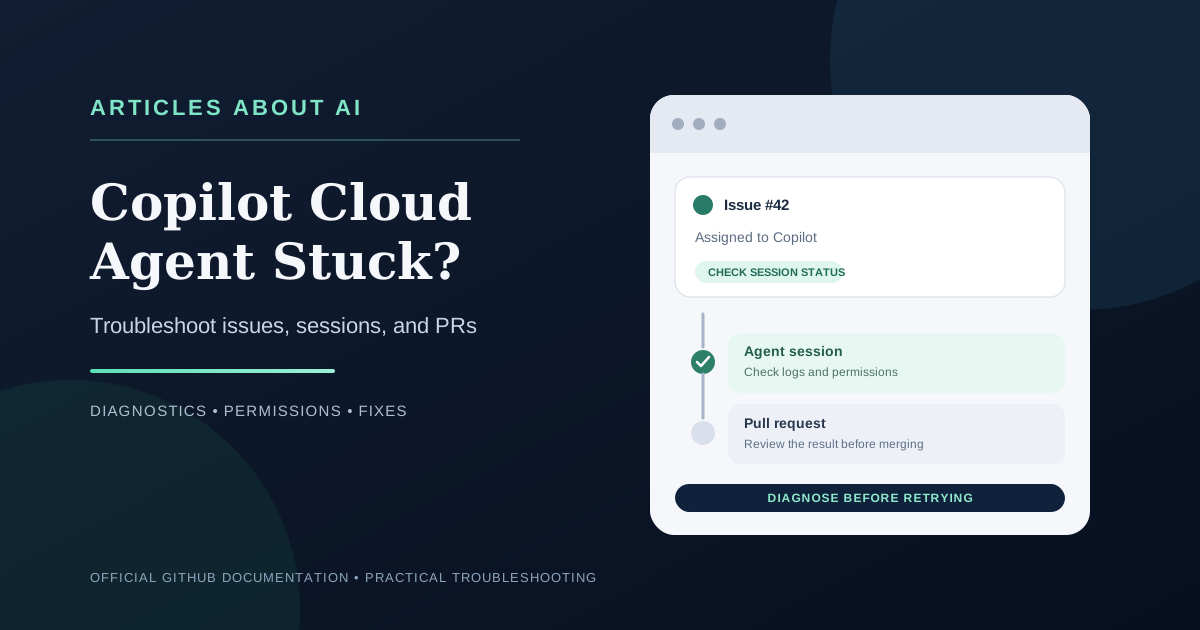
When GitHub Copilot cloud agent appears to do nothing after you assign it an issue, opens a pull request but stops working, or ignores a follow-up comment, the problem is not always a model failure. The agent depends on your Copilot plan, repository and organization policies, permissions, GitHub-hosted execution, and the state of the issue or pull request.
The fastest way to diagnose the problem is to identify exactly where the workflow stops. An agent missing from the Assignees menu points to a different cause than an issue assigned to Copilot with no visible activity. A pull request with a “Copilot started work” event has already reached a later stage, so its session logs are the best place to begin.
This guide follows GitHub’s official troubleshooting documentation. It distinguishes documented requirements from diagnostic suggestions and explains when to retry, when to ask an administrator for help, and when a retry is unlikely to fix the underlying problem.
First, identify where the workflow stops
GitHub Copilot cloud agent can research a repository, plan work, edit files in its own hosted environment, and open a pull request. It is different from agent mode inside an IDE, which works in your local development environment. Make sure you are troubleshooting cloud agent, not inline code completion or local IDE agent mode.
Use the symptom that best matches what you see:
- Copilot is missing from the issue’s Assignees list: check plan eligibility and whether cloud agent is enabled.
- You assigned the issue, but nothing happens: wait briefly, refresh the issue, and look for Copilot’s 👀 reaction and a draft pull request.
- A pull request exists, but the agent has stopped: open the agent session logs and inspect the last recorded activity.
- Copilot ignores a pull-request comment: check write access, assignment status, and whether the pull request is still open.
- The agent cannot access a website or dependency: inspect any firewall warning in the pull request or comment.
- The agent finishes, but GitHub Actions checks do not run: review the workflow-approval behavior; this can be expected rather than an agent failure.
This separation matters. Repeatedly unassigning and reassigning a task will not fix a missing subscription, a disabled repository policy, or a permission restriction.
1. Copilot cloud agent is missing from the Assignees list
GitHub says cloud agent is available with paid Copilot plans, but availability also depends on repository and account policies. For organization-owned repositories, an organization or enterprise administrator may control access. For a personal repository, the feature can be disabled in the subscriber’s settings.
What to check
- Confirm that your account has access to an eligible paid Copilot plan.
- Open your Copilot features settings at github.com/settings/copilot/features and check whether cloud agent is enabled.
- If the repository belongs to an organization, ask an administrator whether the organization or enterprise policy permits cloud agent.
- Confirm that the repository is hosted on GitHub and that the account type is supported.
Enterprise Managed User accounts have a specific limitation: cloud agent is not available in personal repositories owned by those managed accounts. GitHub explains that cloud agent uses GitHub-hosted runners, which are not available for those personal repositories. In that case, moving the task to a suitable organization-owned repository is the documented route—not repeatedly refreshing the Assignees menu.
When this fix will not work: If an administrator has disabled cloud agent or your account does not have an eligible plan, changing the issue title or rewriting the task will not make Copilot appear. The access or policy requirement must be resolved first.
2. You assigned an issue to Copilot, but nothing happens
After assigning an issue to Copilot, GitHub recommends waiting briefly and refreshing the issue page. You should see an 👀 reaction from Copilot, followed shortly by a draft pull request linked to the issue and an entry in the issue timeline.
Use this sequence:
- Open the issue and verify that Copilot is still the assignee.
- Wait a short period, then refresh the page.
- Look for the 👀 reaction and a draft pull request in the timeline.
- If neither appears, return to the eligibility checks above and verify that cloud agent is enabled for this repository.
- If a pull request does appear, stop treating the problem as a failure to start and inspect the pull request’s session status instead.
The 👀 reaction is a useful progress signal, not proof that the agent has completed the task. The draft pull request and timeline events provide the next evidence to inspect.
Check the task itself
A clear task description helps the agent understand the requested changes and validation. Include the relevant behavior, expected result, constraints, and tests. GitHub recommends repository custom instructions in the file .github/copilot-instructions.md to communicate how the project should be built, tested, and validated.
This is a quality improvement, not a guaranteed fix for a task that never starts. If no progress event appears, prioritize account eligibility, repository policy, and service-side status before rewriting the prompt repeatedly.
3. The pull request exists, but the agent appears stuck
If the pull request timeline contains a “Copilot started work” event, click View session. GitHub says the session logs stream live and show what Copilot is doing. Read the last few events before retrying: they may reveal whether the agent is still working, has encountered an error, or is waiting on an external dependency.
A cloud agent session can appear idle temporarily and then continue. If the session remains stuck, GitHub documents a maximum session duration of about one hour. The documented retry is to unassign the issue and assign it to Copilot again.
A careful retry procedure is:
- Open View session and note the last meaningful log entry.
- Check whether the session is still progressing or has timed out.
- If it is genuinely stuck, unassign the issue from Copilot.
- Reassign it only after checking for an underlying access, policy, or dependency problem.
- Review the new session and draft pull request to ensure that the agent has resumed the intended task.
If the agent stopped while responding to a pull-request comment, GitHub recommends trying the same comment again. Before repeating it, confirm that Copilot remains assigned and that the pull request is open.
Important: Do not assume that an apparently idle session is broken immediately. Use the session log and elapsed time as evidence, and avoid creating multiple overlapping tasks for the same change.
4. Copilot does not respond to pull-request comments
Cloud agent only responds to comments from people who have write access to the repository. It also needs to be assigned to the pull request, and the pull request must still be open. Mentions on merged or closed pull requests will not start new work.
Check these conditions in order:
- Confirm that your GitHub account has write access to the repository.
- Confirm that Copilot is still assigned to the pull request.
- Make sure the pull request is open rather than merged or closed.
- Mention @copilot in a new comment that describes the requested change.
- Look for the 👀 reaction on your comment and a new “Copilot started work” event in the pull-request timeline.
If the expected signals do not appear, review the session and assignment state. If you lack write access, ask a repository administrator to grant the appropriate permission or have an authorized collaborator post the request.
A comment such as “fix it” may also leave the intended change unclear. After confirming that the workflow is functioning, specify the expected behavior, relevant files or failing test, and what should count as a successful fix. This improves the task definition but does not replace the write-access and open-PR requirements.
5. The agent cannot access a website, package, or external dependency
Cloud agent runs in a hosted environment with network protections. GitHub explains that internet access is restricted by default to help prevent data exfiltration. If the agent attempts a network request blocked by the firewall, GitHub adds a warning to the pull-request body or comment identifying the blocked address and command.
If you see a firewall warning:
- Read the exact blocked hostname and command in the warning.
- Decide whether the resource is genuinely necessary for the task.
- Check whether the dependency can be installed from an already permitted source or whether the task can be completed without the request.
- If access is necessary, ask the repository administrator to review the cloud agent firewall configuration and the security implications before changing it.
Do not disable the firewall as a first-line troubleshooting step. A blocked request may be appropriate, especially if a repository issue or dependency script asks the agent to transmit source code or secrets to an unfamiliar host. Network access should be expanded only when the destination is trusted and the need is understood.
If the logs show a missing package, DNS failure, authentication error, or blocked request, record the precise message. These are different failure modes and require different fixes; a generic retry may reproduce the same error.
6. The agent opened a pull request, but GitHub Actions did not run
This symptom can be confusing because the agent may have completed its work successfully. GitHub says Actions workflows do not run automatically when Copilot pushes changes to a pull request by default. This is a security safeguard because workflows can access sensitive secrets or perform privileged operations.
If the pull request is waiting for checks:
- Review the proposed changes, especially any changes under .github/workflows/.
- Confirm that the workflows and permissions are appropriate for the branch.
- If you are authorized and trust the changes, use Approve and run workflows in the pull-request merge box.
- Review the resulting checks before merging.
Repository administrators can configure whether workflow runs require approval, but disabling approval may allow unreviewed Copilot-generated code to gain access to repository write permissions or workflow secrets. Do not change this setting merely to make a single pull request appear faster. Follow your organization’s security policy.
If the checks are running but failing, inspect the failure logs separately. A failing test or incompatible branch rule is not the same as a cloud agent that never started.
7. Screenshots attached to an issue are ignored
If the task relies on a screenshot and Copilot does not appear to use it, check the image size. GitHub documents a maximum image size of 3.00 MiB for cloud agent; images larger than that are removed from the request.
Try a smaller screenshot or crop it to the relevant area, then attach it again to the issue or task. Include a text description of the visible error and the expected result so the task remains understandable even if the image is unavailable.
This fix is relevant only when an oversized image is involved. If the agent cannot start at all, investigate plan access and repository policies first.
8. A quick diagnostic checklist
Before retrying a failed task, use this checklist to avoid repeating the same failure:
- Eligibility: Is the account on an eligible paid Copilot plan?
- Feature access: Is cloud agent enabled in the account, organization, and repository policies?
- Correct workflow: Are you using cloud agent rather than local IDE agent mode?
- Assignment: Is Copilot still assigned to the issue or open pull request?
- Progress evidence: Does the issue show the 👀 reaction or the pull request timeline show “Copilot started work”?
- Session logs: Does View session show progress, an error, or a timeout?
- Permissions: Does the person commenting have write access?
- Network: Is there a firewall warning or a failed external dependency request?
- Workflow checks: Are GitHub Actions waiting for explicit approval?
- Attachments: Are screenshots within the documented 3.00 MiB limit?
This checklist is intended to isolate the failing stage. It does not guarantee that every task will succeed: repository rules, unavailable services, unsupported account types, or a genuine bug may still require administrator action or GitHub Support.
Frequently Asked Questions
How long should I wait after assigning an issue to Copilot?
GitHub recommends waiting briefly and refreshing the issue. Look for the 👀 reaction and a draft pull request. If a pull request exists, use its timeline and session logs to diagnose the next stage.
Can I restart a stuck Copilot cloud agent session?
GitHub says a session that remains stuck will time out after about an hour. The documented retry is to unassign the issue and assign it to Copilot again. Check logs and permissions first so the new attempt does not repeat the same failure.
Why is Copilot missing from the Assignees list?
The account may not have an eligible paid Copilot plan, cloud agent may be disabled by an individual or organization policy, or the account/repository type may not be supported. Check those conditions before troubleshooting the task prompt.
Why does Copilot ignore my pull-request comment?
The commenter must have write access, Copilot must remain assigned to the pull request, and the pull request must be open. Check for the 👀 reaction and a “Copilot started work” event after mentioning @copilot.
Why did Copilot finish but my GitHub Actions checks did not run?
GitHub Actions workflows do not run automatically after Copilot pushes changes by default. Review the proposed changes, then use Approve and run workflows if you have permission and are satisfied that it is safe.
Should I disable the Copilot firewall to fix a stuck agent?
Not as a default fix. Inspect the exact blocked request and decide whether it is necessary and trusted. Ask an administrator to review the security impact before changing network restrictions.
Conclusion
When GitHub Copilot cloud agent does not start or appears stuck, identify the stage that failed before retrying. A missing Assignees option usually points to eligibility or policy; an assigned issue with no activity needs a progress check; a pull request with a start event calls for session-log inspection; and ignored comments require write access, an active assignment, and an open pull request.
Check firewall warnings, screenshot limits, and workflow approvals when the evidence points to those specific causes. Retry only after understanding the failure, and review Copilot’s changes and test results before merging. This approach is more reliable than repeatedly reassigning issues or changing repository security settings without a clear diagnosis.
Official Sources
- GitHub Docs: Troubleshooting GitHub Copilot cloud agent — official diagnostic steps for missing assignments, stuck sessions, pull-request comments, firewall warnings, and screenshots.
- GitHub Docs: About GitHub Copilot cloud agent — eligibility, execution environment, supported workflows, and limitations.
- GitHub Docs: Configuring settings for GitHub Copilot cloud agent — validation tools and GitHub Actions workflow approval behavior.
- GitHub Docs: Starting GitHub Copilot sessions — supported entry points and starting sessions.