
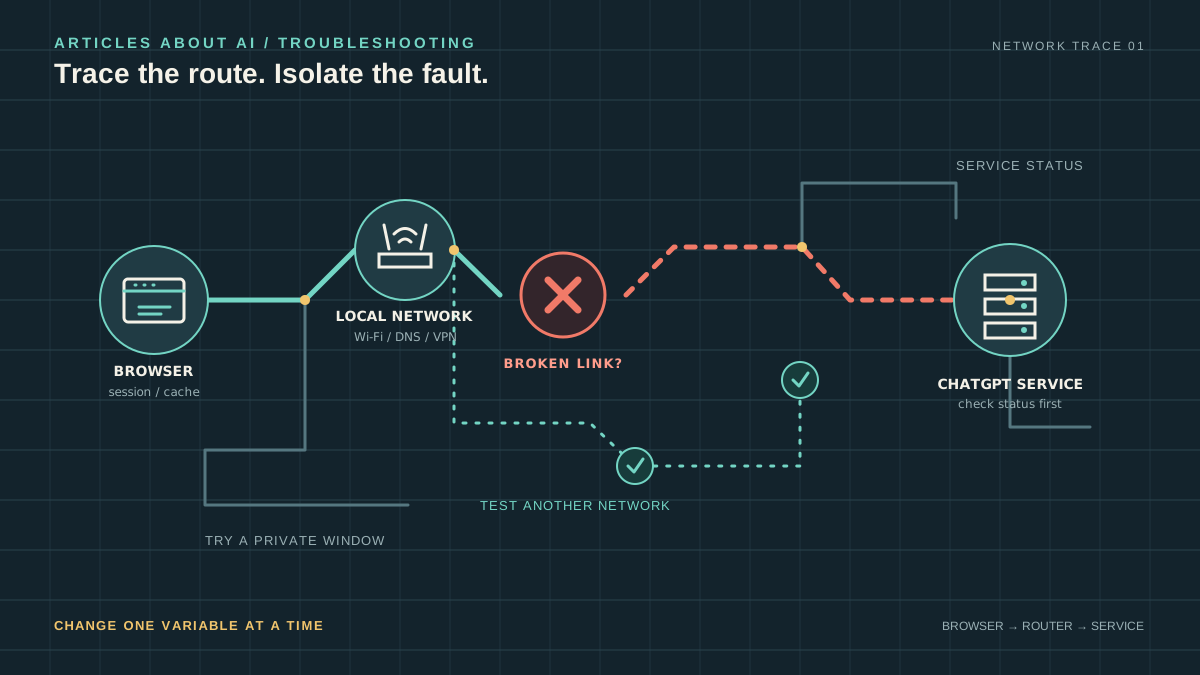
A ChatGPT network error usually means that a request or the connection carrying it did not complete reliably. The cause may be a temporary service incident, an unstable internet connection, a browser extension, a VPN or proxy, a DNS filter, or a network rule that interrupts traffic. The error message alone rarely identifies which one is responsible.
The fastest way to troubleshoot is to isolate the failing layer instead of changing many settings at once. First check whether OpenAI reports an incident. Then test a clean browser session, compare Wi-Fi with mobile data, and only after those checks investigate VPN, DNS, firewall, or WebSocket restrictions. This sequence helps distinguish a service-side problem from something specific to your device or network.
This guide covers the most useful checks for ChatGPT on the web and in supported apps, explains what each test can tell you, and identifies the information worth collecting if you need support. OpenAI’s own troubleshooting guide for ChatGPT error messages and network recommendations for ChatGPT errors are the primary references for product-specific advice; interface details and network requirements can change, so consult them when in doubt.
1. Check whether ChatGPT is experiencing an outage
Before changing your device settings, open the OpenAI Status page. Look for an active incident or a recently reported issue affecting ChatGPT. A service-side disruption can cause failed responses, connection errors, slow generation, or repeated disconnections even when your internet works normally.
If an incident is listed, avoid repeatedly reinstalling the app, clearing every browser setting, or changing router configuration. Those actions are unlikely to resolve a problem on the service side and can create new variables. Wait for the incident update, then retry once service has recovered.
A status page is useful but not conclusive for every individual case. Incidents can affect only some users, models, regions, or features, and a local network problem may happen at the same time as a wider disruption. If the status page shows no incident, continue with the checks below rather than assuming the service must be responsible.
2. Refresh the session and start a clean conversation
If ChatGPT was working moments ago, begin with the least disruptive steps:
- Wait briefly, then retry the request once.
- Refresh the browser tab or close and reopen the app.
- If a particular conversation is stuck, start a new chat and send a short test prompt.
- If the page is frozen, perform a hard refresh in the browser.
- Sign out and sign back in only if the problem appears related to the current session.
A short test in a new conversation is especially useful when a long thread is stuck while other parts of the service work. It helps separate a conversation-specific issue from a broader connectivity failure. Do not repeatedly submit the same large request while the connection is unstable; wait for the interface to recover and check whether a response was already generated.
If the problem is actually a sign-in or verification issue rather than a failed connection after login, use our separate guide to fix ChatGPT login problems. Authentication failures and network errors can look similar, but they often need different checks.
3. Test the browser without extensions
Browser extensions can block scripts, modify requests, filter URLs, or interfere with authentication and streaming connections. Privacy tools, content blockers, security extensions, and script controls are common variables to test.
Open ChatGPT in a private or incognito window and try a simple prompt. Most browsers disable extensions in private mode by default, although some allow extensions to run there if you have explicitly enabled them. If the error disappears, return to your normal browser and disable extensions temporarily, testing ChatGPT after each change. This helps identify the specific extension instead of leaving all of them disabled.
You can also try a different browser or a fresh browser profile. If ChatGPT works in the alternate browser on the same device and network, the issue is more likely to involve the original browser’s extensions, stored site data, or configuration than the internet connection itself.
Clear ChatGPT site data or cookies only after simpler tests, because doing so may sign you out and reset local preferences. Use the browser’s settings to remove site data for the relevant ChatGPT domain rather than indiscriminately clearing everything. Then sign in again and test. Avoid installing unfamiliar “network repair” extensions or granting broad browser permissions to tools that promise to fix the error automatically.
4. Compare Wi-Fi with mobile data
A network comparison is one of the most informative tests because it changes the route to the service without necessarily changing the device.
- If ChatGPT fails on Wi-Fi but works over your phone’s mobile data, investigate the Wi-Fi router, ISP, DNS settings, filtering, or firewall.
- If it fails on both Wi-Fi and mobile data on one device, investigate the browser, app, device settings, or account session.
- If multiple devices fail on the same Wi-Fi but work on another network, focus on the shared network.
- If several unrelated networks and devices fail at the same time, check the OpenAI Status page again.
When testing mobile data, disconnect the phone from Wi-Fi so the test really uses the cellular connection. If you use a VPN, note whether it is enabled during each test; otherwise, you may change both the network and VPN route at the same time and lose the ability to identify the cause.
A successful switch does not automatically mean your ISP is at fault. The two networks may use different DNS resolvers, filtering policies, IP addresses, or routes. The point is to narrow the problem to a network path, then test the relevant components one at a time.
5. Temporarily test VPNs, proxies, and secure DNS filters
VPNs, proxy services, secure DNS products, and network-level content filters can affect which destinations your device can reach and how connections are handled. OpenAI’s troubleshooting guidance specifically recommends testing without VPNs or proxies and checking whether security filters interfere with ChatGPT.
If you use one of these services, disable it temporarily if safe and permitted, then retry ChatGPT. On a managed work or school device, do not bypass organizational security controls without permission; ask the network administrator to investigate instead. If the connection works only when a service is disabled, turn it back on after the test and identify the relevant rule or configuration rather than leaving your device unprotected.
Secure DNS and filtering services may block a required domain or return an unexpected response. If the problem occurs only on one network, compare its filtering policy with the requirements in OpenAI’s official network recommendations. Avoid changing DNS addresses at random. First establish that DNS or filtering is plausibly involved, and record the original settings so you can restore them.
6. Check firewall and network allowlisting
On a corporate, school, or otherwise managed network, a firewall or secure web gateway may block a required destination, rewrite traffic, or terminate long-running connections. OpenAI publishes a list of domains used by ChatGPT and related services in its network guidance. Administrators should consult that current list directly instead of copying a domain list from an old forum post.
Allowlisting must be done carefully. A network administrator should compare firewall, DNS-filter, proxy, and security logs at the time of the failed request, then allow only the destinations and traffic required by the service. A blanket reduction in network security is not a sound troubleshooting strategy.
If ChatGPT works on a home network but fails consistently on an office network, provide the administrator with the exact error, timestamp, affected device, and whether other users are affected. That evidence is more useful than a general report that “the internet is broken.”
7. Understand WebSocket connection failures
Some ChatGPT features use secure WebSocket connections in addition to ordinary HTTPS requests. WebSockets support a persistent two-way connection, which can be important for streaming updates and interactive features. A proxy or firewall that blocks the WebSocket upgrade handshake, inspects the connection incorrectly, or closes an idle connection too early may cause a feature to stall or disconnect even though ordinary websites load.
OpenAI’s network guidance identifies WebSocket requirements for ChatGPT and Codex and describes the relevant destinations and port requirements. For ChatGPT, administrators should check the current official guidance for the required secure WebSocket traffic, including the documented ChatGPT destination, over TCP port 443. Do not assume that because a page opens over HTTPS, every connection needed by the app is permitted.
If you are an ordinary user on a home network, you usually cannot inspect the full handshake directly. You can still compare browsers and networks and give those results to support. If you manage the network, inspect proxy and firewall logs, TLS inspection settings, WebSocket upgrade handling, idle timeouts, and any policy that rewrites or terminates long-lived connections.
8. Restart the router only when the evidence points to the network
Restarting a router can help if the router has become unresponsive or has a temporary connectivity problem, but it should not be the first response to every ChatGPT error. Check whether other websites and devices are also affected. If your whole connection is unstable, a router restart may be reasonable; if ChatGPT alone fails while other secure services work, first test the browser and filtering layers.
If you do restart networking equipment, follow the manufacturer’s instructions and allow it to reconnect fully before testing. Avoid factory-resetting the router as a troubleshooting shortcut: that can erase ISP settings, Wi-Fi configuration, and other details without addressing the underlying cause.
For persistent problems, note whether the failure happens on both Wi-Fi and Ethernet, if available, and whether other devices on the same network experience it. Those comparisons help distinguish a wireless coverage issue from a wider routing or filtering problem.
9. Update the app and check device-specific issues
If the network error occurs in a native ChatGPT app, update it using the official app store or the product’s official download channel, then restart it. If the app still fails, test ChatGPT in a supported browser on the same device. A working browser but failing app suggests an app-specific issue or a difference in how the two clients connect.
On managed devices, security software may inspect encrypted traffic or apply application-specific rules. On personal devices, local firewall settings or network-protection apps may also affect connectivity. Change one setting at a time and restore any security protection you temporarily disabled during a diagnostic test.
If you recently changed your device, installed security software, enabled a VPN, or joined a new network, note that change. A useful troubleshooting report connects the error to a reproducible condition instead of listing unrelated settings.
10. Diagnose the exact failure pattern
Different symptoms can point toward different layers of the connection. Use the table as a guide, not as proof of a single cause.
| Symptom | First test | What the result may indicate |
|---|---|---|
| “A network error occurred” after submitting a prompt | Check service status, then try a new chat and another network | A transient service issue, interrupted request, or network path problem |
| A response starts but stops partway through | Retry once, test a different browser, and compare networks | A connection that drops during streaming or a temporary service issue |
| The page loads but generation never finishes | Check status, use a private window, and test a short prompt | Browser interference, a stuck session, or a connection that is not staying open |
| ChatGPT works on mobile data but not Wi-Fi | Review router, DNS, proxy, and filtering settings | A network-specific route or policy difference |
| ChatGPT works in a private window only | Disable extensions one by one and review site data | An extension or browser-profile issue |
| Multiple users on a managed network fail at once | Ask the administrator to review network logs and allowlisting | A shared firewall, proxy, DNS, or WebSocket policy |
| The issue affects several devices and networks | Check OpenAI Status and gather timestamps | A wider service problem or another shared factor |
The key is to record what changes the outcome. “It worked after I changed three settings” is less useful than “it fails on office Wi-Fi, works on mobile data, and still fails in a private browser window.” The latter gives support a concrete starting point.
11. When to contact OpenAI Support
If the error persists across browsers, devices, and networks, and there is no relevant service incident, contact OpenAI Support through the official Help Center. Before contacting support, gather a concise record of the problem:
- The exact error text and a screenshot, with private information hidden.
- The date, time, and time zone when the failure occurred.
- Whether it affects one conversation, all conversations, or a particular feature.
- The browser or app version, operating system, and device type.
- Whether the problem reproduces on another browser, device, or network.
- Whether a VPN, proxy, secure DNS product, or managed network is involved.
- Any relevant request or conversation identifier that support asks you to provide.
For difficult browser issues, OpenAI may ask for diagnostic information such as a HAR file or browser-console errors. These files can contain sensitive details, including URLs, identifiers, and request metadata. Capture and share them only through the official support process, review the instructions carefully, and avoid posting diagnostic files publicly.
Do not share your password, authentication codes, session cookies, or API keys in a support message. A legitimate troubleshooting process should not require you to publish those secrets.
12. What not to do
A network error is frustrating, but several common reactions make diagnosis harder or create avoidable risk:
- Do not repeatedly reinstall ChatGPT before checking service status and testing a browser.
- Do not factory-reset a router or erase all browser data as the first step.
- Do not disable antivirus, firewall, or organizational security controls permanently.
- Do not install unofficial applications or browser add-ons that claim to repair ChatGPT.
- Do not assume that a working internet connection rules out a blocked domain or WebSocket connection.
- Do not assume every error is caused by OpenAI; compare devices and networks before drawing that conclusion.
- Do not share passwords, session tokens, or raw diagnostic logs in public forums.
A disciplined test sequence is safer and usually faster than making several unrelated changes.
A practical troubleshooting checklist
Use this order when you want a quick, repeatable process:
- Check OpenAI Status for an active incident.
- Refresh ChatGPT and test a short prompt in a new conversation.
- Open a private browser window with extensions disabled.
- Try a second browser or device.
- Compare Wi-Fi with mobile data, keeping other variables unchanged.
- Temporarily test VPN, proxy, or secure DNS filtering if safe and permitted.
- If the issue is on a managed network, ask the administrator to check OpenAI’s official domain and WebSocket guidance.
- Update the app and restart the device only when relevant to the symptom.
- If the issue persists across environments, contact official support with timestamps and reproducible test results.
For related practical guidance, see our articles on how ChatGPT Search works and how to use ChatGPT effectively. These cover product workflows rather than connection diagnosis, but they can help you distinguish a feature question from an actual connectivity problem.
Final thoughts
The most reliable way to fix a ChatGPT network error is to identify where the connection fails. Check for a service incident first, then test the session and browser, compare networks, and investigate VPNs, DNS filters, firewalls, or WebSocket handling only when the evidence points in that direction. If the problem remains reproducible across devices and networks, collect clear diagnostic details and contact OpenAI Support.
This approach avoids unnecessary resets and preserves useful evidence. Most importantly, it turns a vague error into a testable problem: which device, on which network, under which conditions, fails to connect?