
ChatGPT is straightforward for a one-off question. Longer work is different. A research assignment, product launch, job search, or recurring report can involve many conversations, reference files, decisions, and rules that you do not want to explain again every time.
ChatGPT Projects give that work a dedicated space. A project can group related chats, files, and project-specific instructions so you can return to the same body of work without rebuilding the context from scratch. Available tools and limits can vary by account, subscription, and workspace settings, so check the current interface and official documentation before relying on a particular feature.
This guide explains how to create a project, configure it, move eligible conversations into it, and use it as a repeatable workflow rather than just another item in the sidebar.
What ChatGPT Projects do
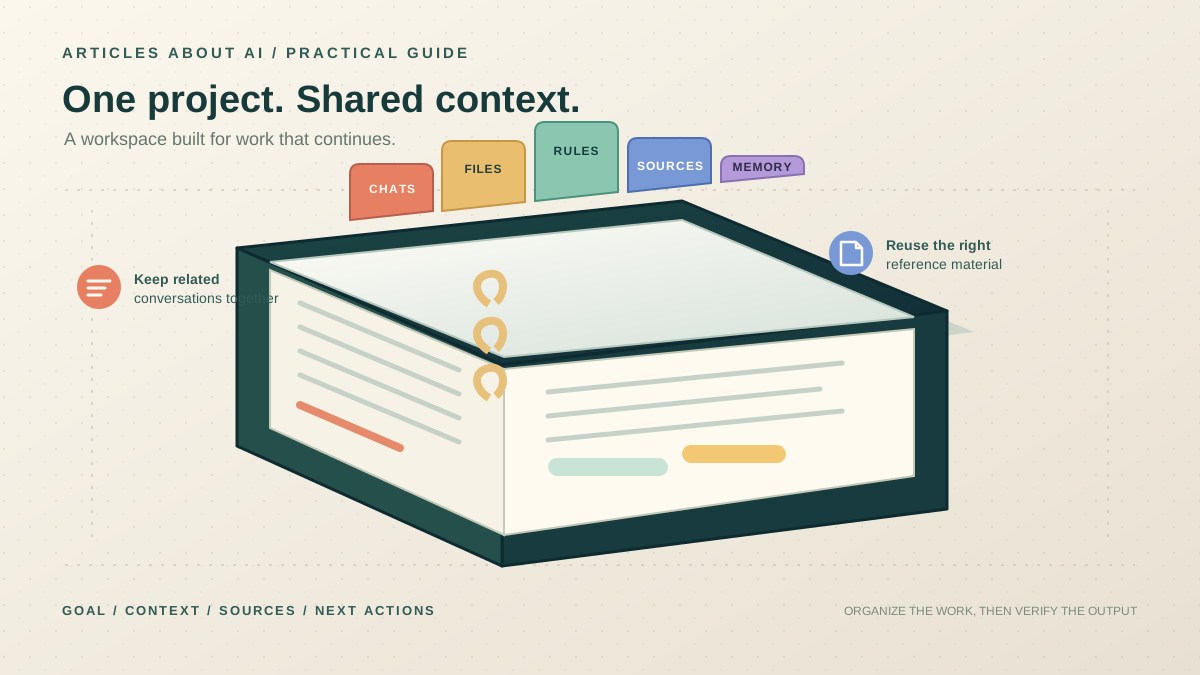
A Project is a workspace for a continuing goal. It can contain conversations, uploaded reference material, instructions for how ChatGPT should work in that space, and supported connected-app sources. It is useful for a single large task or a recurring activity such as a weekly research brief.
For example, a project for a report might contain the original brief, source documents, a definition of the intended audience, and separate chats for research, analysis, drafting, and review. A study project might hold course notes, a glossary, and instructions to quiz you before revealing answers.
A Project is not a guarantee that every detail will always be remembered or that every answer will be correct. Treat its contents as working context, not as a substitute for checking evidence. OpenAI explains the current feature set in the official Projects in ChatGPT guide.
Step 1: Create a project for one clear outcome
- Sign in to ChatGPT.
- Open Projects in the sidebar and select New project.
- Give it a specific name, then choose an icon and color if those options appear.
- Start with one well-defined goal instead of putting every unrelated task into one workspace.
Names such as “Q4 Customer Research,” “Spanish Study Plan,” or “Website Redesign” are easier to find than broad labels such as “Work.” Create a separate project when a task needs its own files, standing rules, collaborators, or history. For a quick question that is unlikely to matter again, an ordinary chat is usually simpler.
Step 2: Add useful project instructions
Project instructions tell ChatGPT how to approach work inside the project. Open the project menu, go to its settings, and describe the goal, audience, output, and important constraints. Labels may change as the interface evolves.
You can adapt this example:
Help me prepare a research brief for a non-specialist audience. Use clear English and descriptive headings. Prefer the source files in this project, cite the relevant source or page when possible, and separate verified facts from interpretation. Do not invent statistics or quotations. Flag claims the sources do not support, and ask before making a major assumption.
Concrete instructions are more useful than “be smart” or “give good answers.” You can specify a house style, word range, terminology, date format, or final-review checklist. Keep the instructions focused: put stable rules in project settings and task-specific requirements in each chat. OpenAI notes that project instructions apply within the project and override your global custom instructions for project chats.
If you need help designing reusable instructions, see our guide to writing better ChatGPT prompts. The same principles apply: state the task, supply relevant context, define constraints, and describe the output you need.
Step 3: Add only the sources that matter
Projects can use reference material such as PDFs, documents, spreadsheets, images, or pasted text. Start with a curated set rather than uploading every file you have. For a research project, useful sources might include:
- The original brief or research question.
- Primary sources, official documentation, or research papers.
- A glossary of specialist terms.
- A short note recording decisions and unresolved questions.
After uploading a file, ask ChatGPT to identify what it contains and confirm that it can read the sections you need. For a long report, ask it to locate relevant passages before requesting a synthesis. For a spreadsheet, name the columns and metrics that matter. Then verify the output against the source material.
Project file limits depend on the plan and may change. The official help page lists current limits and notes that only a limited number of files can be uploaded in one batch; check it before planning around a quota. For more detailed file workflows, see how to upload files to ChatGPT and analyze them.
You may also be able to add links from supported connected apps. OpenAI’s documentation describes supported Google Drive and Slack links, but adding a Drive link inside a project does not mean its contents are synchronized in advance. Confirm what ChatGPT can actually access before relying on an external source.
Step 4: Move eligible existing chats into the project
You do not always need to start over. When the interface offers Move to project, you can move an eligible conversation into a project; dragging a chat onto a project may also be available. The conversation can then use the project’s instructions and file context.
Move chats that contain decisions, drafts, or background you expect to reuse. Do not move every old conversation automatically: keep the workspace focused on information that still matters.
There are limitations. OpenAI notes that chats created with a GPT cannot be moved into a project, and the option may not appear for every conversation. Temporary Chats also cannot simply be added while remaining temporary. If a chat is ineligible, start a new conversation in the project and transfer only the necessary summary or source material.
Step 5: Give each conversation a distinct job
A project can contain multiple chats, so use separate conversations for different stages of a complex task. For a research brief, you might use:
- Scope: define the audience, goal, and questions.
- Source review: record what each reference says and where evidence is missing.
- Analysis: compare findings and separate facts from inference.
- Drafting: write from an approved outline.
- Quality check: test important claims against the original sources.
Begin each chat with its role and expected output. For example: “Use the project files to build a source table. Do not write the final report yet. Include each claim, its supporting source, the relevant location, and any uncertainty.”
This staged method makes it easier to review the structure before investing time in a full draft. Our guide to using ChatGPT effectively explains how to break large tasks into manageable steps. For writing projects that span several sessions, Projects can keep the reference material and standing rules together.
Step 6: Choose memory settings deliberately
Project context and account memory are related, but they are not identical. Depending on the available settings, a project may use a default memory mode or a project-only mode intended to keep project context separate from conversations outside it. Availability can depend on account settings and workspace controls, and shared projects have their own rules.
Before starting sensitive or tightly scoped work, open project settings and check which memory option is active. Do not assume a new project automatically uses the mode you want. If you need separation, choose project-only memory when available and confirm that the setting was saved.
Project memory is not necessarily shown as a complete, editable list of every detail that might be used. If a fact must remain accurate, record it in a clearly named source or repeat it in the relevant task instructions. If a detail should no longer be used, update or remove the source or conversation containing it, then test the result in a new chat.
For a deeper explanation of saved memories, chat history, and controls, read how ChatGPT Memory works.
Step 7: Use a repeatable workflow
Once the project is configured, use the same cycle whenever work resumes:
- Review the goal. Confirm the intended result and what has changed.
- Check the sources. Add new references and identify obsolete versions.
- Record decisions. Keep a short note of approved choices and open questions.
- Work in stages. Separate research, analysis, drafting, and review when that improves clarity.
- Check evidence. Verify important dates, figures, quotations, and technical claims in original sources.
- Save reusable results. If the interface lets you save a response as a project source, preserve a concise summary, approved outline, or decision note.
- Close with next actions. Ask for completed work, unresolved questions, and the next steps, then verify the list.
A short status note is often more reliable than expecting the assistant to infer everything from a long chat. Record the objective, decisions already approved, sources reviewed, open questions, and next actions. Update it when the project changes, and replace stale versions rather than leaving contradictory instructions side by side.
Step 8: Check sharing and privacy before adding sensitive material
Some accounts and managed workspaces offer project sharing. Where it is available, check who can access the project and whether each person has chat or edit permissions. A shared project may expose its chats, files, and instructions to collaborators.
Do not upload confidential client material, personal records, credentials, or proprietary information unless you are authorized to do so and understand the applicable controls. Project settings do not replace account-level data controls or workspace policies. OpenAI states that retention, residency, and data-control rules continue to apply; consumer plans and managed business or education workspaces can have different defaults for model training. Check the current OpenAI Projects documentation and your own Data Controls settings before using sensitive material.
For collaboration, agree on file naming, edit permissions, and a source of truth before sharing. Do not treat a shared project as a formal records-management system unless your organization has approved it for that purpose.
Common problems and practical fixes
Project instructions seem to be ignored
Confirm that the instructions were saved in the correct project. Start a new chat with a specific task that makes those instructions relevant. If two rules conflict, rewrite them so the priority is explicit—for example, say whether brevity or completeness takes precedence.
An answer misses information from a file
Check that the file is present and readable, then ask a targeted question about the relevant section. If necessary, upload a cleaner copy or quote the passage. Do not assume every response uses every page of every file. Verify important claims yourself.
You cannot add a file or move a conversation
Check the current file quota for your plan. Remove superseded material or split genuinely different work into separate projects. A conversation may be ineligible to move, including chats created with a GPT or Temporary Chats. In that case, start a new project chat and transfer a concise summary.
The project uses outdated context
Review the sources and conversations that belong to the project. Add a clear note with current facts and decisions. If an old conversation is misleading later work, remove it when the interface permits or start a clean project containing only current sources.
A project setup checklist
Before relying on a project for important work, confirm these points:
- Outcome: What exactly must be completed?
- Audience: Who will use the result?
- Sources: Which files or official references take priority?
- Rules: What style, format, constraints, and verification steps apply?
- Work stages: Which tasks should be separated into chats?
- Memory and access: Which memory mode is appropriate, and who can see the material?
- Decision log: Where will approved choices and open questions be recorded?
- Completion test: What evidence will show the work is ready to use?
A writing project might contain a style guide, approved examples, source material, and a rule not to invent quotations. A study project might contain course notes and instructions to quiz you before showing answers. A business project might define approved metrics and require a clear separation between verified data and recommendations. These are workflows, not guarantees: review important outputs and adjust the setup when the project changes.
The bottom line
Treat each ChatGPT Project as a deliberately configured workspace: define one goal, add concise instructions, curate reference material, separate complex work into stages, and maintain a short record of decisions and next actions. Check memory and sharing settings before adding sensitive information, and verify important outputs against their original sources.
Projects can reduce repeated setup and make ongoing work easier to resume, but they do not remove the need for clear prompts, good source management, privacy judgment, or fact-checking. Build those habits into the workflow from the beginning.