
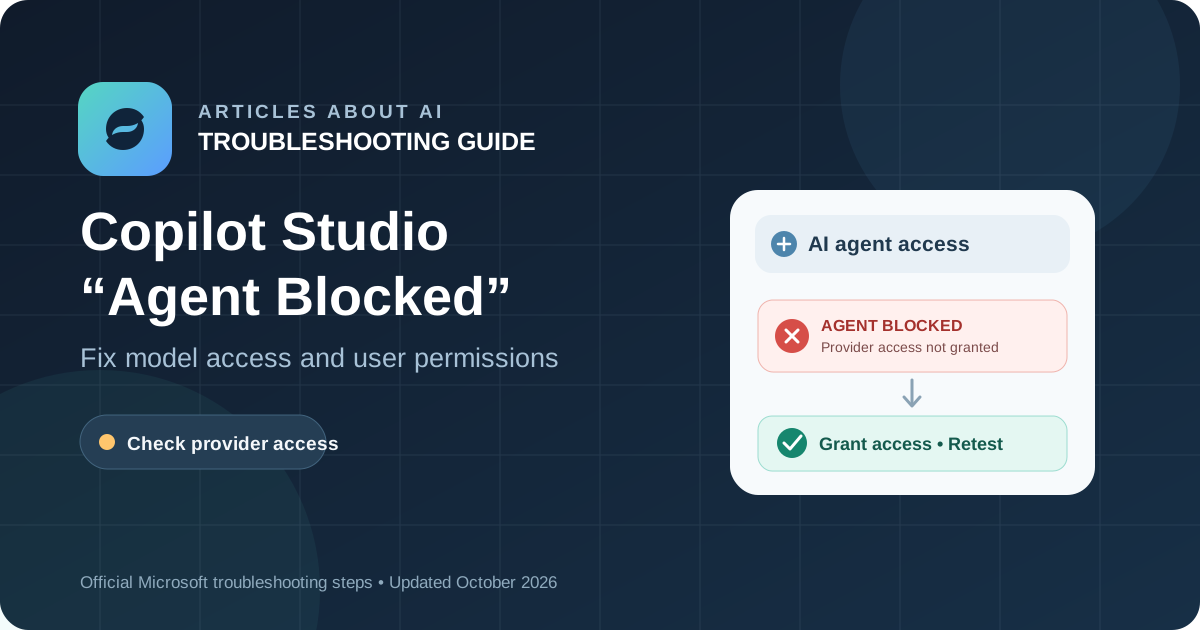
If your Microsoft Copilot Studio agent returns an “Agent Blocked” message when someone sends a prompt in Microsoft 365 Copilot or Microsoft Teams, the problem may be an access restriction—not a broken prompt or a failed agent build.
Microsoft documents a specific issue affecting Copilot Studio agents configured to use certain third-party AI models, including Anthropic models such as Claude Sonnet 4.6. An administrator must enable access to the relevant provider and grant it to the users who need the agent. Microsoft says access to Anthropic models is off by default in the European Union.
The good news is that Microsoft documents two workarounds: keep the current model and grant the necessary access, or switch the agent to the default Microsoft model.
Official source: Microsoft 365 Copilot extensibility — Known issues.
Quick fix
If the error matches Microsoft’s documented third-party-model issue:
- Ask an AI Administrator or Global Administrator to open the Microsoft 365 admin center.
- Go to Copilot → Settings → View all.
- Open AI providers operating as Microsoft subprocessors.
- Select the provider used by the agent.
- Under Choose who can access…, add the affected users or, preferably, their Microsoft Entra security group, then select Save.
- Allow 10–15 minutes for the assignment to propagate.
- Ask an affected user to try the agent again.
If the organization needs an immediate alternative and the agent can work with a different model, change its model setting in Copilot Studio to the default Microsoft model. Microsoft documents this as another way to unblock the agent without the Anthropic access assignment.
1. Confirm that this is the right error
Before changing tenant settings, check the exact message and where it appears.
The documented issue is a good match when:
- The agent was built in Microsoft Copilot Studio.
- It was added to Microsoft 365 Copilot or Microsoft Teams.
- The agent uses a third-party model, such as an Anthropic model.
- The user sees “Agent Blocked” in response to a prompt.
- The on-screen message suggests changing the agent to another available large language model (LLM).
If those details match, start with provider access. Rebuilding the agent, rewriting its instructions, or repeatedly publishing it is unlikely to fix a restriction that is applied to the user’s access to the model.
Do not confuse it with a Teams sharing error
Microsoft documents a separate Teams problem that displays “You don’t have access to talk to this bot, contact the owner.” That error can occur when the agent is installable but tenant app settings or agent-sharing permissions do not authorize the user.
That is a different failure path. If your message is about not having access to talk to the bot, review the corresponding Teams troubleshooting section in Microsoft’s known-issues documentation instead of assuming that third-party model access is the cause.
For other general Copilot problems, see our Microsoft Copilot troubleshooting guide.
2. Fix the problem while keeping the current AI model
This is the appropriate route when your organization needs to keep the third-party model configured for the agent.
Step 1: Sign in with an administrator account
The provider-access change must be made by an administrator with the required permissions. Microsoft identifies an AI Administrator or Global Administrator as the role for this documented workaround.
If you are an ordinary agent user and cannot open the relevant administration settings, contact your Microsoft 365 administrator. Do not try to work around the restriction by using another person’s account.
Step 2: Open the provider settings
In the Microsoft 365 admin center, navigate to:
Copilot → Settings → View all → AI providers operating as Microsoft subprocessors
The exact layout may evolve as Microsoft updates its admin center, but use the named provider-settings section in the official instructions.
Step 3: Select the provider used by the agent
Identify which model is selected in Copilot Studio, then select the matching AI provider in the admin center. For example, if the agent uses an Anthropic model, configure access for the relevant Anthropic provider entry.
Do not enable a different provider and assume it will authorize the model your agent is actually using.
Step 4: Grant access to the right users
Under Choose who can access…, add the users who need to run the agent and save the assignment.
Microsoft supports individual users, security groups, and nested security groups. For a team or department, a Microsoft Entra security group is often easier to manage than assigning access user by user.
Check that the selected group is the one the affected users belong to. Apply the least access needed for the agent’s intended audience, and follow your organization’s approval and data-governance policies.
Step 5: Wait for the change to propagate
Microsoft says the assignment can take 10–15 minutes to propagate. A test immediately after saving may still fail, so wait before deciding the fix did not work.
After that interval, have an affected user reopen the agent and submit a simple, non-sensitive prompt. If possible, test with one user who should have access and compare the result with another affected user.
3. Use the default Microsoft model as a workaround
If the organization needs to restore access quickly, Microsoft documents a second option: change the agent’s model from the third-party model to the default Microsoft model.
This can be useful when the agent’s tasks do not depend on a capability unique to the original model, or when the administrator cannot immediately complete the provider-access assignment.
To try it:
- Open the agent in Microsoft Copilot Studio.
- Open the agent’s model or generative AI settings.
- Locate the current third-party model.
- Change it to the default Microsoft model.
- Save the change.
- Test the agent with the prompt that previously produced the error.
Microsoft states that this change makes the agent available to all users already assigned to it without the separate Anthropic access assignment.
Important: A model switch is not guaranteed to preserve identical behavior. Models can differ in response quality, reasoning, latency, and how they follow instructions. Retest the workflows that matter to your organization before treating the alternative as a permanent replacement.
If the original model is required, use the provider-access route instead.
4. The “Agent Blocked” error remains after granting access
If the message persists after saving the assignment and waiting for the documented propagation period, check these points in order.
Verify the provider and model
Return to the agent’s settings and confirm the model it actually uses. Compare that provider with the one configured in the Microsoft 365 admin center. A mismatch means the permission change may not address the model that is failing.
Verify the user or group assignment
Check that the affected user—or a group to which they belong—was included in the saved assignment. If access was granted to a group, confirm the intended group was selected. Avoid granting broad tenant-wide access as a quick diagnostic unless that change has been explicitly reviewed and approved by your administrator.
Retest after propagation
Wait the full 10–15 minutes, then ask the affected user to retry. If one user can use the agent but another cannot, compare their provider-access assignments and agent access before making additional configuration changes.
Check whether the message is actually different
An agent can be blocked for reasons unrelated to third-party model access. A Teams sharing restriction, tenant app policy, or another runtime problem needs its own diagnosis. Use the exact error text to choose the relevant section of Microsoft’s official known issues.
If the correct provider access is in place and the exact “Agent Blocked” error remains, record the model, affected user or group, time the assignment was saved, and the result after waiting. Give those details to your Microsoft 365 administrator or Microsoft Support rather than repeatedly changing unrelated settings.
5. Prevent the problem when rolling out agents
A few checks before rollout can reduce model-access interruptions.
Test with representative users
A successful test by the agent’s creator does not prove that every intended user has access to the model. Test with accounts that represent the people or groups who will use the agent.
Document model dependencies
Keep a short record of each production agent’s selected model, required provider permissions, intended audience, and administrator responsible for access. This makes it easier to diagnose whether a failure comes from model access or agent sharing.
Use managed groups where appropriate
When access is intended for a team, use an approved Microsoft Entra security group and review its membership as roles change. This is easier to maintain than a long list of individual assignments, but the group should still reflect the intended audience.
Test a fallback model before you need it
If uninterrupted access matters, evaluate whether the default Microsoft model can support the agent’s key tasks. Test representative prompts and critical workflows before relying on it as a fallback. A model change can affect results, so do not assume it is behaviorally identical.
Keep the diagnosis specific
Do not rebuild the agent, rewrite every instruction, or change unrelated tenant policies before checking the exact error. The provider-access issue has a documented administrative fix; other messages may point to different causes.
Frequently asked questions
Why does Copilot Studio show “Agent Blocked” when using Claude?
Microsoft documents this error when an agent added to Microsoft 365 Copilot or Teams uses a third-party model, such as an Anthropic model, but the organization has not enabled the required provider access for the affected users.
Who can fix the model-access problem?
Microsoft identifies an AI Administrator or Global Administrator for the documented provider-access workaround. If you do not have the required admin permissions, contact your organization’s Microsoft 365 administrator.
How long should I wait after granting access?
Microsoft says the assignment can take approximately 10–15 minutes to propagate. Wait for that period and then ask an affected user to retry the agent.
Can I fix the error without enabling Anthropic access?
Yes, if the agent can use another model. Microsoft documents changing the agent to the default Microsoft model as an alternative that does not require the separate Anthropic access assignment.
Does “Agent Blocked” mean the agent itself is broken?
Not necessarily. In the documented scenario, the issue is the user’s access to the third-party model, not necessarily the agent’s instructions or design. Confirm the exact message before rebuilding the agent.
Conclusion
The Microsoft Copilot Studio “Agent Blocked” error can occur when an agent uses a third-party model that has not been enabled for the affected users. The primary fix is to configure provider access in the Microsoft 365 admin center, assign access to the right users or security groups, and allow 10–15 minutes for propagation.
If you need an alternative immediately, Microsoft also documents switching the agent to the default Microsoft model, provided that model can meet your requirements.
Start by matching the exact error to Microsoft’s known issue, then apply the corresponding fix. This avoids unnecessary rebuilding and limits changes to the settings that are relevant to the problem.
Official source: Microsoft 365 Copilot extensibility — Known issues