
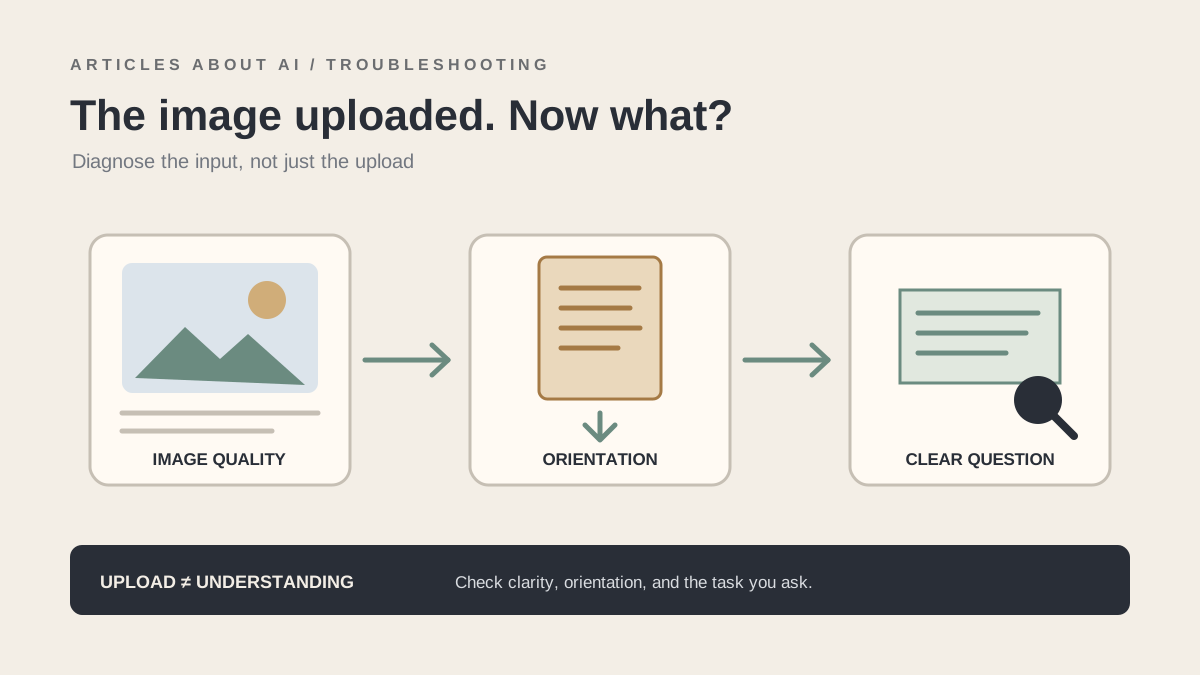
If ChatGPT accepts an image but cannot describe it correctly, misses text, or gives a vague answer, the problem may not be the upload itself. Image analysis depends on the clarity and orientation of the image, the information visible in the frame, the question you ask, and the model’s visual limitations. OpenAI notes that images can be ambiguous, rotated, or difficult to interpret, and that the model can make mistakes when describing visual content. (OpenAI’s Image Inputs FAQ)
If the image never attaches to the conversation, troubleshoot the upload rather than the visual answer: our guide explains how to upload files to ChatGPT and analyze them. For document-specific workflows, see how to analyze PDFs in ChatGPT.
This guide focuses on images that attach successfully but produce poor or incomplete analysis. For an attachment that fails before it reaches the conversation, see our separate ChatGPT file upload troubleshooting guide. The checks below help you determine whether the issue is image quality, the task prompt, a product limitation, or a broader input problem.
Quick checklist
- Confirm the image is a supported still-image format: PNG, JPEG/JPG, or non-animated GIF.
- Keep each image at or below OpenAI’s published 20 MB per-image limit.
- Use a clear, well-lit image with the relevant subject visible.
- Rotate the image upright and avoid cropping out context.
- For small text, provide a higher-resolution close-up as well as the full image.
- Ask one specific question instead of “What is this?” when you need a precise result.
- If several images are involved, reduce the number and test one at a time.
- Verify important results independently; image interpretation can be inaccurate.
These checks are based on OpenAI’s published image-input guidance. Availability and usage limits can vary by account, platform, and current product settings.
1. Check whether the image is supported and readable
OpenAI’s image-input documentation lists PNG, JPEG/JPG, and non-animated GIF as supported formats and specifies a 20 MB limit per image. If an image was converted from an unusual format, exported from a design tool, or saved from a messaging app, try exporting a clean copy as PNG or JPEG and attach that version.
But a technically valid file can still be hard to interpret. A dim photo, heavy blur, glare, compression artifacts, tiny text, or a subject that occupies only a small part of the frame can reduce the information available to the model. Before re-uploading, inspect the image yourself at normal size. If the key detail is not legible to you, it may not be legible to ChatGPT either.
For a screenshot or document, capture the relevant area cleanly. Avoid adding filters that alter colors or details if those properties matter to the question. If the full image provides useful context, keep it; then attach a close-up of the small area you want analyzed.
2. Fix rotated, upside-down, or awkwardly cropped images
OpenAI specifically notes that rotated or upside-down images can be misinterpreted. Rotate the image so text and objects appear in their normal orientation before attaching it. If the image was captured from a document or screen, check that the full page is upright and that no important edge is cut off.
Cropping requires judgment. A close-up can make small text easier to read, but an overly tight crop may remove the labels, legend, surrounding objects, or visual relationships needed to interpret it. When accuracy matters, provide both the full image and a focused crop.
For charts, include the title, axis labels, units, legend, and relevant data points. A graph without its scale or legend can be interpreted incorrectly even if the plotted line is clear. For a screenshot, keep the surrounding controls or error message visible if they explain the context.
3. Ask a more precise question
A vague prompt can produce a vague answer even when the image is clear. Instead of asking only “What is this?”, describe the task and what evidence you want.
Examples:
- Text extraction: “Transcribe the visible text exactly. Mark any uncertain words rather than guessing.”
- Chart interpretation: “Summarize the trend, identify the highest and lowest labeled values, and state any uncertainty caused by unreadable labels.”
- Screenshot troubleshooting: “Read the exact error message and explain what it indicates. Do not assume a cause that is not shown.”
- Object description: “Describe the visible object and list the visual clues supporting your identification.”
- Comparison: “Compare the two images and list only the differences you can clearly see.”
Ask for a structured answer when needed. You can request a table with “visible evidence,” “interpretation,” and “uncertainty.” This encourages the model to separate what is actually shown from what it infers.
If the first answer is wrong, correct the specific issue and ask a follow-up. For example, “The small label is in the bottom-right corner; inspect that region only.” A follow-up may help, but it cannot recover details that are too small, blurred, or absent from the source image.
4. Handle small text and documents carefully
OpenAI’s guidance warns that large text is easier to interpret when enlarged and that the model can struggle with non-Latin scripts or visual elements that depend on subtle colors or styles. If you need to read a receipt, table, interface screenshot, or scanned page, do not rely on a tiny full-page image alone.
Try this workflow:
- Attach the full page so the model can understand its structure.
- Attach a clear crop of the specific section or table.
- Ask for a verbatim transcription before asking for a summary.
- Tell ChatGPT to flag illegible text instead of filling gaps with guesses.
- Compare the extracted text against the original before using it.
If the text is in Arabic or another non-Latin script, inspect the transcription carefully. The model may miss diacritics, confuse similar characters, or misread text when the image is rotated or compressed. For critical documents, use a dedicated OCR tool as a second check rather than treating an AI transcription as authoritative.
5. Reduce the number of images when results become unreliable
OpenAI notes that the number of images you can add at once depends on image size and the amount of text accompanying them. If a request includes many images, large files, and a long instruction, test a smaller version of the task.
Start with one image and one question. If that works, add the next image or compare two at a time. This can help identify whether the issue comes from a particular file or from the complexity of the overall request. It is a diagnostic strategy, not a guarantee that a particular number of images will always work.
When comparing images, label them clearly in the prompt—“Image A” and “Image B”—and ask for a specific comparison. Avoid uploading many visually similar screenshots without indicating what you want compared.
6. Understand what image analysis cannot reliably do
Image inputs are useful, but they are not a guarantee of exact visual perception. OpenAI’s FAQ lists limitations involving ambiguous images, rotated text, graphs with subtle visual styles, precise spatial localization, panoramic or fisheye images, and approximate object counting. It also warns that descriptions and captions can be incorrect.
This matters for tasks where small visual differences are important. A model may summarize the broad trend in a chart while misreading a value, or describe a photo correctly overall while missing a small object. Ask it to quote visible labels and explain uncertainty, then verify critical details yourself.
Do not use ChatGPT as the sole authority for high-stakes interpretation of specialized medical images, such as CT scans. OpenAI explicitly identifies specialized medical-image interpretation as a limitation. Seek a qualified professional for medical decisions.
7. Distinguish image analysis from image generation
ChatGPT’s ability to create or edit images is different from its ability to interpret an uploaded image. If your request is “What does this screenshot show?”, you are asking for image input and analysis. If your request is “Create a new illustration based on this screenshot,” you are asking for image generation or editing. A tool or capability may have different availability and behavior depending on the task.
If the image attaches successfully but the answer is incomplete, focus first on clarity, orientation, framing, and the prompt. If the image attachment itself fails, use the upload troubleshooting guide instead. This distinction prevents you from reinstalling an app or changing file-upload settings when the actual problem is interpretation quality.
8. Test whether the problem is specific to one image or session
If ChatGPT consistently gives poor results, run a controlled test using a clear, ordinary photograph and a simple question. Then test the original image again with a more specific prompt.
- The clear test image works: the original image’s quality, orientation, content, or task may be the issue.
- The original works after a crop or rotation: the framing or orientation likely contributed.
- Different images all fail in one browser or app: test another supported platform and check for a current service issue.
- Only a specialized task fails: the model may be limited for that kind of visual reasoning.
Change one variable at a time. Do not assume that reinstalling the app will make ambiguous or low-resolution content easier for the model to read.
9. When to seek help
If supported images fail consistently even after you test a clear image, a short prompt, and another supported browser or platform, use the official OpenAI Help Center. Include the device and platform, approximate time, file type and size, the task you asked for, and whether the problem is a failed attachment or an incorrect interpretation.
If you share an example, remove personal information and confidential details first. Do not upload sensitive identity documents, private account details, or confidential work images merely to demonstrate a technical issue.
Frequently asked questions
Why does ChatGPT describe an image incorrectly?
The image may be ambiguous, blurry, rotated, tightly cropped, or too complex for the requested level of precision. The model can also make mistakes. Improve the image and prompt, then verify important claims independently.
Can ChatGPT read text in a screenshot?
It can often extract visible text, but small, blurry, rotated, or non-Latin text can be misread. Provide a readable crop and ask for uncertain words to be marked rather than guessed.
What image formats can I use?
OpenAI’s image-input FAQ lists PNG, JPEG/JPG, and non-animated GIF, with a 20 MB limit per image. Check the current official documentation for changes and account-specific limits.
Should I upload a higher-resolution image?
A clearer image can help, especially when labels or fine details are small. Do not simply enlarge a blurry image; capture or export a clearer original and preserve relevant context.
Bottom line
When ChatGPT cannot analyze an image accurately, check file validity → image clarity → orientation and crop → prompt specificity → number of images → model limitations. If the attachment succeeds, focus on what the model can actually see and what you asked it to infer. If the attachment fails, troubleshoot uploading separately.