
A PDF can contain a research paper, contract, policy, annual report, manual, or hundreds of pages of evidence. ChatGPT can help you interrogate that material, but reliable analysis takes more than asking for a summary. The key is to define the question, request traceable evidence, understand how the PDF is encoded, and check important claims against the original.
This guide focuses on analyzing PDFs after they are attached: extracting specific facts, comparing versions, interpreting tables, handling scanned pages, and validating quotations. For the basic attachment process and general file types, see our separate guide to uploading files to ChatGPT.
1. Identify what kind of PDF you have
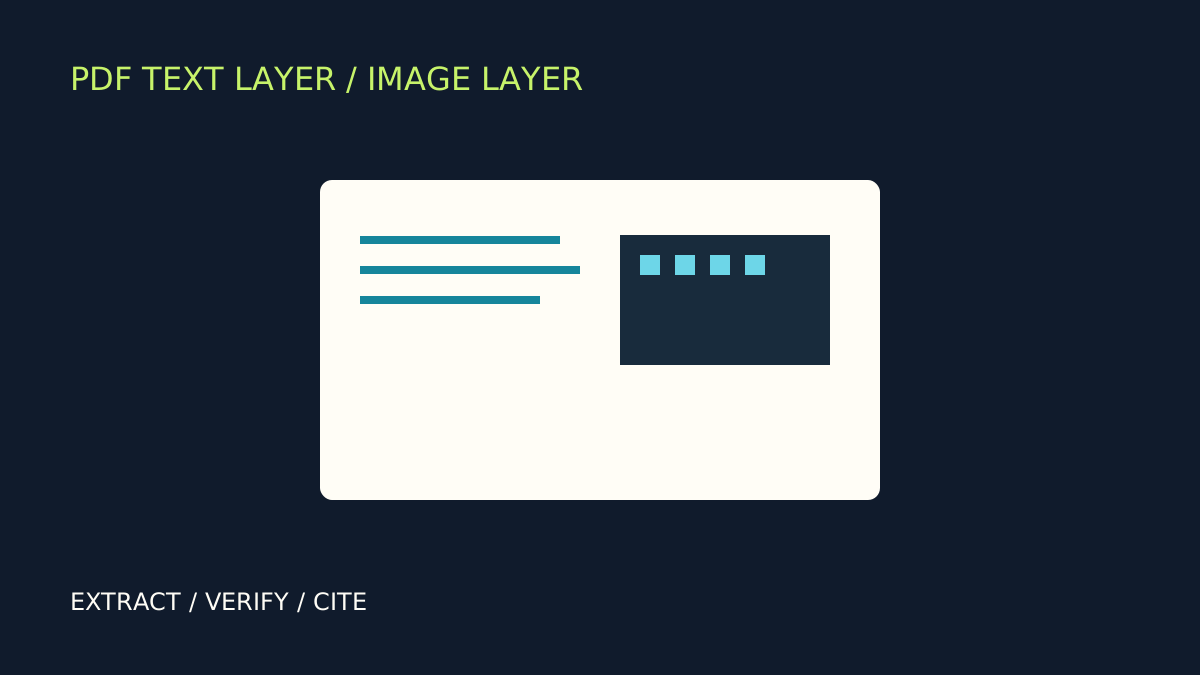
Before asking questions, check whether the PDF contains selectable text or is essentially a set of page images. Open it in a regular PDF viewer and try to select a sentence. If you can highlight individual words, the file probably has a usable text layer. If each page behaves like a single picture, it may be a scan and need OCR or a feature that can inspect page visuals.
This distinction matters because a successful upload does not prove that every page element is readable. Tables may be flattened into images, footnotes may be tiny, columns can be read in the wrong order, and scanned pages may have no embedded text at all.
OpenAI’s current file-upload guidance says that ChatGPT Enterprise supports visual retrieval for images and diagrams embedded in PDFs. Other plans and document workflows use text-based retrieval, which extracts digital text rather than embedded images. The separate Visual Retrieval with PDFs FAQ says this capability is Enterprise-only; do not assume it is available on Free, Plus, Pro, Team, or Edu.
A reliable PDF-analysis workflow
- Define the decision or question. Decide whether you need a summary, a comparison, a table of facts, a list of risks, or an explanation of one section.
- Name the scope. Give a chapter, heading, date range, table, or page range when you know it. For long reports, work in sections instead of assuming every page will be handled equally.
- Specify the output. Request a short brief, a structured table, bullet points, or a list of unanswered questions.
- Ask for traceability. Request short supporting quotations and the printed page number or section heading for each important claim.
- Verify against the original. Open the cited page and confirm the wording, context, units, and any qualifications before using the result.
For the general mechanics of attaching a document, see our guide to uploading files to ChatGPT. This article focuses on the more specialized work that comes after a PDF is attached.
2. Prompts that make PDF analysis precise
“Summarize this PDF” is too broad when you need evidence for a decision. Specify the scope, output, and how uncertainty should be handled.
Summarize a report
Summarize the attached PDF for a reader who has not seen it. State its purpose, scope, and five main findings. For each finding, include a short supporting quotation and the printed page number or section heading. Separate the author’s conclusions from interpretation. If the document does not support a claim, say so.
Extract facts into a table
Find every passage about [topic]. Return a table with: claim, exact supporting quotation, printed page or heading, relevant date or unit, and nearby caveat. Do not fill in missing values. Mark unsupported items “not found.”
Compare two PDFs
Compare these documents on [issue]. List what is unchanged, added, removed, or contradicted. Quote the relevant wording from both files and give the printed page or section in each. Explain whether each difference changes the meaning or obligation.
Review a research paper
Explain the research question, method, sample or dataset, main results, limitations, and conclusion. Distinguish measured results from speculation. Quote supporting passages and flag details the PDF does not provide.
These templates ask for evidence, not just a confident answer. Adapt them to the document’s purpose and narrow the task if the response becomes too broad. For more prompt structure ideas, see how to write better ChatGPT prompts.
Work in passes for long documents
First ask for the table of contents and a high-level summary. Then examine relevant chapters or page ranges. Finally, request a synthesis across those sections. Keep a list of extracted claims and page references for the final review. If a table or chapter seems to be missing, ask about it directly rather than assuming the first pass covered every page.
3. Tables, charts, and scanned pages
PDFs preserve page layout, but that does not guarantee every element is easy to extract. Merged cells, multiple columns, footnotes, rotated text, and tiny labels can be misread. Treat extracted numbers as provisional until you compare them with the source.
For a table, ask ChatGPT to identify its title, column headings, units, footnotes, and the exact row or category used. Request the calculation and intermediate values. For many rows or exact arithmetic, a clean spreadsheet or CSV is often a better source than a visually complex PDF.
OpenAI’s data-analysis documentation warns that scanned PDFs, image-based tables, and complex layouts may not yield reliable exact values. For a chart, ask for its title, axes, units, legend, and stated source before asking for an interpretation. Do not accept a trend description if the scale or series labels were missed.
If the PDF is a scan
If you cannot select words in a PDF viewer, it may contain page images rather than a text layer. Where permitted, use a trusted OCR tool or obtain a searchable copy from the publisher. Compare extracted text with the scan, especially names, dates, decimal points, minus signs, footnotes, and table values.
ChatGPT Enterprise has documented visual retrieval for embedded PDF images. Do not assume other plans can read every chart, diagram, or scanned page inside a PDF. If a critical visual cannot be interpreted reliably, upload a clear image separately if supported, or transcribe the table into a structured format. State which parts remain unverified.
When to split a file
Work chapter by chapter if the document is long, answers seem to skip sections, or complex tables overwhelm the response. Keep headings and page ranges in the prompt. Do not separate a footnote or appendix that changes the meaning of the main text.
4. Verify quotations, page references, and calculations
A polished summary can still contain a wrong number, a quotation with missing context, or a page reference that points to the wrong edition. Ask for supporting passages, but treat them as a navigation aid—not proof that the answer is correct.
Use this verification checklist:
- Quote check: Search for the quoted phrase in the original PDF. Confirm punctuation, negation, exceptions, and the sentence around it.
- Page check: Ask for the printed page number and section heading. PDF viewer page counts may differ from the page numbers printed on the document, especially when covers and appendices are included.
- Number check: Confirm units, date ranges, decimal points, percentages, and whether a value is a total, average, or estimate.
- Table check: Compare the selected row and column with the original. Make sure footnotes and suppressed rows do not change the meaning.
- Scope check: Ask which sections were used and which were not reviewed. A short answer should not imply that every page was exhaustively examined.
- Contradiction check: If the document gives conflicting figures in different places, ask ChatGPT to list both passages rather than choosing one silently.
For research-heavy work, combine PDF analysis with a source-checking workflow. Our guide to using ChatGPT Deep Research explains how to investigate claims beyond a single uploaded document. For web-grounded questions, how ChatGPT Search works explains why cited web sources still need to be opened and checked.
A final review prompt
Audit your previous answer against the PDF. List every factual claim, the exact supporting passage, and its printed page or section. Mark each claim as directly supported, inferred, ambiguous, or unsupported. Correct any error you find, and do not invent a page reference when you cannot locate one.
Use this audit before quoting a report in a presentation, memo, research note, or client deliverable. For legal, financial, medical, compliance, or other high-impact material, independently verify the relevant passages and consult the qualified professional responsible for the decision.
5. Limits, privacy, and troubleshooting
OpenAI’s current file-upload FAQ lists a maximum of 512 MB per document and a 2-million-token cap for text and document files. The same page currently describes an upload rate of up to 80 files every three hours, with Free users limited to three uploads per day. Limits may be reduced during peak periods, and plan, workspace, and feature restrictions can differ. Check the official FAQ if an upload fails; do not assume that a large PDF will be fully analyzed merely because it attaches successfully.
If ChatGPT appears to miss content, try these steps:
- Ask it to list the headings or table of contents it can identify.
- Request a specific chapter, page range, table, or appendix.
- Check whether the PDF contains selectable text or only scanned images.
- Reduce the task to one output at a time, such as extracting dates before writing a summary.
- Compare the answer with the original and ask for corrections where evidence is missing.
Protect sensitive documents
Before uploading a contract, personnel record, client report, unpublished research, or financial statement, check your organization’s rules and the service’s data controls. Remove information that is not necessary for the task. Do not treat a chat or file upload as a secure document vault.
OpenAI explains file storage, deletion, and model-improvement settings in its file-upload FAQ and data-controls guidance. Retention depends on where a file is stored and the workspace policy. Deleting a conversation and deleting a saved Library copy may be separate actions. For broader context, see Are ChatGPT conversations private?.
Frequently asked questions
Can ChatGPT analyze any PDF?
It can work with supported PDFs, but results depend on text quality, layout, file complexity, plan, and available tools. Scanned or visually dense documents require extra verification.
Can I ask for page citations?
Yes—ask for the printed page or section and a supporting quotation. Then verify both manually. The model may confuse PDF viewer page counts with printed page numbers.
Is the summary reliable enough to quote?
Not without checking the original. Use the answer to locate evidence, then verify the wording, context, figures, and caveats yourself.