
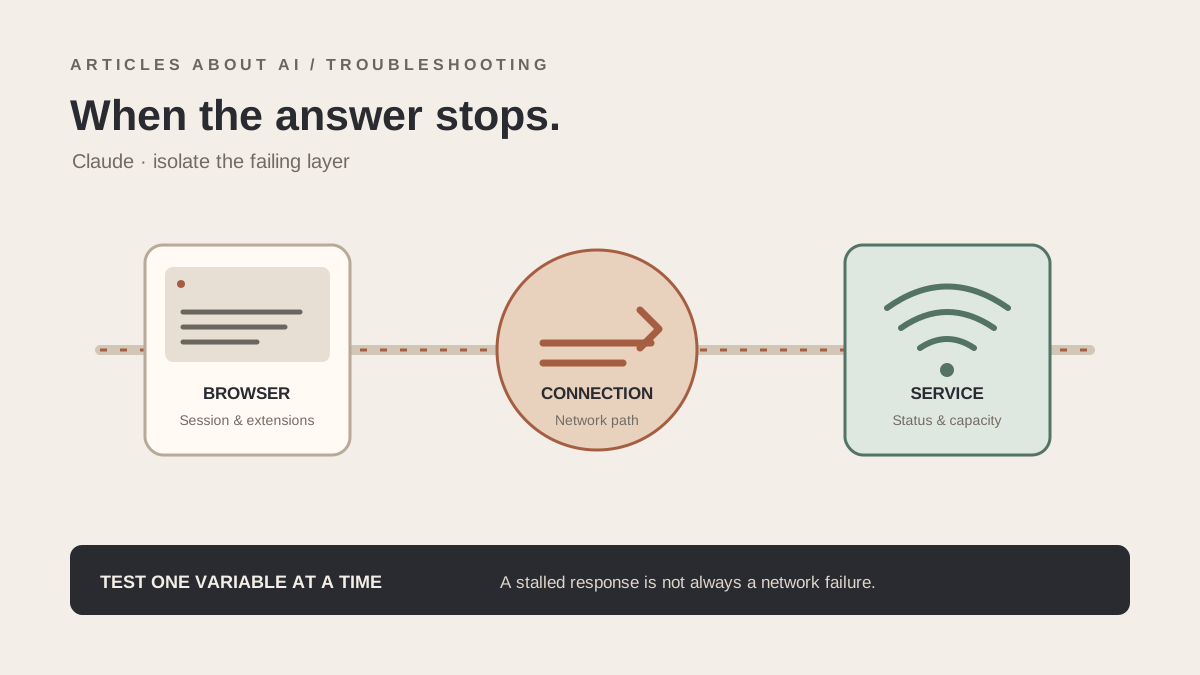
When Claude stops responding, the visible symptom can look the same even when the cause is different: a prompt may fail to send, a response may remain stuck, or the page may stop updating partway through an answer. Avoid repeatedly resending the same prompt or changing several settings at once. First determine whether the problem affects one conversation, one browser session, your network, or Claude more broadly.
If Claude responds but reports that you have used your allowance, that is a different problem from a stalled response. See our guide to Claude usage limits and why they may arrive sooner than expected before changing browser or network settings.
This guide covers the Claude web app and general troubleshooting. Product features, account limits, and organization-managed access can vary, so use Anthropic’s current help documentation and status page as the source of truth. Start with the least disruptive checks and keep a note of what changes the result.
Quick fixes to try first
- Check Anthropic Status for an incident affecting Claude.
- If only one conversation is stuck, open a new chat and send a short test prompt.
- Copy your unsent prompt before refreshing or navigating away.
- Refresh Claude once; if necessary, reopen the browser or app.
- Test in a private window or a different supported browser.
- Temporarily test without browser extensions that block scripts, cookies, or network requests.
- Compare your usual connection with another trusted network, if available.
- If the issue persists across browsers and networks, collect the error details and contact Anthropic support.
A short prompt such as “Reply with the word ready” is useful for diagnosis because it removes long context and complex instructions from the test. It is not a workaround for an outage, and it does not prove that all features are functioning.
1. Identify exactly what “not responding” means
Before troubleshooting, distinguish between these situations:
- The send action does nothing: the prompt may not have been submitted, or the browser may not be completing the request.
- Claude shows a loading or generating state indefinitely: the response may be stalled, the conversation may have hit a transient problem, or the service may be experiencing an incident.
- The response stops partway through: the connection may have interrupted, the response may have ended with an error, or the message may have reached a usage or output constraint.
- Claude loads, but every prompt fails: the problem is less likely to be limited to a single conversation.
- Only a tool, file, or particular feature fails: troubleshoot that feature separately rather than treating the entire service as unavailable.
Write down the exact message or error code if one appears. “Network error,” a blank page, a rate-limit notice, and an account-access message are different signals. Avoid interpreting a generic loading indicator as proof that the service is down.
2. Check Anthropic’s service status
Open the official Anthropic Status page and review current incidents and recent history. Look for an issue that matches the time you experienced the failure and the Claude product you are using.
If an incident is active, avoid repeatedly clearing browser data or changing network settings. Wait for the incident to be resolved, then reload Claude and test again. A status page is a useful indicator, but it cannot guarantee that every account or region is unaffected. If no incident is listed, continue with local diagnostics.
When testing after an incident, send one short prompt in a new conversation. If that works, return to the original thread and see whether the problem is limited to that conversation. Do not paste sensitive information into a new chat just to test whether the service responds.
3. Test whether the problem belongs to one conversation
Long or unusual conversations can behave differently from a fresh chat, and a single thread can fail even while the rest of the product works. Preserve any unsent text first.
Open a new conversation and send a simple prompt. Then interpret the result:
- New chat works, old chat does not: the problem may be specific to that thread, its context, or a feature used in it.
- Both chats fail in the same browser: test the browser session and network next.
- New chat works only after waiting: a transient failure may have cleared; do not conclude that one particular setting fixed it.
- Only file or tool-based prompts fail: check the relevant feature’s requirements and any displayed error rather than repeatedly retrying the same operation.
If the old conversation is important, keep its URL or title and avoid deleting it. You can copy the relevant non-sensitive context into a new chat if you need to continue working, but do not assume this repairs the original conversation.
4. Refresh carefully and protect unsent work
If Claude is frozen, copy your prompt to a notes app or another safe place before refreshing. If the prompt is long, select and copy it in full, then verify that the text was saved.
Refresh the page once. If that does not help, close and reopen the tab or browser. On mobile, force-close and reopen the app only after preserving any unsent text that you can still access.
Repeated refreshes are rarely a useful diagnostic strategy. If the same failure returns immediately, move to a different test. Do not clear all browser data as an opening move; it can sign you out and remove local site state without addressing a service-side incident or an account restriction.
5. Test the browser without making broad changes
A browser extension, blocked cookie, outdated browser, or corrupted session can interfere with a web application. To isolate the browser:
- Open Claude in a private or incognito window.
- Sign in using the same account and test a short prompt.
- If the private window works, return to your normal browser profile.
- Temporarily disable extensions that modify scripts, page content, privacy controls, or requests. Test one at a time.
- Update the browser if it is significantly out of date, then retry.
- If needed, test a different supported browser.
Private browsing changes more than one variable in some browsers, so a successful test does not identify the exact extension or setting. It only suggests that the normal browser profile may be involved.
If the private window fails in the same way, avoid disabling every security feature or installing untrusted “Claude fix” extensions. Continue with a network comparison and service check.
6. Check the network path
A device can load ordinary websites while a particular application request is blocked or interrupted. If it is safe and practical, compare your usual Wi-Fi with mobile data or another trusted connection. Keep the device and account the same so the comparison is meaningful.
- Claude works on another network: your usual network, proxy, VPN, DNS filtering, firewall, or internet provider may be involved.
- Claude fails on multiple networks and browsers: an account, service, or broader product issue becomes more plausible.
- Only a managed work or school network fails: ask the network administrator whether application traffic is filtered.
- Other websites also fail: troubleshoot the general connection before treating the problem as Claude-specific.
If you use a VPN or proxy, you can temporarily turn it off for a normal diagnostic test if doing so is safe and permitted. Do not use a VPN to evade account restrictions or organization policies. Avoid changing DNS, firewall, or router settings unless you understand how to restore the original configuration.
7. Check sign-in, account, and usage messages
If Claude responds with a clear account, usage, or access message, follow that message rather than assuming the app is frozen. Confirm that you are signed in to the intended account and that any displayed usage limit or reset time has passed before testing again.
For work or organization accounts, access and available features may be controlled by the organization. Contact the administrator if the problem began after a policy change or affects only your managed account. Do not create multiple accounts to bypass limits or restrictions.
If Claude works in one account but not another on the same device, compare the account status and permissions before resetting the browser. If neither account works, a local or service-side issue becomes more likely, though this comparison alone cannot prove the cause.
8. When the problem persists
Before contacting support, collect:
- The exact error text and any error code.
- The approximate time and time zone when it occurred.
- Whether a new chat works or only an existing thread fails.
- Browser or app version, operating system, and device type.
- Whether the issue persists in a private window, a second browser, or another network.
- Whether an attachment or specific feature was involved.
Use the official Anthropic Help Center to find the current support route. Share only information needed to investigate the issue. Redact private conversation content, credentials, API keys, and other sensitive details from screenshots. Never send a password or one-time authentication code.
Frequently asked questions
Why does Claude stop in the middle of an answer?
A mid-answer stop can result from a transient connection problem, a service issue, a conversation-specific failure, or an explicit error or limit. Check the exact message and service status, then test a new short prompt before changing settings.
Should I delete the conversation that is stuck?
No. Keep the original thread while troubleshooting. If a new conversation works, you can continue there temporarily, but deleting the old one is not a diagnostic step.
Does a working internet connection rule out a network problem?
No. Other websites working is useful evidence, but it does not prove that every request required by Claude is passing normally. Compare another trusted network and avoid changing multiple network settings at once.
What if Claude works in incognito mode?
That points toward something about the normal browser profile, such as extensions or stored site state, but it does not identify the exact cause. Re-enable extensions one at a time after testing instead of permanently disabling all browser protections.
Bottom line
Troubleshoot Claude in this order: service status → new conversation → safe refresh → private window or alternate browser → network comparison → account and usage checks → support. This sequence preserves your work and helps isolate the failing layer. If Claude fails across multiple browsers and networks, stop repeating local resets and use Anthropic’s official status and support resources.