
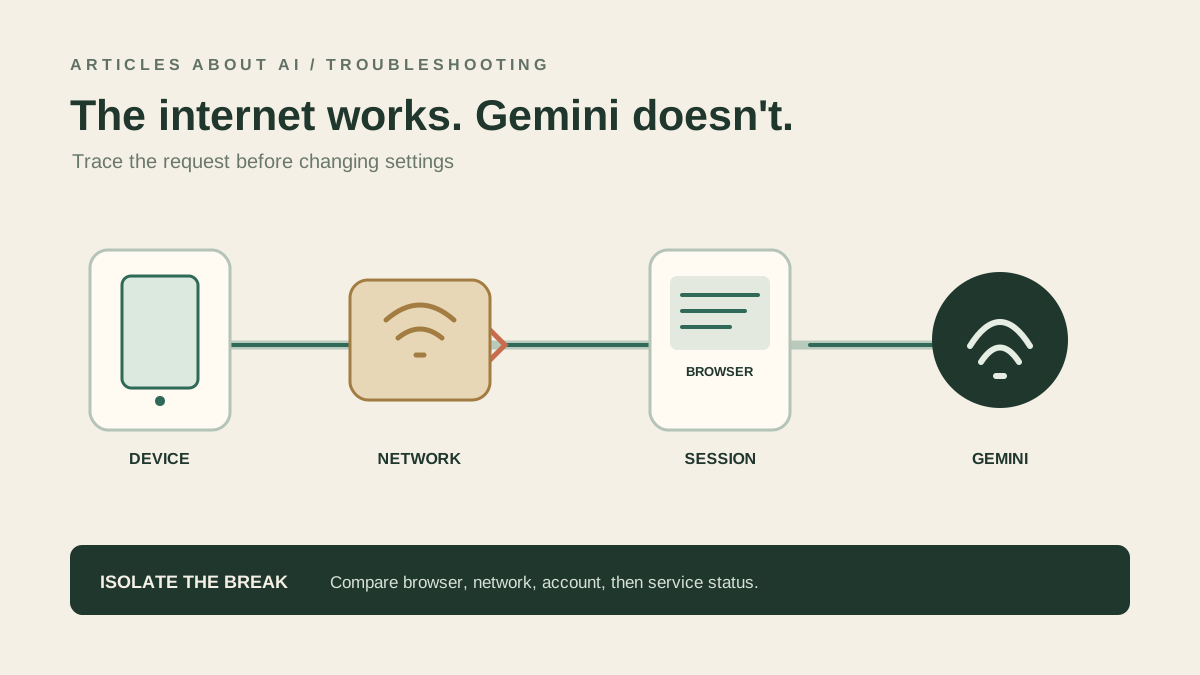
Google Gemini can show a network or connection error even when other websites open normally. That message does not automatically mean your Wi-Fi is broken, nor does it prove that Google’s service is down. The cause may be a temporary request failure, a browser session, an extension or privacy filter, a network path, account access, or a service-side issue.
If Gemini opens but refuses access during sign-in, use the separate guide to fix Gemini’s “Something went wrong” sign-in error. If the connection works and you want to configure a reusable assistant instead, see how to create a Google Gemini Gem.
This guide focuses on connection-style errors that appear while opening Gemini or submitting a prompt. It is different from an account eligibility error such as “Something went wrong” during sign-in; for that separate problem, see our guide to fixing Gemini’s sign-in error. Work through the checks below without changing multiple settings at once.
Quick checklist
- Open Gemini directly and refresh once.
- Start a new conversation and send a short test prompt.
- Test in a private window or another supported browser.
- If you use browser extensions, temporarily test without blockers that may interfere with page requests.
- Compare your usual Wi-Fi with mobile data or another trusted network.
- Confirm your Google Account and Gemini access eligibility.
- Check Google’s official Gemini Help Center for relevant access and troubleshooting guidance.
- If the problem persists across devices and networks, collect the error details and report it through the product’s official feedback route.
Do not reset the router or change DNS settings until you have evidence that the issue follows your network.
1. Confirm the exact error
Write down the full message before troubleshooting. “Check your internet connection and try again,” “Something went wrong,” a blank page, and a sign-in rejection can have different causes. If the message includes an error number, record it exactly.
Also note when the failure occurs:
- Gemini does not load at all.
- The page opens, but sending a prompt fails.
- The response starts and then stops.
- Only one conversation fails.
- Gemini fails only in one browser or on one network.
This distinction matters. If the homepage loads but sending prompts fails, your device has reached at least part of the service, but the interaction is still not completing. That is not enough evidence to blame a router or to claim a general outage.
2. Test a new conversation and refresh once
If the error appears inside one conversation, preserve any unsent prompt and open a new chat. Send a short, non-sensitive prompt. If the new conversation works, the issue may be specific to the original thread or its current session.
If every conversation fails, refresh the page once and wait for it to finish loading. Avoid clicking Send repeatedly while a request is still pending; repeated submissions can create duplicate attempts and make the result harder to interpret.
If the problem continues after one refresh, move to a browser test rather than refreshing indefinitely. Do not delete the original conversation as a troubleshooting step.
3. Test the browser session
A browser profile can have extensions, stored site data, or privacy settings that interfere with a web app. To check this without immediately deleting data:
- Open a private or incognito window.
- Sign in to Gemini with the intended Google Account.
- Submit a short prompt.
- If it works, return to the normal browser and temporarily disable extensions that block scripts, cookies, trackers, or network requests—one at a time.
- Try another supported browser if available.
A successful private-window test suggests the normal browser profile may be involved, but it does not identify the exact cause. Private mode changes several conditions at once. Use it as a diagnostic comparison, not as proof that one particular extension is responsible.
Only consider clearing Gemini site data if the failure appears limited to that browser profile and simpler tests have not helped. Clearing site data may sign you out or reset site preferences. It cannot fix an account restriction or a service-side incident.
4. Compare Wi-Fi with another network
If you can do so safely, test Gemini on mobile data or another trusted network while keeping the same device and account. This is one of the clearest ways to determine whether the failure follows your usual connection.
- Gemini works on mobile data but not Wi-Fi: the router, local DNS, proxy, firewall, filtering software, or internet provider may be involved.
- Gemini fails on both networks: a local Wi-Fi fault becomes less likely, although the account, device, or service may still be involved.
- Other websites also fail on Wi-Fi: troubleshoot the general connection first.
- Gemini fails only on a managed office or school network: ask the network administrator whether access is filtered.
If you use a VPN or proxy, temporarily disconnect it for a normal connection test if safe and permitted. Do not use location changes to bypass regional or account eligibility restrictions. If a VPN-off test makes no difference, turn it back on if you need it and continue with the next check.
5. Avoid risky network changes
Changing DNS servers, disabling firewall protection, resetting network settings, or factory-resetting a router is excessive as an initial response to a single application error. Such changes can interrupt other devices or weaken security without fixing the underlying cause.
If the error appears only on one network, document the comparison first. If you manage the network, review the documented firewall, proxy, and DNS settings and change one variable at a time. If it is a managed network, ask the administrator instead of bypassing its controls.
Keep the original settings available so you can reverse a test. Never install an unknown certificate, profile, or “network repair” app because a forum claims it fixes Gemini.
6. Verify account access separately from connectivity
A connection error and an access eligibility problem are not interchangeable. If Gemini loads but the account cannot use it, check Google’s official requirements for account type, age, and location. Work or school accounts may have administrator-controlled access, and availability can differ by product or region.
Use the official Gemini Help Center and the published Gemini sign-in requirements. If the account is managed by an organization, ask the administrator to confirm that Gemini is enabled for your account.
If the same account works on another device, compare browser and network settings on the failing device. If different accounts behave differently on the same device, account eligibility or permissions may explain the difference. Do not create accounts or change your birth date to get around access controls.
7. Check whether the issue may be service-side
If the problem appears on multiple devices and networks, it is reasonable to consider a temporary service-side issue. Check Google’s official Gemini Help resources and any status or incident information linked from Google’s support channels. A community post may reveal that other users report similar symptoms, but it is not authoritative confirmation of an outage or its technical cause.
If you find no official incident notice, continue the diagnostics rather than assuming the problem is your ISP. Conversely, if a widespread issue is confirmed, avoid repeated browser resets and wait for official updates before testing again.
8. If Gemini still shows a network error
Prepare a short report containing:
- The exact error message and any error code.
- The approximate time and time zone.
- Whether the error appears when opening Gemini or sending a prompt.
- Device, operating system, and browser/app version.
- Whether a private window, another browser, or mobile data changes the result.
- Whether the same account works on another device.
Use Gemini’s in-product feedback option or the official Help Center. Hide your email address and private conversation text in screenshots. Never share your password, recovery codes, or authentication codes in public discussions.
Frequently asked questions
Why does Gemini say the internet is disconnected when other sites work?
Other websites working shows that the connection is not completely down, but it does not prove that every request needed by Gemini is succeeding. Compare a private browser session and a second network before changing router settings.
Should I change DNS to fix Gemini?
Not as the first step. First establish whether the issue follows the network by comparing Wi-Fi with mobile data. Change DNS only if there is evidence it is relevant and you know how to restore the original setting.
Is “Something went wrong” the same as a network error?
Not necessarily. The wording can refer to different conditions. This guide focuses on connection-style failures. If Google explicitly says the account cannot access Gemini, follow the account, age, region, or administrator checks in our Gemini sign-in troubleshooting guide.
Does switching browsers prove the problem is fixed?
It helps isolate the cause, but it is not proof of a permanent fix. If another browser works, inspect the original browser profile. If both fail, compare networks and check official support information.
Bottom line
For Gemini network errors, use a controlled sequence: record the error → test a new chat → compare browser sessions → compare networks → verify account access → check official support. Avoid resetting your router or weakening security until the evidence points to a network configuration problem.