
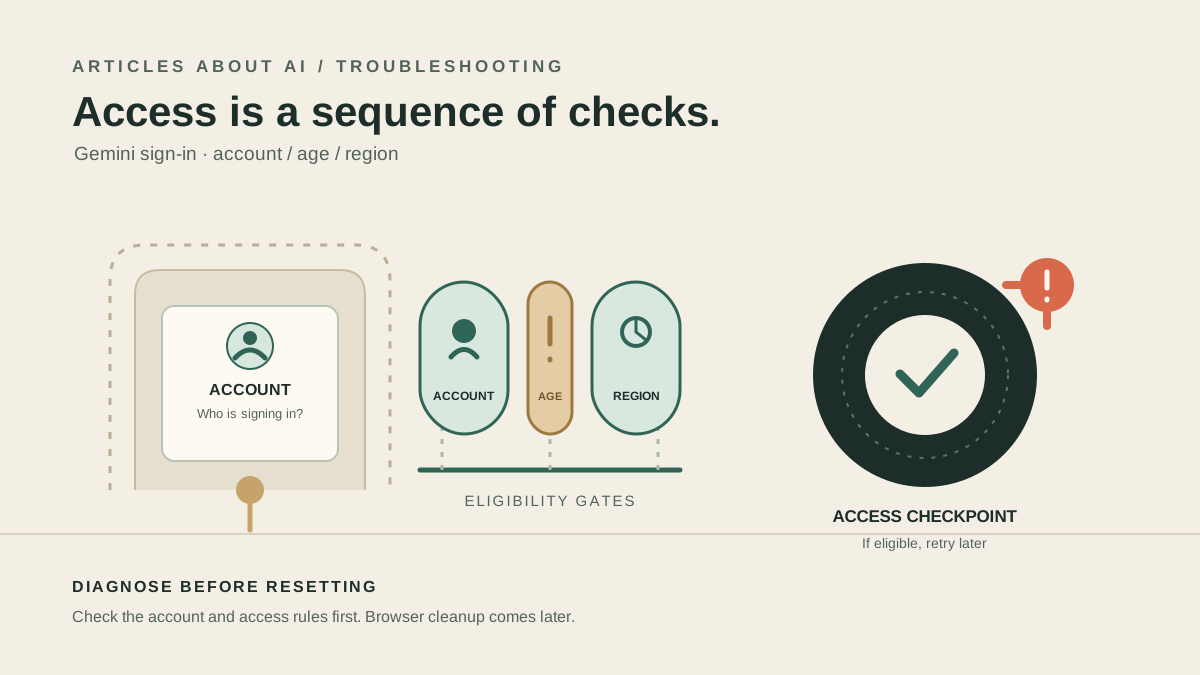
Seeing “Something went wrong” when you open Google Gemini or try to sign in can be confusing because the message does not identify one specific fault. Google’s own Gemini Help page says the message can mean that your account cannot access the app at that moment; possible reasons include location, age, and account type. Google also recommends trying again later. That means the right fix is to check access eligibility before spending time clearing browser data or changing network settings. (Google’s official sign-in guidance)
This guide focuses on that exact Gemini web-app message. It is not the same as a blank page, a page that never finishes loading, or a failed internet connection. Work through the checks below in order, changing one thing at a time so you can identify what actually resolves the problem.
Quick checklist: try these first
- Open Gemini directly in a supported browser.
- Confirm you are using the Google Account you intend to use, and check whether it is personal, work, school, or supervised through Family Link.
- Check the minimum-age rules and whether the account type is eligible.
- Confirm that the Gemini web app is available in your country or territory.
- If this is a work or school account, ask the administrator whether Gemini access is enabled for your account.
- Retry later if your account appears eligible but Google still displays the same message.
- Only then test a clean browser session or another network to rule out a local access problem.
If you need a fast decision, start with the account and eligibility checks. Google specifically identifies account type, age, and location as possible reasons for this message; a browser reset cannot change those eligibility conditions.
1. Confirm which Google Account is signed in
Open gemini.google.com and look at the profile icon in the upper-right corner. If several Google Accounts are signed in to the same browser, make sure you are testing the account you actually want to use.
A useful test is to open a separate browser profile or sign out and then sign in with just the intended account. Avoid removing accounts from your device or deleting saved data as a first step; you only need to establish which account is being used.
Check the account category:
- Personal Google Account: it must be an account you manage yourself and meet the applicable age requirements.
- Work Google Account: access depends on the qualifying Workspace edition and administrator settings; Google’s sign-in guidance also states that work-account users must be at least 18.
- School Google Account: the school’s administrator must have enabled Gemini access.
- Family Link–managed account: Google says a Family Link–managed Google Account cannot access the Gemini web app in the same way as an independently managed personal account. A parent’s settings may also restrict access.
The exact requirements are documented in What you need to sign in to Gemini Apps. If you discover that you are using the wrong account, switch to an eligible account and try again. If the account itself is not eligible, repeatedly refreshing the page will not make it eligible.
2. Check age eligibility and account restrictions
Age requirements depend on the account type and applicable rules in your country. Google’s current guidance says users generally need to be at least 13, or the applicable age in their country, for personal or school accounts; work-account access requires users to be 18 or older. Family Link supervision can introduce additional restrictions.
If the birth date on your Google Account is incorrect or Google asks you to verify your age, use Google’s official account process to resolve that issue. Do not create multiple accounts to try to bypass age or supervision controls.
For a managed account, ask the person responsible for the account whether the organization permits Gemini use. A school or employer may intentionally restrict access, even if other Google services work normally.
What this check tells you: if access fails only for a supervised, under-age, or managed account, the cause may be eligibility or policy rather than a fault with your browser. Continue with the next checks only if the account should be allowed to use the Gemini web app.
3. Verify that Gemini is available in your location
Google maintains a current list of supported locations for the Gemini web app. Availability can differ between the web app and the mobile app, so check the list for the product you are actually trying to use rather than assuming that availability in one version guarantees access in another.
Use Google’s official list: Where you can use the Gemini web app.
If your location is supported, make sure the account and device are not being identified as somewhere else because of a VPN, proxy, corporate network, or recent travel. If you use a VPN, you can temporarily disconnect it for a normal connection test, provided doing so is safe and allowed on your network. Then reload Gemini and sign in again.
Do not treat a VPN as a guaranteed fix. If Google’s eligibility checks reject the account for another reason, changing the apparent network location will not solve that underlying problem. The goal is to test whether the connection is confusing the access check—not to bypass regional or account restrictions.
If the web app is not listed as available for your location, use Google’s published availability information as the source of truth and wait for official availability to change.
4. If you use a work or school account, check with the administrator
Managed Google Accounts have additional controls that personal accounts do not. An administrator may need to enable the Gemini app or confirm that the organization’s Workspace edition and policies permit access.
If you are an employee or student, send the administrator the exact error text and explain whether Gemini worked before. Ask them to check access for your organizational unit or group rather than assuming that every user in the organization has identical permissions.
If you administer Google Workspace yourself, review Google’s official instructions: Turn the Gemini app on or off. The guide explains where administrators manage access to the Gemini app and notes that changes can take time to take effect.
After the administrator confirms a change, wait for the setting to propagate before testing again. Google notes that changes can take up to 24 hours, though they often apply sooner. Repeated sign-in attempts during that interval may not tell you whether the policy change has taken effect.
Remember that enabling Gemini in a managed environment is not the same as enabling every connected Google app or every feature. If the sign-in error disappears but a particular feature remains unavailable, check the documentation for that feature separately.
5. Test the browser without deleting everything
If your account, age, and location appear eligible, test whether the problem is specific to the browser session. Use the least disruptive checks first:
- Reload the Gemini page once.
- Open Gemini in a private or incognito window, then sign in with the intended account. If the error persists there, a normal-window extension or stored session is less likely to be the sole cause.
- Try a different supported browser, such as Chrome, Safari, Firefox, Opera, or Microsoft Edge.
- If Gemini works in another browser, return to the original browser and temporarily disable extensions that affect scripts, privacy, cookies, or page content. Test after each change.
- If the issue appears limited to the original browser, consider clearing site data for Google or Gemini and signing in again. Be aware that clearing site data can sign you out or reset site preferences.
Google lists supported browsers in its Gemini sign-in requirements. These browser tests are diagnostic steps, not confirmed fixes for every “Something went wrong” case. If the same message appears across browsers, do not keep repeating the same cleanup routine; return to account eligibility and service availability.
6. Compare another device or network
If you can do so safely, open Gemini on another device or switch between Wi-Fi and mobile data. Do not change several things at once.
- It works on another device with the same account: the original device, browser profile, or its configuration may be involved.
- It works on mobile data but not Wi-Fi: a network filter, proxy, DNS configuration, or organization-managed connection may be involved.
- The same account fails on different devices and networks: account eligibility, account policy, or a temporary access-side issue becomes more plausible.
- A different eligible account works on the same device: compare the account types and restrictions before changing device settings.
These comparisons narrow the possibilities; they do not prove the cause by themselves. For example, a different account may have different permissions, and a network change may also change the apparent region. Keep a short note of what you tested so you do not repeat steps that have already failed.
7. Know when to wait and try again
Google’s official explanation for the exact “Something went wrong” message includes the possibility that the account cannot access Gemini at that moment and says you can try again later. If you have verified the account type, age requirements, region, and any administrator settings, pause before making more changes.
Wait a reasonable interval, then open Gemini directly and try once more. If an organization has just changed a setting, allow time for that change to apply. Avoid repeatedly creating accounts, cycling through VPN locations, or making broad security changes; those actions do not establish which condition is blocking access and may complicate troubleshooting.
A temporary access problem is possible, but do not assume every occurrence is a service outage. Google’s message itself can also reflect account or eligibility conditions.
8. When the error continues
If none of the checks resolves the problem, gather a concise record before seeking help:
- The exact wording of the error and a screenshot, with personal information hidden.
- Whether the account is personal, work, or school (do not share your password or recovery codes).
- Your country or region, browser name and version, and device type.
- Whether the same account fails in a second browser or on another network.
- Whether a Workspace administrator recently changed Gemini access settings.
Use Google’s help and feedback options from the product or the official Gemini Help Center. If it is a managed account, contact the organization’s administrator first because they can verify access policies that you cannot change yourself.
Do not send passwords, authentication codes, recovery codes, or sensitive account details in a public forum. If you post a screenshot, crop or redact your email address and any other private information.
Common questions
Does “Something went wrong” mean Gemini is down?
Not necessarily. Google says the message can mean that your account cannot access the app at that moment and lists location, age, and account type among possible reasons. A temporary issue is possible, but the message alone does not establish a general outage.
Why does Gemini work with one Google Account but not another?
The accounts may have different ages, supervision settings, Workspace policies, or eligibility. Compare the account types and check the official sign-in requirements before changing the browser.
Should I clear cookies or reinstall the Gemini app?
Do not start there. First confirm account eligibility, region, and administrator access. If the issue appears limited to one browser profile, testing a private window or another browser can help determine whether clearing site data is worth trying. The browser web app and the mobile app can have different availability and requirements.
Is Gemini available in every country?
No. Google publishes a list of supported countries and territories for the web app, and availability may differ for the mobile app. Check the official list rather than relying on an old forum answer.
Is this the same as a Gemini feature not appearing?
No. This guide covers the sign-in or access message. If you can open Gemini but cannot create or use a particular feature, the cause may be a separate rollout, plan, account, or product limitation.
The bottom line
For Gemini’s “Something went wrong” sign-in error, start with the account, eligibility, and region—not a full browser reset. Confirm that you are using the intended Google Account, check the age and account-type rules, verify web-app availability in your location, and ask a Workspace administrator to check managed access where relevant. Then test a clean browser session or another network, and retry later if the account should be eligible.
For context on Gemini’s wider feature set, see our guides to creating a custom Gemini Gem and ChatGPT vs. Google Gemini. For a different product’s authentication problem, our ChatGPT login troubleshooting guide covers that separate issue.