
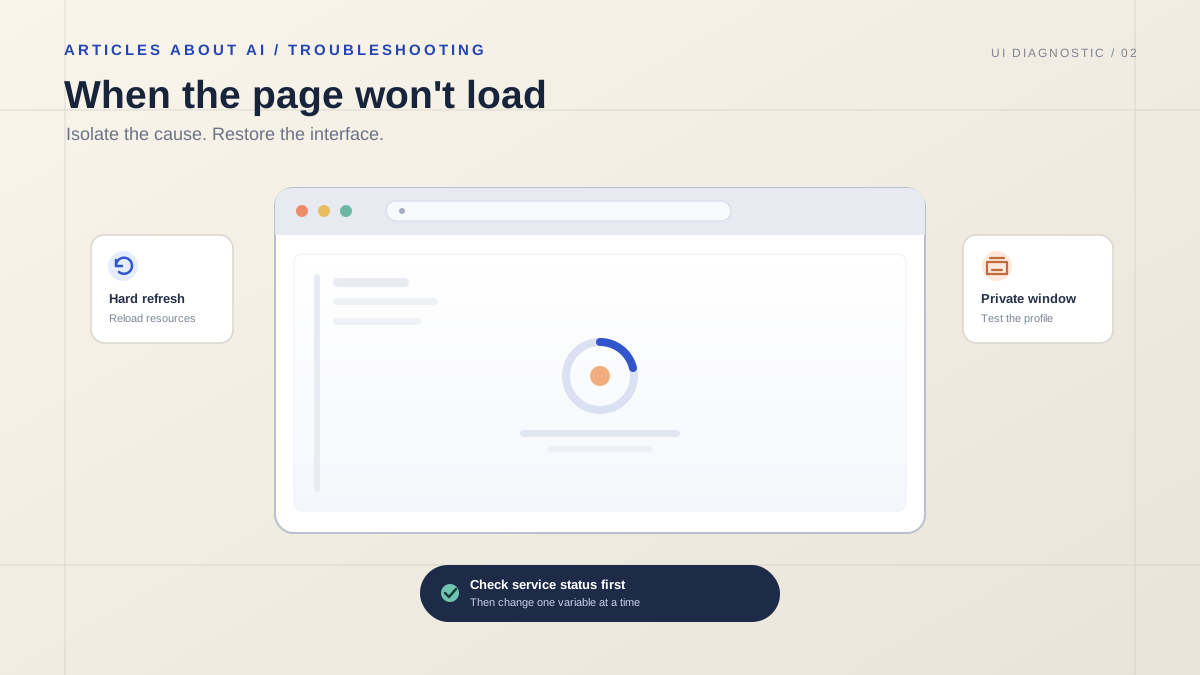
A blank ChatGPT page can look like a total failure: the site opens, but the conversation area stays white; a loading indicator spins without finishing; or the interface freezes before you can type. The cause is not always the same. A temporary service incident, a damaged browser session, an extension that blocks page scripts, stored site data, a network filter, or one unusually long conversation can produce similar symptoms.
The fastest way to fix the problem is to change one variable at a time. Start with checks that do not affect your account or erase anything, then move to browser and session troubleshooting only if the simple steps fail. This guide focuses on a blank page or endless loading indicator—not an explicit network error or a sign-in failure. If ChatGPT displays a specific error message, use the more targeted steps in our ChatGPT network-error troubleshooting guide or ChatGPT login-fix guide.
The quick checklist
Try these in order:
- Check the OpenAI service-status page for an incident affecting ChatGPT or Conversations.
- Wait briefly, then hard-refresh the page or fully restart the app.
- Open a new chat to see whether the problem is limited to one conversation.
- Try ChatGPT in a private window or a different browser.
- Temporarily disable extensions or content blockers that may interfere with the page.
- Clear site data for the ChatGPT website you use, then sign in again.
- Test another network or device if it is safe and practical to do so.
- If the problem continues across browsers and networks, collect diagnostics and contact OpenAI Support.
Do not start by clearing all browser data, repeatedly submitting the same prompt, or reinstalling every app. Those actions can create extra work without identifying the cause.
1. Check whether ChatGPT is experiencing an incident
Before changing your browser, open the official OpenAI Status page. Look at the affected product and component, the incident description, and the latest update. A general banner does not necessarily mean every ChatGPT feature is unavailable; read which service is affected and whether the incident is still ongoing.
If an incident specifically affects ChatGPT, conversations, or a feature you are using, local troubleshooting may not solve it. Avoid repeatedly refreshing or resubmitting the same request. Wait for the status page to report recovery, then reload ChatGPT once and test again.
If the status page reports no relevant incident, that does not prove the service is perfect. Status reporting is an important first check, not a guarantee that every account, region, or request is unaffected. Continue with the local tests below.
2. Refresh the page or restart the app
A hard refresh asks the browser to reload the page resources rather than relying on the same cached page state.
- Windows or Linux: press Ctrl + Shift + R in most desktop browsers.
- macOS: press Command + Shift + R in most desktop browsers.
- Mobile browser: use the browser’s reload control, then close and reopen the tab if needed.
- Desktop app: quit the app completely and reopen it. Merely minimizing the window may not restart the session.
Wait for the interface to settle before clicking several controls. If the page becomes usable, send a short test prompt in a new chat. If the same blank screen immediately returns, move to the next step instead of repeating the refresh indefinitely.
3. Test a new chat
Sometimes the interface works but one conversation does not load or respond correctly. Open a new chat and try a short, non-sensitive prompt.
- New chat works: the issue may be limited to the original conversation, its size, or a state associated with that thread. Keep the original tab available if you need its contents; do not delete the conversation just to test.
- Every chat is blank: the cause is more likely to involve the browser session, site resources, account state, network path, or a broader service problem.
- Only one feature or model fails: note that detail. It helps distinguish a general interface problem from an issue limited to a particular workflow.
If the original conversation contains important work, avoid repeatedly reloading it before checking whether the same account works in a separate tab or browser. For a long thread, a fresh chat can be a practical temporary workaround, but it does not repair the original thread.
4. Open ChatGPT in a private window or another browser
A private or incognito window is a useful diagnostic test because it usually starts with a separate cookie store and disables many extensions by default. Open the official ChatGPT site in that window and sign in through the normal process.
If ChatGPT works in the private window but not in your usual browser, the service is probably reachable and the difference is likely related to the normal browser profile—such as an extension, stored site data, or a profile setting. Private mode is a clue, not a definitive diagnosis.
If the page is still blank, test a second up-to-date browser if one is available. Keep the comparison simple: use the same device and network first, changing only the browser. That makes the result easier to interpret.
Remember that private browsing is not a security bypass. Follow your organization’s device and account policies, and do not use a private window to evade managed security controls.
5. Check extensions and content blockers
Some extensions filter scripts, alter page content, block requests, or enforce privacy rules that can interfere with complex web applications. Ad blockers, script blockers, privacy extensions, and security products are worth testing when the page is blank or stuck loading.
In your regular browser:
- Temporarily disable extensions that could affect the ChatGPT site, if your device policy allows it.
- Reload ChatGPT and check whether the interface appears.
- If that fixes the problem, re-enable extensions one at a time, testing after each change.
- When the problem returns, you have a stronger lead on the conflicting extension. Check for an update or a site-specific configuration rather than permanently disabling protection everywhere.
Do not disable antivirus, endpoint protection, or a work-managed security tool without permission. If a managed filter appears responsible, ask the administrator to investigate the specific blocked request or domain.
6. Clear only ChatGPT’s site data
If the page works in a private window but not in your normal profile, stale or corrupted site data may be involved. Clearing site data is more targeted than erasing the entire browser history.
Open your browser’s site settings for the ChatGPT domain you use—such as chatgpt.com or chat.openai.com—and clear that site’s stored data or cookies. Browser menus vary by version, so use the browser’s own help instructions if the controls differ.
Before clearing site data: make sure you know how you normally sign in and can access the relevant email, identity provider, or authentication method. You may need to sign in again. This step should not be treated as a way to delete your ChatGPT account or conversations, but it can end the current browser session and remove local site state.
After clearing the site’s data, close the tab, reopen ChatGPT, sign in normally, and test a new chat. If the screen is still blank, do not keep clearing data repeatedly; move on to the network and device comparisons.
7. Sign out and sign in again
A stale or incomplete session can sometimes prevent the interface from loading properly. If the page gives you access to the account menu, sign out, close the tab, reopen the site, and sign in again.
If the page is too blank to reach the account menu, use a different browser or the site-data step above rather than trying to click invisible controls. Use the same sign-in method you originally chose, such as Google, Apple, Microsoft, or email and password. If you have an actual authentication error, follow the separate login troubleshooting guide.
Never share your password, one-time code, or recovery code with anyone offering to repair the blank screen. Official support does not need your password to investigate a user-interface issue.
8. Compare networks without weakening security
A VPN, proxy, secure-DNS service, firewall, or network filter can sometimes block or alter requests needed by a web application. To test whether the network path matters, try another trusted network or a different device on a network you already know works.
For example, if permitted, compare your home Wi-Fi with mobile data. If ChatGPT works on one connection but not the other, the difference points toward a network, DNS, proxy, or filtering issue. It does not automatically identify which product or setting is responsible.
Do not turn off a company firewall or bypass a school or workplace policy. Ask the network administrator to check whether the relevant ChatGPT requests are being blocked. If ChatGPT displays an explicit network or WebSocket error, use the dedicated network-error guide for more specific connection checks.
9. Check the app, browser, device, and model separately
If the browser version works but the desktop or mobile app does not, restart the app and install any available official update. If the app still fails, test the website in a supported browser. Conversely, if the website fails in one browser but the app works, concentrate on the browser profile and its extensions.
When the interface loads far enough to let you test a different model, compare it in a new chat. If one model fails while another works, record that observation; it may help support narrow the problem. Do not assume a model change will fix a completely blank page, and do not repeatedly switch models when the interface cannot load at all.
Also note whether the problem occurs on one device or several. A single affected browser profile suggests a different path from the same failure across multiple devices and networks. This simple comparison often provides more useful evidence than trying many unrelated fixes at once.
10. Know when the problem needs support
If ChatGPT remains blank after the status check, hard refresh, new-chat test, private-window test, site-data reset, and a second browser or network, collect evidence before contacting support.
OpenAI’s official error-message guide recommends collecting browser console errors and a HAR file when the problem persists across browsers, devices, and networks. A HAR file records browser network activity and may contain sensitive information, including identifiers or content associated with your session.
For a useful support report, record:
- The date, time, and time zone when the failure happened.
- Your operating system, browser name and version, or app version.
- Whether the issue affects one conversation, all chats, one model, or the entire interface.
- Whether a private window, another browser, another device, or another network changes the result.
- The exact visible error, a screenshot, and the affected conversation URL if one exists.
- Any relevant browser-console error or sanitized HAR file requested by support.
Use the support entry point described in OpenAI’s contact-support instructions. Review diagnostic files before sharing them and remove personal or confidential information. Never post an unsanitized HAR file publicly.
Troubleshooting results at a glance
| What you observe | What it suggests | Best next step |
|---|---|---|
| The status page reports a relevant incident | The problem may be service-side | Wait for the incident update and retest after recovery |
| A new chat works but one old thread does not | The issue may be limited to that conversation | Preserve the original and test the thread later |
| Private browsing works | The normal browser profile may be involved | Check extensions and targeted site data |
| Another browser works on the same device and network | The first browser or profile is a likely factor | Update it, isolate extensions, or use a fresh profile |
| Another network works | A network filter, proxy, or DNS path may be involved | Ask the network administrator or inspect permitted settings |
| The problem appears across devices and networks | A broader service or account-specific issue becomes more plausible | Check status and send diagnostics to support |
| Only sign-in fails | The issue may be authentication rather than page rendering | Follow the login-specific troubleshooting steps |
These are diagnostic clues, not guarantees. More than one cause can exist at the same time.
Frequently asked questions
Why is ChatGPT just a white or blank page?
A blank page can result from page resources failing to load, a browser extension or content blocker interfering, stale site data, a session problem, a network filter, or a service-side incident. Check service status first, then compare a hard refresh, a new chat, and a private window.
Will clearing cookies delete my ChatGPT conversations?
Clearing the ChatGPT site’s local data signs you out and removes browser-stored state. It is not the same as deleting conversations from your account, but confirm you can sign back in before doing it. Do not use any account-deletion option as a troubleshooting step.
Should I reinstall ChatGPT?
Not as the first step. Restart and update the app, then compare it with the website in a supported browser. Reinstalling can take more time and may not help if the cause is a service incident or network filter.
What if nothing fixes the blank screen?
If the failure persists across browsers, devices, and networks, check the official status page again and contact OpenAI Support with timestamps, environment details, screenshots, and relevant diagnostics. Avoid sending passwords, authentication codes, or unredacted logs.
Official references
- OpenAI Help Center: Troubleshooting ChatGPT Error Messages
- OpenAI Status
- OpenAI Help Center: How can I contact support?
The key is to isolate the cause instead of changing everything at once: check service status, test a new chat and a clean browser session, then compare devices or networks. If the blank screen survives those controlled tests, a concise support report with safe diagnostics is more useful than endless refreshes.