
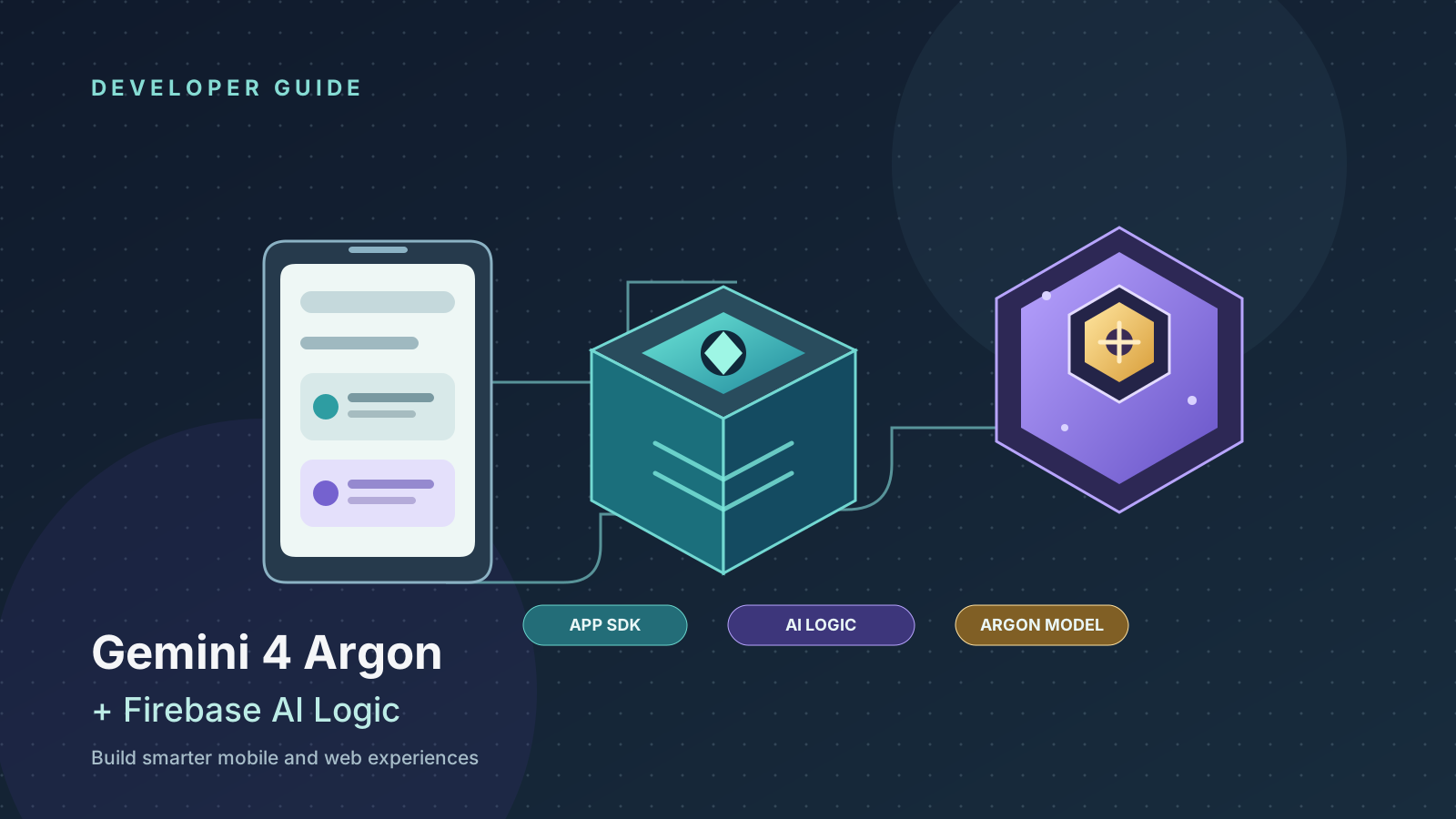
Google has made Gemini 4 Argon available through Firebase AI Logic, giving eligible developers a way to add the model to mobile and web experiences without building every part of the client-to-model integration from scratch. Firebase AI Logic provides client SDKs and a guided setup flow for supported platforms, while the model supplies the reasoning and generation behind the feature. The combination can be useful for conversational interfaces, structured extraction, document-assisted workflows, and other experiences that need more than a fixed rule-based response.
There is an important access detail: Google’s current Firebase AI Logic model documentation lists Gemini 4 Argon as a billing-required model. The model ID is gemini-4-argon, and use of it requires the applicable paid plan and an eligible provider configuration. Do not assume that a free-tier Firebase project automatically grants access to Argon just because Firebase AI Logic supports other models with different billing requirements. Confirm the current model list, provider, region, and price before you build a production feature.
This guide walks through setup, a first request, prompt design, security, cost controls, platform considerations, and troubleshooting. It is a practical implementation path rather than a promise that every menu or SDK version will remain unchanged. Google’s official documentation should be treated as the source of truth when its instructions differ from this article.
What Firebase AI Logic Does
Firebase AI Logic is a set of SDKs and services that helps an app communicate with supported Gemini models. Instead of manually wiring a raw model endpoint into every client, a developer configures a Firebase project, enables the required service, adds the platform SDK, and creates a model instance using a supported model name. The SDK then provides an app-oriented interface for sending prompts and handling responses.
This is useful when the AI feature belongs inside an existing product. A learning app might explain a passage, a field-service app might summarize notes, or a shopping app might answer questions about a catalog. Firebase can sit alongside the app’s other Firebase services, and App Check can help verify that requests originate from legitimate app instances.
Firebase AI Logic is not the model itself, and it does not make a model response automatically trustworthy. The SDK handles integration concerns; Gemini 4 Argon generates the response. Your application still needs input validation, privacy controls, error handling, testing, and human review for high-impact decisions.
Before You Start
Prepare the following:
- A Google account with access to the Firebase console.
- A Firebase project connected to the app you want to update.
- A supported platform and its current development tools: Android Studio for Android, Xcode for Apple platforms, or a current JavaScript toolchain for web. Flutter developers should follow the current Flutter Firebase setup.
- Access to the Gemini API provider and a billing arrangement that permits Gemini 4 Argon.
- A small, non-sensitive test case.
- A plan for App Check and production abuse prevention.
For Android, Google’s developer guidance describes Firebase AI Logic setup through the Firebase console and the Android SDK. For web and other platforms, follow the platform-specific Firebase AI Logic documentation rather than copying dependency names from an Android example into a different project.
Before beginning, read the official Firebase AI Logic getting-started guide and the supported models reference. The supported-models page is particularly important because model availability, billing requirements, input limits, and feature support can vary by model.
Step 1: Create or Select a Firebase Project
Open the Firebase console and select the project for your application, or create a new project if you are starting from scratch. If your app already uses Firebase Authentication, Firestore, Analytics, or other Firebase services, use the existing project when that matches your architecture and environment boundaries.
Keep development, staging, and production environments distinct when your app has real users or sensitive data. A separate development project makes it easier to test prompts and access controls without accidentally changing production settings. Use clear project names and verify the project ID before enabling services or changing billing.
Register the app with Firebase if you have not done so already. Android registration uses the package name; Apple platforms use the bundle identifier; web apps use a web app registration. Follow the console’s instructions to add the Firebase configuration to the application. Do not paste service-account credentials or private server keys into a client app.
Step 2: Enable Firebase AI Logic
In the Firebase console, open the AI-related services area and choose AI Logic. Start the guided setup and follow the prompts to enable the required APIs and resources. The exact console labels can evolve, so if the navigation differs, use the official getting-started page linked above.
During setup, choose the Gemini API provider available for your project. Firebase AI Logic supports provider choices and configuration paths that can differ in billing and operational characteristics. Google’s documentation distinguishes the Gemini Developer API from the Agent Platform Gemini API, formerly known as Vertex AI. Select the provider that meets your access, billing, data-location, and organizational requirements; do not select one based only on a copied tutorial.
Gemini 4 Argon is listed as requiring billing. Confirm that the selected provider and project are eligible to use the model before attempting a request. A project can be configured correctly at the Firebase level and still receive a model-access or billing error if the selected account is not entitled to use Argon.
After setup, review the Firebase console’s AI Logic configuration and App Check status. Record which project, provider, model, and environment you configured. This small bit of documentation can save time when another developer tests the app or when you need to compare staging and production behavior.
Step 3: Add the SDK for Your Platform
Use the current platform-specific Firebase documentation to install the SDK. Do not mix instructions across Android, iOS, Flutter, and web: package names and initialization steps differ.
For Android projects using Gradle, Google’s Android developer guide shows the Firebase platform BoM and the Firebase AI library. A typical dependency block has this shape, but check the latest official versions before adding it:
dependencies {
    implementation(platform("com.google.firebase:firebase-bom:35.0.0"))
    implementation("com.google.firebase:firebase-ai")
}
This is an example of the dependency pattern, not a guarantee that this exact BoM version will remain current. Use the current version in the official Firebase release documentation and ensure that your project uses a compatible Android Gradle Plugin, Gradle, and Kotlin toolchain.
For web applications, follow the JavaScript SDK setup and initialize Firebase with the app’s configuration before initializing AI Logic. For Flutter, follow the Firebase Flutter documentation and use the supported firebase_ai package and platform setup. For iOS, use the current Swift SDK instructions and required Firebase package integration.
Once the dependency is installed, sync or resolve packages, compile the app, and fix dependency conflicts before moving on. If the app cannot build without AI Logic, you will not be able to distinguish a model-access problem from a local toolchain problem later.
Step 4: Configure App Check Before Production
App Check helps protect Firebase resources by attesting that requests come from a recognized app or device environment. Google’s current Firebase AI Logic setup flow can enforce App Check, and local development may require a debug provider. Production apps should use an appropriate supported attestation provider rather than leaving a debug token in the released build.
During local development, follow the official App Check documentation for your platform. If you use a debug provider, treat its debug token as a sensitive development credential: register it only in the intended Firebase project, avoid publishing it in source control, and remove test-only configuration from production builds.
Do not disable App Check as a casual workaround for a request failure. First determine whether the app is registered correctly, the right Firebase project is selected, the provider is configured, and the debug or production attestation setup matches the environment. A temporary test configuration should be clearly isolated from the release configuration.
App Check is one layer, not a complete security strategy. You should still implement quotas, monitoring, abuse controls, authentication and authorization where needed, and server-side checks for operations that expose private data or change account state.
Step 5: Select Gemini 4 Argon
The model identifier listed in Google’s current Firebase AI Logic documentation is:
gemini-4-argon
Use the exact supported identifier for the model instance. Do not assume that a name used by a different Google product or a preview alias will work in Firebase AI Logic. Check the supported models list whenever you start a new integration or diagnose an unsupported-model error.
The model reference describes Argon as a model for advanced reasoning and multimodal understanding, with a large context window. Exact input and output limits, supported modalities, and feature availability should be checked on the model documentation because they may differ by platform or API path. A model’s capabilities in the general Gemini API do not automatically imply that every capability is exposed through every SDK.
Step 6: Make a First Request
The following JavaScript example illustrates the common Firebase AI Logic pattern: initialize Firebase, create an AI Logic instance for the Google AI backend, select the supported model ID, and send a small prompt. SDK imports and method signatures can change, so compare the snippet with the current Firebase AI Logic quickstart before using it in a production project.
import { initializeApp } from "firebase/app";
import { getAI, getGenerativeModel, GoogleAIBackend } from "firebase/ai";

const firebaseApp = initializeApp(firebaseConfig);
const ai = getAI(firebaseApp, { backend: new GoogleAIBackend() });
const model = getGenerativeModel(ai, { model: "gemini-4-argon" });

async function summarizeNote(note) {
  const prompt = `Summarize this note in three concise bullet points.
Do not add facts that are not in the note.

Note:
${note}`;

  const result = await model.generateContent(prompt);
  return result.response.text();
}
Treat this as an implementation pattern and verify the package exports against the version installed in your project. Firebase SDKs can update their initialization and import paths. If the snippet does not match your version, follow the current official quickstart rather than adding arbitrary packages until it compiles.
Keep model calls off the main UI thread where your platform requires it. In a production interface, show a loading state, handle cancellation, and provide a useful message if the request fails. Avoid logging full prompts or responses if they might contain personal information, business data, or user-provided documents.
Step 7: Try a Useful App Feature
A first request proves that the integration works, but a realistic test should resemble the feature you intend to ship. Start with a narrowly defined task and a known expected output. For example, a note-taking app can ask the model to extract action items from a short note.
A prompt can specify the output clearly:
Extract action items from the note below.
Return JSON with:
- "task": a concise action
- "owner": a person or null
- "due_date": an ISO date or null
Do not invent owners or dates.
If no action item exists, return an empty array.

Note:
"Sam will update the onboarding copy by Friday.
The team will review the new screen next week."
If your app needs machine-readable output, check the structured-output capabilities exposed by the chosen SDK and model path. Parse and validate the returned data before using it. A response that looks like JSON can still be malformed, incomplete, or semantically wrong. If the feature changes a database record, sends a message, or triggers a payment, validate the proposed action and apply authorization checks outside the model.
Do not start by giving the model broad access to every tool or database. Use the smallest scope that can deliver the feature, and expand only after you have tests and monitoring.
Step 8: Design Prompts for Reliable Results
A useful prompt describes the role, task, constraints, input, and expected output. Avoid vague instructions such as “make this better” when the application needs a predictable result. Instead, tell the model what it should optimize for, which information it may use, and what it should do when information is missing.
For extraction tasks, explicitly prohibit guessing. For summaries, specify the audience and desired length. For classification, provide the permitted labels and a rule for uncertain cases. For support experiences, tell the model to use only approved product information and to ask a clarifying question when the user’s request cannot be answered from that information.
Use representative examples during testing, including ambiguous, incomplete, irrelevant, and adversarial inputs. A prompt that works for one hand-picked example may fail on short messages, typos, mixed languages, or long pasted content. Keep a small evaluation set and rerun it when you change the prompt, model, SDK, or response handling.
For user-facing applications, separate trusted instructions from untrusted user content. Never allow a user-provided document or message to override application rules. If you later connect tools or external data sources, validate each tool call and treat retrieved content as data, not as authority to change system behavior.
Step 9: Control Cost and Latency
Argon requires a billing-enabled setup according to the current Firebase AI Logic model list. Check the latest pricing for the exact provider and model before estimating costs. The Gemini API and Google Cloud surfaces may have different prices, introductory terms, caching rules, or billing controls, and prices can change after an introductory period.
Estimate expected usage before launch. Consider average input length, output length, requests per active user, retry rates, and peak traffic. Long conversation histories and large documents can increase input-token use. Ask for concise output when possible, summarize old context instead of resending everything, and set application-side limits on how much content users can submit.
Latency is also part of the product experience. Measure request time with realistic network conditions and representative prompts. If a feature is used in a critical interaction, consider a fallback model that meets your quality requirements and is supported by your integration. Do not silently downgrade the model in ways that materially change the feature’s behavior; make fallback behavior observable and test it.
Set budgets and alerts in the relevant Google billing environment, monitor usage, and review errors after launch. A sudden increase in requests may indicate a loop, an abusive client, an accidental retry storm, or a feature that is more popular than expected.
Step 10: Keep Secrets and User Data Safe
Client-side SDK integration does not mean that every credential is safe to expose. Never embed a private server API key, service-account key, or administrative credential in a mobile or web bundle. Follow Firebase’s recommended client setup and security controls, and keep privileged operations behind a trusted server.
Send only the data needed for the feature. If the user asks for a summary of a support ticket, avoid attaching unrelated account history. Tell users what data the feature processes when appropriate, define retention practices, and avoid collecting sensitive content unless the product has a clear reason and proper safeguards.
Review access to any Firestore documents or other data the app can retrieve. Model-generated text must not be treated as proof that the user is allowed to see or modify a resource. Enforce authorization in your backend and database rules, not in a prompt. If the model proposes an action, verify it against the current authenticated user’s permissions before executing it.
For regulated or confidential workloads, review the relevant Google product terms, data processing commitments, regional requirements, and your organization’s policies before sending information to a model. Do not infer data residency or compliance guarantees from the fact that an SDK is provided by Firebase.
Step 11: Troubleshoot Common Problems
The model is not found or is not supported
Verify that the exact model ID is gemini-4-argon, then check the current Firebase AI Logic supported-models page. Confirm that the model is available through the selected provider and platform. A model available in a general API may not be exposed identically through every SDK or region.
The request fails with a billing or access error
Check whether billing is enabled and whether the account has the required paid-tier access. Confirm that the Firebase project is linked to the intended Google Cloud project and that the selected provider matches the access path you expect. Do not assume a successful request to a lower-cost model proves Argon access is configured.
App Check rejects local requests
Confirm that the app is registered in the same Firebase project used by the running build. Follow the platform’s current debug-provider instructions, register the development token in the console, and verify that the token belongs to the intended app. Keep debug configuration out of production releases.
The SDK cannot initialize
Check that the Firebase configuration file or web configuration belongs to the correct project. Confirm that the dependency resolved successfully, the Firebase initialization occurs before the AI Logic call, and the app is using a supported SDK version. Clean and rebuild only after checking the underlying configuration and dependency error.
Requests time out or return incomplete output
Start with a short prompt and a small response. Check connectivity, request cancellation, SDK exceptions, and current model limits. Avoid retrying indefinitely. Use bounded retries with backoff for transient failures, and make sure a retry cannot accidentally repeat a consequential action.
The response is not valid JSON
Ask for a defined schema and use structured output when the selected SDK supports it. Parse the result, validate required fields, and handle invalid output as a normal failure case. Never execute an action merely because the model returned text that resembles a command or JSON object.
Costs are higher than expected
Measure actual input and output usage, reduce unnecessary history, cap user input, and investigate repeated calls. Add request limits and billing alerts. If the feature does not require Argon’s advanced reasoning, evaluate a less expensive supported model against your quality tests instead of paying for capability you do not use.
Step 12: Test Before Releasing
Create a test plan that covers success, failure, security, and usability. At minimum, test:
- A normal request with a known expected result.
- Empty, extremely long, and malformed input.
- Unsupported language or content types.
- Network interruption and request timeout.
- Billing disabled or model access denied.
- App Check failure in development and production-like configurations.
- Prompt injection attempts in user-supplied content.
- Model output that is incomplete or invalid for your application.
- Repeated submissions and cancellation.
- Usage limits and monitoring alerts.
For a feature that affects real users, add a staged rollout and a way to disable the feature if error rates or costs rise. Keep the AI feature modular so you can update the model, prompt, or provider configuration without rewriting unrelated application code. Where appropriate, use Remote Config or server-managed prompt templates to adjust behavior without releasing a new client build, following Google’s current guidance.
Measure more than whether the API call succeeded. Evaluate answer usefulness, factuality for your domain, latency, user abandonment, moderation outcomes, and the rate of cases that require human intervention. Collect only the telemetry you need and avoid retaining raw sensitive prompts by default.
When Firebase AI Logic Is the Right Choice
Firebase AI Logic is a strong fit when you want to add a supported Gemini capability to a mobile or web app using Firebase’s platform-oriented SDKs and setup flow. It can reduce integration work and keep the client implementation consistent with other Firebase services. It is particularly attractive for product teams that already use Firebase and want to prototype an AI feature quickly.
A server-side integration may be more appropriate when you need strict control over credentials, complex orchestration, custom authorization, private data access, or central request policies. You can also use a backend to mediate model calls so that the client never has direct authority to perform privileged operations. The right architecture depends on your threat model, data requirements, latency budget, and operational needs.
Firebase AI Logic is not automatically the best answer for every application. Compare supported features, platform constraints, provider availability, billing, and data handling requirements before committing. For a model that is newly available, verify the exact SDK support and model limitations using current official documentation rather than assuming parity across all Gemini surfaces.
Official Resources and Related Guides
Use these official resources to verify setup details and current availability:
- Firebase AI Logic: Get started
- Firebase AI Logic: Supported models
- Firebase App Check
- Android Developers: Gemini API and Firebase AI Logic
- Google’s announcement for Android developers
- Gemini 4 Argon API setup guide on Articles About AI
- Using Gemini 4 Argon in Android Studio
- Using Gemini 4 Argon for multi-step tasks in the Gemini app
- Using Gemini 4 Argon in GitHub Copilot
Final Checklist
Before calling the integration complete, confirm that the model is supported for your selected Firebase AI Logic provider, billing is configured, the app uses the correct SDK and project configuration, App Check is properly set up, and requests are handled asynchronously. Validate outputs before using them, protect private data, set usage limits, and test failures as carefully as the happy path.
The key takeaway is straightforward: Firebase AI Logic gives developers an app-oriented route to Gemini 4 Argon, but a successful production integration depends on more than the model name. Verify access, follow platform-specific SDK instructions, protect the app and its users, and measure the feature under realistic conditions before releasing it broadly.