
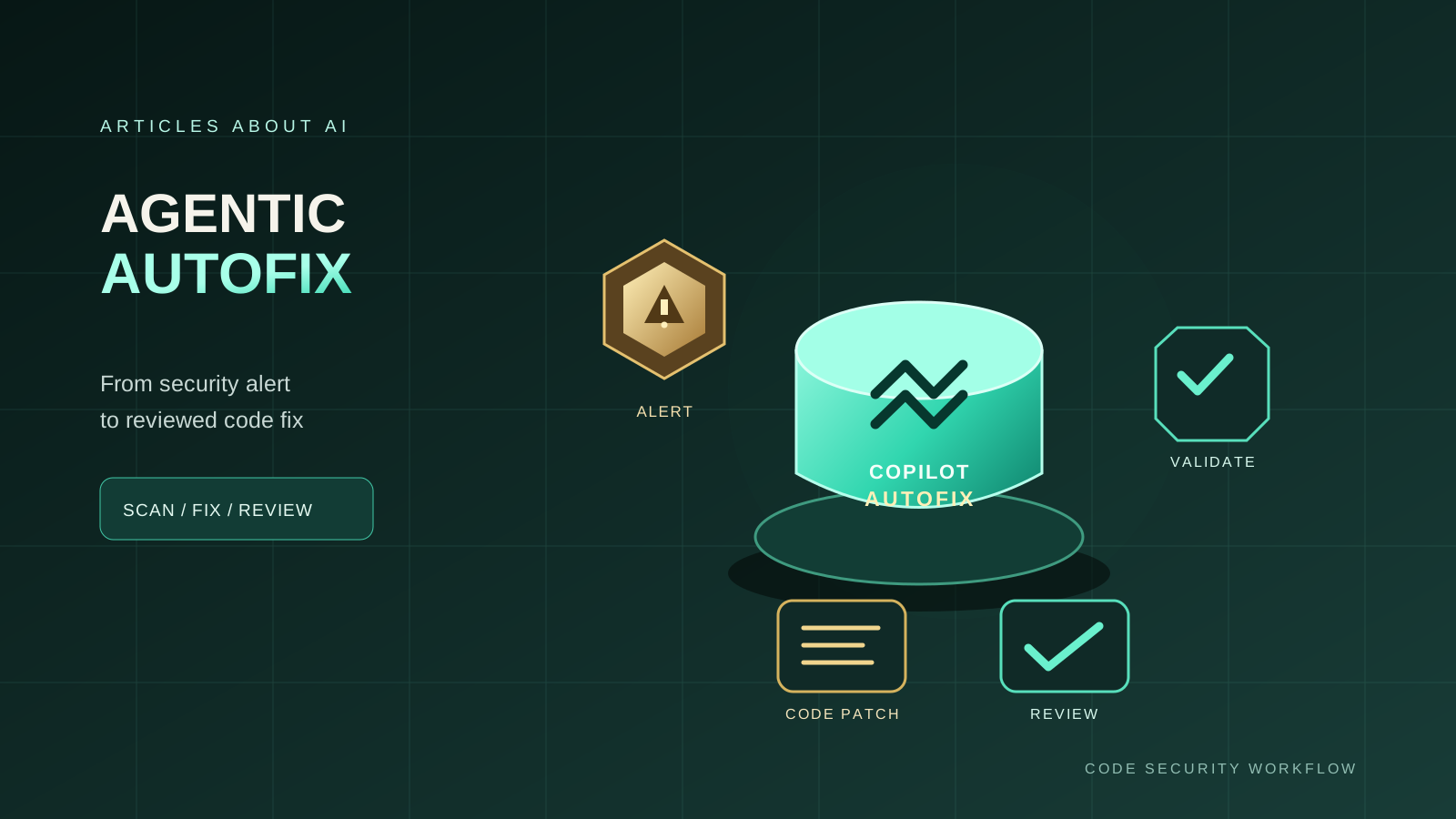
GitHub Copilot Agentic Autofix can take a code scanning alert from investigation to a proposed code change and pull request. Rather than asking a developer to interpret an alert and manually locate every relevant file, the agent can explore the repository, prepare a remediation, run supported validation, and open a draft pull request for review. It is designed to reduce the work between detecting a potential vulnerability and delivering a carefully reviewed fix.
Agentic Autofix entered public preview in July 2026. It is different from the earlier, single-suggestion Copilot Autofix experience: when the cloud agent is available, assigning an alert to Copilot starts an agent session. That session can inspect code beyond the file named in the alert, iterate on the proposed change, and report what it validated. GitHub’s documentation says access depends on repository eligibility and the availability of both Copilot Autofix and Copilot cloud agent. Agentic Autofix also consumes Copilot AI credits and GitHub Actions minutes, so it is worth understanding the workflow before assigning a large batch of alerts.
This guide walks through prerequisites, the exact GitHub interface flow, reviewing the resulting pull request, handling several alerts together, troubleshooting missing options, and managing cost. The important principle is that an agent-generated patch is a proposal—not proof that the underlying vulnerability has been eliminated. Always review the change, test the intended behavior, and follow your team’s security review process.
What Is GitHub Copilot Agentic Autofix?
Code scanning identifies potential security vulnerabilities and coding errors in a repository. An alert usually includes a rule, a description of the risk, the location of the relevant code, and information that helps a developer understand why the scanner raised it. Turning that information into a safe fix can require reading surrounding code, tracing how data moves through the application, and checking whether the change breaks intended behavior.
Agentic Autofix uses Copilot cloud agent to work through that broader remediation process. When you assign a supported code scanning alert to Copilot, the agent can:
- Explore relevant files across the repository rather than editing only the line mentioned in the alert.
- Propose code changes intended to address the reported issue.
- Run validation steps that are available in the environment, such as rerunning CodeQL for supported analyses.
- Iterate when its checks identify a problem or the proposed fix needs adjustment.
- Open a draft pull request describing the change and the validation it performed.
The feature is in public preview and can change. It operates on a best-effort basis; the presence of a generated pull request does not guarantee that the alert is fixed, that no regression was introduced, or that every security tool will validate the patch. GitHub also notes that validation has limitations for alerts produced by custom queries or the security-extended query suite, and the quality of fixes for third-party tools is not guaranteed.
Agentic Autofix versus Copilot Autofix
The names are similar, but the workflows differ.
| Capability | Copilot Autofix | Agentic Autofix |
|---|---|---|
| Typical interaction | Generates a suggested fix for you to inspect and apply | Starts a cloud-agent session that works toward a pull request |
| Scope | Focuses on a targeted suggested change | Can investigate relevant files across the repository |
| Validation | You review and test the suggestion | Agent can run supported checks and iterate, with limits |
| Result | Suggested fix, with an option to create a pull request | Usually a draft pull request created by Copilot |
| Copilot AI credits | The classic suggested-fix experience does not consume Copilot AI credits | Uses AI credits because it runs as a Copilot cloud agent session |
| Best fit | A straightforward alert when you want to control the edits directly | A more involved remediation that benefits from repository-wide investigation |
If Copilot cloud agent is not available for the repository, the interface may offer the classic Copilot Autofix flow instead. Do not assume that seeing a suggested fix means an agentic session ran.
Prerequisites: Check Access Before You Start
Before opening an alert, check that the repository and account can use the feature.
- Use an eligible repository. GitHub documents Agentic Autofix for public repositories on GitHub.com and organization-owned repositories with GitHub Code Security or GitHub Advanced Security, subject to the applicable access rules. It is not available for every repository type; for example, GitHub’s enterprise documentation excludes user-owned repositories in an enterprise using Enterprise Managed Users.
- Confirm code scanning is configured. The repository needs code scanning alerts to work on. CodeQL is a common source, and the preview also supports alerts from third-party scanning tools, although fix quality and validation can vary.
- Confirm Copilot cloud agent is available. Agentic Autofix requires the cloud agent as well as Copilot Autofix. If the cloud agent is unavailable, the experience can fall back to a classic suggested fix.
- Check organization and enterprise policies. Administrators can control access to Agentic Autofix. A repository-level switch may not override a policy set at a higher level.
- Have repository write access. You need the appropriate permissions to work with the alert and assign it to Copilot.
- Understand the usage model. An agentic run consumes Copilot AI credits and can also consume GitHub Actions minutes. Check your current plan and organization’s usage policies before assigning many alerts.
Read GitHub’s official overview of Copilot Autofix for code scanning, the Agentic Autofix announcement, and the guide to managing access to Agentic Autofix. These sources are authoritative for current eligibility and policy details.
Step 1: Open the Code Scanning Alert
- Sign in to GitHub and open the repository containing the alert.
- Select Security or Security and quality, depending on the repository interface. If the tab is hidden, open the repository’s tab dropdown.
- In the security sidebar, select Code scanning.
- Find the alert you want to remediate and open its title.
- Read the alert’s rule, severity, description, affected file and line, and any data-flow or source/sink details provided.
Before assigning the alert, make sure you understand the reported risk. Prioritize critical or high-impact findings according to your team’s security policy, but do not use severity alone as a substitute for triage. Confirm that the alert is relevant to the code and branch you intend to fix. Some findings may be stale, unreachable in the relevant configuration, or require a design-level change rather than a local patch.
If you need background on the vulnerability class, consult the rule’s help text and your team’s secure-coding guidance. That gives you a basis for judging whether the proposed patch actually addresses the root cause.
Step 2: Assign the Alert to Copilot
On an eligible alert, look for Assign to Copilot near the top of the alert page.
- Click Assign to Copilot.
- Confirm the assignment if GitHub presents a confirmation step.
- Allow the agent session to start. The cloud agent will inspect the repository and attempt a remediation.
- Return to the repository’s pull requests or agent session view to track progress.
GitHub documents the same basic flow in its guide to resolving code scanning alerts. The exact location of controls can change during a preview, so use the current GitHub interface if a menu label differs.
For many alerts, the process typically takes a few minutes, but timing varies with repository size, task complexity, runner availability, and the checks that must run. Do not assign the same alert repeatedly just because the first run has not finished. Check the agent session and repository activity first.
Step 3: Let the Agent Investigate, Then Inspect the Pull Request
Agentic Autofix is intended to do more than replace a single line. It may inspect related functions, validation logic, data handling, tests, and other files needed to propose a consistent change. It can run supported validation and revise its approach before opening a draft pull request.
When the pull request appears, review at least these areas:
- Problem statement: Does the pull request accurately describe the original alert and the vulnerability it is trying to fix?
- Changed files: Are all edits relevant to the alert? Investigate unexpected changes, especially broad refactors, dependency updates, or configuration edits.
- Root-cause correction: Does the patch eliminate the unsafe behavior, or does it merely silence the scanner or move the problematic code?
- Input and trust boundaries: If the issue concerns untrusted input, authentication, authorization, injection, file access, or deserialization, check that the actual trust boundary is enforced.
- Tests: Does the change add or update regression tests that exercise the vulnerable behavior and the expected safe behavior?
- Validation evidence: Which commands ran? Did they pass, fail, or get skipped? Is the report clear about checks that could not run?
- Compatibility: Could the fix break legitimate application behavior, API contracts, or supported configurations?
Read the complete diff rather than relying only on the pull request summary. If the agent reports that a check passed, inspect the check and its scope. A successful build is useful evidence, but it is not a substitute for a security review or a regression test that exercises the vulnerability.
Ask Copilot to iterate when needed
If the pull request is close but incomplete, you can provide a focused comment mentioning Copilot and explain what remains to be addressed. For example:
The current patch does not cover the alternate path in the request handler. Please trace that path, update the fix and regression tests, and report the exact validation commands and results. Keep the change limited to this alert and do not mark a check as passed unless it ran successfully.
Use a specific, verifiable request. Avoid instructions such as “make it more secure” without explaining the uncovered path or expected behavior. Review the new diff after every iteration, since a follow-up change can introduce new issues.
Step 4: Validate the Security Fix Yourself
Agentic Autofix can run validation, but the final responsibility remains with the repository’s maintainers. Before merging:
- Re-run the relevant code scanning workflow. Confirm that the original alert is resolved on the proposed branch or pull request where supported.
- Run targeted regression tests. Tests should cover both the exploit-relevant input or behavior and valid inputs that must continue to work.
- Run the normal test suite and static checks. Use the commands and CI checks required by the project.
- Inspect neighboring code. Look for other call sites or alternate paths that might still expose the same weakness.
- Check the security impact. Consider whether the change requires additional logging, configuration, migration, or defense-in-depth controls.
- Document anything unverified. If CodeQL, a third-party scanner, a service dependency, or an integration test could not run, record that limitation in the review.
GitHub notes that Agentic Autofix validates by rerunning CodeQL using the code-scanning query suite, but this cannot confirm resolution for every custom query or the security-extended query suite. Results for third-party alerts are not guaranteed. Therefore, treat the scanner’s final state and the agent’s validation report as evidence to evaluate—not an unconditional guarantee.
If the alert is a false positive, do not merge an unrelated code change just to satisfy the tool. Follow your team’s documented process for dismissing or suppressing the finding, and include a clear rationale.
Step 5: Fix Several Alerts in One Run
GitHub supports assigning multiple code scanning alerts to Copilot from the alert backlog or a security campaign. The documented workflow allows selecting between 1 and 25 alerts for a single remediation pull request. The REST API can also trigger Agentic Autofix by assigning an alert to copilot-swe-agent[bot], where supported.
Bulk remediation can be useful when alerts share a root cause—for example, multiple instances of the same unsafe pattern. It is not always the best choice to combine unrelated findings. A single pull request that changes authentication, database queries, file handling, and dependency versions can be difficult to review and roll back.
A cautious bulk workflow is:
- Group alerts by vulnerability type, shared code path, and likely root cause.
- Start with a small, related group rather than assigning the entire backlog.
- Review the combined diff for scope creep and unintended interactions.
- Verify that each selected alert is addressed individually.
- Run the relevant security and regression checks.
- Merge only when the pull request is understandable and the evidence is sufficient.
Use bulk assignment to reduce repetitive work, not to reduce review quality. If one finding requires a different architectural fix, handle it separately.
Step 6: Manage AI Credits and GitHub Actions Usage
Agentic Autofix is billed as a Copilot cloud agent session and consumes AI credits. GitHub also states that activity performed by the agent consumes GitHub Actions minutes. During the public preview, usage is not itemized separately from other Copilot activity in the same way a dedicated per-feature line item might be, so plan around the documented cloud-agent usage model rather than assuming the feature is free.
For cost control:
- Check your plan and organization settings. Confirm the current AI credit allowance, additional-usage settings, and any budgets configured by an administrator.
- Prioritize meaningful alerts. Begin with findings that have clear security impact or a repeated pattern that can be remediated consistently.
- Group related alerts carefully. A small batch of similar findings may avoid repeated investigation, while unrelated findings can increase review effort and risk.
- Avoid duplicate assignments. Check whether a session or pull request already exists before restarting the same work.
- Review failed runs. Determine whether a retry is justified by a transient issue or whether the task needs clearer scope or manual remediation.
- Track Actions usage as well as AI credits. Validation and agent activity can consume runner minutes depending on your setup.
Check GitHub’s current Copilot models and pricing reference and the documentation for GitHub Copilot billing and usage. Pricing, included allowances, and policy controls can change, so do not rely on an old estimate or assume every alert has a fixed cost.
Troubleshooting: When Assign to Copilot Is Missing
The alert page only shows Generate fix
The repository may support classic Copilot Autofix but not Agentic Autofix. Check whether Copilot cloud agent is available, whether the repository is eligible, and whether Agentic Autofix is enabled by the relevant administrator. Classic Autofix generates a suggested patch; it does not imply that an agentic session is running.
The feature is disabled by organization policy
For organization-owned repositories, an organization owner or security manager may need to enable Agentic Autofix. Enterprise policy can also restrict whether organizations are allowed to configure it. Ask the administrator to inspect the global Code Security settings and the repository-level setting. A repository administrator cannot override a policy imposed at the enterprise level.
There are no code scanning alerts
Agentic Autofix is a remediation workflow, not a replacement for code scanning. Configure and run the repository’s supported scanning workflow first. If you expect an alert but do not see one, check the default branch, workflow status, permissions, and whether the scanner has uploaded results.
The agent cannot resolve the alert
Some findings require broader design changes, specialized domain knowledge, or a fix the agent cannot validate. Review its explanation and logs, reduce the task to a specific missing behavior, or implement the change manually. A failed or incomplete attempt is not evidence that the alert is harmless.
The pull request says validation was incomplete
Inspect which checks were skipped or failed and why. Run them locally or through CI when possible. If the environment cannot run a check, record that limitation and arrange an appropriate review rather than treating the fix as verified.
The alert remains open after the change
Confirm that the scan ran on the intended branch and that its results correspond to the latest commit. The finding may still be present, the fix may not address the actual source, or the alert may be tied to a different analysis configuration. Revisit the code and scanner evidence before trying another agent run.
Security Best Practices
AI-assisted remediation can speed up security work, but it should fit into the same engineering controls used for any code change.
- Keep pull requests reviewable and use protected branches.
- Require human review for security-sensitive code and production changes.
- Never merge solely because an AI agent says the alert is fixed.
- Do not paste secrets, credentials, or unrelated sensitive information into prompts or comments.
- Follow repository instructions and the organization’s secure-development policies.
- Test both the vulnerability fix and expected application behavior.
- Keep an audit trail of the alert, the proposed fix, the review decision, and the validation performed.
- If the fix touches authentication, authorization, cryptography, payment handling, or data isolation, involve the appropriate security reviewer.
GitHub’s responsible-use guidance for security and quality AI features reinforces that generated fixes need human evaluation to ensure they address the issue without changing intended behavior.
Frequently Asked Questions
Do I need a GitHub Copilot subscription to use Agentic Autofix?
Agentic Autofix requires Copilot cloud agent to be available and uses AI credits as a cloud-agent session. Access requirements also depend on repository eligibility and Code Security licensing. Classic Copilot Autofix has different requirements and does not consume Copilot AI credits for generating a suggested fix. Check the current official documentation for the exact combination that applies to your repository.
Does Agentic Autofix work with third-party scanners?
GitHub’s July 2026 announcement says the public preview covers code scanning alerts from CodeQL and third-party scanning tools. However, GitHub warns that the quality of fixes for third-party alerts is not guaranteed, and validation capabilities can differ from CodeQL.
Does the agent merge its own pull request?
The normal documented workflow produces a draft pull request for review. Treat it as a proposal and follow your repository’s standard approval and merge protections.
Is every alert guaranteed to be fixed?
No. The feature works on a best-effort basis. It may fail to produce a suitable patch, be unable to validate the result, or identify a possible false positive. Manual investigation remains necessary when the result is incomplete or uncertain.
Can I assign alerts in bulk?
Yes. GitHub documents selecting 1 to 25 alerts from the backlog or a security campaign for Copilot to address in one pull request. Choose related alerts and review each finding individually before merging.
How can I ask Copilot to improve a proposed fix?
Comment on the generated pull request with a specific instruction describing the missing behavior, relevant code path, or required test. Then inspect the updated diff and validation results rather than assuming the second attempt is correct.
Final Recommendation
Use GitHub Copilot Agentic Autofix to accelerate the investigation and remediation of code scanning alerts—not to bypass security review. Start with one clear finding, assign it to Copilot, inspect the draft pull request, and verify the fix with tests and a fresh scan. Once the workflow is reliable in your repository, consider batching small groups of related alerts while keeping each change auditable.
The strongest outcome is not simply a closed alert. It is a minimal, understandable patch that removes the underlying vulnerability, preserves intended behavior, passes the required checks, and can be confidently maintained by your team.
Official Sources
- GitHub Changelog: Agentic Autofix for code scanning alerts in public preview (July 10, 2026)
- GitHub Docs: About Autofix for code scanning
- GitHub Docs: Resolving code scanning alerts
- GitHub Docs: Managing access to Agentic Autofix
- GitHub Changelog: Agentic Autofix now uses Copilot Memory (September 25, 2026)
- GitHub Docs: Copilot billing and usage