
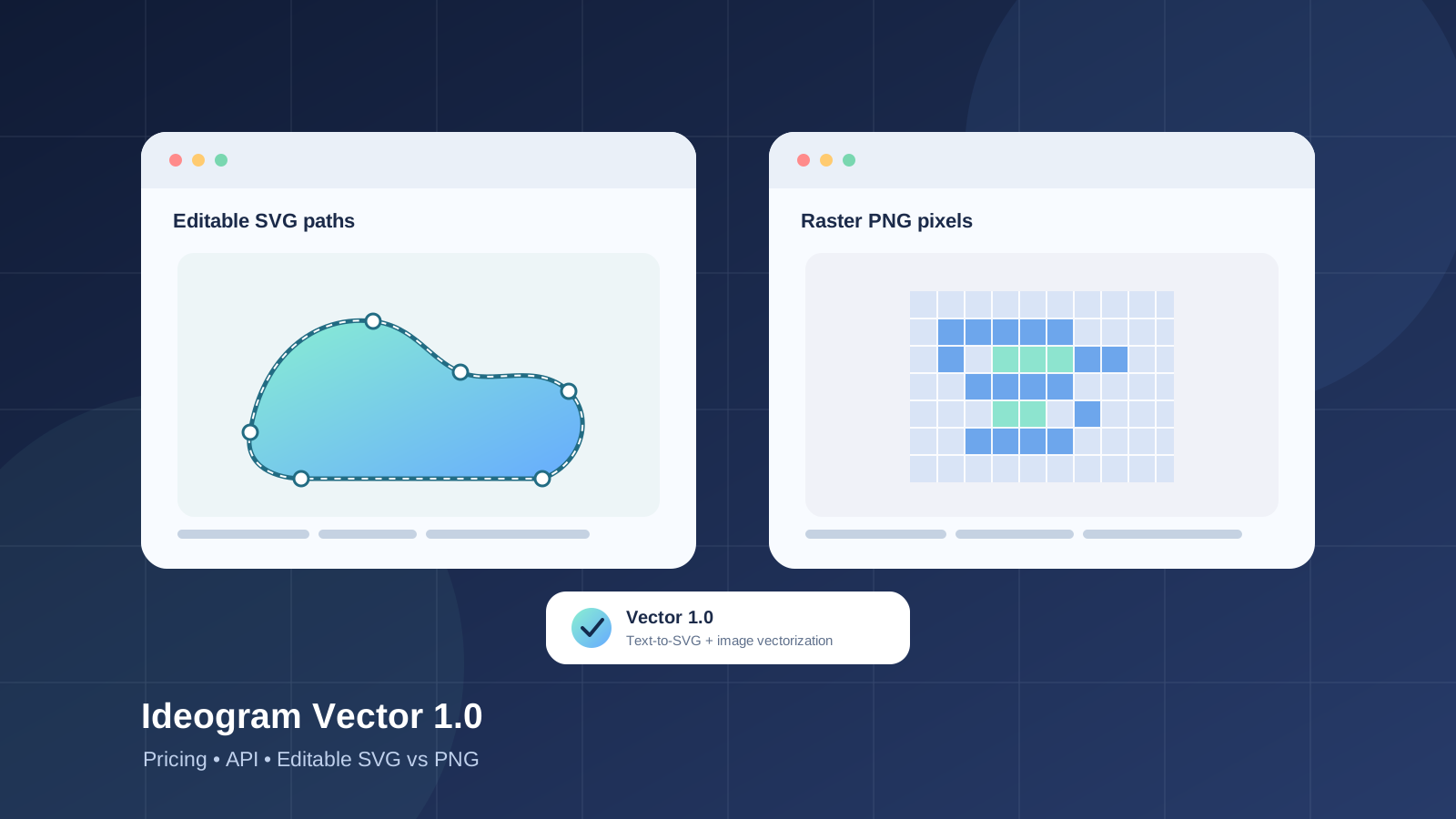
Ideogram Vector 1.0 is a dedicated vector-art model designed to create editable SVG artwork from text prompts or convert existing raster images into SVG. That matters for designers who need logos, icons, illustrations, labels, and other assets that can be resized and refined after generation—not just a flat PNG image.
The model is available through Ideogram’s vector workflow and API. Its official product page lists separate prices for text-to-vector generation and image vectorization. This guide explains what it does, how much the API costs, which endpoints developers can call, and when SVG is a better choice than PNG.
Important: features and API prices can change. The pricing below reflects Ideogram’s official vector page checked for this article; confirm the current price and usage terms before integrating the service into a production workflow.
What is Ideogram Vector 1.0?
Ideogram Vector is built for vector artwork rather than only pixel-based image generation. The official product page describes two main workflows:
- Text to vector: describe a design and generate an editable SVG.
- Image to vector: upload an existing image and convert it into an SVG that can be scaled and refined.
Ideogram highlights use cases such as logos, print designs, illustrations, lettering, and brand assets. The resulting SVG can be opened in compatible vector editors, where supported shapes, colors, and gradients can be adjusted. That does not mean every generated design will be perfectly organized or production-ready; inspect the actual paths and text before delivery.
Start with the official Ideogram Vector product page for examples and the current feature description.
Ideogram Vector 1.0 pricing
Ideogram lists API pricing per generated SVG or converted image. The prices on its official Vector page are:
| API workflow | Quality or input | Price |
|---|---|---|
| Text to vector | Low quality, prompt only | $0.13 per SVG |
| Text to vector | Medium quality, prompt only | $0.16 per SVG |
| Text to vector | High quality, prompt only | $0.20 per SVG |
| Text to vector | High quality with reference images | $0.32 per SVG |
| Image to vector | Convert an existing image | $0.10 per image |
The official page lists the same prices for low and medium text-to-vector generation with or without references, while high quality with references costs more. Treat these as API usage prices, not as the price of an Ideogram subscription. Your total cost depends on how many outputs you request and which options you use.
Check the current Ideogram Vector pricing and product page before estimating a budget. For API integration, also read the specific endpoint documentation, because request options and billing behavior can change.
How to use Ideogram Vector to create an SVG
1. Start with a clear design brief
Describe the subject, style, composition, colors, and intended use. For example:
Create a simple geometric logo for a fictional outdoor brand. Use a mountain silhouette, two flat colors, balanced negative space, and clean shapes that will remain legible at small sizes. Avoid mockups, photographic textures, and unnecessary decorative details.
For a logo or icon, ask for a simple silhouette and limited colors first. Dense scenes, tiny details, and complex typography can be harder to edit cleanly.
2. Generate the vector artwork
Open Ideogram’s vector workflow, choose text-to-vector, and enter the prompt. Add a reference image if you need to guide the composition or color palette and the interface supports it. Select a quality level, generate the SVG, then review the result at both small and large sizes.
Do not assume that a prompt alone guarantees brand-ready typography, perfect geometry, or a legally clear logo. Check the design and any licensing or trademark considerations independently.
3. Edit and validate the SVG
Open the downloaded file in a compatible editor such as Figma or Adobe Illustrator. Inspect the individual shapes, paths, fills, gradients, and any text. Adjust colors to match brand specifications and simplify details where needed.
For website use, also check the SVG source for unexpected embedded raster images, excessive path complexity, and unnecessary metadata. SVG is a file format, not a guarantee that the file is small, accessible, or safe to embed without review.
Ideogram Vector API: endpoints and workflow
Ideogram documents two main API endpoints for Vector 1.0.
Text-to-SVG generation
The generation endpoint is:
POST https://api.ideogram.ai/v2/svg/generate/ideogram-vector-1
It accepts a required text prompt and optional reference images or image asset identifiers. The documented request includes options such as aspect ratio, quality, number of images, privacy, and webhook delivery. API requests use an Api-Key header and multipart form data.
Official documentation: Generate SVG API reference.
Image-to-SVG vectorization
The vectorization endpoint is:
POST https://api.ideogram.ai/v2/svg/vectorize/ideogram-vector-1
This endpoint converts an existing image into SVG without requiring a text prompt. The API documentation says the input can be JPEG, PNG, or WebP and the uploaded source can be up to 50 MB. Check the full request schema for supported conversion options and response handling.
Official documentation: Vectorizer API reference.
Practical API integration checklist
- Store the API key in a server-side secret manager or environment variable; never expose it in browser-side JavaScript or a public repository.
- Send the request using the documented multipart format.
- Handle asynchronous generation or vectorization according to the API response, including polling or webhook delivery where required.
- Validate the returned asset and record the request identifier for troubleshooting.
- Add timeouts, retry rules for transient errors, usage limits, and cost monitoring.
- Test with representative logos, illustrations, lettering, and source images before processing a large batch.
If you use the API to create public-facing assets, add a human review step before publishing. Generated SVGs can contain unexpected geometry, awkward paths, or text that needs correction.
SVG vs. PNG: what is the difference?
SVG and PNG solve different problems. SVG describes shapes and paths; PNG stores a grid of pixels. The right format depends on the content and how it will be used.
| Factor | SVG | PNG |
|---|---|---|
| Scaling | Vector paths can scale without pixelation | Enlarging beyond source resolution can look blurry |
| Editing | Shapes and colors may be individually editable | Usually edited as pixels or separate raster layers |
| Best suited to | Logos, icons, diagrams, flat illustrations, many print assets | Photos, textured artwork, screenshots, detailed raster images |
| Transparency | Supported | Supported |
| Browser support | Widely supported, but complex SVGs need testing | Widely supported |
| File size | Can be compact for simple artwork; complex paths may be large | Depends on pixel dimensions and image complexity |
| Accessibility | Can include titles and descriptions, but must be authored correctly | Needs appropriate alternative text in the page context |
A vector file can remain sharp when scaled because its geometry is described mathematically. A PNG has a fixed pixel grid, so scaling it up can reveal softness or jagged edges. However, PNG is often the better choice for photographs, painterly textures, and assets that do not need individual shape editing.
SVG is not automatically smaller than PNG. A complex vector illustration can contain many paths and gradients, while a compressed PNG may be more efficient for a photographic image.
When should you choose Ideogram Vector instead of a PNG image generator?
Choose a vector workflow when the final deliverable needs editable shapes, a range of output sizes, or further work in a vector editor. Typical examples include:
- Logos and brand marks: useful when you need to adjust shapes and colors after generation. Always conduct trademark and brand checks.
- UI icons: vector paths can fit multiple sizes and interface densities.
- Posters, labels, and packaging: SVG can help preserve sharp edges across different dimensions, although print production requirements should still be checked.
- Simple illustrations and diagrams: editable paths may be easier to recolor and adapt than a flat raster image.
- Automated design pipelines: an API can integrate vector generation or conversion into an application, subject to usage limits and quality checks.
Choose PNG when you need a photographic image, complex texture, broad compatibility with raster-based workflows, or a fixed-pixel asset. For some projects, the best workflow is to generate a raster image for visual exploration and use vectorization only when the artwork is suitable for conversion.
Can Ideogram convert an existing PNG or JPG into SVG?
Yes. Ideogram’s documented image-to-vector endpoint accepts JPEG, PNG, or WebP source images. The output is intended to be an SVG that can be scaled and edited.
The result is a vector interpretation of the source, not necessarily a perfect one-to-one reconstruction. Photographs and highly textured images may become simplified shapes or produce a complex path structure. Review the conversion at the intended size and edit it if necessary. For logos and icons, start with a clean, high-contrast source for a more manageable result.
Ideogram Vector 1.0 limitations to consider
Ideogram’s product page demonstrates editable vector output, but the presence of an SVG download does not guarantee that every output will be production-ready. Before adopting the model for client work or a large-scale pipeline, test:
- Whether text and lettering are spelled and shaped correctly.
- Whether paths are easy to select, rename, recolor, and edit.
- How gradients and overlapping shapes behave in your target editor.
- Whether image conversion preserves the important silhouette and details.
- The complexity and size of the exported SVG.
- How results compare with your existing vectorization or manual design workflow.
- Current API access, costs, output limits, and applicable terms.
Independent performance benchmarks may not cover your specific design needs. Run a small evaluation set with real examples instead of relying only on marketing demonstrations.
Related guides on Articles About AI
If you’re exploring AI-generated visuals, these related resources can help you compare tools and build a practical design workflow:
- Explore our AI image generators guide for more tools and image-generation workflows.
- Browse AI tool comparisons to evaluate options against your needs.
- How to edit AI-generated images with Canva Magic Layers in ChatGPT and Gemini for a related editable-design workflow.
Frequently asked questions
Is Ideogram Vector 1.0 free?
The official product page lists API usage prices per SVG or converted image. Access to the web app may depend on the current plan and availability. Check Ideogram’s current product and plans pages for the terms that apply to your account.
How much does Ideogram Vector API cost?
The listed prices are $0.13, $0.16, and $0.20 per prompt-only SVG at low, medium, and high quality, respectively. High-quality generation with reference images is listed at $0.32, and image-to-vector conversion at $0.10 per image. Confirm current prices before production use.
What is the API endpoint for generating SVG?
The documented endpoint is POST /v2/svg/generate/ideogram-vector-1. See the official generation API documentation for authentication, request fields, and response handling.
What is the API endpoint for converting an image to SVG?
The documented endpoint is POST /v2/svg/vectorize/ideogram-vector-1. See the official vectorizer documentation for input requirements.
Is SVG always better than PNG?
No. SVG is usually preferable for editable shapes, logos, icons, and scalable illustrations. PNG is often better for photos, complex textures, and pixel-based assets. Choose the format based on the artwork and delivery requirements.
Can I edit Ideogram Vector files in Figma or Illustrator?
SVG is supported by common vector-editing applications, including Figma and Adobe Illustrator. The exact ease of editing depends on the structure and complexity of the generated paths, so inspect the file rather than assuming every element will be neatly organized.
Final verdict
Ideogram Vector 1.0 brings text-to-SVG generation and image vectorization into a dedicated workflow, with published API prices and documented endpoints. It is worth evaluating for logos, icons, flat illustrations, and other designs that benefit from scalable, editable shapes. It is not a universal replacement for PNG or for professional vector cleanup: the best choice depends on the artwork, the required editability, and the quality of the final file.
For current features, start with the official Ideogram Vector page, then verify the SVG generation API, image-to-SVG API, and pricing before building a production workflow.