
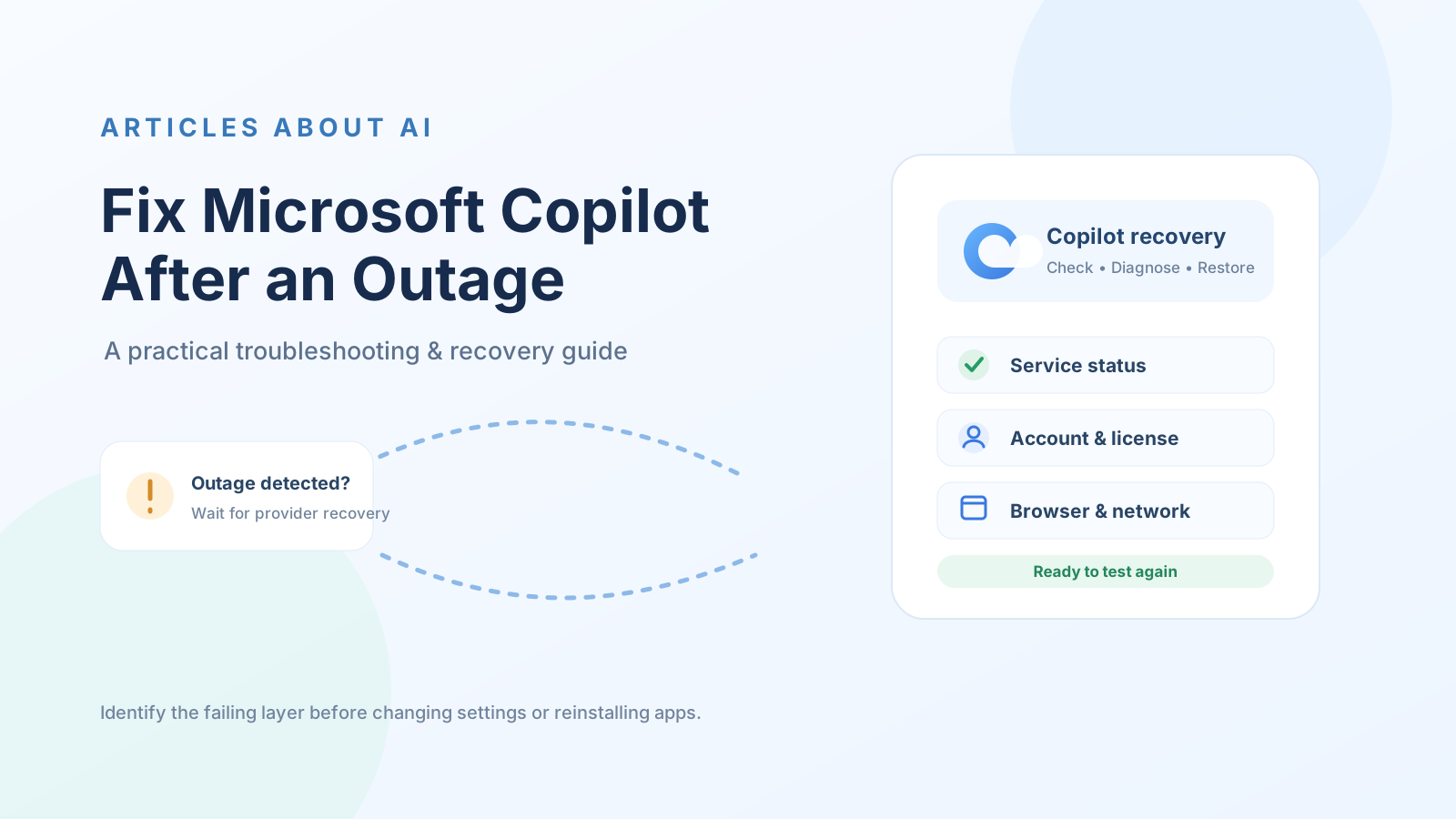
A Microsoft Copilot outage can leave the assistant unavailable even after Microsoft begins restoring its services. You might see a blank page, a sign-in loop, an error when sending a prompt, missing work data, or a Copilot button that has not returned inside a Microsoft 365 app.
The important point is to separate a provider-side outage from a local access problem. Restarting a browser cannot repair a Microsoft service that is still degraded. On the other hand, once the service is healthy, an expired sign-in session, blocked network request, outdated app, or incorrect work account can keep Copilot from working on one device.
This guide provides a recovery sequence that starts with service health and moves through account, browser, app, license, and network checks. It covers personal Copilot and organization-managed Microsoft 365 experiences. For the broader background on shared cloud dependencies, see our explainer on why one Microsoft cloud failure can disrupt multiple AI services.
Quick recovery checklist
Follow these checks in order:
- Check Microsoft’s public service status and, for work accounts, your organization’s Microsoft 365 Service health page.
- Confirm whether you use personal Copilot, Microsoft Copilot Chat, or the licensed work-based Copilot experience.
- Test Copilot in a fresh browser session or another supported device.
- Confirm that you are signed in with the correct personal or work account.
- Restart or update the affected browser or app.
- Check the required Microsoft 365 license, app eligibility, and organization policies if a work feature is missing.
- Ask your IT administrator to review proxy, firewall, Conditional Access, and network allow-list rules if the issue affects multiple users.
- Retest with a new, simple prompt and record any remaining error.
Do not start by reinstalling Office, deleting your browser profile, removing a work account, or resetting network settings. Those actions can create additional problems and are rarely the right first response to a cloud outage.
1. Check whether Microsoft Copilot is still affected by an outage
Before changing anything on your device, establish whether Microsoft has reported an active incident.
- Open the Microsoft service status page. It provides public status information for Microsoft consumer products and Microsoft 365 business or enterprise services.
- If you use a work or school account, ask an administrator to open the Microsoft 365 admin center and select Health > Service health. The tenant view can show incidents and advisories relevant to the organization.
- If the admin center is unavailable, use the public status page and check again later. Microsoft explains these options in its guide to checking Microsoft 365 service health.
Look for the affected workload and the incident’s latest update. A service may be listed as recovering or degraded even when some users can sign in. Partial recovery is not the same as full restoration.
What to do when an outage is confirmed
If Microsoft reports an active incident that matches your symptoms:
- Avoid repeated sign-in attempts and repeated prompt submissions.
- Do not clear all browser data or reinstall applications just to address a confirmed provider incident.
- Save unsent work and note the incident reference or service affected, if one is shown.
- Wait for Microsoft’s mitigation or restoration update, then test again.
- If only one account or device remains affected after the service is healthy, continue with the local checks below.
A local troubleshooting step cannot restore a backend service that Microsoft has not yet recovered.
2. Identify which Copilot experience you are using
The word “Copilot” covers different products and access models. Identify the affected experience before applying a fix.
- Personal Microsoft Copilot: the consumer website or mobile/desktop app, generally signed in with a personal account or a supported sign-in identity.
- Microsoft Copilot Chat: an organization-facing chat experience whose available features depend on the user’s eligible Microsoft 365 subscription and tenant configuration.
- Licensed Microsoft Copilot for work: the work-grounded experience formerly commonly called Microsoft 365 Copilot, including features integrated into Microsoft 365 apps. Microsoft documentation now uses the Microsoft Copilot naming for this experience.
- Copilot inside Word, Excel, PowerPoint, Outlook, or Teams: app-specific behavior may depend on the app, license, account, file state, and organizational settings.
Microsoft’s current Copilot requirements documentation explains that requirements vary by experience, including identity, licensing, browser, app, and network conditions.
If the problem is specifically that Copilot fails after you sign in, use our focused guide to Microsoft Copilot not working after sign-in. For a broader symptom-by-symptom checklist, see why Microsoft Copilot is not working.
3. Refresh the session without damaging your account setup
After Microsoft reports that the service is available, refresh the session in a controlled way.
- Copy any unsent prompt or important text into a local document.
- Refresh the Copilot page once, or fully close and reopen the app.
- Start a new chat and send a short test prompt, such as asking for a brief summary of a non-sensitive topic.
- If the page still fails, sign out and sign back in using the same account.
- If you have multiple Microsoft accounts, check the profile menu and confirm which identity is active.
For personal Copilot, make sure you use the same sign-in method and account associated with your previous conversations. For work or school Copilot, use the organization account that has been assigned access.
Do not remove your work or school account from Windows, disconnect your device from the organization, or delete an identity profile as a routine troubleshooting step. Those actions can affect device management and access to other company resources. Ask your IT administrator before making organization-level account changes.
4. Fix a blank page, endless loading, or browser error
If Copilot works on another device or in a private browser window, the issue may be isolated to the original browser profile.
Try these steps one at a time:
- Open a private or InPrivate window and sign in to Copilot.
- Test the same account in another supported, up-to-date browser.
- Temporarily disable browser extensions that block scripts, cookies, or network requests. Test one extension at a time.
- Check whether the browser blocks the cookies or site permissions required by the Copilot experience.
- If the private window works but the normal profile does not, clear site data for the relevant Copilot and Microsoft sign-in sites only, then sign in again.
Clearing site data may sign you out and remove site-specific preferences. Avoid deleting the entire browser profile unless you have a backup and a clear reason.
For a specific Microsoft Edge sidebar problem, Microsoft’s guidance on Copilot Chat loading issues in the Edge sidebar covers blank panes, refresh prompts, authentication state, and connectivity checks.
5. Restart or update the Copilot app
If the website works but the installed app does not, focus on the app rather than changing your Microsoft account.
- Close the app completely and reopen it.
- Install available updates through the official Microsoft Store, Apple App Store, Google Play, or the supported Microsoft update channel for your device.
- Restart the device if the app remains stuck after updating.
- On a managed work device, check with IT before repairing, resetting, or reinstalling an organization-managed app.
If you use the updated personal Copilot app and older conversations or content appear to be missing, first verify that you signed in with the same identity. Microsoft’s updated Copilot app troubleshooting guidance explains account selection, content migration, and how to report a problem.
Do not download unofficial Copilot installers or third-party repair tools. Use the official app source for your operating system.
6. Check Microsoft 365 Copilot licensing and permissions
If Copilot works on the web but is missing or unavailable in Word, Excel, Outlook, or another work app, check entitlement and configuration before reinstalling Office.
For an organization account, ask the administrator to verify:
- The user has the required eligible Microsoft 365 base or prerequisite license.
- The correct Microsoft Copilot license is assigned for the work-grounded features being used.
- The license is assigned to the same work identity that is signed in to the app.
- The relevant Microsoft 365 app and service are supported and enabled for the tenant.
- The user is not blocked by an organization policy or a service-specific configuration.
Microsoft distinguishes web-based Copilot Chat from licensed work-grounded Copilot capabilities. Review the official Microsoft Copilot license options and Copilot requirements rather than assuming every Microsoft 365 subscription includes every Copilot feature.
After a license is assigned or changed, allow time for the change to propagate, then sign out and back in or restart the affected app. Microsoft notes that some app experiences may take time to appear after licensing changes in its Copilot setup and license assignment guidance.
If Copilot appears in one Microsoft 365 app but not another, record the app name, version, account, and exact message. Availability can differ between apps and scenarios.
7. Check work data access, connectors, and file permissions
A Copilot chat that opens successfully may still fail to find a document, email, meeting, or SharePoint resource. That is a different problem from the assistant being offline.
Check the following:
- Can the user open the source file or mailbox item directly in the relevant Microsoft 365 app?
- Is the user signed in to the correct work tenant?
- Does the user have permission to access the file, site, mailbox, or connected data source?
- Is the file available in a supported location and format, and is it editable where the feature requires editing?
- Has an administrator changed a connector, data source, or access policy?
Do not grant broader SharePoint, OneDrive, mailbox, or connector permissions just to make a Copilot response appear. Access should follow the organization’s existing data governance rules.
For a related administrative walkthrough, see our guide to managing Microsoft 365 Copilot federated connectors.
8. Investigate network, proxy, firewall, and DNS restrictions
If Copilot fails on a company network but works on an approved alternate connection, the cause may be a network policy or filtering rule. Do not assume that the Microsoft service is down.
For managed environments, ask the network or Microsoft 365 administrator to review:
- Proxy and firewall logs for blocked Copilot requests.
- URL filtering and secure web gateway rules.
- Conditional Access and tenant restriction policies.
- Browser cookie or authentication controls.
- Whether the organization allows the required Microsoft cloud endpoints.
Microsoft’s Copilot network requirements specifically calls out the *.cloud.microsoft domain and warns that proxies, firewalls, URL filtering, Conditional Access, tenant restrictions, and app-control policies can interfere with the Copilot experience. Administrators should follow Microsoft’s current endpoint guidance rather than adding guessed domains or IP addresses.
For a simple comparison, test Copilot on another device or network only when your organization’s security policy permits it. Do not bypass a corporate VPN, firewall, or access control. If the alternate network works, give the administrator the time of the test, device, browser, account type, and exact error so they can investigate safely.
Avoid running broad DNS resets or changing router settings unless a qualified administrator has identified a local DNS or network problem. Such changes are not a general fix for a Microsoft cloud outage.
9. Troubleshoot common post-outage symptoms
| Symptom | Most useful first check | Next action |
|---|---|---|
| Copilot page is blank | Public service status and private browser test | Check browser extensions, cookies, and network access |
| Copilot keeps asking you to sign in | Active account and authentication session | Sign out and back in with the intended identity |
| Copilot opens but does not answer | New chat and short test prompt | Check service health and retry after recovery |
| Copilot missing in Word or Excel | Work account and license assignment | Ask the admin to verify entitlement and app configuration |
| Copilot cannot find work files | File permissions and tenant identity | Check SharePoint, OneDrive, and connector access |
| Copilot works on mobile but not on a work PC | Browser and organization network policies | Ask IT to inspect proxy and firewall logs |
| Only one conversation fails | Whether a new chat works | Preserve the original thread and continue in a new chat if appropriate |
If you receive a specific error code, preserve it exactly. A screenshot can help support teams, but remove confidential information, customer data, and personal details before sharing it.
10. When to contact Microsoft Support or your IT administrator
Escalate the issue when the service status is healthy but the problem persists, multiple users are affected, or a work feature remains unavailable after license and account checks.
Provide a concise diagnostic record:
- The Copilot product and exact app or website.
- Whether the account is personal or work/school.
- The time the issue began and the time of the latest test, including time zone.
- The device, operating system, browser, and app version.
- The exact error message or code.
- Whether the issue reproduces in a private browser window, another device, or an approved alternate network.
- The relevant Microsoft 365 service health incident reference, if available.
For personal Copilot, use the in-app feedback or official Microsoft Support route. For a work or school account, contact the organization’s help desk first; the administrator can inspect tenant-specific service health, licensing, and policy settings. Microsoft’s official Copilot troubleshooters may also help identify supported connectivity or license diagnostics.
11. Confirm that Copilot has recovered
Do not treat a single successful page load as proof that every feature is back. Run a small, repeatable validation:
- Open Copilot using the intended account.
- Start a new chat and submit a short, non-sensitive prompt.
- Confirm that a response completes without an error.
- If you use Microsoft 365 Copilot, test the specific app or work-data scenario that failed.
- Confirm that the relevant file or data source remains accessible under the user’s normal permissions.
- Check service health again if errors recur.
If the basic chat works but a particular Microsoft 365 workflow still fails, keep troubleshooting that app or data source rather than repeating general browser fixes.
12. Reduce disruption during future Copilot outages
Organizations can reduce recovery time by documenting which business workflows depend on Copilot, identifying the relevant Microsoft 365 service dependencies, and defining a fallback process for essential work.
Useful preparation includes:
- Assigning clear ownership for Microsoft 365 service-health monitoring.
- Ensuring help-desk staff know where to find tenant incidents and advisories.
- Keeping browsers and Microsoft 365 apps on supported update channels.
- Reviewing Copilot network requirements when proxy or firewall policies change.
- Auditing data permissions and connectors instead of granting broad access during an incident.
- Providing a non-AI fallback for time-critical tasks.
- Recording outage symptoms and recovery validation steps for future incidents.
For more context, read our analysis of shared cloud dependencies and Microsoft service outages.
Frequently asked questions
Why is Microsoft Copilot still not working after an outage?
The service may still be recovering, or your device may have an expired sign-in session, stale browser data, a blocked network request, or an account-specific issue. Check service health first, then test a fresh session and another supported device.
Should I reinstall Microsoft 365 after a Copilot outage?
Usually not. Reinstallation is a disruptive step and does not fix a provider-side incident, a missing license, or a blocked network endpoint. Identify the failing layer first.
Why does Copilot work in the browser but not in Word or Excel?
The app experience may require a different license, supported app version, work identity, file state, or tenant configuration. Ask your administrator to verify the user’s entitlement and the app-specific requirements.
Can I fix a Microsoft Copilot outage by clearing cache?
Clearing site data may help when the issue is isolated to a browser profile, but it cannot repair a Microsoft service outage. Test a private window first and clear only relevant site data if that test points to a local browser problem.
What should I do if Copilot can chat but cannot access my work files?
Check that you are using the correct work account and that you already have permission to open the source files or data. Ask your administrator to review connectors and access policies. Do not expand permissions simply to force a result.
How do I know when Copilot is fully restored?
Check Microsoft’s service status, then test the exact feature that failed using the intended account. For work scenarios, validate the affected Microsoft 365 app and data source as well as basic chat.
Final takeaway
The safest way to fix Microsoft Copilot after an outage is to work from the outside in: verify Microsoft’s service health, identify the Copilot product, refresh the correct account session, test the browser or app, and then investigate licensing, permissions, and network policies. This sequence avoids unnecessary resets and helps distinguish a continuing cloud incident from a problem limited to one user or device.
Official Microsoft sources
- Microsoft service status
- How to check Microsoft 365 service health
- Microsoft Copilot requirements
- License options for Microsoft Copilot
- Set up Microsoft Copilot and assign licenses
- Troubleshoot Copilot Chat loading problems in Microsoft Edge
- Troubleshoot content in the updated Copilot app
- Official Copilot troubleshooters