
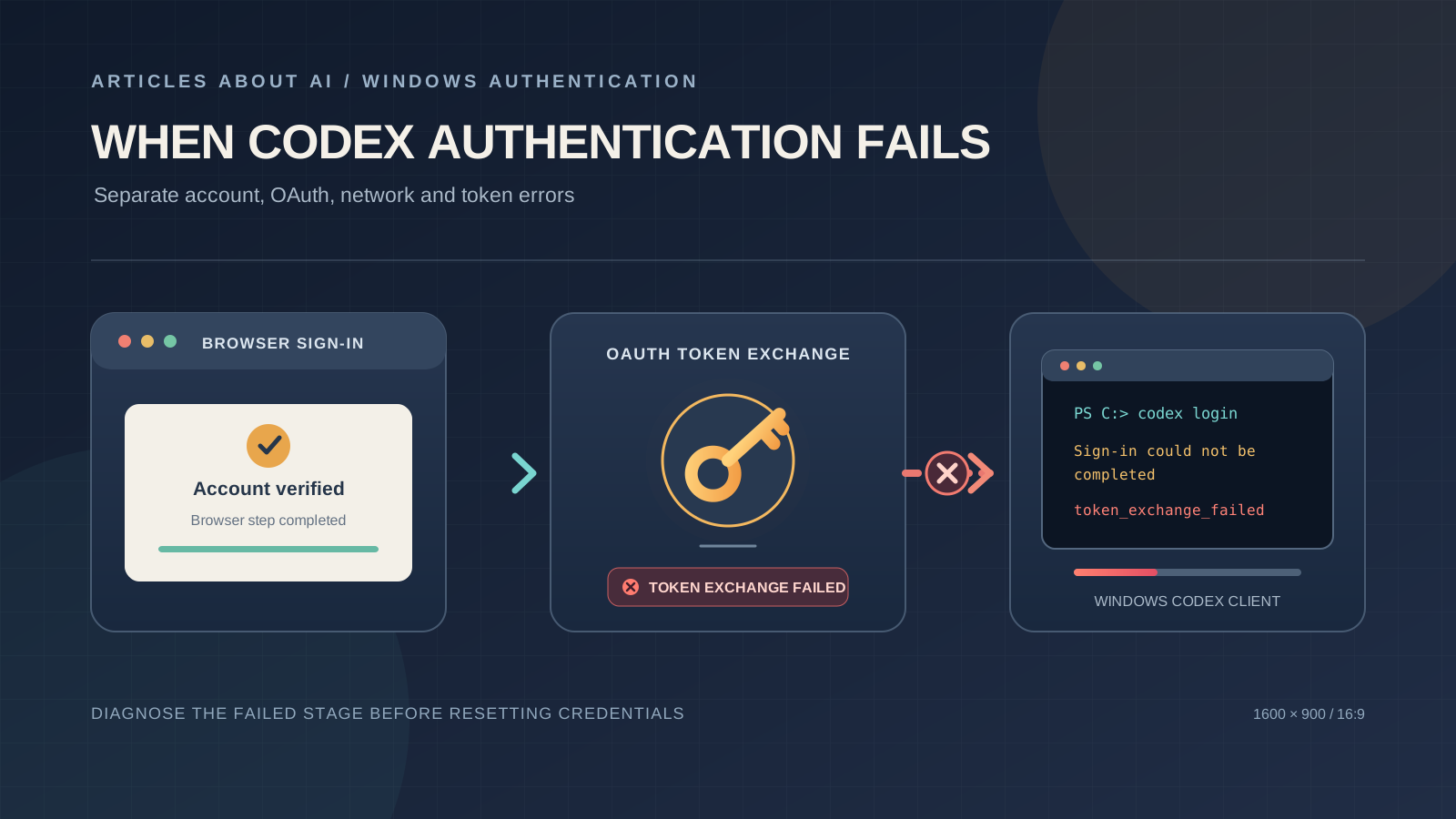
If Codex authentication fails on Windows, the useful first question is not whether your password is correct. It is which part of the authentication flow failed. A browser can accept your ChatGPT sign-in while Codex fails to exchange the authorization result for a token. A device-code request can fail before a code is issued. A previously valid session can also fail later when Codex tries to refresh an access token.
Those situations can produce similar messages, but they do not point to the same cause. This guide focuses on failed authentication attempts and token errors in Codex Desktop, the ChatGPT desktop app’s Codex mode, and Codex CLI on Windows. It uses official OpenAI authentication guidance and clearly labels community reports rather than presenting individual workarounds as guaranteed fixes.
Scope: If browser sign-in completes but the desktop app repeatedly returns to its sign-in screen after opening a project or restarting, use our guide to fixing the Codex Desktop sign-in loop on Windows. If the exact message is “workspace routing discovery timed out” or HTTP 432, follow the separate workspace-routing troubleshooting guide. If authentication succeeds but requests fail with WebSocket or network errors, see Codex Desktop connection troubleshooting.
Identify the authentication error before changing anything
Record the complete message, the client showing it, and the point at which it appears. These examples help classify the failure:
| Message or symptom | What it indicates | Best first check |
|---|---|---|
token_exchange_failed or an error sending a request to https://auth.openai.com/oauth/token |
The OAuth token-exchange step did not complete. The message alone does not prove that the password or account is wrong. | Check the authentication network path, proxy, TLS certificate trust, and the login log. |
Device-code login fails while requesting /api/accounts/deviceauth/usercode |
The device-code flow failed before it could issue a usable code. | Check whether device-code login is enabled and whether the endpoint is reachable through the route Codex uses. |
Wrong authentication method or an account-already-exists message |
The selected sign-in provider may not match the method associated with the account. | Use the original Google, Microsoft, Apple, or email sign-in method. |
token_expired, refresh_token_invalidated, or a revoked-refresh-token message |
A previously issued credential could not be used or refreshed. | Re-authenticate once, then distinguish a persistent desktop-session problem from an initial OAuth failure. |
Incorrect API key provided |
The request is being rejected as an API-key credential, not simply as a wrong ChatGPT password. | Check the active authentication mode and any managed configuration without exposing the key. |
Do not delete credential files, reset every account session, or reinstall the application before you know which category matches your error.
1. Check whether OpenAI is reporting an authentication incident
Open the OpenAI Status page and look for an incident affecting ChatGPT, Codex, or authentication services.
If an incident is active, wait for the service update before repeatedly retrying the login flow. A local reinstall cannot repair an authentication service that is temporarily unavailable. If no relevant incident is listed, continue with local checks; a clear status page does not rule out an account-specific or network-specific failure.
2. Confirm the ChatGPT account and sign-in method
Codex can use a ChatGPT account for subscription access. OpenAI’s sign-in guidance also supports API-key authentication for local Codex work, but the two methods have different billing and feature implications.
Before retrying:
- Open chatgpt.com in a browser.
- Confirm that you are using the intended account and workspace.
- If you originally registered with Continue with Google, Continue with Microsoft, or Continue with Apple, choose the same provider and the same provider account.
- If you use an email address and password, make sure it is the email associated with the ChatGPT account—not merely a billing or forwarding address.
- If you belong to a managed Business or Enterprise workspace, confirm with its administrator that your account is provisioned and allowed to use the relevant Codex client.
OpenAI’s login troubleshooting guidance specifically recommends using the authentication method associated with the account. Choosing a different provider can lead to an account mismatch even when the email address looks familiar.
Check managed login restrictions
In managed environments, administrators can enforce a login method or a specific ChatGPT workspace. The Codex authentication documentation describes settings such as:
forced_login_method, which can require ChatGPT authentication or API-key authentication.forced_chatgpt_workspace_id, which can restrict ChatGPT sign-in to a specified workspace.
If the active credentials do not match enforced restrictions, Codex can log the user out and exit. If authentication fails only on a work-managed computer or account, ask the workspace administrator to review the managed configuration and workspace membership. Do not try to bypass an organization policy by changing local settings.
3. Separate browser sign-in from the OAuth token exchange
When you sign in to Codex with ChatGPT, the desktop app, CLI, or IDE extension opens a browser window. After you authenticate, the browser returns the sign-in result to the Codex client.
That process has more than one stage:
- The browser opens the OpenAI sign-in page.
- You authenticate with the correct ChatGPT account.
- The browser completes the authorization step.
- The client receives the result and completes its token exchange.
- Codex stores the resulting authentication state for later use.
A successful browser page only confirms that the browser portion worked. It does not prove that the desktop app or CLI completed the token exchange.
If the browser flow opens but Codex reports token_exchange_failed:
- Complete the flow in the browser window opened by Codex rather than starting a separate sign-in in another tab.
- Make sure the browser is signed in to the intended ChatGPT account.
- Allow the browser to return control to the desktop app or terminal.
- Note whether the failure occurs immediately after the browser reports success.
- Avoid launching several simultaneous login attempts; keep one attempt at a time so the resulting logs are easier to interpret.
If the browser itself displays a verification loop or a generic ChatGPT login error, follow the browser-specific steps in OpenAI’s Why can’t I log in to ChatGPT? article. Those steps include checking cookies, trying a clean private window, and reviewing VPN or proxy interference. On a managed device, consult IT before changing network or browser security settings.
4. Use the Codex CLI to check its own authentication state
If Codex CLI is already installed, it can help you determine whether the command-line client has credentials and which authentication method it is using.
Open PowerShell and run:
codex login status
The command reports the active authentication method. It is a useful check for the CLI, but it does not prove that Codex Desktop has a healthy session or that a server-side token will refresh successfully.
If the CLI is signed out, start its normal ChatGPT browser flow:
codex login
Complete the browser sign-in and then check the status again:
codex login status
If the CLI reports that you are logged in but the desktop app still fails, treat that as evidence that the clients may be handling their authentication state differently. Do not assume that a successful CLI login repairs the desktop app. A Windows report in OpenAI Codex issue #45663, opened September 15, 2026, describes a desktop refresh-token failure while the CLI on the same computer continued to report an authenticated ChatGPT session.
OpenAI’s Windows guidance also recommends codex doctor for diagnostics covering startup, connectivity, and performance. It is a general diagnostic command, not a replacement for the login-specific log.
5. Try device-code login only when the browser callback is the problem
The Codex CLI supports a beta device-code authentication flow. OpenAI documents it for situations such as remote or headless environments, or when local networking blocks the localhost callback used by browser-based CLI login.
If device-code login is enabled for your personal account or by your workspace administrator, run:
codex login --device-auth
Follow the displayed link, sign in to the correct ChatGPT account, and enter the one-time code. If the option is unavailable, check the relevant ChatGPT security setting or ask your workspace administrator whether device-code login is permitted.
This is a CLI troubleshooting option. Do not assume it is a universal repair button for every Codex Desktop authentication error. It also uses an authentication endpoint of its own, so it can fail if the client cannot reach that endpoint or validate its TLS connection.
A Windows report in OpenAI Codex issue #36490, opened August 1, 2026, describes both browser-based and device-code login failing at different authentication endpoints on one Windows 11 computer, even though basic DNS and TCP checks succeeded. The report is a community case, not proof of a widespread defect.
6. Check the Windows network route and TLS certificate trust
An OAuth request can fail even when the browser appears to work. The browser, Windows system proxy, command-line process, and desktop application may not necessarily use identical network paths or certificate settings.
For a basic read-only check, open PowerShell and run:
Resolve-DnsName auth.openai.com
Test-NetConnection auth.openai.com -Port 443
These commands only check DNS resolution and basic TCP reachability to port 443. A successful result does not prove that the OAuth token-exchange request, TLS certificate validation, or the full authentication flow will succeed.
If you use a VPN, local proxy, secure web gateway, antivirus HTTPS inspection, or corporate TLS inspection:
- Confirm which proxy route the affected Codex process actually uses.
- Check whether the proxy or security gateway is intercepting the connection to
auth.openai.com. - Ask your network administrator whether the relevant OpenAI authentication destinations are allowed.
- Compare with another trusted network only if your organization permits it.
- Do not disable endpoint protection, firewall rules, certificate verification, or corporate filtering globally.
If your organization uses a private certificate authority
OpenAI’s Codex authentication documentation says that a corporate TLS proxy or private root CA may require a PEM certificate bundle. It documents CODEX_CA_CERTIFICATE and notes that, when it is unset, Codex falls back to SSL_CERT_FILE.
For Codex CLI launched from the same PowerShell session, an administrator-provided PEM bundle can be selected like this:
$env:CODEX_CA_CERTIFICATE = 'C:\certs\organization-root-ca.pem'
codex login
Replace the example path with the actual certificate bundle supplied by your IT team. This is not a reason to download a certificate from an unknown website or to trust an unverified certificate. If you are troubleshooting the desktop app, ask your administrator to confirm the supported certificate configuration for that app and launch environment.
One later comment on issue #36490 attributed a particular user’s TLS validation failure to HTTPS inspection by Norton 360; another commenter described a similar exception in Avast WebShield. These are individual community reports, not an OpenAI-confirmed universal cause. Do not disable antivirus protection globally based on them.
For broader network symptoms after authentication, including WebSocket handshakes and proxy routing, see our guide to Codex Desktop connection problems on Windows.
7. Understand expired or revoked refresh-token errors
A refresh-token error is different from a failure to exchange the initial browser authorization result. Codex may have completed sign-in earlier, but a later request can fail when the client tries to refresh an access token.
Examples include:
token_expiredrefresh_token_invalidated- A message saying that the access token could not be refreshed because the user logged out or signed in to another account.
Try one normal sign-out and sign-in through the affected client’s supported interface. If the same error returns immediately, stop repeating the login flow and collect the exact message and diagnostics.
Public Windows reports show why this distinction matters. Issue #41405, opened August 28, 2026, describes a case where browser OAuth appeared to complete but the resulting refresh token was later reported as revoked. Issue #45663 describes a separate desktop refresh failure while the CLI remained authenticated. Both are user-submitted reports; neither establishes a general root cause or a supported workaround for every Windows installation.
If the practical symptom is that Codex Desktop keeps returning to the sign-in screen after successful browser authentication, follow our focused Codex Desktop sign-in loop guide rather than applying unrelated credential resets from another report.
8. Treat API-key authentication as a different billing choice
Codex supports ChatGPT sign-in and API-key sign-in for supported local workflows. They are not interchangeable from a billing or feature perspective.
OpenAI’s authentication documentation states that API-key authentication uses standard API pricing through the OpenAI Platform account, rather than the usage included with a ChatGPT plan. Some features that depend on ChatGPT workspace access or cloud services may also be limited or unavailable.
Therefore, do not create or paste an API key simply to get around a ChatGPT sign-in error. If you intentionally choose API-key authentication, use a key from the correct OpenAI Platform project, keep it private, and understand the separate billing. Never paste an API key into a support ticket, screenshot, public issue, or chat.
If the error explicitly says “Incorrect API key provided” while you expected ChatGPT sign-in, check the active authentication mode and ask an administrator to review any enforced login-method or provider configuration. Do not publish the key value while diagnosing it.
9. Handle the local credential cache carefully
Codex can cache login details locally in ~/.codex/auth.json or in an operating-system credential store, depending on the configured storage method. OpenAI warns that the file-based auth.json contains access tokens and must be treated like a password.
Keep these precautions in mind:
- Never commit
auth.jsonto Git or upload it to a public issue. - Do not paste its contents into a support conversation.
- Do not copy another person’s credential file to your computer.
- Do not delete the entire
.codexdirectory as a routine first step; it may contain configuration and other local state. - Do not remove Windows Credential Manager entries unless you have identified the exact credential and understand the effect.
For a clearly stale CLI login, the documented codex logout command removes the CLI’s stored credentials; you can then run codex login again. Be aware that the CLI and IDE extension share cached login details, so logging out from either means signing in again the next time you use them. For the desktop app, use its own supported sign-out flow rather than assuming that deleting the CLI cache will fix it.
10. Know when to wait or contact OpenAI Support
OpenAI’s general login guidance says that repeated failed attempts can trigger temporary suspicious-login restrictions. If you see a suspicious-login warning, pause repeated attempts; OpenAI advises waiting up to one hour before trying again. If the account is deactivated, suspended, or blocked by a workspace policy, changing local Codex files will not resolve the account restriction.
If the error continues, prepare a concise report containing:
- Windows edition, version, and build.
- Codex Desktop or CLI version.
- The exact error text and the step where it appears.
- Whether browser sign-in completes before the error.
- Whether
codex login statusreports an authenticated CLI session, if you use the CLI. - Whether device-code login is enabled and what happens when you try it.
- Whether you use a VPN, proxy, TLS inspection, or managed network.
- Whether the same account works on another trusted device.
- The approximate time of the failure and any request or feedback ID shown by Codex.
The authentication documentation says that direct codex login runs write a dedicated codex-login.log file under the configured log directory. Use that login-specific log when debugging browser or device-code failures or when OpenAI Support requests it. Review and redact tokens, cookies, authorization headers, account identifiers, email addresses, local usernames, private project paths, and proxy credentials before sharing any diagnostics.
For account-level problems, use the OpenAI Help Center. For reproducible client bugs, consult the OpenAI Codex issue tracker and search for an existing report before opening another one.
Frequently asked questions
Why does Codex say token_exchange_failed after I sign in through the browser?
The browser sign-in and the client’s token exchange are separate stages. The browser can authenticate the account while the client still fails to complete the request to the authentication service. Check the exact error, proxy route, TLS trust, and login-specific diagnostics before assuming that your password is wrong.
Does successful codex login status prove that Codex Desktop is authenticated?
No. The command reports the CLI’s active authentication method. Public Windows reports describe cases where CLI authentication remained available while the desktop app had a separate refresh-token problem.
Should I use device-code login instead of browser login?
Use device-code login when the browser callback is blocked or unavailable and the feature is enabled for your account or workspace. It is a beta CLI flow, not a guaranteed fix for every OAuth or desktop authentication failure.
Can I fix Codex authentication by deleting auth.json?
Do not make that your first step. The file may contain access tokens, and deleting credential state can remove useful evidence without addressing the cause. Use supported sign-out commands or the app’s sign-out interface only when the affected client and credential state are clear.
Does using an API key keep my ChatGPT plan billing?
No. OpenAI documents API-key authentication as usage billed through the OpenAI Platform at standard API rates. Some ChatGPT workspace or cloud features may not be available through API-key authentication.
The bottom line
A Codex authentication error on Windows can originate in the account method, a managed workspace restriction, the browser-to-client handoff, the OAuth token exchange, TLS inspection, or a later refresh-token failure. Start by classifying the exact message and stage. Then verify the account and workspace, check the client-specific login state, and investigate the network and certificate path only when the evidence points there.
Avoid repeated sign-in attempts, broad security changes, and manual deletion of credential files. If a clean, supported login still fails, preserve the login-specific diagnostics and report the exact Windows and Codex versions to OpenAI. That is more useful—and safer—than applying an unverified workaround from a different machine.
Sources
- Authentication — ChatGPT Learn / OpenAI — official Codex sign-in methods, CLI login status, credential storage, device-code login, login diagnostics, and custom CA bundle guidance.
- Using Codex with your ChatGPT plan — OpenAI Help Center — official Codex client setup and Windows diagnostic guidance.
- Why can’t I log in to ChatGPT? — OpenAI Help Center — official account sign-in, provider selection, suspicious-login, and browser troubleshooting guidance.
- OpenAI Status — official service-health information.
- OpenAI Codex issue #36490 — Windows CLI report opened August 1, 2026, describing
token_exchange_failedand device-code endpoint failures. - OpenAI Codex issue #41405 — Windows report opened August 28, 2026, describing a refresh-token-revoked error after browser OAuth.
- OpenAI Codex issue #45663 — Windows report opened September 15, 2026, describing a desktop token-refresh failure while the CLI remained authenticated.
Related Articles
- How to Fix Codex Desktop Keeps Asking You to Sign In on Windows — troubleshoot repeated desktop sign-in prompts after browser authentication.
- How to Fix Codex Desktop Login Failed: Workspace Routing Discovery Timed Out on Windows — troubleshoot the separate workspace-routing timeout and HTTP 432 errors.
- How to Fix Codex Desktop Connection Problems on Windows — diagnose proxy, TLS, WebSocket, and network connection failures.
- How to Fix ChatGPT Login Problems: A Step-by-Step Guide — troubleshoot general ChatGPT account and browser sign-in problems.