
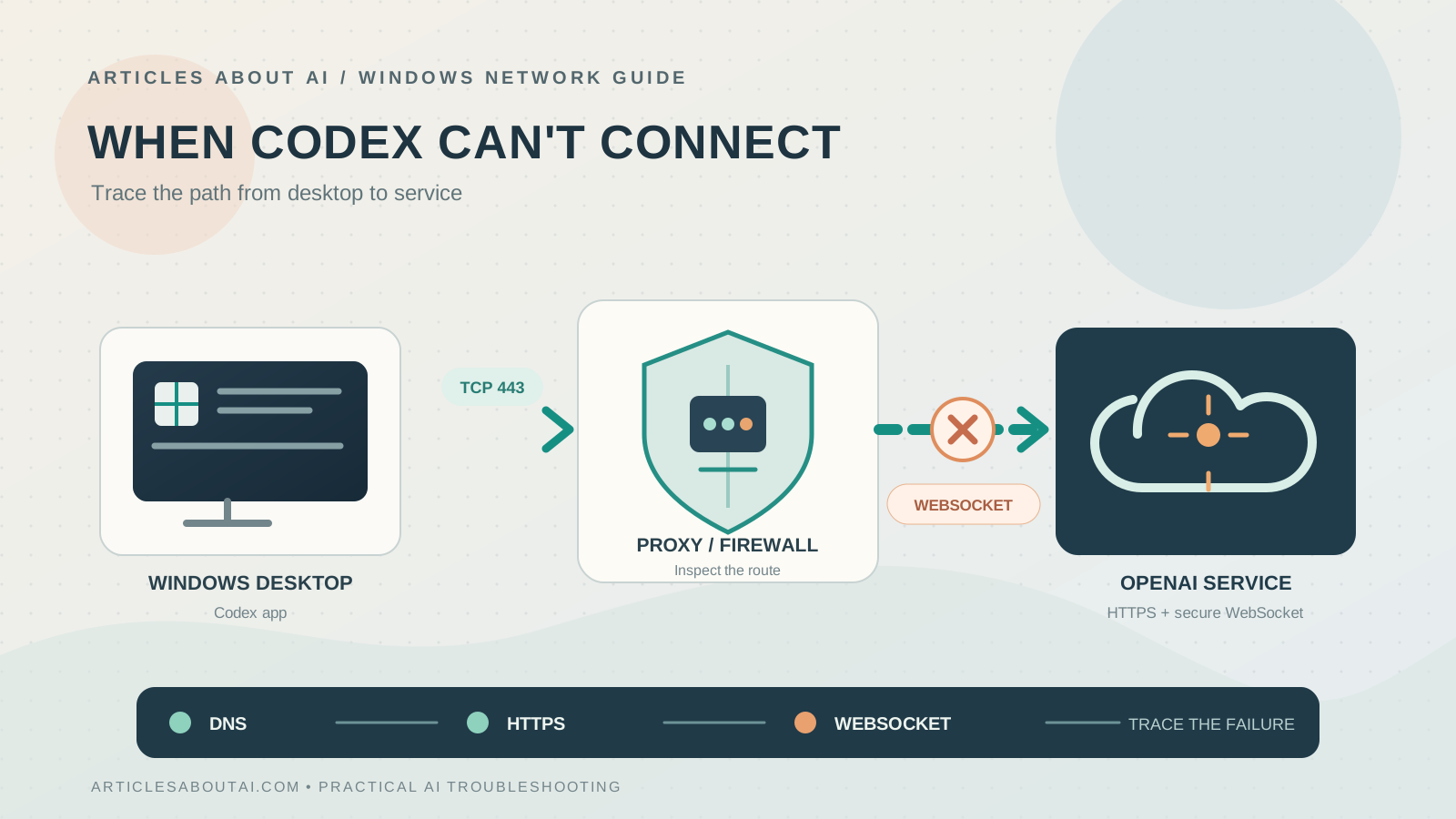
If Codex Desktop will not connect on Windows, the first task is to identify which connection is failing. A desktop app that cannot load organization settings, a model request that never starts, a WebSocket handshake timeout, and a Remote Control connection that repeatedly reconnects can look like one broad network problem—but they are not necessarily the same failure.
OpenAI’s network guidance confirms that some Codex features use secure WebSocket connections in addition to ordinary HTTPS. A browser page loading successfully therefore does not prove that every connection used by the desktop app is working.
This guide focuses on Windows network and transport problems. It does not treat every login or response error as a connectivity failure:
- If Codex displays “workspace routing discovery timed out” or HTTP 432, “Workspace routing is unavailable,” use our separate guide to fixing the Codex Desktop workspace-routing discovery timeout.
- If the app repeatedly returns to the sign-in screen after browser authentication, see How to Fix Codex Desktop Keeps Asking You to Sign In on Windows.
- If a request starts and then ends with “stream disconnected before completion,” follow our guide to Codex stream disconnects on Windows.
What Codex Desktop connection problems can look like
Windows reports in the public OpenAI Codex issue tracker describe several different symptoms:
- “Unable to load organization settings” with a WebSocket handshake timeout. In issue #48627, a Windows 11 user reported that HTTPS requests worked through a proxy while the desktop app’s WebSocket handshake timed out.
- An OAuth or connection request still targets an old local proxy port. In issue #54839, a user reported that Codex continued trying a previous proxy port after the Windows system proxy had been changed. The report includes a successful workaround on that one machine, but it does not establish a general fix for other installations.
- A persistent Remote Control connection repeatedly times out. Issue #55557 describes a Windows desktop connection used by the “Control this computer” feature that behaved differently from other app-server connections. The report includes additional observations posted on November 14 and 15, 2026.
These are user-submitted reports, not official confirmation that every Windows installation has the same defect. They are useful because they show why the exact symptom and connection path matter. Do not apply a workaround from one report unless its conditions match your setup.
1. Check OpenAI service status first
Before changing Windows or proxy settings, check the OpenAI Status page. Look for an incident affecting ChatGPT, Codex, authentication, or related services at the time of the failure.
If a relevant incident is active, avoid repeatedly restarting the app or changing network settings. Wait for the incident update and then make one controlled test. If the status page shows no relevant incident, continue with local checks; a clear status page does not rule out a partial or account-specific service problem.
2. Identify whether the problem affects one device or one network
Compare a few simple cases without changing security settings:
- On the affected Windows computer, open chatgpt.com in the browser using the same account.
- If possible, test ChatGPT from another device on the same network.
- If it is safe and permitted, compare Codex on the Windows computer using a different trusted connection, such as a personal mobile hotspot.
- Record which combinations work and which fail.
Interpret the comparison carefully:
- The browser and desktop app both fail on the same network: a shared network or service problem is possible, but not proven.
- The browser works while Codex Desktop fails: the desktop app may be using a different connection path, including a WebSocket or proxy path.
- Codex works on a trusted hotspot but not on the normal network: this narrows the investigation toward the original network, proxy, DNS, firewall, or filtering path. It does not identify which component is responsible.
- Other devices on the same network work: the issue may be specific to the Windows computer or its app configuration.
Do not use an untrusted public network for this test, and do not bypass workplace network controls.
3. Check basic DNS and TCP reachability
If you are comfortable using PowerShell, these read-only commands can provide a basic connectivity snapshot:
Resolve-DnsName chatgpt.com
Test-NetConnection chatgpt.com -Port 443
The first command asks Windows to resolve the hostname. The second tests whether a TCP connection to port 443 can be established from the current shell environment.
These checks have limits:
- A successful DNS lookup does not prove that the desktop app is using the same DNS result.
- A successful TCP connection to port 443 does not prove that TLS or a WebSocket handshake succeeds.
- If your network requires a proxy, a direct test from PowerShell may fail even though traffic routed through the approved proxy works.
Treat the output as diagnostic evidence, not a definitive Codex test. If your organization requires a proxy, ask its network administrator to test the approved proxy path rather than changing your system to make a direct connection succeed.
4. Check the WebSocket requirement—not just HTTPS
OpenAI’s network recommendations for ChatGPT errors on web and apps explicitly state that some ChatGPT and Codex features use secure WebSocket connections as well as standard HTTPS.
For Codex model sampling and streaming, the current guidance identifies:
- Destination:
wss://chatgpt.com/ - Transport: WebSocket over TCP port 443
- Handshake: the proxy, firewall, or secure web gateway must permit the standard
Upgrade: websocketexchange.
If you manage the network, check that the policy permits WebSocket upgrades to chatgpt.com over TCP 443. If the network filters by URL path, follow OpenAI’s current guidance for the Codex destination rather than assuming that ordinary HTTPS access is sufficient.
The same OpenAI guidance warns that TLS inspection, SSL decryption, web filtering, or proxy enforcement can interfere if they block, rewrite, or prematurely close the WebSocket handshake or the long-running connection. If a connection starts but later stalls, ask the network administrator to review WebSocket idle-timeout and maximum frame or message-size policies.
A Windows report in issue #48627 illustrates the distinction: the reporter said ordinary HTTP/HTTPS requests worked through the proxy while the WebSocket handshake timed out. That is a community report, not proof that every similar timeout has the same cause.
5. Verify the Windows proxy configuration
If you use a local proxy client, VPN, or managed proxy, verify that Windows and the proxy application agree about the active connection.
- Open Settings → Network & internet → Proxy.
- Note whether Automatically detect settings, a setup script, or Use a proxy server is enabled.
- If a manual proxy is configured, record its address and port.
- Open the proxy application and confirm that the corresponding listener is running.
- If you recently switched proxy clients or ports, make sure the previous client is not the only process still listening on the old port.
- Fully exit Codex Desktop and reopen it after the proxy configuration has settled.
Do not copy a proxy address or port from another person’s issue report. Your local listener address is specific to your own configuration.
Watch for a stale proxy endpoint
In OpenAI Codex issue #54839, a Windows user reported that Codex continued trying an old loopback proxy port even after Windows showed a newer system-proxy port. The issue report describes one successful workaround, but the underlying mechanism was not confirmed as a general Windows or Codex behavior.
If you suspect this pattern:
- Compare the port shown in Windows Settings with the port your proxy application is actually listening on.
- Record whether the old proxy client has been stopped.
- Fully quit and relaunch Codex after confirming the active configuration.
- If the app still appears to use an obsolete port, preserve the evidence and report it to OpenAI or your network administrator.
Do not edit the Windows registry, change random proxy ports, or delete credentials to address a suspected stale endpoint. The issue report is evidence that the symptom has occurred—not a safe universal recipe.
6. Check firewall, web filtering, and TLS inspection with your administrator
On a managed network, security controls may treat HTTPS and WebSocket traffic differently. OpenAI’s network guidance lists several types of corporate web gateways and filtering products that administrators may need to review.
Ask your administrator to verify:
- The OpenAI and ChatGPT destinations required by the current official network guidance are not blocked or redirected to unexpected content.
- WebSocket upgrades to
chatgpt.comover TCP 443 are permitted for Codex. - TLS inspection or SSL decryption is not rewriting or terminating the handshake.
- Long-lived WebSocket sessions are not being closed by an overly short idle timeout.
- The proxy is not returning a captive-portal, block, or authentication page in place of the expected service response.
Do not turn off Windows Defender, your firewall, endpoint protection, or corporate filtering globally. If a security product is involved, use a narrowly scoped, administrator-approved policy change and restore the normal policy after testing.
7. If only “Control this computer” fails, treat it as a separate connection path
Codex Desktop’s Remote Control feature can use a persistent connection that is distinct from ordinary model requests. A failure in that channel does not automatically mean that the main Codex chat connection is broken.
The public report issue #55557 describes a Windows setup where the Remote Control long-lived WebSocket behaved differently from other connections in the same application. Additional comments dated November 14 and 15, 2026, report that the desktop-specific connection still failed in the reporter’s environment even when separate network checks succeeded.
The report does not provide an official, generally supported fix. In particular, do not assume that enabling a proxy client’s TUN mode, changing DNS, or adding an undocumented hostname to an allowlist is appropriate for every network. Those changes can affect the entire computer and may conflict with workplace policy.
If normal Codex conversations work but Remote Control does not, report that distinction. Include whether Settings → Connections → Control this computer is enabled and the exact error shown, but do not publish private session identifiers or raw credentials.
8. Update the app and capture the exact failure
Check for updates through the distribution channel used to install the desktop app. For a Microsoft Store installation, open Library → Get updates. After an update, fully exit and reopen Codex, then test once.
If the problem remains, collect:
- Windows version and build.
- Codex Desktop or ChatGPT desktop app version.
- The exact error text, including whether it says WebSocket, timeout, organization settings, reconnecting, or connection failed.
- Whether the browser works on the same computer and network.
- Whether another device on the same network works.
- Whether a trusted alternate network changes the result.
- Whether you use a VPN, manual proxy, proxy auto-configuration script, TLS inspection, or managed security gateway.
- Whether the failure affects normal Codex requests, sign-in, or only Remote Control.
- The approximate time of the failure and any request or feedback ID shown by the app.
Before sharing logs or screenshots, redact access tokens, cookies, authorization headers, email addresses, account identifiers, local usernames, private project paths, and proxy credentials. Do not post the contents of authentication files or full environment-variable dumps.
Use the OpenAI Help Center or the OpenAI Codex issue tracker to request support. A concise report with a repeatable symptom and a clear comparison between HTTPS and WebSocket behavior is more useful than a list of unrelated changes.
Frequently asked questions
Why does Codex Desktop fail when ChatGPT works in my browser?
The browser and desktop app may use different network paths. OpenAI documents a WebSocket requirement for Codex, so a browser page loading over HTTPS does not prove that the app’s WebSocket handshake is permitted.
Does an open TCP port 443 mean Codex is connected?
No. It only shows that a TCP connection can be established from the test environment. TLS, authentication, the WebSocket upgrade, and the application’s own initialization can still fail.
Should I disable my VPN or firewall?
Do not disable security controls globally. If a VPN or filtering product may be involved, compare only with a trusted connection and follow the network administrator’s approved process.
Is a WebSocket timeout the same as a workspace-routing timeout?
No. They describe different stages and symptoms. For the exact “workspace routing discovery timed out” or HTTP 432 message, use our workspace-routing troubleshooting guide.
Does this guide cover Codex stream disconnects during a response?
Only indirectly. If a request begins and then ends with “stream disconnected before completion,” use our separate Codex stream-disconnection guide for Windows.
The bottom line
When Codex Desktop has connection problems on Windows, do not assume that every failure is a password issue or a general internet outage. Identify the failing feature, check OpenAI status, compare browser and desktop behavior, and distinguish basic TCP reachability from the WebSocket handshake that Codex may need.
OpenAI’s published network guidance provides a concrete starting point: permit Codex WebSocket traffic to chatgpt.com over TCP 443 and make sure proxies and security gateways do not interfere with the handshake or long-lived connection. If the problem appears to involve a stale proxy or a Remote Control channel, preserve the evidence and seek support rather than applying an unverified workaround.
Sources
- Network recommendations for ChatGPT errors on web and apps — OpenAI Help Center — official guidance on WebSocket traffic, TCP 443, TLS inspection, filtering, and long-lived connections.
- Using Codex with your ChatGPT plan — OpenAI Help Center — official information about Codex clients and desktop usage.
- OpenAI Status — official service-health information.
- OpenAI Codex issue #48627 — Windows desktop report opened September 27, 2026, describing a WebSocket handshake timeout while HTTPS requests worked through a proxy.
- OpenAI Codex issue #54839 — Windows report opened October 17, 2026, describing a stale local proxy port after a system-proxy change.
- OpenAI Codex issue #55557 — Windows report opened October 20, 2026, with further Remote Control connection observations posted on November 14–15, 2026.
- OpenAI Codex issue #55584 — related Windows report about a persistent WebSocket timeout; GitHub currently marks it closed as not planned.
Related Articles
- How to Fix Codex Desktop Login Failed: Workspace Routing Discovery Timed Out on Windows — troubleshoot the distinct workspace-routing and HTTP 432 errors.
- How to Fix Codex Desktop Keeps Asking You to Sign In on Windows — investigate repeated desktop sign-in prompts and session persistence.
- How to Fix Codex “Stream Disconnected Before Completion” on Windows — investigate response-stream failures after a request has started.