
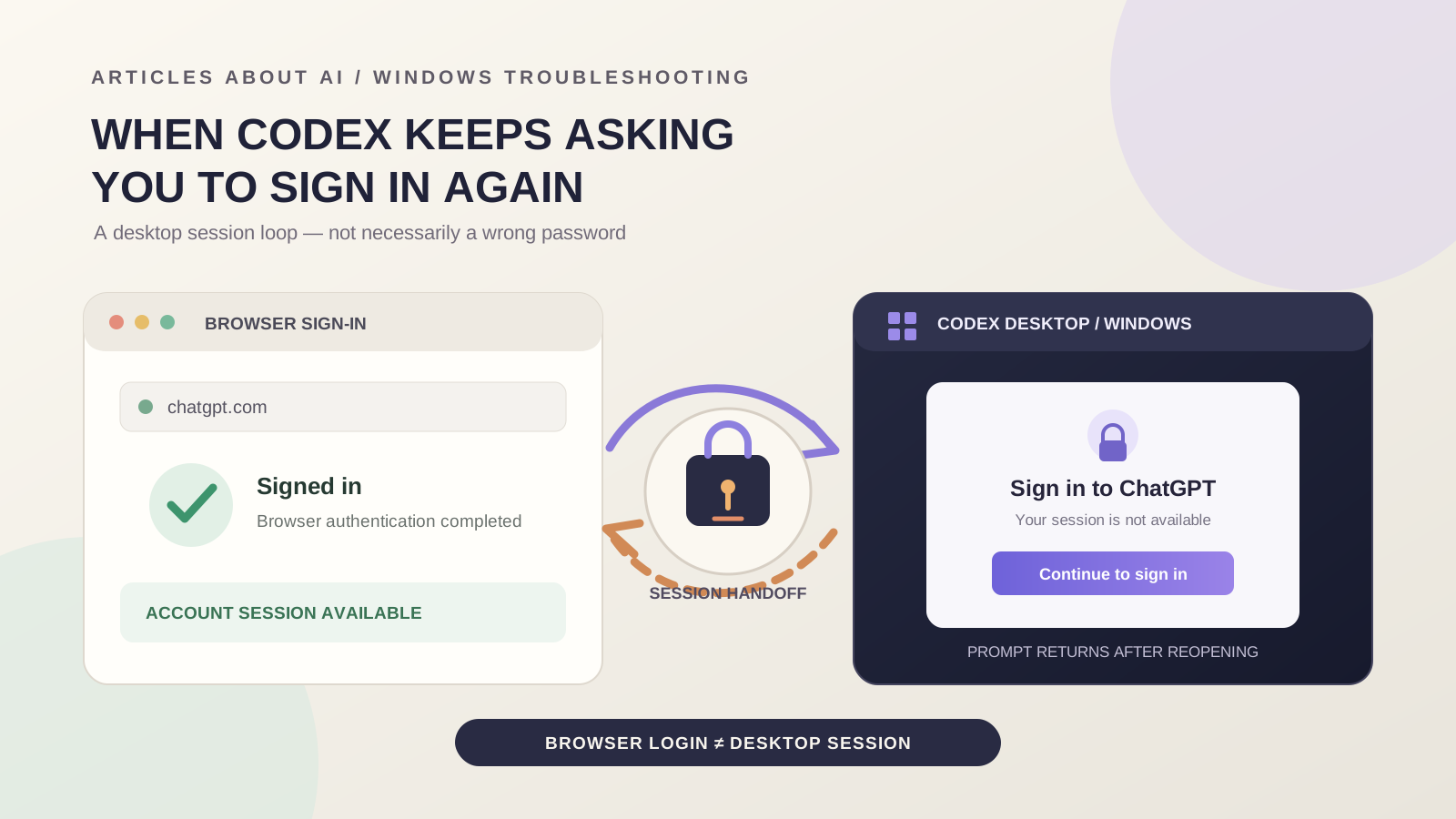
If Codex Desktop keeps asking you to sign in on Windows, even after the browser confirms that you have authenticated successfully, the problem may be with the desktop app’s session persistence rather than your password. The app can accept the browser sign-in and then return to its login screen when it opens a project, loads a conversation, sends a message, or starts again after a restart.
This distinction matters. A repeated sign-in prompt is a symptom, not a diagnosis. It does not prove that your ChatGPT account is invalid, that your local project is damaged, or that reinstalling Codex will fix the problem.
OpenAI’s current guidance says to connect Codex by signing in with your ChatGPT account and following the setup flow for the selected client. The desktop experience may be labelled ChatGPT desktop app with Codex mode, depending on the version and interface. This guide focuses on the Windows desktop sign-in loop and separates safe checks from workarounds that can sign you out of other devices.
First, identify when Codex asks you to sign in again
Several different Windows reports describe a similar login loop, but the trigger is not always the same:
- Every time the app opens: A report opened on October 1, 2026, describes browser sign-in succeeding for the current run, but the Windows desktop app asking for another login after it is closed and reopened. The reporter also found that the local Codex CLI still reported an authenticated state. See OpenAI Codex issue #49924.
- When you open a local project: In issue #40699, opened August 25, 2026, a Windows user reported that browser authentication succeeded, but selecting a local folder immediately returned the desktop app to the sign-in screen. The same account and folder reportedly continued to work in Codex CLI.
- After opening a conversation or sending a message: Issue #39685, opened August 20, 2026, describes a Windows app that lost its authenticated state after a conversation action. A later comment in that thread reported that signing out all account sessions and signing in again resolved that user’s case.
These are individual reports in the public Codex issue tracker. They show that similar symptoms have occurred, but they do not establish one root cause or a universal fix. Use the trigger that matches your own case rather than applying every workaround.
1. Check OpenAI service status before changing Windows
Start with the OpenAI Status page. Look for an active incident affecting ChatGPT login, ChatGPT Work, or Codex in the desktop app.
When this guide was checked on November 15, 2026, the status page listed a separate delayed-cost-data incident associated with the Compliance API; it did not identify a Codex sign-in incident. That does not rule out a partial, account-specific, or network-specific problem, but it makes a broad published Codex login outage less likely at that moment.
If an incident affecting login or Codex is listed, avoid resetting account sessions or deleting local data while the service is degraded. Wait for the status update to show recovery, then make one controlled sign-in attempt.
2. Confirm that the browser sign-in uses the right ChatGPT account
The browser step and the desktop app step are related, but a successful browser login does not prove that the desktop app has retained a usable session.
- Open chatgpt.com in your normal browser.
- Confirm that you are signed in to the ChatGPT account you intend to use with Codex.
- If you have more than one account, check which account is active in the browser before starting the desktop sign-in flow.
- In Codex, choose the ChatGPT sign-in option and complete the flow in the browser that opens.
- Return to the desktop app and note exactly what happens next.
Use the same account and sign-in method consistently. If the browser reports that authentication succeeded but Codex immediately returns to the login screen, record that distinction. Repeating the browser flow many times is unlikely to help if the failure occurs only after control returns to the desktop app.
For the official setup steps and current client options, see Using Codex with your ChatGPT plan.
3. Fully quit the desktop app and reopen it once
A normal window close does not always make it clear whether the desktop process has exited. Try one clean restart:
- Save any work that is still accessible.
- Use the app’s Quit or Exit command if it is available.
- Open Windows Task Manager and check whether a ChatGPT or Codex process remains.
- If the app has already been asked to quit but its process is still present, confirm the process belongs to the desktop app before ending it.
- Reopen the app and sign in once if prompted.
If the login loop returns at the same point, stop repeating the restart. Note whether it happens at startup, when opening a folder, or after sending the first message. That timing is more useful for diagnosis than a long list of repeated restarts.
4. Install available app updates
Check for an update using the same distribution channel from which you installed the desktop app. If you installed it through the Microsoft Store, open Library and select Get updates. If you installed it through another official route, use that app’s available update mechanism.
After an update:
- Fully quit and reopen the desktop app.
- Record the version shown in the app’s About screen or Windows app details.
- Test whether the app remains signed in after opening a project and after a full restart.
An update is a reasonable check, not a guaranteed repair. The reports cited above include cases where updating did not resolve the repeated sign-in prompt. Do not repeatedly uninstall and reinstall the app simply because the login screen returns.
5. Compare browser access with the desktop app—and keep CLI results separate
Test the same ChatGPT account in the browser. If the browser remains signed in while the desktop app repeatedly returns to its login screen, that is evidence that the failure is limited to the desktop path in your current test. It does not identify the underlying cause.
If you already use Codex CLI, you can also compare its behavior with the desktop app. A reporter in issue #49924 noted that the CLI returned Logged in using ChatGPT even though the desktop app did not reliably retain its sign-in after a restart.
Do not treat a successful CLI login as proof that the desktop session is healthy. The CLI and desktop app are separate clients, and the official active-session documentation explicitly says that Codex CLI sessions are not managed through ChatGPT’s Active sessions page.
You do not need to install the CLI just to troubleshoot a desktop login loop. This comparison is useful only if the CLI is already part of your setup.
6. Review your active ChatGPT sessions
OpenAI provides a way to review account sessions and, where available, identify first-party app sessions such as ChatGPT or Codex.
- Open ChatGPT in a browser.
- Go to Settings → Security → Active sessions.
- Review the listed devices and sessions.
- If a clearly identifiable old or unwanted session is listed, use its Log out action and confirm.
- Return to the desktop app and complete a fresh sign-in.
There is an important limitation: OpenAI says session details may be approximate or incomplete, and one browser row can represent sessions across multiple first-party OpenAI products. Do not assume that every row maps neatly to one desktop installation. If you cannot identify the session associated with the problem, avoid signing out random devices.
The Active sessions feature is not available for accounts linked to an organization’s SSO sign-in, including SAML or OIDC. In that situation, ask your workspace administrator about account or session policies rather than trying to work around managed authentication.
See OpenAI’s official guide: Managing active sessions in ChatGPT.
7. Consider signing out all sessions only as a last-resort workaround
A comment in OpenAI Codex issue #39685 reports that an account-wide session reset resolved one Windows desktop authentication loop after local app resets and a reinstall had not helped. The same thread describes similar failures in more than one environment. This remains a community-reported workaround, not an official universal fix.
If the loop persists, you have saved your work, and you understand the impact, you can consider the official Log out of all sessions action under Settings → Security → Active sessions:
- Select Log out of all sessions.
- Confirm Log out all.
- In the confirmation dialog, select Log out of all devices.
- Sign in to the desktop app again with your normal ChatGPT account.
- Test a new conversation, an existing project, and a full app restart.
Read the consequences first: this action signs out all active sessions across devices, including your current browser session. OpenAI says the change may take up to 30 minutes. It is not a targeted Codex-only reset, and it does not manage Codex CLI sessions. Do not use it casually if you rely on other active devices or have an organization-managed account.
If the issue returns after this test, do not repeat the account-wide reset. Preserve the details and contact OpenAI Support.
8. Do not disable account security or delete Codex credentials as a first step
One Windows report in issue #39685 described the sign-in loop after Advanced Account Security was enabled. That is a correlation reported by an individual user, not proof that the security feature is the cause for everyone. Another user in the same discussion reported that an account-session reset helped while keeping the security setting enabled.
Do not turn off Advanced Account Security, remove passkeys, change your password, or create a new API key just to test a theory. These changes can affect account protection and may not address a desktop session problem.
Also avoid manually deleting the .codex directory, auth.json, Windows Credential Manager entries, or application data as an early troubleshooting step. Those locations can contain local configuration, sessions, or project-related state. The public reports include cases where extensive local resets and reinstallations did not solve the desktop authentication loop.
9. If the browser does not return to Codex, check the sign-in handoff
This step applies when the browser sign-in itself completes but the desktop app does not reopen or respond. It is different from a loop where the app returns to its interface and then loses authentication.
- Complete the sign-in in the browser window opened by the app.
- Keep the browser open until the success page confirms that the flow is complete.
- If Windows asks which app should open a link, choose the official ChatGPT/Codex desktop app.
- If the browser never returns control to the app, note the browser name and the exact screen where the flow stops.
If the browser confirms success and the desktop app opens normally before asking you to sign in again, the handoff has already completed. Focus on the session-persistence checks above instead.
Do not disable Windows Defender, your firewall, or workplace security software globally to force a callback. If a managed security product is suspected, ask its administrator to review the relevant event or allow-list policy.
10. Prepare a useful support report
If the repeated prompt continues, report the problem with enough detail to distinguish it from a password failure or a workspace-routing timeout.
Include:
- Windows version and build.
- ChatGPT desktop app or Codex package version.
- Whether the app was installed from the Microsoft Store or another official source.
- Whether browser authentication completes successfully.
- Whether the loop occurs at startup, after opening a project, or after sending a message.
- Whether ChatGPT in the browser remains signed in.
- Whether Codex CLI works, if you already use it.
- Whether an app update or a session review changed the behavior.
- The exact error text and approximate time of the failure.
Use the OpenAI Help Center or the OpenAI Codex issue tracker for support and bug reports. Before sharing diagnostic logs, remove access tokens, cookies, authorization headers, email addresses, account identifiers, private project paths, and local usernames. Never post the contents of auth.json or a session token.
Frequently asked questions
Why does Codex keep asking me to sign in after browser authentication?
The browser can complete its part of the login flow while the desktop app later fails to retain or use the resulting session. Public Windows reports describe this pattern, but they do not establish one cause for every user.
Why does Codex work in the browser or CLI but not in the desktop app?
Different clients have separate application flows and session handling. A working browser or CLI session is useful evidence that the account can authenticate, but it does not prove that the desktop app’s session is healthy.
Should I reinstall Codex Desktop?
Not as the first response. Some public reports describe the same login loop continuing after a full reinstall. Check the trigger, app version, browser session, and account sessions before considering more disruptive changes.
Should I disable Advanced Account Security?
No. A user report associated one authentication loop with that setting, but it does not establish that disabling the feature is a safe or universal fix. Preserve your account security and use the supported session-review or support process.
Is a repeated sign-in prompt the same as “workspace routing discovery timed out”?
No. They can both appear during sign-in, but the routing-timeout message identifies a different failure symptom. If you see that exact error, follow our separate guide to fixing the Codex Desktop workspace-routing discovery timeout on Windows.
The bottom line
When Codex Desktop keeps asking you to sign in on Windows, first establish whether the prompt appears after every launch, after opening a project, or after sending a message. Check OpenAI status, confirm the correct ChatGPT account, restart and update the app once, and compare browser access with the desktop client.
Review Active sessions before considering an account-wide sign-out. That reset helped in one documented community report, but it signs out other devices and is not a guaranteed fix. Avoid deleting local credentials or weakening account security without a specific, reliable reason. If the loop persists, send OpenAI a concise report with the exact trigger, app version, and sanitized diagnostics.
Sources
- Using Codex with your ChatGPT plan — OpenAI Help Center — official sign-in and client setup guidance.
- Managing active sessions in ChatGPT — OpenAI Help Center — official instructions, availability limits, and the effect of logging out all sessions.
- OpenAI Status — official service-health updates.
- OpenAI Codex issue #49924 — Windows report opened October 1, 2026, describing sign-in not persisting across desktop app restarts.
- OpenAI Codex issue #40699 — Windows report opened August 25, 2026, describing a sign-in loop after opening a local project.
- OpenAI Codex issue #39685 — Windows report opened August 20, 2026, with later comments describing an account-session reset workaround in individual environments.
Related Articles
- How to Fix Codex Desktop Login Failed: Workspace Routing Discovery Timed Out on Windows — troubleshoot the separate workspace-routing timeout message.
- How to Fix ChatGPT Login Problems: A Step-by-Step Guide — general account, browser, and authentication troubleshooting.
- How to Fix Codex “Stream Disconnected Before Completion” on Windows — investigate response-stream interruptions after a Codex session has started.