
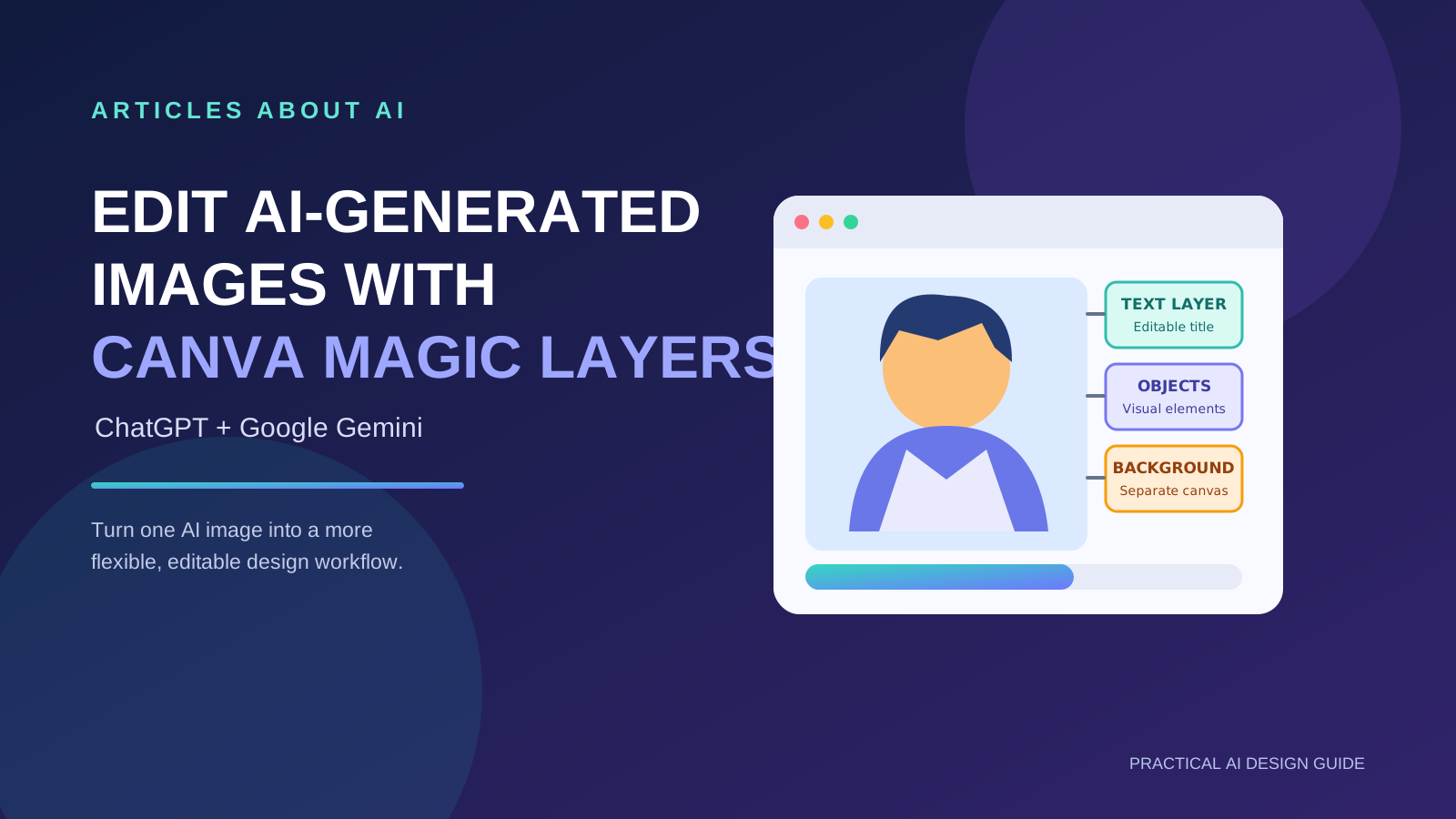
AI image generators can create impressive visuals quickly, but editing the result can be difficult when text, objects, and backgrounds are flattened into one image. Canva Magic Layers is designed to help turn supported AI-generated images into Canva designs with elements that may be edited separately.
This guide explains how to approach the Canva Magic Layers workflow with ChatGPT and Google Gemini, what to check after conversion, and how to fix common design problems. Availability, menus, and supported workflows can vary by account and rollout, so use the options currently shown in your apps.
What is Canva Magic Layers?
Canva Magic Layers is a workflow for making supported AI-generated images more editable in Canva. Instead of treating the whole picture as one unchangeable layer, the conversion may identify separate elements such as text and major objects. Results depend on the source image; some details may still need manual correction.
You can use this approach to:
- Replace a headline without recreating the entire design.
- Move objects to improve spacing and visual hierarchy.
- Adapt a graphic for a blog header, social post, or presentation.
- Rework an AI-generated concept into a more practical design.
- Create alternate versions while keeping the original visual direction.
It does not guarantee that every object, shadow, texture, or letter will become a clean editable layer.
Before you start
- Sign in to Canva and the ChatGPT or Gemini account you plan to use.
- Open the assistant’s apps or connected-services area and look for Canva, if that integration is available to you.
- Review the connection and permissions before authorizing access.
- Choose a source image with a clear subject, readable text, and a reasonably simple composition.
- Keep an original copy so you can compare the converted design with the source.
If Canva is not listed in your account, do not assume a prompt can activate it. Check Canva’s official announcements and your account’s available integrations.
How to work with ChatGPT
The exact menus can change, but the general workflow is:
- Open ChatGPT and check its available apps or connected tools for Canva.
- Connect Canva if the option is available and you are comfortable with the requested permissions.
- Select or provide the AI-generated image you want to refine.
- Use the available Canva workflow to open or convert the image into a design.
- Open the resulting design in Canva and inspect the layers or selectable elements.
- Edit the title, reposition objects, adjust spacing, and refine the background as needed.
- Preview the final design at its intended size before exporting.
A useful instruction, when the relevant Canva workflow is available, is:
Help me prepare this AI-generated image for editing in Canva. Preserve the main subject and overall composition, identify any text that should be editable, and explain which elements may need manual cleanup.
This instruction can clarify your goal, but it cannot enable an unavailable integration or guarantee automatic layer separation.
How to work with Google Gemini
- Open Gemini and review the apps or connected services available in your account.
- Look for Canva and follow the displayed connection process if it is offered.
- Provide the image or select the supported image workflow.
- Ask to continue the design in Canva using the available integration.
- Inspect the converted design in Canva and verify that the elements you want to change are editable.
- Correct typography, alignment, colors, and object placement before exporting.
Example instruction:
I want to refine this AI-generated graphic in Canva. Keep the central subject, make the headline easy to replace if supported, and suggest a layout with clear spacing and strong contrast. Flag any parts that may need manual editing.
ChatGPT and Gemini interfaces differ, and feature access may depend on account type, region, workspace settings, and rollout. Follow the controls actually available in your account rather than relying on a fixed menu path.
How Canva Craft Works with Magic Layers
Canva Craft and Magic Layers address two different parts of an AI image workflow:
- Canva Craft generates the image. Canva describes Craft as an image-generation model designed to reason about composition and the relationships between visual elements before producing an image. Canva says it is available through Dream Lab and its public API.
- Magic Layers helps make a supported image editable. It attempts to turn a flattened image into a Canva design with separate elements, such as text and objects, that can then be adjusted. The conversion is not guaranteed to separate every detail perfectly.
In practical terms, Craft is the image-creation step; Magic Layers is the editability step. They can complement one another, but they are not interchangeable features.
Where can you access Canva Craft?
According to Canva’s announcement, Craft is available globally in Dream Lab and through Canva’s public API. API access is intended for developers integrating image generation into their own workflows; it is not the same as a consumer-facing button inside ChatGPT or Gemini.
Canva also announced a Canva MCP integration for AI assistants and agents as coming soon. Do not assume that Canva Craft is already available as a native ChatGPT or Gemini feature through MCP unless Canva’s current documentation confirms that rollout for your account.
A practical workflow
- Generate an image with Craft in Dream Lab, or use the public API if you are building a developer workflow.
- Review the generated image carefully for text accuracy, composition, and unwanted artifacts.
- Open or import the supported image into Canva and use Magic Layers if the option is available in your account.
- Inspect the converted design and manually correct text, object boundaries, spacing, and fonts.
- Export only after checking the design at its intended display size.
Official source: Canva’s announcement of Craft. Availability and integration status can change, so verify the current Canva interface and documentation before following these steps.
Tips for better editable results
- Use simple compositions. Crowded images and overlapping objects are harder to separate cleanly.
- Keep text short. Long headlines and tiny labels can be difficult to reconstruct accurately.
- Create contrast. Clear separation between foreground and background can make the design easier to refine.
- Avoid unnecessary effects. Complex glows, transparent overlays, and intricate textures may need manual cleanup.
- Check fonts and spacing. Converted text may not match the original typeface or line breaks.
- Review every layer. Look for missing pieces, duplicate objects, or unexpected crops.
- Save a copy. Keep the original image and a working version of the converted design.
For more prompt ideas, see our guide to writing better AI image prompts.
Prompts for common editing tasks
Change the headline
“Replace the current headline with: [YOUR HEADLINE]. Keep the main subject, maintain strong contrast, and leave enough padding around the text.”
Make a social media version
“Adapt this design for a square social post. Preserve the main message, simplify secondary details, and keep important content inside safe margins.”
Improve visual hierarchy
“Make the headline the clearest element, keep the subject prominent, and reduce distractions in the background. Do not add unsupported facts or extra text.”
Prepare a blog cover
“Create a clean horizontal blog cover with a clear focal point, readable title placement, balanced negative space, and a professional technology-editorial style.”
These prompts describe the desired result. Whether individual objects or text can be edited depends on the tools and conversion result.
Troubleshooting common problems
| Problem | What to try |
|---|---|
| Canva is not available in ChatGPT or Gemini | Check the current app list, account availability, and official Canva announcements. Use Canva directly if the integration is not available. |
| The image remains a single flat layer | Confirm that you used the supported conversion workflow. If it still remains flattened, recreate or manually rebuild the important elements in Canva. |
| Text is misspelled or distorted | Replace it with a new text box and proofread it at full size. See our guide to fixing misspelled text in AI images. |
| Objects have rough edges | Use Canva’s available editing tools to refine edges, crop the image, or replace the affected element. |
| The layout looks crowded | Increase spacing, reduce secondary details, and strengthen the headline-to-subject hierarchy. |
| Export quality looks poor | Check the export dimensions, file type, and intended display size before downloading. |
For background cleanup, see how to remove image backgrounds with AI. For a wider overview of tools, visit our guide to the best free AI image generators in 2026.
Privacy and permissions
Before connecting a service, review the permissions requested and consider whether the image contains private, confidential, or client-owned information. Avoid uploading sensitive material unless you have permission and understand the relevant service settings. You can also read our explanation of ChatGPT conversation privacy.
A practical final checklist
Before publishing or sharing your design, confirm that:
- The headline and any small text are accurate.
- The main subject has not been unintentionally changed.
- Important elements are editable where you need them to be.
- Spacing, alignment, and contrast work at the final size.
- The exported file matches the required dimensions and format.
- You have permission to use the source image and any included assets.
Final thoughts
Canva Magic Layers can make AI-assisted design more flexible when the relevant workflow is available and the source image converts well. The best results come from starting with a clear composition, checking every converted element, and manually correcting details rather than assuming the conversion will be perfect.
For more tutorials, explore our guides to ChatGPT versus Google Gemini and AI-generated visual stories.
For feature announcements and current availability, consult Canva’s official Magic Layers announcement.