
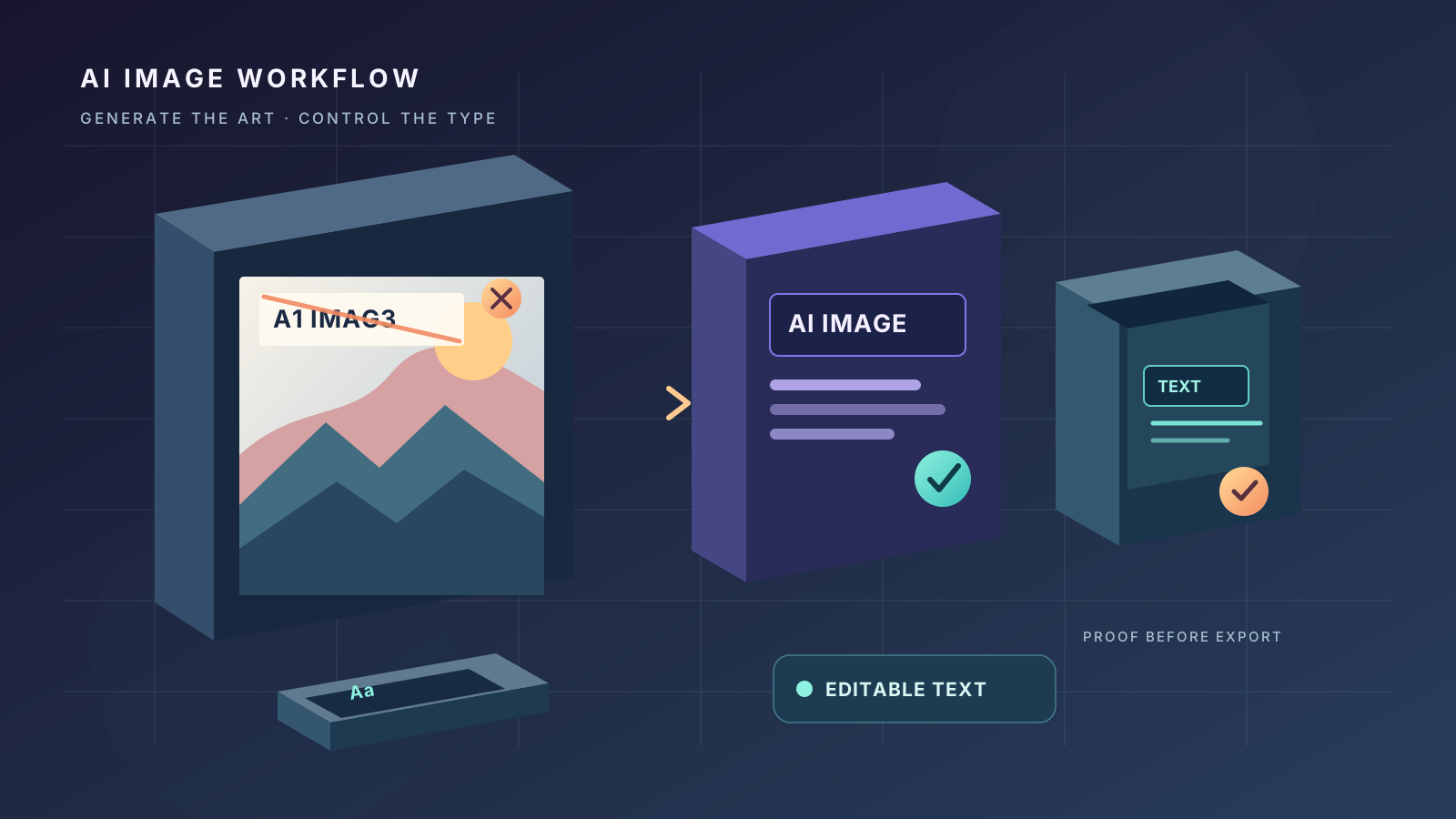
AI image generators can produce convincing scenes, product mockups, posters, and social graphics, yet still render a short word incorrectly. A heading may contain an extra letter, a label may turn into nonsense, or a familiar logo may look almost right while remaining unusable. These mistakes are not always caused by a bad prompt. Image generators create visual patterns, and exact spelling is a different requirement from producing an image that merely looks plausible.
The most reliable fix is to separate image creation from typesetting. Use the image model to create the visual elements and composition, then add important wording with a text editor or design application whenever possible. If the text must be generated inside the image, reduce its complexity, make it a central requirement, and inspect every character before publishing.
This guide explains why AI images misspell words, how to improve prompts, when editing is more effective than regenerating, and how to build a repeatable quality-control workflow.
Why AI image generators misspell words
A conventional design application places text using a font and a text-rendering system. The letters are arranged according to explicit characters, font metrics, and layout rules. An image generator instead produces an image from learned visual patterns. Even when a model can render readable text, it may treat letters as shapes within the overall composition rather than as a guaranteed, character-perfect string.
Several factors can make the result worse:
- Long wording: The more letters and words the image must contain, the more opportunities there are for a visual error.
- Small text: Tiny labels, fine print, and distant signs are harder to inspect and often less legible in the generated result.
- Decorative lettering: Distorted, curved, handwritten, metallic, or highly stylized typography can make exact spelling more difficult.
- Crowded layouts: A poster with multiple headings, captions, labels, and background signs asks the model to manage many separate text regions.
- Ambiguous instructions: A prompt that asks for a “professional technology poster” may communicate the style clearly without specifying which exact words must appear.
- Unclear text hierarchy: The model may prioritize the scene, lighting, or visual effects over a small phrase.
- Repeated regeneration: Changing the entire image to fix one word can introduce new errors elsewhere.
These limitations vary by model, version, and task. Some image-generation systems offer improved text rendering or dedicated editing features. Even so, do not assume that a generated word is correct just because it looks plausible at a glance.
Step 1: Decide whether the text really needs to be inside the generated image
Before rewriting the prompt, ask whether the model needs to draw the letters at all. If the image is intended for a blog header, advertisement, thumbnail, infographic, product card, or social media post, you can often generate the artwork without text and add the wording afterward.
This separation gives you direct control over spelling, font, size, alignment, and accessibility. It also makes future updates easier: you can change a headline without generating the entire scene again.
Use AI-generated lettering when it is part of the visual subject—for example, a fictional sign in a cinematic scene or a stylized wordmark used as a rough concept. Use a text editor for exact copy such as a product name, price, date, URL, call to action, disclaimer, or brand slogan.
A simple decision rule is:
- Exact wording is essential: Generate the background without text and add the wording in an editor.
- The lettering is decorative: Try a short, simple phrase in the image prompt, then inspect the result carefully.
- The image contains several labels or data points: Create the visual structure first and add the labels separately.
- The image must reproduce a real logo or trademark: Use an authorized, high-quality source asset rather than relying on a generator to recreate it accurately.
For professional publishing, this is usually more dependable than asking the image model to solve both illustration and typesetting in one pass.
Step 2: Simplify the prompt and make the required words explicit
If you need the generator to include text, give the wording its own clear instruction. Put the exact phrase in quotation marks and tell the model not to add, remove, or alter characters. Keep the requested text short and avoid asking for multiple competing labels.
For example, instead of writing:
Create a futuristic poster about artificial intelligence with a stylish title, glowing details, several interface labels, and a modern editorial look.
Try a more constrained instruction:
Create a clean technology poster. The only visible text must be exactly “AI TOOLS”. Spell it A-I, then a space, then T-O-O-L-S. Use large, simple, horizontal sans-serif lettering with strong contrast. Do not add other words, numbers, symbols, logos, or background writing. Leave generous empty space around the title.
This does not guarantee perfect spelling, but it reduces ambiguity. The instruction specifies the exact string, its visual treatment, and the prohibition on extra text.
Other useful prompt practices include:
- Use one short phrase. Avoid paragraphs, long slogans, or several unrelated labels in a single generation.
- Describe placement. State whether the wording belongs at the top, center, or bottom, and ask for enough clear space around it.
- Prefer simple typography. Request clean, straight, high-contrast lettering rather than warped, embossed, or ornate characters.
- Remove incidental writing. Tell the model to leave signs, screens, packaging, and background surfaces blank if they do not need text.
- Keep the scene simple. A clean composition gives the requested words fewer competing visual elements.
- Use the correct language and script. State the language explicitly, especially when mixing scripts or using less common characters.
Avoid repeatedly adding more and more negative instructions to a crowded prompt. If the image keeps producing incorrect letters, change the workflow instead of making the prompt endlessly longer.
Step 3: Generate the image with empty space for the headline
A particularly reliable workflow is to design the composition around text that will be added later. Ask for a clear area with a plain background, suitable contrast, and enough room for a heading. You can then place the wording using a design application.
For example:
Create a 16:9 editorial illustration about AI-assisted video editing. Place the main visual elements on the right side. Keep the upper-left quarter uncluttered, with a dark, even background suitable for a headline added later. Do not include any letters, numbers, words, logos, captions, or interface text.
This approach avoids many common spelling errors because the generator is no longer responsible for drawing the headline. It also helps maintain a consistent visual identity across a website: typography can use the same fonts, sizes, and colors from one article image to the next.
When generating a featured image for a website, inspect the crop at desktop and mobile widths. A headline placed near the edge may be cut off in a card or thumbnail. Leave a safe margin around the text area and ensure the image still makes sense when displayed smaller.
Step 4: Add the correct text in an editor
Once you have a clean background, use an image editor, slide application, or design tool that supports editable text layers. The exact application matters less than whether you can enter characters directly and review the result before exporting.
A practical process is:
- Open the generated image in the editor.
- Create a separate text layer instead of painting letters into the background.
- Paste or type the exact approved wording.
- Choose a font that matches the image’s style and remains readable at small sizes.
- Adjust line spacing, alignment, contrast, and margins.
- Preview the image at the size where readers will actually see it.
- Export a copy in the format and dimensions required by the destination.
Keep the text editable until the final review is complete. If the wording changes, editing the text layer is faster and safer than generating a new background.
For web graphics, use sufficient contrast between the text and background. A subtle shadow or a translucent panel can improve readability, but effects should not make the letters harder to distinguish. Avoid using a very thin font over a detailed or high-contrast scene.
If you must use a browser-based editor, check that the export preserves the intended dimensions and does not reduce the image quality excessively. For a vector design, keep text as editable text until the workflow requires outlining it; for a raster export, zoom in to confirm that small characters remain crisp.
Step 5: Repair a misspelled word without rebuilding the entire image
If the image is already good except for one word, do not automatically regenerate everything. A full regeneration may change the subject, lighting, layout, or other details that were already correct.
Choose the smallest effective correction:
- Text was added as an editable layer: Correct the text directly.
- The word is part of a flat poster or simple background: Cover the incorrect lettering carefully and add the correct text in an editor.
- The text is printed on a curved object or integrated into a complex scene: Use an image-editing or inpainting tool if available, then inspect the edited region for artifacts.
- The wording is small and not essential: Consider removing it rather than risking another inaccurate label.
- The image is a product mockup or packaging concept: Label it as a concept when appropriate, and do not present inaccurate packaging text as a faithful depiction of a real product.
When using an AI editor, describe the exact region to change and what must remain unchanged. For example:
Replace only the misspelled heading in the upper-left corner with “AI WORKFLOW”. Preserve the existing composition, colors, lighting, objects, and all other visual details. Do not add any extra text.
Treat this as a targeted edit, not a guarantee. AI editing can modify nearby details or produce another spelling error. Compare the result with the original and inspect the surrounding edges for visible seams, duplicated shapes, or altered objects.
If the lettering follows perspective, texture, or a curved surface, a manual editor may give you more control than a generative repair. The correct choice depends on whether you need exact typography or a convincing visual effect.
Step 6: Check the image at full size and at its final display size
A spelling error can be easy to miss when you view a large image quickly. Inspect every word character by character, then preview the graphic at the size used on the website, presentation, or social platform.
Use this checklist:
- Is every word spelled exactly as intended?
- Are capital letters, punctuation, accents, and numbers correct?
- Has the model added any unwanted pseudo-text in the background?
- Are similar-looking characters distinguishable, such as O and 0 or I and l?
- Is any text cropped by the image boundary?
- Does the text remain readable on a phone?
- Is the contrast sufficient against the background?
- Did an edit change any nearby object or visual detail?
- Does the exported file match the required dimensions and format?
For a graphic containing a price, date, URL, product specification, medical instruction, legal notice, or other consequential information, verify the wording against the authoritative source. Do not rely on a visual impression or an AI-generated explanation of what the image says.
If another person will publish the asset, provide a final proof image or checklist so the text is reviewed before upload. A second human review is particularly useful when the graphic contains unfamiliar names or several small labels.
Common problems and fixes
The model keeps changing the same word
Shorten the phrase and simplify the composition. If the word must be exact, stop regenerating and add it as editable text. Repeating the same prompt can produce different errors without solving the underlying limitation.
The image contains random letters in the background
Ask for blank signs, screens, packaging, and surfaces, and keep the background simple. If the random text is not important, remove or cover it during editing. Inspect the entire image, not just the main headline.
The letters look correct but one character is wrong
Zoom in and compare the result with the source wording. Watch for doubled letters, missing spaces, swapped characters, and punctuation errors. Use an editable text layer for the final wording whenever possible.
Text becomes unreadable on mobile
Use fewer words, increase the font size, and create a stronger contrast. Do not assume that text readable in the full-resolution file will remain readable when the image is displayed as a small card.
Editing the text damages the background
Undo the edit and try a text layer or a more controlled masking method. If you use inpainting, select only the smallest region that needs repair and compare the edited image with the original.
The generator reproduces a brand name incorrectly
Use an authorized logo or brand asset where permitted, and add it separately. Do not depend on an AI-generated approximation when accurate brand identity is required.
A reusable prompt for text-free image generation
Use this template when you plan to add the final wording yourself:
Create a professional 16:9 image for [topic]. The visual style is [style], with [main subject] positioned [placement]. Reserve a clean, uncluttered area at [location] for a headline that will be added later. Do not render any text, letters, numbers, logos, watermarks, labels, or pseudo-writing anywhere in the image. Keep the composition balanced and ensure the main subject remains clear at thumbnail size.
Replace the bracketed sections with the details of your project. The most important instruction is to reserve space and keep the generated artwork free of text. Add the approved wording after generation, where you can verify every character directly.
If text must be generated in the image, use a separate prompt with the exact short phrase in quotation marks, simple typography, high contrast, and no extra writing. Then inspect the output manually.
Frequently asked questions
Can I guarantee that an AI image generator will spell every word correctly?
No. Capabilities vary by model and continue to change, but a generated image should not be treated as a guaranteed source of exact text. For critical wording, use a conventional text layer or verify the result manually.
Should I regenerate the whole image when one word is wrong?
Usually not. If the rest of the composition is good, correct the text separately or use a targeted edit. Regenerating the whole image may introduce new visual differences and still misspell the word.
Can ChatGPT fix misspelled text in an image?
Image-editing capabilities and results depend on the current ChatGPT experience and tools available to your account. If you use an AI editor, request a narrowly scoped change and inspect the result. For exact spelling, adding text with an editor remains the more controllable method.
What is the best way to create a poster with exact text?
Generate the background and illustration first, leaving room for the headline. Add the headline, labels, and other copy in a design application using editable text. Proofread the exported image at its final display size.
Why does a short prompt sometimes work better?
A short, specific prompt reduces competing requirements and gives the model a clearer visual target. It does not guarantee perfect spelling, but it makes the requested wording and placement less ambiguous.
Final thoughts
The most dependable way to fix misspelled text in AI-generated images is to separate visual generation from exact typesetting. Use the image model for composition, lighting, objects, and atmosphere. Use an editor for words that must be correct. When text is generated inside the image, keep it short, specify the exact phrase, simplify the design, and inspect the result before publishing.
The final review is not optional. Check every character, remove unwanted pseudo-text, preview the image at its real display size, and verify important facts against their source. That small quality-control step can prevent a polished image from looking careless or communicating the wrong information.
Official sources
- OpenAI Help Center — current guidance on ChatGPT features and image capabilities.
- Adobe Help Center — documentation for text layers and image editing workflows.
- Canva Help Center — documentation for adding and editing text in designs.