
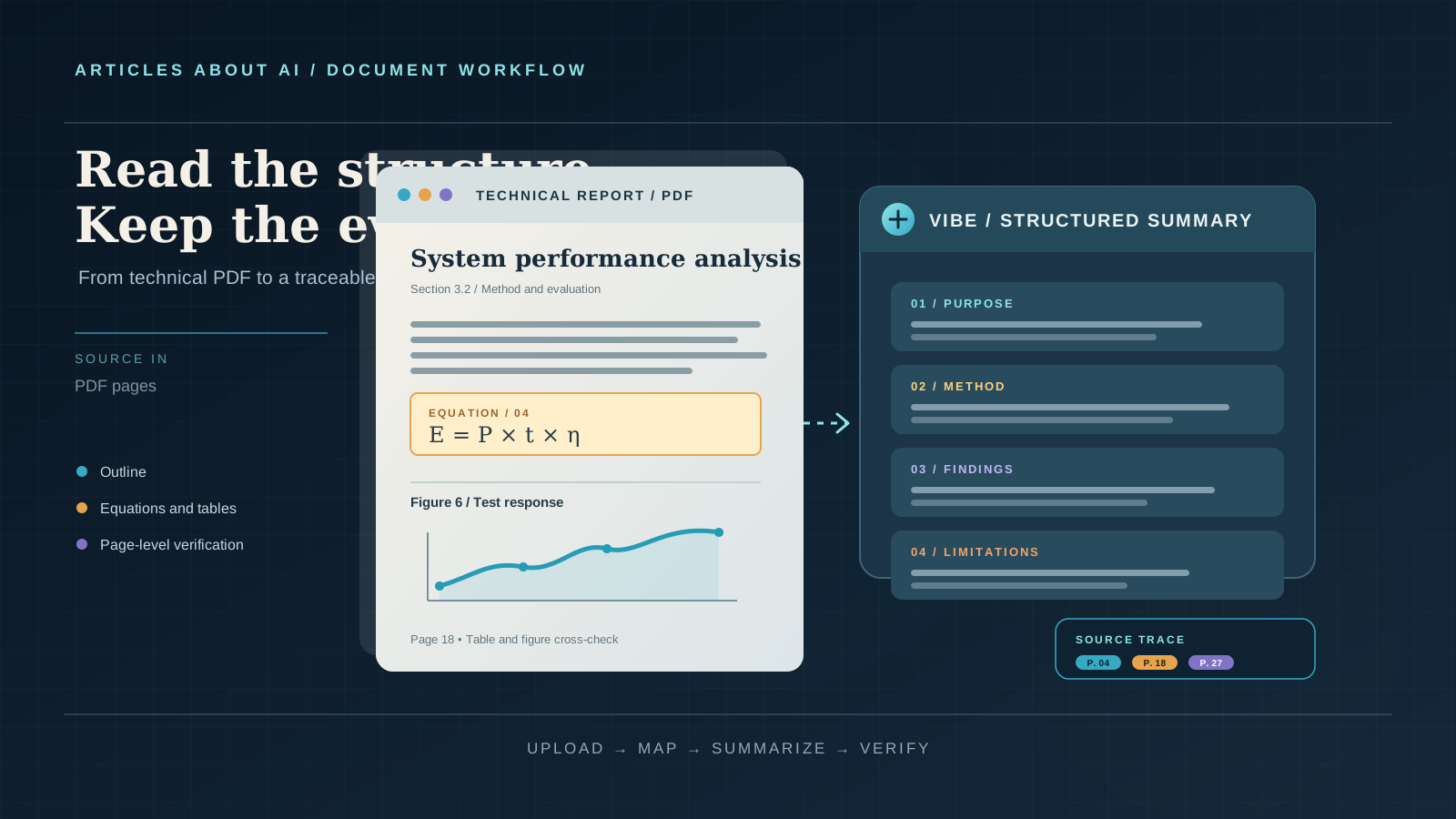
A technical PDF can contain the answer you need and still be difficult to read efficiently. A research paper may move from notation to experiments without explaining every assumption. An engineering report may spread its findings across diagrams, tables, appendices, and footnotes. A product specification may use familiar words in highly specialized ways. The challenge is not simply shortening the document. It is preserving the logic, evidence, and qualifications that make the document useful.
Mistral Le Chat can help turn a technical PDF into a structured working summary, but the quality of the result depends on how you provide the file, define the task, and check the answer against the original pages. A broad request such as “summarize this PDF” may produce a readable overview while overlooking an important equation, an experimental condition, or a limitation buried in a table.
There is also a naming change to know before you begin. On August 12, 2026, Mistral announced that Le Chat had become Mistral Vibe. The account, plan, conversations, and saved content were carried over, and the familiar chat.mistral.ai address remains the entry point. The current product documentation describes Vibe as a unified experience for conversations and multi-step work. This guide uses the familiar search phrase “Mistral Le Chat” while explaining the current Vibe interface and document workflow.
The aim is practical: upload a technical PDF, map its structure, produce a concise summary, investigate the difficult sections, and keep every important claim traceable to the source.
What Mistral Le Chat can do with a technical PDF
Mistral’s current Vibe documentation lists PDF among the supported document formats. In Vibe’s Work experience, you can add files by dragging them into a conversation or by selecting the plus button and choosing Upload Files. The assistant can then use the uploaded material as context for questions, extraction, and summaries.
For a single report, direct upload is usually the simplest starting point. If you need to consult the same collection of papers or technical documents across several conversations, a Library is more suitable. Mistral describes Libraries as persistent knowledge bases: you upload documents once, attach the Library to a task, and ask questions across its contents. Library responses include numbered footnotes that link back to the source material, which makes them useful when you need to inspect where an answer came from.
These are related but distinct workflows:
- A file uploaded to a conversation is convenient when you are working on one document in one task.
- A Library is useful when the same PDF, report collection, or reference set will be used repeatedly.
- Mistral Studio Document AI is a separate developer-oriented option for heavier document-processing and structured OCR work. It is not simply another button in the ordinary chat interface.
The exact controls, usage allowances, and available features can vary by plan and rollout. Check the current Mistral pricing page rather than assuming that every account has identical limits.
Before uploading: check the PDF itself
A language model can only summarize the content it can access. Before asking for an explanation, open the PDF in a normal reader and check a few basic things.
First, determine whether the PDF contains selectable text. Try selecting a paragraph and copying it into a plain-text editor. If the text copies correctly, the file probably has a usable text layer. If you can select only the page image, the document may be scanned and will depend more heavily on OCR.
Second, check the page layout. Technical PDFs often use two columns, sidebars, running headers, footnotes, or equations that are positioned separately from the surrounding text. A page may look clear to a person but still be difficult for automated extraction.
Third, note the document’s identity. Record its title, author or issuing organization, publication date, version, and page count. If you have several revisions, give each file a descriptive name such as network-architecture-spec-v2-2026-10.pdf, not simply document-final.pdf.
Finally, decide what the summary is for. A researcher may need the methodology and limitations. An engineer may need assumptions, interfaces, and failure conditions. A manager may need the decision, cost, risk, and implementation implications. A useful summary is shaped around a reader and a decision, not just a page count.
Step 1: Upload the PDF to Vibe
Open Mistral Vibe and start a conversation. You can drag the PDF into the chat area or use the plus button and select Upload Files. Wait until the file is attached before sending your prompt.
If the document is already in a Library, use the plus button to attach the relevant Library or select the specific document from it. Mistral’s Library documentation explains that a Library can be attached to a chat and that you can mention a document by name when you want the assistant to focus on one item.
For a single PDF, begin with a prompt that asks the assistant to identify the file before summarizing it:
I have attached a technical PDF. First, identify the document title, author or issuing organization if shown, publication date or version if shown, and the approximate page range you can access. Give me a short outline of its main sections. Do not summarize the findings yet. If any of this information is not visible in the file, say so rather than guessing.
This first exchange is a simple quality check. If the assistant gives the wrong title, confuses two uploaded documents, or cannot identify a section that is clearly visible, do not proceed as if the file has been read correctly. Re-upload a clean copy, check the file itself, or narrow the task to a section you can verify.
Step 2: Ask for a document map before a summary
A document map gives you a framework for checking the later answer. It also reduces the risk that the assistant will focus on the introduction and overlook the technical core.
Use a prompt like this:
Build a document map for the attached PDF. List the major sections in their original order. For each section, state its purpose in one or two sentences and identify any important tables, figures, equations, appendices, or definitions. Include page numbers when you can verify them from the document. Do not infer missing sections or invent page references.
Review the outline against the PDF’s table of contents. Pay particular attention to sections that may be easy to overlook:
- Scope and definitions
- Assumptions and prerequisites
- System architecture or experimental design
- Equations and parameter definitions
- Data sources and measurement methods
- Results, tables, and figures
- Limitations, risks, and failure cases
- Appendices, references, and supplementary material
If the outline omits a section, ask about that section directly. Do not assume that a short outline means the omitted material is unimportant. A report’s most consequential qualification may appear in a limitations section or an appendix rather than in the abstract.
Step 3: Generate a concise executive summary
Once the document map looks reasonable, ask for a summary that separates the central message from the evidence supporting it.
Summarize the attached technical PDF for a technically literate reader who has not read it. Use these headings: purpose, problem addressed, main approach, key findings, practical implications, and limitations. Keep the summary concise. Distinguish the authors’ stated conclusions from your interpretation. If the document does not support a requested detail, write “not stated in the document.” Include page references where they can be checked.
A strong executive summary should answer six questions:
- What is the document about? State the subject and the problem it addresses.
- Why does the problem matter? Explain the practical, scientific, or operational context.
- What approach does it take? Identify the method, system, experiment, or framework.
- What did it find or propose? Report the principal results without overstating them.
- What are the consequences? Explain what a reader could reasonably do with the findings.
- What remains uncertain? Include the document’s limitations, assumptions, and unresolved questions.
Avoid asking for “the most important points” without defining importance. That phrase can lead to a generic list. Tell Vibe whether you care most about performance, safety, cost, reliability, methodology, implementation, or another criterion.
Step 4: Ask for a technical explanation of the difficult sections
An executive summary is not a substitute for understanding the document’s technical argument. Choose the sections that matter to your task and ask Vibe to explain them separately.
For a methodology section:
Explain the methodology in Section [name or page range]. Identify the inputs, process, assumptions, comparison method, and output. Explain why each step is necessary. Separate what the document explicitly states from any explanation you add. Do not fill gaps with general knowledge without labelling it.
For a system architecture:
Explain the architecture described in the attached PDF. List the components, their responsibilities, the information passed between them, and the dependencies or interfaces. Trace one representative workflow from input to output. If the document does not specify a component’s behavior, mark it as unspecified.
For a scientific or mathematical section:
Explain Equation [number] from the PDF. Define every symbol, state the units if provided, and describe the assumptions required for the equation to apply. Then work through a small illustrative example using clearly labelled hypothetical values. Do not present the example as a result from the paper.
These prompts are deliberately narrow. A technical document may use the same term in several contexts, or define a variable differently from a familiar textbook. Asking about one equation or section at a time makes it easier to catch an error before it spreads into the rest of the summary.
Step 5: Extract the tables, figures, and equations that matter
Tables and diagrams often carry information that a paragraph summary cannot preserve. Ask for them explicitly rather than assuming they will be represented accurately in a general overview.
For a table:
Analyze Table [number or title]. Identify the row and column labels, units, comparison groups, and the main pattern. Report the exact values that support your interpretation. Explain what the table does not establish. If a value or label is unclear in the extracted document, identify it as uncertain instead of reconstructing it.
For a figure or diagram:
Describe Figure [number]. Explain what each axis, label, symbol, arrow, or component represents. State the main relationship the figure is intended to show. Distinguish information visible in the figure from information explained in the surrounding text.
For a set of equations:
List the equations in Section [name]. For each equation, provide its purpose, variables, units where stated, and the assumptions or boundary conditions described by the authors. Flag any symbol whose meaning is ambiguous in the PDF.
When a result depends on a table, ask Vibe to identify the exact table and the relevant row or column. Then open that page yourself. A model can transpose a value, overlook a footnote, confuse a percentage with a percentage-point change, or describe a correlation as a causal effect. These are not minor formatting mistakes if the summary will inform a technical decision.
Step 6: Separate findings from interpretation
Technical reports often mix measurements, author conclusions, and recommendations. Your summary should keep those layers separate.
Use this prompt:
Create three sections from the attached PDF: (1) findings directly reported by the authors, (2) interpretations or explanations the authors give for those findings, and (3) implications that a reader might draw. For every item, include a page or section reference when available. Do not move an interpretation into the findings section. Mark any implication that goes beyond the document as your own inference.
This distinction is particularly important when summarizing benchmark reports, clinical or scientific papers, engineering evaluations, and product specifications.
For example, a report may state that a system achieved a particular result under a defined test setup. The authors may interpret that result as evidence of improved performance in that setup. A reader might then infer that the system will perform better in a different environment. The first statement is a reported result, the second is the authors’ interpretation, and the third is a separate inference that needs additional evidence.
Ask Vibe to preserve that distinction even when the summary is short.
Step 7: Identify limitations, assumptions, and missing evidence
A summary that includes only the headline result can be misleading. Ask for a limitations review as a separate task.
Review the attached PDF for limitations and assumptions. Identify constraints stated by the authors, conditions under which the method may not apply, missing comparisons, small or unrepresentative samples, measurement limitations, and unresolved questions. For each point, quote or identify the relevant passage and page where possible. Do not invent a limitation simply because it is common in this field.
You can follow up with:
Which conclusions in this document depend most heavily on an assumption? Explain the assumption, identify where it appears, and describe what would change if it were false. Separate explicit caveats from your own analysis.
This is often the most valuable part of a technical summary. A benchmark may use a narrow test set. A proposed architecture may assume a particular network environment. A scientific study may report results only for a defined population or range of conditions. A product specification may describe intended behavior without documenting every operational edge case.
A careful summary preserves those boundaries.
Step 8: Request a glossary and a reader-specific version
After the technical content has been checked, ask for a glossary of the terms that a reader must understand.
Create a glossary of the technical terms used in the attached PDF. Define each term in plain English, then explain how the term is used in this document. Preserve the document’s meaning rather than substituting a broader textbook definition. Include the page or section where the term is introduced when available.
You can then create different versions for different audiences:
For a manager
Rewrite the verified summary for a manager deciding whether to fund or adopt the approach. Focus on purpose, benefits claimed by the document, costs or dependencies mentioned, operational risks, and unanswered questions. Do not remove technical caveats that could change the decision.
For an engineer
Rewrite the verified summary for an engineer who may need to implement or evaluate the system. Focus on architecture, interfaces, assumptions, parameters, test conditions, failure modes, and implementation constraints. Keep the original technical terms and define them where necessary.
For a student or researcher
Turn the verified summary into a study guide. Explain the research question, prior problem, method, main result, and limitations. Add five comprehension questions and provide answers separately so I can test myself before reading them.
The audience changes the emphasis, not the evidence. If two versions appear to disagree, compare them with the source rather than choosing the more fluent explanation.
A reusable prompt for summarizing a technical PDF
The following prompt combines the most important instructions into one starting point. It is designed for a research paper, engineering report, audit, architecture document, or technical specification.
Read the attached technical PDF and prepare a structured summary for a [describe your audience].
Start by identifying the document title, author or issuing organization, date or version, and the main sections. Then summarize:
- The problem or purpose of the document.
- The background and concepts a reader needs.
- The method, architecture, or approach.
- The key findings, results, or specifications.
- The most important tables, figures, and equations.
- The assumptions, limitations, and unresolved questions.
- The practical implications for [state your task].
Use clear headings and concise explanations. Define technical terms. Preserve units, conditions, and qualifications. Distinguish reported facts from the authors’ interpretations and from your own inferences. Include page or section references where you can verify them. If a detail is missing, unreadable, or uncertain, say so. Do not invent quotations, numbers, page references, or conclusions.
After the summary, list the five most important claims that I should verify manually in the original PDF and explain why each one matters.
This is a starting prompt, not a guarantee that every part of a complex document will be extracted correctly. For a long or highly technical PDF, use it to establish the outline, then work through the most consequential sections individually.
Use a Library when you have several PDFs
If you regularly work with a collection of papers, standards, specifications, or reports, create a Library instead of repeatedly attaching files to separate conversations.
Mistral’s current documentation describes this workflow:
- Open the Libraries area in Vibe.
- Create a new Library and give it a descriptive name, such as “Network Security Standards” or “Battery Test Reports.”
- Upload the relevant PDFs. The current documentation states that up to 100 files can be uploaded at once to a Library, with a maximum of 100 MB per file. Processing allowances and storage limits still depend on the plan.
- Open a conversation and use the plus button to attach the Library.
- Ask questions across the collection, or select one document when you need to focus on a specific file.
- Open the numbered footnotes or the Sources control to inspect the source passages behind an answer.
A Library is useful for questions such as:
Compare the security requirements in these three standards. Show where the requirements agree, where they differ, and which document contains each requirement. Do not treat similar wording as proof that the requirements are equivalent.
Or:
Find every document in this Library that discusses data retention. For each result, identify the document, section, relevant passage, and any qualification that changes the meaning.
For a related workflow on extracting and organizing evidence from multiple files, see our guide to using Claude to extract evidence from a collection of documents. If your next task is finding the original standard, paper, or public record behind a claim, our guide to using Perplexity to find primary sources for a news story covers source discovery and verification. For disagreements between secondary accounts, see how to use Grok to compare conflicting reports about an event.
What to do with scanned or image-heavy PDFs
A scanned PDF is different from a normal digital PDF. Its pages may contain images of text rather than text that can be selected and copied. A document may also contain dense diagrams, handwritten annotations, mathematical notation, or tables whose layout is essential to their meaning.
Vibe’s Work documentation says it can interpret scanned pages and images. It also recommends Studio’s Document AI features for heavier processing needs such as structured extraction from scanned PDFs, multi-page forms, or handwritten content in bulk.
Mistral Studio’s OCR processor is a separate developer workflow. Its documentation describes extraction of text and structured content from PDFs and images, including document hierarchy, table formatting, image information, and metadata. Mistral’s changelog states that OCR 4.1 became generally available on August 31, 2026, and that the mistral-ocr-latest alias points to OCR 4.1. This is useful context if you are building a repeatable document pipeline, but it should not be confused with the ordinary Vibe chat upload flow.
If you are using Vibe rather than Studio, try a focused check:
Inspect pages [numbers] of this PDF. Tell me whether the text, equations, table labels, and diagram annotations are readable. List anything that appears incomplete or ambiguous. Do not reconstruct missing text from context.
If the scan is poor, improve the source first. Rotate crooked pages, increase contrast, run a suitable OCR process, or obtain a text-based copy from the publisher. Then compare the extracted text with the page images. OCR can make a document searchable, but it does not guarantee that a formula, subscript, table cell, or diagram label has been recognized correctly.
Protect confidential PDFs before uploading
Technical PDFs can contain proprietary designs, unpublished research, security details, customer information, contracts, or internal incident reports. Check your organization’s rules before uploading them to any external AI service.
Mistral’s Help Center states that Vibe users are not opted out of model training by default. It also says that documents attached or uploaded within Vibe count as input data. The Help Center describes an opt-out control in the Admin panel under Manage → Vibe → Privacy, where the user can disable Allow your interactions to be used to train our models. On mobile, the documented path is Settings → Account → Data & Account Controls, then deselect Enable data sharing.
Mistral also states that Zero Data Retention is not available for Vibe Work or Vibe Chat. Do not assume that an API privacy setting automatically applies to the consumer chat product. If a PDF is confidential, confirm the current terms, organization settings, contractual protections, and approved workflow before uploading it. When in doubt, use a locally approved tool or a workflow explicitly authorized by your organization.
Common mistakes when summarizing technical PDFs
Asking for a summary before checking the file. If the assistant has not correctly identified the document, its later explanation may be based on incomplete or confused context. Begin with a document map.
Treating every generated page reference as correct. Check cited pages in the original PDF. If a direct upload does not provide a reliable source link, ask for a section heading or quoted phrase and locate it yourself.
Combining too many tasks in one prompt. A request for a summary, code review, equation derivation, risk analysis, and implementation plan can produce a broad answer that handles each task superficially. Separate the work into stages.
Ignoring tables and figures. A summary may describe the narrative but miss the actual evidence. Ask about important tables and diagrams by number or title.
Accepting a simplified equation without checking its assumptions. Ask for variable definitions, units, boundary conditions, and the source page. Verify calculations independently when they affect a decision.
Confusing the authors’ claims with established facts. A paper reports what its authors found under particular conditions. Preserve the sample, test setup, date, and limitations before generalizing.
Uploading sensitive material without checking privacy settings. Review Mistral’s current training and data-retention guidance before using Vibe with confidential files.
A final verification checklist
Before you rely on a Mistral Le Chat or Vibe summary, check that:
- The title, author, date, version, and page range match the original PDF.
- The document map includes the sections relevant to your task.
- Important claims are linked to a page, section, table, or figure you can inspect.
- Numerical values, units, equation symbols, and table labels have been checked.
- Reported findings are separated from interpretation and inference.
- Assumptions, limitations, and unresolved questions are included.
- Scanned or image-heavy pages have been checked for OCR errors.
- The summary is written for the right audience without removing important qualifications.
- The PDF was uploaded only through a workflow permitted by your privacy and security requirements.
Frequently asked questions
Can Mistral Le Chat summarize a PDF directly?
Yes. Mistral’s current Vibe documentation lists PDF as a supported format and describes uploading a document into a chat by dragging it into the conversation or using the plus button and Upload Files. The assistant can then answer questions and summarize the uploaded content. Availability and usage limits can vary by plan.
What happened to Mistral Le Chat?
Mistral announced on August 12, 2026 that Le Chat had become Mistral Vibe. The account, plan, conversations, and saved content moved with the user, and chat.mistral.ai remained the entry point. The current documentation describes a unified experience for chat and work.
Should I upload a PDF to a chat or create a Library?
Use a direct chat upload when you are working on one document for one task. Use a Library when you need the same collection of PDFs across multiple conversations or want to query several documents together. Library answers include numbered footnotes linked to source material.
Can Vibe read scanned technical PDFs?
Vibe’s Work documentation says it can interpret scanned pages and images, but complex scans, equations, and dense tables still need manual checking. For structured extraction from scanned PDFs or bulk document processing, Mistral points users to Studio Document AI and its OCR tools.
Does Mistral Vibe provide page citations?
Mistral’s Library documentation says responses include numbered footnotes linked to original source material. For a PDF attached directly to a conversation, ask for page or section references where available and verify them in the original file. Do not treat a generated page number as proof until you have checked it.
Is it safe to upload confidential technical PDFs?
That depends on the document, your organization’s rules, your plan, and your privacy settings. Mistral says Vibe users are not opted out of training by default and that uploaded documents count as input data. Review the opt-out settings and applicable terms before uploading sensitive material. Mistral also says Zero Data Retention is not available for Vibe Work or Chat.
Official Mistral resources
- Le Chat is now Vibe — Mistral Help Center, August 12, 2026
- Vibe product overview
- Work with Files and Canvas
- Add context with Libraries
- Document AI OCR processor
- Mistral changelog
- Can I opt out of my input or output data being used for training?
- Can I activate Zero Data Retention?
A useful technical PDF summary is not merely shorter than the original. It should help a reader understand the document’s purpose, follow its reasoning, identify the evidence behind its claims, and see where the conclusions stop. Mistral Vibe can accelerate that work, but the final responsibility for checking the source remains with the person who uses the summary.