
Writing a good email is not just a matter of producing a grammatically correct paragraph. A useful message needs the right context, a clear purpose, an appropriate tone, and a specific next step. That is why AI email writing tools can be helpful—but the best option depends on where you write, how much context the assistant can access, and whether you need a first draft, a reply, or a careful edit.
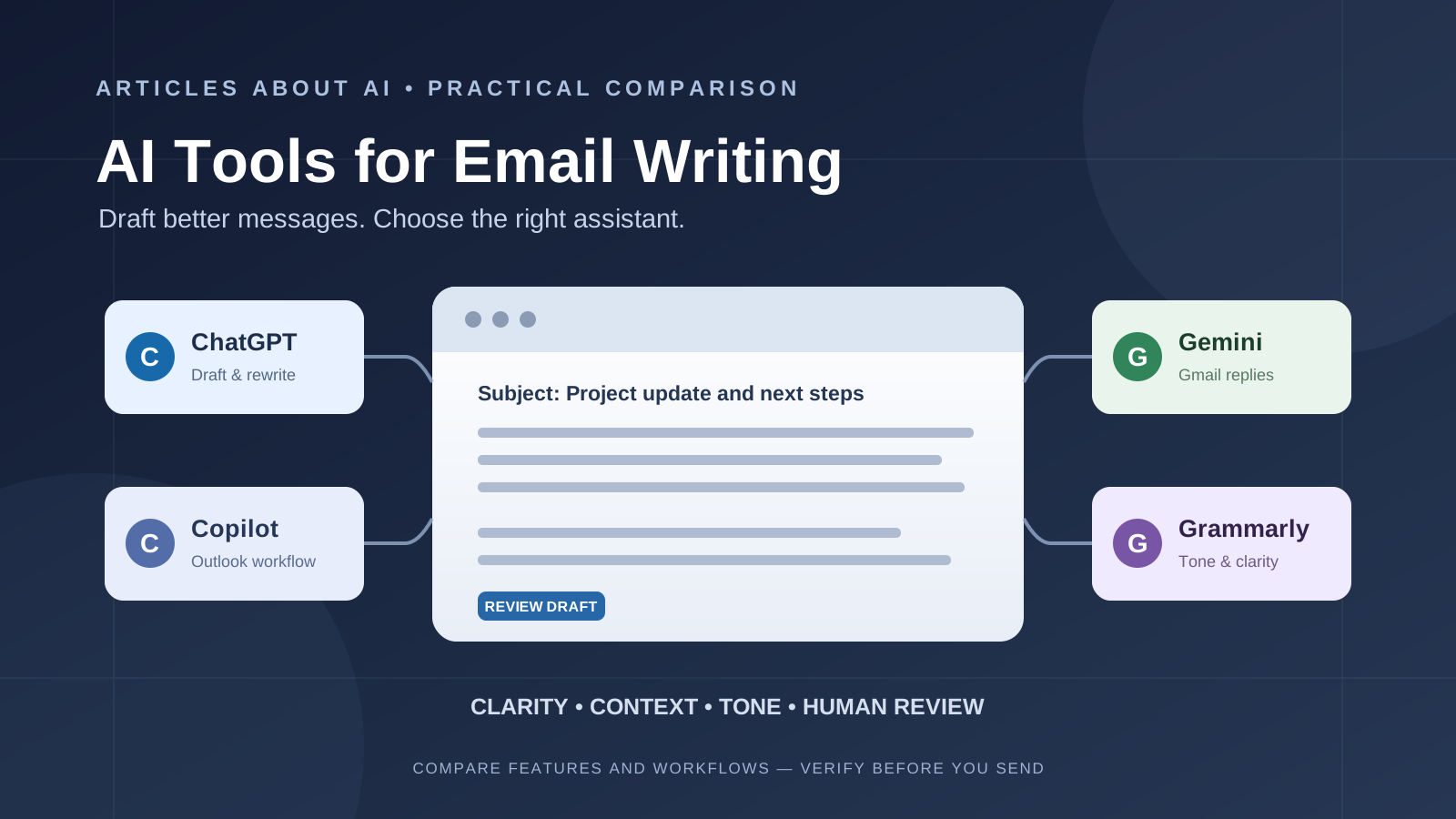
This practical comparison looks at four widely used options: ChatGPT, Gemini in Gmail, Microsoft Copilot in Outlook, and Grammarly. They approach email writing differently. Some work as general-purpose assistants, while others are integrated into the inbox or focus on improving text across applications.
Quick verdict: ChatGPT is a flexible choice when you want to create or revise emails from instructions and supplied context. Gemini is convenient for eligible Gmail users who want drafting and reply assistance inside their inbox. Copilot is the most directly integrated option for many Outlook workflows, including drafting and coaching. Grammarly is useful when the main need is improving clarity, correctness, and tone across the places where you write.
No tool should send an important message without your review. AI can misunderstand a relationship, invent a commitment, or make a message sound more certain than you intended.
Best AI email writing tools at a glance
| Tool | Best use | Main advantage | Important consideration |
|---|---|---|---|
| ChatGPT | Creating, rewriting, and planning emails | Flexible instructions, tone, and structure | You must provide the relevant context unless connected tools are available |
| Gemini in Gmail | Drafting and replying inside Gmail | Works within the Gmail workflow | Features and availability depend on account and plan |
| Microsoft Copilot in Outlook | Drafting, replying, and improving Outlook messages | Inbox context and in-place drafting features | Capabilities vary by Outlook version and license |
| Grammarly | Editing and polishing email text | Clarity, grammar, tone, and rewriting suggestions | It is primarily a writing and editing layer, not a full inbox manager |
This is a feature-and-workflow comparison, not a controlled test of model quality. Product features, plan eligibility, supported languages, and regional availability can change. The most reliable way to choose is to test each tool on the same realistic email task.
1. ChatGPT: best for flexible email drafting and rewriting
ChatGPT is useful when you need to turn a few notes into a complete email, adapt a message for a particular audience, or explore several ways to communicate the same point. Because it is a general-purpose assistant, you can describe the situation and specify the outcome instead of relying on a fixed email template.
For example, you can ask it to write a concise project update, prepare a polite follow-up after a delayed response, explain a complicated issue to a customer, or make a draft more diplomatic without removing the central request.
Where ChatGPT is useful
- Drafting professional emails from bullet points or rough notes.
- Rewriting a message to sound more concise, warm, formal, or direct.
- Creating subject-line alternatives.
- Preparing follow-up emails and meeting confirmations.
- Turning a long explanation into a short message with a clear request.
- Reviewing a draft for ambiguity, tone, missing context, and unnecessary detail.
A practical prompt is:
Draft a professional email to [recipient and relationship]. The purpose is [specific goal]. Include these facts: [verified details]. The action I need from the recipient is [request and deadline]. Use a [tone] tone, keep it under [word count] words, and do not invent facts, promises, dates, or attachments. Give me a subject line and email body.
ChatGPT can also help you compare versions. Ask it to explain what changed between a formal version and a more conversational version so that you can choose deliberately.
Limitations
ChatGPT does not automatically know the full history of an email conversation unless you provide it or use an eligible connected app. If you paste a thread, remove confidential details that you are not permitted to share. Always verify names, dates, figures, attachments, and commitments before using the draft.
For related writing workflows, see ChatGPT vs Claude for Writing: Which AI Writes Better in 2026? and Best AI Tools for Blog Writing: Compared and Tested.
2. Gemini in Gmail: best for writing emails inside Gmail
Gemini’s Gmail features are designed to help users compose and refine messages without leaving the email workflow. Google’s Gmail Help documentation describes capabilities such as Help me write, proofreading, suggested replies, and asking Gemini in Gmail to summarize or draft email responses. The exact features available depend on the Google account, subscription or Workspace edition, language, and region.
Where Gemini in Gmail is useful
- Starting a new email from a short instruction.
- Refining a draft for a more formal, concise, or polished tone.
- Generating a context-aware suggested reply to an email thread.
- Summarizing a conversation before writing a response.
- Working in Gmail rather than copying text between separate tools.
One advantage is workflow continuity: the writing assistance appears in the product where the message will be sent. That can reduce switching between an inbox and a separate chatbot.
Limitations
Do not assume every Gmail account has the same Gemini features. Google lists eligibility and language restrictions for individual capabilities, and access can differ between personal Gmail and Google Workspace accounts. Check the current feature availability for your account before choosing Gmail as your primary AI email workflow.
Gemini-generated replies still need human review. A suggested reply may miss a subtle point in the thread or fail to address a question that matters to the recipient.
Official documentation: Learn about Gemini features in Gmail.
3. Microsoft Copilot in Outlook: best for Outlook-based work email
Microsoft Copilot is closely integrated with Outlook. Microsoft’s support documentation describes Draft with Copilot, which can generate an email from a prompt, and options for adjusting the draft’s tone and length. Copilot can also provide coaching feedback on a message and help users work with email threads.
For people who spend most of the day in Outlook, this integration can be more convenient than writing a message in a separate AI tool and copying it into the email composer.
Where Copilot in Outlook is useful
- Drafting a new email from a short description.
- Preparing a reply using the context of an existing conversation.
- Adjusting the length and tone of a draft.
- Reviewing a message for clarity and professionalism with coaching suggestions.
- Summarizing long email threads before responding.
- Working within Outlook on supported desktop, web, and mobile experiences.
Limitations
Copilot availability and the exact capabilities depend on the Outlook version, account type, Microsoft 365 subscription, and organizational licensing. Some features may be unavailable in a particular environment or controlled by an administrator. Microsoft’s documentation also notes specific composition requirements for some Outlook versions.
Do not assume that a generated draft has correctly interpreted every earlier message. Review the full conversation and verify the proposed response before sending.
Official documentation:
4. Grammarly: best for polishing and improving email tone
Grammarly is useful when you already know what you want to say but need help making the message clearer, more polished, and appropriate for its audience. Its generative AI assistance can compose, rewrite, and reply to text, while its writing suggestions can help with grammar, clarity, word choice, and tone.
Grammarly’s current writing products include Docs and AI agents, and its support documentation describes AI assistance across supported writing environments. Features and access vary by product and plan.
Where Grammarly is useful
- Correcting grammar, spelling, and punctuation.
- Making a message shorter and easier to scan.
- Adjusting tone for a client, manager, colleague, or customer.
- Rewriting awkward sentences while preserving the intended meaning.
- Reviewing a draft before pasting or sending it.
- Maintaining more consistent wording across routine business communication.
Limitations
Grammarly is not a substitute for understanding the email thread or deciding what response is appropriate. A polished sentence can still be inaccurate, too forceful, or inconsistent with your organization’s policy. Some generative features and agents are available only in particular plans or products.
Official documentation:
5. Which AI email writer is best for different tasks?
The best AI email assistant changes with the kind of message you need to send.
| Email task | Practical starting point | Why |
|---|---|---|
| Write a new email from rough notes | ChatGPT or Gemini | Both can turn instructions into a structured draft |
| Reply to a Gmail conversation | Gemini in Gmail | Reply assistance is integrated into Gmail |
| Reply to an Outlook conversation | Copilot in Outlook | Drafting and coaching are integrated into Outlook |
| Make a message more concise | Grammarly or any of the four | The task is primarily editing rather than research |
| Make a sensitive message more diplomatic | ChatGPT, then human review | You can specify the relationship, risk, and intended outcome |
| Check grammar and clarity | Grammarly | Its core writing suggestions focus on correctness and clarity |
| Summarize a long thread before replying | Copilot or Gemini, where available | Inbox integration can provide conversation context |
| Create several versions for different audiences | ChatGPT | It is easy to request and compare distinct versions |
These are practical starting points, not universal rankings. A user with a fully enabled Outlook environment may prefer Copilot, while someone using Gmail all day may find Gemini more convenient.
6. A practical test: compare the tools using the same email
Do not choose an AI email writer based only on a product description. Test the tools with the same scenario and judge the resulting drafts against the same criteria.
Use this example:
Scenario: A supplier has not confirmed a delivery date. You need an update before a project deadline, but you want to remain professional and avoid sounding accusatory.
Give each tool the same instruction:
Write a concise professional email asking a supplier to confirm the expected delivery date. Explain that the project schedule depends on this information. Ask for a response by Thursday at 3 p.m. Keep the tone courteous but clear. Do not invent an order number, delivery date, or previous promise. Include a useful subject line.
Evaluate each draft using this checklist:
| Criterion | What a good draft should do |
|---|---|
| Accuracy | Use only the facts in the prompt |
| Clarity | State the reason for writing near the beginning |
| Actionability | Make the requested response and deadline explicit |
| Tone | Be courteous without sounding vague or aggressive |
| Conciseness | Remove repetition and unnecessary background |
| Context | Avoid assuming facts that were not supplied |
| Editability | Make it easy for the sender to personalize the message |
Repeat the test with a customer complaint, a meeting follow-up, and a short internal update. A tool that performs well on one type of email may be less suitable for another.
7. How to write better emails with AI: a reliable workflow
The quality of an AI-generated email depends heavily on the information and constraints you provide. A short, specific prompt usually works better than asking the assistant to “write a good email.”
Use this workflow:
- Define the outcome. Decide whether you want an answer, approval, update, introduction, apology, or action.
- Identify the recipient. Explain whether the person is a customer, manager, colleague, supplier, or someone you have never contacted.
- Provide verified context. Include only the details needed to understand the situation.
- Set the tone. Choose a tone such as neutral, warm, formal, persuasive, or firm.
- Specify the length. Ask for a short email or set an approximate word limit.
- State the next step. Make the requested action, owner, and deadline explicit.
- Review the draft. Check facts, names, dates, links, attachments, promises, and whether the tone fits the relationship.
- Send it yourself. Keep control of the final message and sending decision.
For recurring messages, save a prompt template that contains your preferred tone and structure. Update the facts for each message rather than reusing an old draft without checking it.
8. Privacy and security: what not to paste into an AI email tool
Email often contains personal information, customer records, financial details, internal business plans, and confidential discussions. Before using an AI assistant, understand how its account, product, and organization handle submitted information.
Follow these precautions:
- Do not paste passwords, authentication codes, payment card details, or sensitive identity information.
- Remove personal or confidential details that are not necessary for the task.
- Follow your employer’s approved AI and data-handling policies.
- Check whether the tool is using a personal account or an organization-managed account.
- Review the connected-app permissions before allowing an assistant to access an inbox.
- Do not ask an AI system to make commitments or send sensitive messages without review.
For a broader explanation of account and data considerations, see Are ChatGPT Conversations Private?.
9. Final verdict: the best AI tool for email writing
There is no single best AI email writer for every user. The right choice depends on the email platform you use and whether you need drafting, replies, editing, or inbox context.
- Choose ChatGPT for flexible email creation, rewriting, subject lines, and multiple tone options.
- Choose Gemini in Gmail if you want AI drafting and reply assistance directly inside an eligible Gmail account.
- Choose Microsoft Copilot in Outlook if your work email is managed in Outlook and your account supports its drafting and coaching features.
- Choose Grammarly if your priority is improving grammar, clarity, tone, and readability across the applications where you write.
For many people, the most efficient setup is the AI feature already available in their email client, supported by a separate writing assistant when a message needs more careful editing. The final decision should remain with the sender: check the facts, preserve your voice, and make sure the email says exactly what you intend.
Frequently asked questions
What is the best AI tool for writing emails?
ChatGPT is a flexible option for creating and rewriting emails. Gemini is convenient inside Gmail, Copilot is integrated with Outlook, and Grammarly is useful for editing and tone improvements. The best choice depends on your email platform and task.
Can ChatGPT write professional emails?
Yes. ChatGPT can turn notes into professional email drafts, suggest subject lines, adjust tone, shorten messages, and prepare follow-ups. Give it accurate context and review the result before sending.
Is Gemini available in Gmail for writing emails?
Google documents Gemini-powered Gmail features such as Help me write, proofreading, suggested replies, and email summaries. Availability depends on the account, plan, language, and region.
Can Microsoft Copilot write emails in Outlook?
Yes. Microsoft documents Draft with Copilot and email coaching features in supported Outlook experiences. Access and capabilities depend on the Outlook version and the user’s Microsoft 365 licensing or organization settings.
Is Grammarly an AI email writer?
Grammarly offers generative AI assistance that can compose, rewrite, and reply to text, along with suggestions for grammar, clarity, and tone. It is particularly useful for improving a draft rather than managing an entire inbox.
Are AI-generated emails safe to send without checking?
No. AI can misunderstand context, introduce unsupported details, or choose an inappropriate tone. Review the recipient, facts, dates, commitments, attachments, and requested action before sending.
Can I use AI to write business and sales emails?
AI can help draft business updates, customer replies, sales outreach, and follow-ups. Provide accurate product and customer information, avoid unsupported claims, and follow applicable privacy and communication policies.
Sources and further reading
- Google Gmail Help: Learn about Gemini features in Gmail
- Google Workspace Updates: Custom editing with Help me write in Gmail
- Microsoft Support: Draft an email message with Copilot in Outlook
- Microsoft Support: Frequently asked questions about Copilot in Outlook
- Grammarly Support: Introducing generative AI assistance
- Grammarly Support: Docs, Grammarly’s new AI writing surface
- OpenAI Help Center: Outlook Email app for ChatGPT