
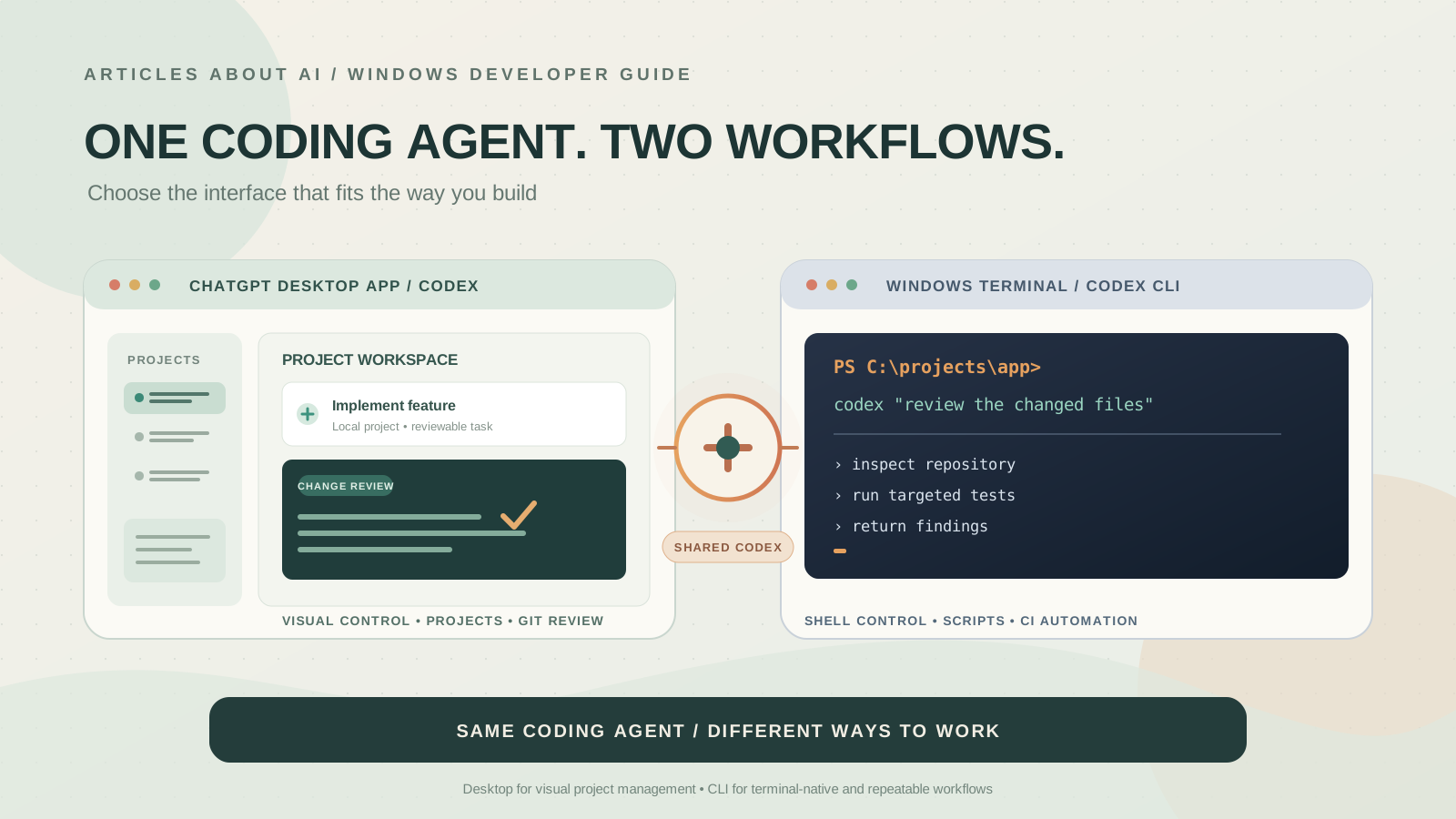
If you use Windows for software development, Codex Desktop and Codex CLI can work on the same kinds of coding tasks, but they fit different ways of working. One gives you a graphical workspace for projects, conversations, worktrees, and change review. The other puts the coding agent directly in your terminal, where it can work alongside PowerShell, Git, build tools, and scripts.
There is an important naming detail. In this comparison, Codex Desktop means Codex in the ChatGPT desktop app—the experience OpenAI documents as the ChatGPT desktop app (Codex mode). It is not a separate coding model. Codex CLI is OpenAI’s terminal client, launched from a project directory with the codex command. OpenAI describes the app, CLI, and IDE extension as different ways to use the Codex system, so the practical comparison is mainly about interface, execution environment, project workflow, and control—not a claim that one client has a universally better model.
The short version: choose the desktop app when you want visual project management and built-in review controls; choose the CLI when terminal work, repeatable commands, and scripting are central to your day. Many Windows developers can use both.
Codex Desktop vs Codex CLI on Windows: at a glance
| Area | Codex in the ChatGPT desktop app | Codex CLI |
|---|---|---|
| Main interface | Graphical app with project, chat, and review views | Interactive terminal UI, plus command-line execution |
| Typical starting point | Open the desktop app, select Codex, and choose a project or folder | Open PowerShell or a supported WSL2 shell in the repository and run codex |
| Local work | Can work in a selected local project on the computer | Works against the local repository and tools available to the process |
| Isolated work | Offers a dedicated Worktree workflow for separate Git checkouts | Can be run from a separate Git worktree like any other local project |
| Cloud work | Offers a first-class Local, Worktree, and Cloud environment choice | Primarily terminal-first; some cloud-related CLI commands are documented separately and may have a different maturity level |
| Git review | Includes visual diff and Git controls for staging, reverting, committing, pushing, and creating pull requests | Uses Git and other developer tools from the terminal |
| Automation | Project actions and local environment setup are configured in the desktop app | codex exec supports non-interactive scripts and CI workflows |
| Best fit | Developers who prefer a visual workspace and project-level task management | Developers who prefer shells, scripts, terminal tooling, and repeatable automation |
This table describes documented workflows, not a performance ranking. Feature availability can depend on the app or CLI version, Windows setup, ChatGPT plan, account rollout, and workspace policy.
1. What Codex Desktop gives you
Codex in the ChatGPT desktop app is designed around a graphical project workflow. You open the app, select Codex, start a chat, and choose the project or folder the task should use. The desktop interface keeps the conversation and project context visible while you direct work and inspect the result.
Its most important distinction is the environment selector. OpenAI documents three choices:
- Local: work directly in the current project directory on your computer.
- Worktree: isolate a task in a separate Git worktree so it does not have to share the same working checkout as another task.
- Cloud: run the task in an OpenAI-managed environment prepared with the repositories, tools, dependencies, and access settings it needs.
Local and Worktree tasks run on the computer that holds the project. Cloud tasks run in their configured remote environment. A cloud task does not automatically inherit your Windows files, running processes, browser sign-ins, or VPN connection. Check the environment before assuming a task can reach a local database, development server, or private file.
Visual Git review is a major desktop advantage
The desktop app provides Git controls alongside local projects and worktrees. OpenAI documents controls for reviewing diffs, adding inline comments, staging or reverting individual chunks, staging or reverting whole files, committing, pushing a branch, and creating a pull request.
That can make the review cycle easier to follow if you prefer to inspect a change visually instead of issuing every Git command yourself. The integrated terminal is still available for operations that are not exposed through the app’s controls.
Local environments and project actions
The desktop app also supports local environments for configuring worktrees. You can define setup scripts that prepare a new worktree—for example, installing dependencies or running an initial build—and create common project actions such as starting a development server or running tests.
These settings are stored in the project’s .codex directory and can be checked into Git when you want to share them with a team. OpenAI currently documents local environments as a desktop-app feature; do not assume that configuring one in the app automatically creates the same UI or setup workflow in a standalone CLI session.
For developers who switch between projects, manage several agent conversations, or want a visible place to review changes, this graphical structure can be useful.
2. What Codex CLI gives you
Codex CLI puts the agent inside the terminal you already use for development. Open a repository directory, run:
codex
Then describe the task. Codex can inspect the local project, edit files, run available development tools, and show you the commands and changes as the session progresses. You can steer the active turn, inspect diffs, and continue follow-up work without switching to a separate graphical workspace.
The CLI is particularly useful when the terminal is already the center of your workflow. For example, you might ask it to investigate a failing test, make a focused code change, run the relevant test command, and summarize the resulting diff. You can then use the same shell for Git, package managers, build tools, and other local utilities.
The CLI is built for repeatable work
The biggest functional difference is non-interactive execution. OpenAI documents codex exec for scripts, CI jobs, pre-merge checks, scheduled jobs, and workflows that pass output between command-line tools.
For example, a read-only repository summary can be run with:
codex exec "summarize the repository structure and identify the main application entry points"
The command can stream progress to standard error and return the final agent response to standard output. With JSON output enabled, the CLI can emit a JSON Lines stream that another tool can parse.
That makes the CLI a natural fit for repeatable engineering tasks. It also means that scripts should set the required sandbox and approval behavior explicitly. OpenAI documents codex exec as read-only by default; a workflow that needs file edits should request only the permissions it actually requires.
Terminal configuration and composition
The CLI exposes commands and configuration for choosing a model, reasoning effort, permissions, authentication, MCP servers, plugins, session history, and other developer workflows. It can also be combined with ordinary shell commands, pipes, and scripts.
This flexibility is useful, but it places more responsibility on you to understand the current directory, shell environment, PATH, configuration files, and command effects. A command that is convenient in a terminal can also affect files outside the project if you grant it broader access. Keep the working directory and permission settings in view.
3. Windows setup: PowerShell, native Windows, or WSL2?
Both clients are available in the Windows development workflow, but the details matter if you use Linux tooling or keep your repositories inside WSL2.
Install the ChatGPT desktop app
Download the official ChatGPT desktop app for Windows, sign in with your ChatGPT account, and select Codex from the app’s experience menu. Open a local folder or project and choose the environment that matches the task.
For a first local task, start with a small request such as asking Codex to explain the repository structure. Confirm that it has access to the intended folder before asking it to edit files or run commands.
Install Codex CLI in PowerShell
Open PowerShell and use the official Windows installer command from the OpenAI Codex repository:
powershell -ExecutionPolicy ByPass -c "irm https://chatgpt.com/codex/install.ps1 | iex"
The CLI is also distributed through npm:
npm install -g @openai/codex
After installation, open the repository directory and start Codex:
cd C:\path\to\your\project
codex
The first run prompts you to sign in using an available authentication method. OpenAI recommends ChatGPT sign-in for using Codex through a ChatGPT plan; API-key authentication is also available with additional setup and different billing implications. Follow the current Codex CLI guide for installation and authentication details.
When WSL2 is the better fit
Use WSL2 when your repository, compiler, package manager, or development scripts are already Linux-based. Install and launch the CLI inside the WSL distribution rather than mixing Windows and Linux toolchains in the same shell:
wsl
Then, from the WSL2 shell:
curl -fsSL https://chatgpt.com/codex/install.sh | sh
cd ~/code/your-project
codex
OpenAI’s WSL guidance recommends keeping Linux projects under the distribution’s Linux home directory—for example, ~/code—rather than under /mnt/c when possible. The documentation notes that Windows-mounted paths can be slower and may create symlink or permission complications.
There is also a sandbox distinction: when Codex runs from PowerShell on Windows, it uses the native Windows sandbox. When it runs inside WSL2, it uses the Linux sandbox implementation. WSL1 is not supported by current Codex releases that use the newer Linux sandbox approach; use WSL2 if you need the Linux environment.
4. Security and permissions: neither client should be treated as unrestricted
The desktop app and CLI both use sandboxing and approval controls for local execution. The sandbox defines technical boundaries such as which files a command can access or modify and whether it can use the network. The approval policy determines when Codex must pause and ask before crossing those boundaries.
These controls work together, but they are not interchangeable. A permissive approval setting does not mean the sandbox has no limits, and a sandbox does not remove the need to review important actions. On Windows, the implementation also differs between native PowerShell and WSL2.
For either client:
- Start with the default permission mode and expand access only when a task requires it.
- Review commands that modify files, install dependencies, or access external services.
- Keep secrets and production credentials out of prompts and repository files.
- Use a Git branch or worktree for changes that need a clear rollback path.
- Review the diff and run relevant tests before accepting or shipping the result.
If you are comparing the two clients for a work-managed computer, remember that workspace administrators can control Codex Local access and Codex Cloud access separately. Local use, cloud tasks, model availability, and Remote Control may have different permission requirements.
5. Cost and account access: the client does not determine the whole plan
Codex is available through supported ChatGPT plans, but usage limits vary. OpenAI also documents Codex Cloud as a separate eligibility question: cloud access depends on the plan, rollout, and workspace settings. Do not assume that every account that can use a local client can also create or access a cloud environment.
Signing in with a ChatGPT account uses the applicable ChatGPT plan allowance and usage rules. Using an API key requires additional setup and follows API billing instead. The desktop app and CLI are not separate model subscriptions simply because they have different interfaces.
Before choosing a workflow for a team, check the current Codex plan and availability guide and confirm the workspace permissions that apply to each developer.
6. Which should Windows developers choose?
Choose based on the work you need to do and how you prefer to supervise it—not on an unsupported claim that one client produces better code.
Choose Codex in the desktop app when:
- You prefer a graphical interface for projects, conversations, and task review.
- You want the built-in Local, Worktree, and Cloud environment choices.
- You frequently inspect diffs, stage or revert selected changes, commit, push, or create pull requests through visual controls.
- You want desktop-only local environment setup scripts and project actions.
- You manage several coding tasks and want a visible workspace for reviewing their progress.
Choose Codex CLI when:
- You already work primarily in PowerShell, Windows Terminal, or WSL2.
- You want the agent close to Git, package managers, compilers, tests, and other shell tools.
- You need repeatable scripts, CI jobs, non-interactive execution, or JSONL output.
- You prefer explicit command-line configuration and a terminal-centered workflow.
- You want to compose Codex with other command-line utilities rather than move between application windows.
Use both when the workflow benefits from each
The clients do not have to be an either-or decision. You can use the desktop app to manage a project, start an isolated worktree, and review changes visually, then use the CLI for a repeatable test or automation step. You can also use the CLI for a focused terminal task and open the resulting project in the desktop app for review.
Take care when both clients can modify the same checkout. Two agents writing to the same files at the same time can create conflicting edits, regardless of which interface they use. For parallel work, use separate Git worktrees or branches, then review and integrate the changes deliberately. See OpenAI’s guide to Git worktrees in Codex.
7. How to compare them fairly on your own Windows machine
If you are undecided, run a small evaluation with the same repository and a few representative tasks. Do not compare one client on a clean test project with the other on a large production codebase.
- Create a Git branch or disposable worktree and confirm that the working tree is clean.
- Use the same model and comparable reasoning settings where both clients expose them.
- Give each client the same task prompt and the same repository context.
- Keep sandbox and approval settings comparable, and note any difference you cannot make equivalent.
- Run the same relevant tests after each task.
- Compare the resulting diff, correctness, test coverage, manual cleanup, approval interruptions, and actual usage shown by the client.
- Repeat with a debugging task and a routine refactor before drawing a conclusion.
Record elapsed time if it matters to your workflow, but do not treat one run as a benchmark. Network conditions, model availability, context size, cache state, background processes, and approval requirements can all affect a single result. A useful comparison measures the complete engineering task—including review and correction—not just the time until the agent produces its first answer.
Frequently asked questions
Is Codex Desktop a different model from Codex CLI?
No. The desktop app’s Codex mode and Codex CLI are different clients for using Codex. Model choices and access can vary by account, workspace, client version, and rollout, so compare the options actually available in your setup rather than assuming the same model picker or controls appear everywhere.
Can Codex CLI run on Windows without WSL2?
Yes. OpenAI documents a native Windows installation path for the CLI. You can run it from PowerShell. WSL2 is an alternative for developers who need Linux-native tools or keep their projects inside a Linux distribution.
Can the desktop app run local code?
Yes. In the desktop app’s Local environment, Codex can work with a selected local project on your computer, subject to the permissions and sandbox controls in effect. Cloud tasks run in a separate OpenAI-managed environment.
Is Codex CLI better for automation?
The CLI has a clear advantage when you need non-interactive command execution from scripts or CI. OpenAI documents codex exec for that purpose. The desktop app is organized around a graphical task and project workflow rather than serving as a shell command in a pipeline.
Does one client produce faster or more accurate code?
There is no universal answer established by the feature documentation. Performance depends on the task, model, settings, context, environment, and review process. Run the same controlled tasks on your own codebase before making a decision.
Related Codex guides
- How to steer a running Codex task in the ChatGPT desktop app
- How to create reusable Codex skills and plugins
- Claude Code vs Codex vs Gemini CLI: a broader coding-agent comparison
- How to fix Codex Desktop connection problems on Windows
- How to fix repeated Codex Desktop sign-in prompts on Windows
Sources and further reading
- Using Codex with your ChatGPT plan — OpenAI Help Center
- ChatGPT Work and Codex — OpenAI Help Center
- Codex environments — OpenAI
- Local environments — OpenAI
- Git worktrees — OpenAI
- Codex CLI guide — OpenAI
- Non-interactive mode and
codex exec— OpenAI - Sandboxing in ChatGPT and Codex — OpenAI
- WSL setup for Codex — OpenAI
- OpenAI Codex source repository
- Codex as a platform: the open agent harness — OpenAI