
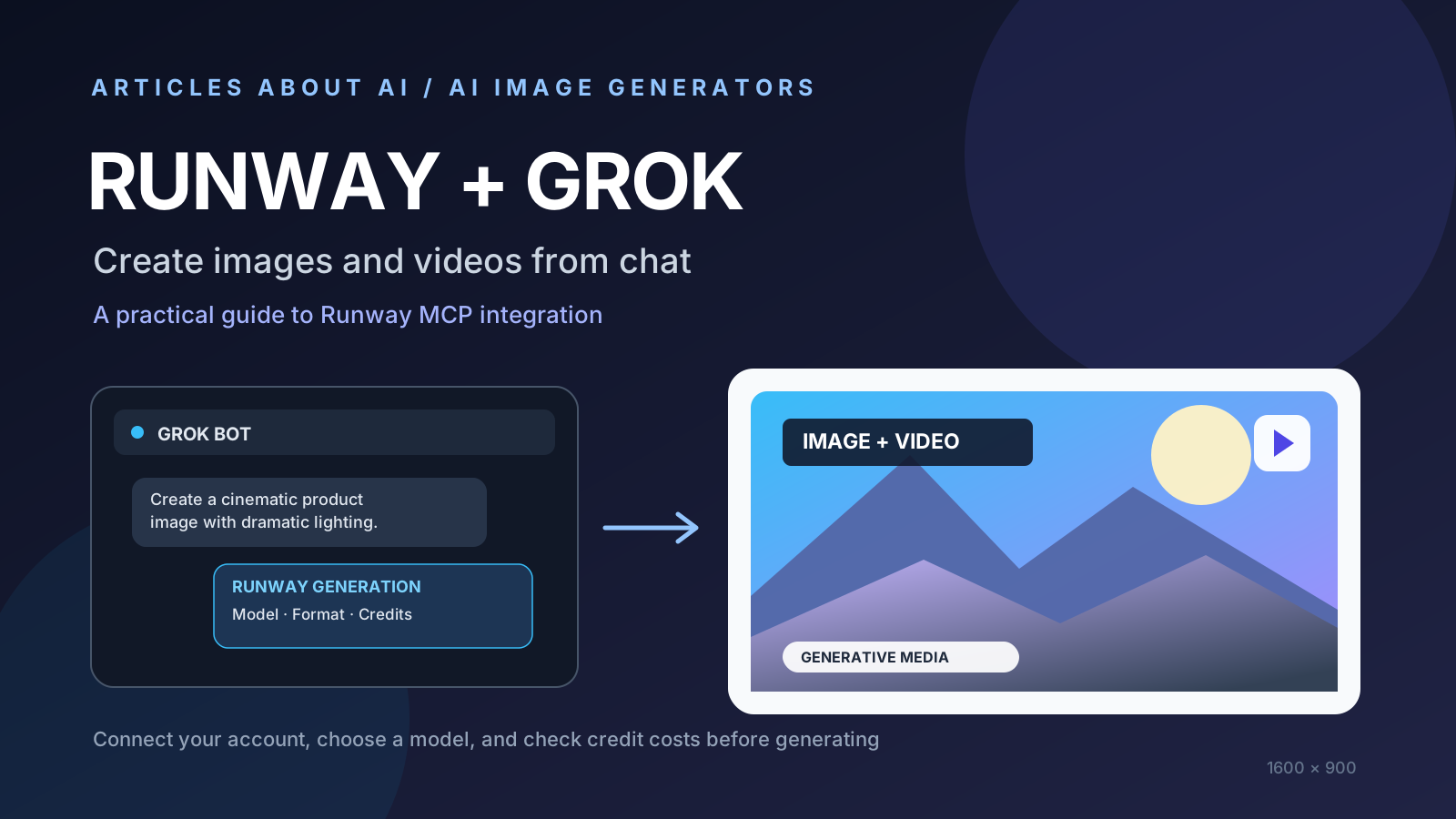
Runway lets users generate AI images and videos from supported chat and agent workflows through Runway MCP, its Model Context Protocol integration. One supported route is Grok Bot: after adding the Runway plugin and signing in with a Runway account, users can describe the image or video they want in a conversation rather than switching to the Runway generation interface for every request.
The integration was announced in Runway’s changelog on September 17, 2026. This article explains what the connection does, how to set it up, what to check before generating media, and how to avoid surprises with account credits. It is a practical guide to an existing integration, not a claim that the feature launched today.
What is Runway MCP?
MCP stands for Model Context Protocol, a standard that lets compatible AI applications connect to external tools. Runway MCP connects an assistant or agent to Runway’s generative media capabilities. The assistant can route a natural-language request to the connected service, which creates the requested media using models available to the user’s account.
For example, you might ask for a product image with a specific background, a restyled photograph, or a short promotional video. The request begins in the chat, while generation is handled by Runway. The exact models and options depend on account access, the request, and the supported integration.
Runway’s official pages describe MCP support across Grok Bot and other compatible tools, including ChatGPT, Claude, and Cursor. See the official Runway MCP page for current connection options and supported workflows.
What can you create with Runway in Grok Bot?
AI images from text prompts
Describe the subject, visual style, composition, lighting, and intended use. You can ask for a product concept, a stylized portrait, an editorial illustration, or a campaign visual. For better results, give the assistant a specific brief instead of a vague request such as “make something cool.”
If you are developing a prompt from scratch, our guide to writing better AI image prompts explains how to describe subject, composition, lighting, and constraints. For more options, compare the best free AI image generators in 2026.
AI video generation
Runway’s connected models can also support video tasks, depending on the model and plan. A prompt can describe the scene, action, camera movement, pacing, and mood. Some workflows may accept a starting image or reference media, but input limits and output settings vary by model.
Do not assume every model supports every feature. Check the selected model’s current specifications for maximum duration, supported aspect ratios, resolution, reference inputs, and whether audio is available.
Restyling and reference-based creative work
Runway’s product materials describe workflows such as restyling a photo, using a product image as a reference, or building a creative asset around a supplied visual. Whether a particular edit is available through Grok Bot depends on the model and the integration’s current capabilities.
For text-heavy artwork, inspect every generated word before publishing. Our guide to fixing misspelled text in AI-generated images explains why generated typography often needs a final review.
How to connect Runway to Grok Bot
Runway’s current instructions use the plugin marketplace and account authentication. The exact interface may change, so follow the official Runway for Grok Bot setup page if labels differ.
- Install Grok Bot. Get it from the official xAI distribution channel and sign in.
- Open the plugin marketplace. In Grok Bot, find the marketplace or plugins area.
- Find Runway. Search for the Runway plugin and choose the option to add it.
- Authenticate with Runway. Complete the sign-in flow and authorize the connection to your Runway account.
- Start with a small request. Ask for a simple image or short video, and specify a model if you already know which one you want to use.
- Review the output and credit usage. Check the result, then confirm the credit cost before creating a larger batch.
Runway says a separate API key is not required for the supported plugin flow. You do need to sign in to a Runway account, and generations use credits associated with that account. See Runway’s help article on connecting Runway MCP for more details.
Which AI models are available?
Runway’s Grok Bot product page lists several models available through the connected experience, including Gen-4.5, Seedance 2.5, GPT Image 2, Kling 3.0, Veo 3.1, Nano Banana Pro, and Gen-4 Image. Availability is account- and plan-dependent, and the list can change.
| Model or family | Potential use | What to check |
|---|---|---|
| Gen-4.5 | Creative video generation | Available duration, resolution, and plan access |
| Seedance 2.5 | Video generation workflows | Supported inputs, output quality, and credit rate |
| GPT Image 2 | Image generation | Image options and account availability |
| Kling 3.0 | Video creation | Supported motion controls and output settings |
| Veo 3.1 | Video generation | Access, duration, audio, and resolution options |
| Nano Banana Pro | Image generation and creative tasks | Current supported features and account access |
| Gen-4 Image | Image generation | Reference-image support and available settings |
This table is a high-level orientation, not a promise that every model is accessible to every user or supports all options inside every chat client. Check Runway’s current model selector and documentation before planning a production workflow.
Does Runway in Grok Bot cost extra?
The important distinction is that using Runway from a chat does not mean media generation is unlimited or automatically free. Runway says MCP generations use the credits associated with the Runway account. The cost depends on the model and settings, including factors such as resolution and output type.
Before a large job, check:
- The credit cost of the selected model.
- Whether the chosen resolution or duration increases the cost.
- Whether reference images or other inputs consume additional credits.
- Your remaining account balance and plan limits.
- Whether retries or multiple outputs will increase total usage.
Do not rely on a single universal price for all image and video models. Rates and product plans can change. The official Runway MCP page and the relevant model documentation are the best places to confirm current terms.
Runway in Grok Bot vs. using Runway directly
The main difference is the workflow, not necessarily the underlying model quality.
| Consideration | Runway through Grok Bot | Runway directly |
|---|---|---|
| Starting point | Describe the task in a chat | Use Runway’s own interface |
| Best fit | Conversational requests and quick iteration | Direct access to the product’s controls and workflow tools |
| Model selection | Depends on what the integration exposes and your account | Use the current model selector and supported tools |
| Credits | Uses your Runway account credits | Uses your Runway account credits |
| Fine-grained controls | May vary by integration and model | Product interface may expose more specific controls |
| Setup | Add the plugin and authenticate | Sign in to Runway itself |
Choose the chat route if conversational instructions fit your process. Use the direct Runway interface when you need controls or workflow options that are not exposed through the integration.
Tips for better results
Write a production brief, not just a one-line prompt
Specify the subject, setting, framing, visual style, lighting, intended platform, and anything that must remain unchanged. For video, add the action, camera movement, pacing, and desired duration.
Start with one output
Generate one test image or short clip first. Inspect the result and refine the prompt before spending credits on multiple variations.
Keep a record of model and settings
For repeatable work, note the model, prompt, aspect ratio, resolution, and any reference images used. This makes it easier to reproduce successful results or understand why two outputs differ.
Review rights and privacy before uploading references
Only upload images, product assets, or personal media that you are permitted to use. Review Runway’s current terms and privacy documentation before sending confidential, customer, or unreleased product material through a connected service.
Proofread before publishing
Generated images can contain incorrect lettering, and generated videos may include visual artifacts or unexpected details. Review the complete output before using it in an advertisement, article, presentation, or client deliverable.
Common problems and fixes
Runway does not appear in the plugin marketplace. Check that you are using the supported Grok Bot environment and search the marketplace again. Plugin availability and interface labels can change.
Authentication fails. Complete the sign-in flow in the browser, confirm that the intended Runway account is connected, and retry. If you use a managed account, check whether its administrator restricts plugins.
A model is unavailable. The model may require a different Runway plan or may not be exposed in the connected workflow. Confirm access in Runway’s own model selector.
Generation fails or uses more credits than expected. Check the model, resolution, duration, and reference inputs. Review the current credit information before retrying.
The output does not follow the prompt. Make the request more concrete, remove conflicting requirements, and change one variable at a time. For image tasks, our AI image prompt guide offers a useful framework.
Frequently asked questions
Can I generate images in Grok Bot using Runway?
Yes. Runway provides a Grok Bot plugin that can generate images and videos from chat requests after you add the plugin and authenticate with a Runway account.
Do I need a separate Runway API key?
Runway says no separate API key is required for the supported Grok Bot plugin flow. You still need to sign in and connect your Runway account.
Are generations free?
Do not assume so. Generations use your Runway account credits, and costs vary by model and settings. Check current pricing and your plan before generating.
Can I use Runway MCP in other AI tools?
Runway documents MCP support for several compatible applications, including Grok Bot, ChatGPT, Claude, and Cursor. Setup differs by application.
Is Runway MCP a new AI image model?
No. MCP is the connection protocol that lets compatible assistants use Runway’s media-generation tools. The underlying model depends on the selected tool and account access.
Official sources
- Runway for Grok Bot — official product overview and setup.
- Runway product updates and changelog — announcement and subsequent product changes.
- Connecting to Runway MCP — setup guidance for supported applications.
- Introducing Runway MCP — background on the integration.
Final take
Runway in Grok Bot is useful for creators who want to request AI-generated images and videos through a conversational interface. The integration reduces the need to switch apps for every prompt, while the actual generation still depends on Runway’s models, account access, and credit system.
The best way to evaluate it is to connect your account, test one small task, inspect the result, and check the credit cost. For ongoing creative work, compare the chat workflow with Runway’s direct interface and choose the one that gives you the right balance of convenience, control, and cost.