
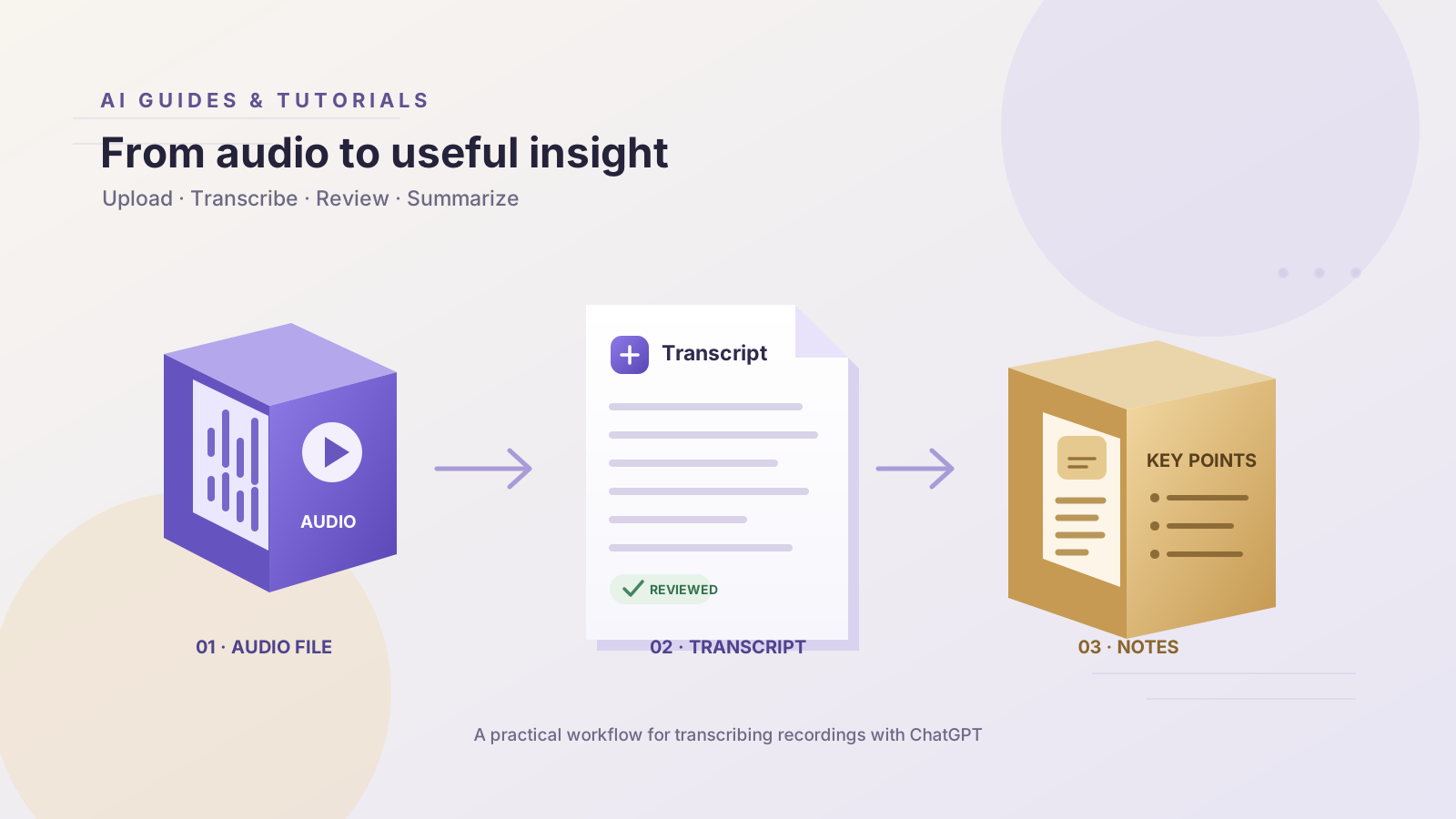
Transcribing a recording by hand can take a long time, especially when you work with interviews, lectures, meetings, or extended voice notes. ChatGPT can help turn a supported audio recording into text, summarize its contents, answer questions about what was said, and organize the results into practical notes.
OpenAI added audio file uploads to ChatGPT in October 2026. Eligible users can attach a supported recording to a conversation and ask ChatGPT to transcribe it or work with its contents. Access depends on the subscription, workspace settings, region, application version, and selected model.
This guide explains how to transcribe audio in ChatGPT, which formats are supported, how to prompt the assistant for a more faithful transcript, and how to troubleshoot common upload problems. For the broader file workflow, see our guide to uploading files to ChatGPT and analyzing them.
What Can ChatGPT Do With an Audio Recording?
When audio uploads are available in your account, you can ask ChatGPT to help with several related tasks:
- Transcription: Turn spoken content into written text.
- Meeting summaries: Organize the discussion into key points, decisions, and open questions.
- Interview analysis: Group answers by theme and identify useful quotations for review.
- Lecture notes: Convert spoken explanations into structured study notes.
- Information retrieval: Ask what a speaker said about a particular topic, date, or decision.
- Content preparation: Use a verified transcript as the starting point for an outline, report, or follow-up message.
A transcript and a summary are not the same thing. A transcript aims to preserve the speaker’s words; a summary selects and reorganizes the information. If exact wording matters, ask for a transcript first, check it against the recording, and only then request a summary.
Do not confuse audio file uploads with a live voice conversation. Our guide to using ChatGPT Voice Mode covers speaking to ChatGPT in real time. Audio uploads are intended for working with a recording that already exists.
Which Audio Formats Does ChatGPT Support?
OpenAI’s current file-upload guidance lists these audio formats:
- WAV
- MP3/MPEG
- OGG/OGA
- WebM containing audio only
- PCM
- FLAC
- AAC
- M4A
- MP4 containing audio only
The file must contain a valid, decodable audio stream. A WebM or MP4 file identified as video is not necessarily supported through the audio-upload workflow, even if it contains sound.
The published maximum size for an audio file is 512 MB. That is a file-size ceiling, not a guarantee that every recording within the limit will process successfully. Very long recordings may be handled in smaller sections when Data Analysis is available, but processing is best-effort and exceptionally long files may time out.
Audio uploads are currently available with eligible paid ChatGPT subscriptions and supported workspaces, including Enterprise. They are not available on the Free plan through this upload feature at the time of writing. Workspace policies, regional availability, client versions, and selected models can affect what you see.
Check the official OpenAI file and audio upload guide for the latest formats, limits, and availability rules before relying on a specific feature.
How to Transcribe Audio in ChatGPT
Step 1: Check Your Account
Sign in to ChatGPT and open a conversation. Look for the attachment control beside the message box. If audio uploads are not available, confirm that your plan and workspace support the feature and that you are using a supported application version.
Do not assume that access to Voice Mode automatically includes every audio-upload capability. The features have different workflows and availability rules.
Step 2: Prepare the Recording
Choose a supported file and make sure it plays normally on your device. Clear speech and limited background noise generally make the task easier. If the recording is extremely long, consider dividing it into smaller, clearly named sections before uploading.
If the audio includes multiple speakers, overlapping speech, uncommon names, or specialized vocabulary, expect to review the transcript more carefully. Those details can be difficult for speech-recognition systems.
Step 3: Attach the Audio File
Select the attachment option, choose the recording from your device, and wait for the upload to finish. Then tell ChatGPT exactly what output you need. Instead of writing “Analyze this,” specify whether you want a faithful transcript, a summary, speaker-separated notes, or answers to questions about the recording.
Step 4: Use a Faithful Transcription Prompt
Try this prompt:
Transcribe the attached audio as accurately as possible. Preserve the speaker’s original wording and meaning. Add punctuation and paragraph breaks for readability, but do not summarize or paraphrase. Mark unclear passages as [unclear] rather than guessing. Do not invent missing words, speaker names, or factual details. After the transcript, list any passages that need manual verification.
This prompt makes the priority explicit: preserve the recording rather than producing a polished rewrite. It also asks the model to distinguish uncertainty from content it can understand.
If you need speaker labels, add: “Use Speaker 1, Speaker 2, and so on only when you can distinguish the speakers reliably. Mark uncertain attribution instead of guessing.” Speaker identification may be unreliable, so check the labels against the original audio.
Step 5: Review the Transcript
Listen to the recording while checking the transcript. Pay special attention to names, dates, numbers, technical terms, negations, and quotations. A single misheard word can reverse the meaning of a sentence.
If a passage is unclear, ask ChatGPT to identify the section that needs review. If timestamps are not provided, do not assume the model can produce exact timestamps from the transcript alone. Return to the original recording to confirm the relevant words.
For academic, legal, journalistic, or professional work, verify important quotations against the audio before publishing or sharing them.
Turn a Transcript Into Useful Notes
Once the transcript has been reviewed, ask ChatGPT to transform it for a particular purpose. These follow-up prompts can help.
Meeting Summary
Summarize this transcript under these headings: Meeting Purpose, Main Discussion Points, Decisions Made, Unresolved Questions, and Next Steps. Include only details supported by the transcript. Separate confirmed decisions from suggestions, and do not invent task owners or deadlines.
A transcript can include tentative ideas, interruptions, and unresolved questions. If you want to extract follow-up tasks, our guide to turning AI meeting transcripts into reliable action items explains how to separate clear commitments from suggestions.
Lecture Notes
Convert this transcript into structured study notes. Organize the material by topic, explain key concepts in clear language, and list the main takeaways at the end. Preserve important terminology and flag unclear statements that need verification.
Interview Analysis
Organize this interview transcript by theme. Identify recurring ideas and select relevant quotations exactly as they appear in the transcript. Distinguish the interviewee’s statements from your interpretation. Do not invent quotations or attribute a statement to the wrong speaker.
These workflows can reduce repetitive work, but the output should remain a draft until you have checked the underlying text.
How to Improve Transcription Accuracy
Use a clear recording. Reduce background noise when possible, and avoid combining speakers into one channel if you can obtain a clearer recording.
Specify the language. Tell ChatGPT whether the recording is in English, Arabic, Persian, or another language. Performance varies by language and recording conditions, and dialects or specialized vocabulary may require extra review.
Ask for verbatim wording. If you need a faithful transcript, explicitly tell ChatGPT not to paraphrase, summarize, or silently rewrite what the speaker said.
Ask it to mark uncertainty. Request an [unclear] marker rather than a plausible guess. This will not eliminate errors, but it makes uncertain passages easier to locate.
Separate transcription from analysis. First generate and verify the transcript. Then ask for a summary, translation, classification, or list of action items.
Check important details manually. Names, figures, dates, quotations, and decisions should be compared with the original recording. AI-generated text can sound certain even when it is wrong.
Common Audio Upload Problems
The File Will Not Upload
Check that the file uses a supported format and contains a valid audio stream. If it is a video container, export the sound to a supported audio format and try again. Also check the file size, subscription, workspace restrictions, and current application version.
The Recording Is Too Long
A recording may fail even when it is below the published 512 MB maximum. Very long audio can time out during processing. Split the file into shorter sections, transcribe them separately, and keep the section order clear when assembling the final transcript.
The Transcript Contains Errors
Review the original audio and identify the exact passage that needs correction. You can ask ChatGPT to revisit that section with additional context, but verify the revised text against the recording. Do not use a model’s guess to fill in an inaudible passage.
Audio Uploads Are Not Available
Audio uploads are subject to plan and workspace requirements. Check the official help article and your workspace settings. If the attachment control is missing, do not assume that switching between unrelated voice or chat modes will unlock the feature.
Privacy and Responsible Use
Before uploading a recording, consider whether it contains confidential business information, private conversations, personal details, or sensitive research. Make sure you have permission to record and process other people’s speech where required. Recording and privacy laws differ by jurisdiction.
Review ChatGPT’s data controls and your organization’s policies before uploading sensitive material. Retention and data-use rules can depend on the product, account, workspace, and settings. Do not assume that a recording is automatically excluded from every form of processing.
For confidential workplace recordings, use only tools approved by your organization and follow its retention requirements.
Frequently Asked Questions
Can ChatGPT transcribe MP3 files?
Yes. MP3/MPEG is listed among the supported audio formats, provided the file contains a valid audio stream and meets the applicable upload requirements.
Is audio transcription in ChatGPT free?
Audio file uploads are available with eligible paid ChatGPT subscriptions and supported workspaces, not on the Free plan through this feature at the time of writing. Availability may change.
What is the maximum audio file size?
OpenAI’s published maximum is 512 MB per audio file. Very long recordings can still encounter processing timeouts.
Can ChatGPT transcribe Arabic audio?
ChatGPT can process audio in multiple languages, but accuracy varies by language, dialect, and recording quality. Review Arabic transcripts carefully when dialect-specific wording, names, or technical terms are important.
Can ChatGPT summarize a meeting recording?
Yes. You can request a summary of the main discussion points, decisions, unresolved questions, and next steps. Check the output against the transcript before distributing it.
Is ChatGPT transcription always accurate?
No. Transcripts may contain errors, and speaker identification can be unreliable. Review important information against the original recording.
Final Thoughts
ChatGPT audio uploads offer a practical starting point for working with interviews, lectures, meetings, and other recordings. The workflow is simple: attach a supported file, request a faithful transcript, review uncertain passages, and then use focused prompts to create summaries or structured notes.
The safest approach is to treat the transcript as a working document rather than a verified record. With careful prompting and human review, ChatGPT can reduce repetitive work while helping preserve the accuracy required for professional use.
Official Sources
- OpenAI Help Center: Uploading Files and Audio to ChatGPT
- OpenAI ChatGPT Release Notes — October 6, 2026