
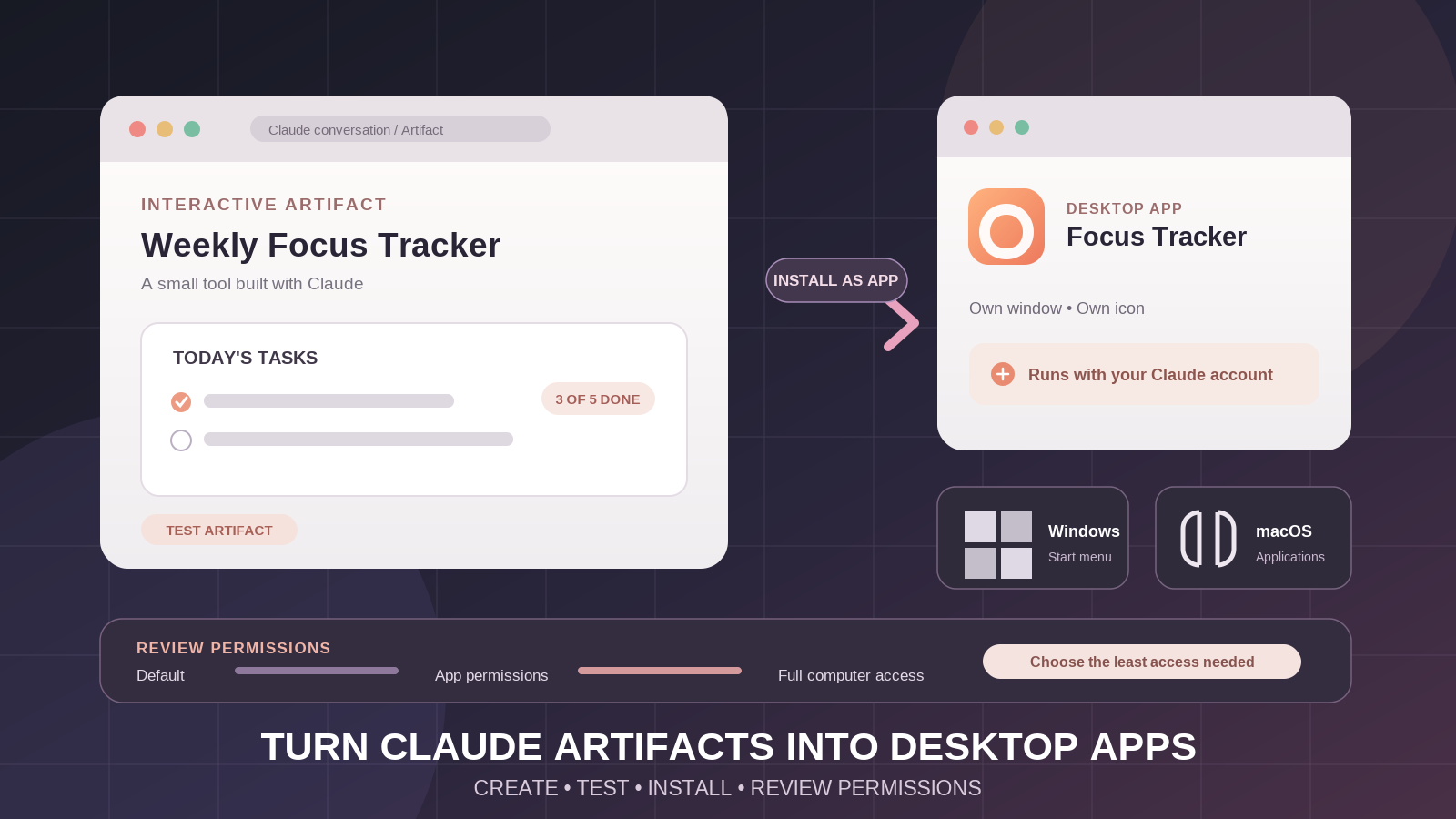
Claude Artifacts can now do more than live beside a conversation. Anthropic’s Install as app beta lets you turn an eligible Artifact into a desktop app for macOS or Windows, with its own icon and window. You can build a small work tool with Claude, test it as an Artifact, and install it without packaging or code-signing the app yourself.
This guide explains how to create and install a Claude Artifact as a desktop app, choose permissions, and troubleshoot the most common setup issues. It also covers practical examples and limitations so you can decide whether this workflow fits your needs.
What does Install as app do?
A Claude Artifact is an interactive output created in a conversation. It might be a calculator, checklist, dashboard, tracker, lightweight editor, or another small tool. With Install as app, an eligible Artifact opens in its own desktop window and receives its own app icon instead of being used only inside the Claude conversation.
Anthropic says installed apps can use Claude and connected apps, and can request desktop capabilities such as notifications, menu-bar or system-tray items, always-on-top windows, and global keyboard shortcuts. The exact capabilities depend on the permissions you grant.
The installed app remains connected to the underlying Artifact. When the Artifact is edited, the installed app updates too. This makes it easier to improve a tool without creating and distributing a separate software package.
Important distinctions:
- It is a desktop app experience, not a fully independent native software project. You need to be online and signed in to Claude to open it.
- It uses your Claude account; a separate API key or app login is not required.
- Building an app and the requests it makes to Claude count toward your plan’s usage limits.
- The feature is in beta, so availability and organization controls can affect whether you see it.
What you need before installing
Check these requirements:
- Claude for Mac or Claude for Windows. The feature is for desktop apps, not Claude in a browser or on mobile.
- An up-to-date desktop app. On Mac, select Claude > Check for Updates. On Windows, open the app menu and choose Help > Check for Updates. Install the latest version offered to your account.
- An eligible Artifact. Some types cannot currently be installed, including Claude Docs, Slides, and Sheets.
- Internet access and an active Claude sign-in. Both are required when opening an installed app.
- Feature access. The beta is rolling out across plans, but administrators can control availability.
Anthropic says the beta is rolling out on all plans. It is enabled by default for Team, with full computer access off by default. For Enterprise, an owner must enable the feature. HIPAA-ready organizations and hybrid deployments are not supported. If you use a managed work account, check with your administrator rather than trying to bypass an organization policy.
Step 1: Create a useful Artifact
Start with a small tool that has a clear purpose and limited access requirements. Good first projects include a Pomodoro timer, daily checklist, project dashboard, lightweight inventory tracker, or simple calculator.
Open Claude Desktop and describe the tool you want. Specify its purpose, the information it should display, and what it must not do.
Prompt: build a desktop-ready Artifact
Build an interactive Artifact called Weekly Focus Tracker.
Let me add tasks, assign priorities, mark tasks complete, and review progress for the current week. Use a clean, compact desktop-friendly layout. Include filters for all, active, and completed tasks, plus a simple progress summary. Make controls keyboard-accessible.
Do not connect to external services, access local files, send notifications, or perform actions outside this Artifact. Explain any limitation before adding a feature that needs extra permissions.
First create the Artifact and let me test it. Do not claim that it is installed as a desktop app.
Starting without computer access is sensible for a simple tracker. Add capabilities later only if the use case genuinely requires them.
Step 2: Test the Artifact before installing
Try realistic inputs and verify that the controls behave as expected. For a task tracker, add a task, change its priority, mark it complete, filter the list, and check that totals update correctly. Also test an empty list and a smaller window size.
Ask Claude to fix specific issues instead of redesigning everything:
Review the current Weekly Focus Tracker. Fix the task filter so it updates the visible list immediately. Preserve the existing layout and features. Add a clear empty state when no tasks match the selected filter. Do not add notifications, file access, or external connections.
An attractive interface is not proof that an Artifact is reliable. Verify calculations, data handling, and important outputs before depending on them.
Step 3: Install the Artifact as a desktop app
When the Artifact is ready, use Claude Desktop on your Mac or Windows computer.
- Open the conversation containing the Artifact.
- Open the Artifact so it is visible in Claude Desktop.
- Open the Artifact’s Share menu. Anthropic also describes an option in the Artifact title menu or right-click menu.
- Choose Install as app.
- Review the confirmation and select Install.
- Complete any permission request only after checking what the app is asking to do.
The installed app receives its own icon and opens in a separate window. Anthropic says you do not need to package or code-sign it. The app uses your existing Claude account, so you do not need an API key for this workflow.
If Install as app is missing, use the troubleshooting section below. Not every Artifact is eligible, and a managed account may have the beta disabled.
Step 4: Understand the three permission levels
Permissions are one of the most important parts of installing Claude Artifacts as desktop apps. Anthropic describes three levels. Choose the least powerful level that supports the task.
Default permissions
Default permissions limit the installed app to what it could do in a browser. This is a sensible starting point for a calculator, checklist, or dashboard that does not need to interact with the operating system.
App permissions
App permissions allow an app to request specific desktop capabilities that Claude can control. Examples include notifications, always-on-top windows, global keyboard shortcuts, and an item in the macOS menu bar or Windows system tray.
Grant these capabilities only when they are part of the tool’s purpose. A focus timer may benefit from notifications; a basic calculator probably does not need them.
Full computer access
Full computer access is substantially more powerful. An app can ask to run programs and read, change, or delete files without asking each time.
Treat this permission as high risk. Only enable it for an app you created and trust, and only when the workflow genuinely needs it. Do not grant full access merely because it is convenient.
Anthropic says permission applies to the current version of the app. If the app is updated—including after edits you make to the Artifact—Claude asks for permission again. Review the new request instead of automatically approving it. Team and Enterprise administrators can control app permissions and full access across the organization.
Step 5: Open, update, and connect your app
After installation, launch the app from the installed-app entry points available in Claude Desktop or on your computer. You can also return to the original Artifact and use its installed-app option if shown. Menu presentation can vary by operating system and app version.
Installed apps update when the underlying Artifact is edited. A safe update process is:
- Return to the conversation containing the original Artifact.
- Describe the change you want.
- Review and test the revised Artifact.
- Reopen the installed app and confirm that the change appears.
- Review any new permission request before approving it.
Installed Artifacts can use Claude and connected apps. Before connecting a service, confirm the account, review the requested permissions, limit access to what is necessary, and verify important information against the original source. Avoid copying confidential information into an Artifact unless your organization’s policy permits it.
Do not treat an installed Artifact as trusted simply because Claude generated it. Anthropic says it does not review apps before users install them. Be especially cautious with Artifacts shared by other people, external content embedded in an Artifact, or requests for access to local files.
Practical desktop app ideas
| App idea | Useful features | Permission starting point |
|---|---|---|
| Focus timer | Work sessions, breaks, progress | Default; notifications only if needed |
| Project dashboard | Milestones, task status, risks | Default for manually supplied data |
| Personal checklist | Recurring tasks and completion state | Default |
| File organizer | Rules and file operations | Review carefully; may require full access |
| Meeting companion | Agenda, notes, follow-up checklist | Default unless a connector is needed |
| System monitor | Performance information and tray access | App permissions where supported |
Prompt: create a focus timer
Build a desktop-friendly focus timer as a Claude Artifact. Include configurable work and break durations, start, pause, reset, and a session counter. Keep the interface compact. Do not request file access or full computer access. If desktop notifications are supported, explain the permission required and wait for my approval before adding them.
Prompt: create a project dashboard
Build an interactive project dashboard with goals, milestones, tasks, risks, and next actions. Use only information I provide. Mark missing owners and dates as not provided. Do not connect external services or change source records. Keep the dashboard readable in a standalone desktop window.
Troubleshooting: Install as app is missing or does not work
The option is not visible
Try these checks in order:
- Confirm that you are using Claude for Mac or Windows, not Claude in a browser.
- Update Claude Desktop.
- Reopen the Artifact in the desktop app.
- Check the Artifact’s Share menu, title menu, and right-click menu.
- Confirm that the Artifact type is supported. Claude Docs, Slides, and Sheets are among the types Anthropic says cannot currently be installed.
- If you use Team or Enterprise, ask the organization owner whether the feature is enabled.
The feature is in beta and may not appear in every account or managed environment at the same time.
The Artifact installs but cannot open
Check that the computer is connected to the internet and that you are signed in to Claude Desktop. Anthropic says an installed app requires both. If your session has expired, sign in again and retry.
The app asks for more permissions than expected
Cancel the request if the permission is not necessary for the tool’s purpose. Revisit the Artifact and ask Claude to remove the feature that requires extra access. A simple checklist should not need permission to read or delete local files.
The app stops working after an edit
Return to the original Artifact, inspect the latest version, and test the changed feature. If Claude asks for permission again, review the request for the updated version. Do not assume previous approval automatically covers every future version.
Your organization blocks installation
Team and Enterprise administrators can manage access and permissions. Ask the administrator whether Install as app is enabled. Do not attempt to work around a security restriction or use a personal account to move company data outside approved systems.
Availability and limitations
Anthropic describes Install as app as a beta rolling out across Claude plans. Keep these limitations in mind:
- Desktop only: the feature is for Claude on Mac and Windows.
- Online sign-in required: installed apps need an internet connection and an active Claude sign-in to open.
- Some Artifact types are excluded: Claude Docs, Slides, and Sheets cannot currently be installed.
- Organization controls apply: Team administrators can manage permissions; Enterprise owners must enable the feature.
- Some deployments are excluded: HIPAA-ready organizations and hybrid deployments cannot use the beta.
- Usage limits still apply: building the app and every request it makes to Claude count toward your plan’s usage.
- Permissions must be reviewed after updates: approval is specific to the current app version.
Check Anthropic’s current announcement and Help Center before relying on the feature for business-critical workflows, because beta availability and controls can change.
Is a Claude Artifact app the same as a native Mac or Windows application?
Not exactly. Install as app gives an Artifact a standalone desktop window and icon, and it can request certain desktop capabilities. However, it remains tied to Claude: you need to be online and signed in to open it, and its use of Claude counts toward your plan limits.
It is best understood as a convenient way to turn an interactive Claude creation into a desktop app experience—not as a replacement for a fully independent native application with its own installer, offline runtime, and software distribution process.
Frequently asked questions
Can I install Claude Artifacts on both Mac and Windows?
Anthropic is rolling out Install as app in Claude for Mac and Windows. You need the desktop app and an eligible Artifact.
Do I need to know how to code?
No. You can describe the tool in natural language, let Claude create the Artifact, test it, and use Install as app if it is eligible. More complex tools may still require technical review and testing.
Do installed Claude Artifact apps work offline?
No. Anthropic says you need to be online and signed in to Claude to open an installed app.
Do I need an API key?
No separate API key is required. The installed app uses your Claude account. Requests it makes to Claude count toward your plan’s usage limits.
Can an installed Artifact access my files?
Only if the relevant permission is granted. Full computer access can allow an app to run programs and read, change, or delete files without asking each time. Use it only when necessary and only for an app you trust.
Do changes to the original Artifact update the installed app?
Yes. Anthropic says installed apps update automatically when the underlying Artifact is edited. An update can trigger a new permission request because permission applies to the current app version.
Final checklist
Before relying on a Claude Artifact as a desktop app, confirm that:
- You are using Claude Desktop on macOS or Windows.
- The Artifact is eligible for installation and has been tested.
- You selected Install as app from the Artifact menu.
- You understand Default, App, and Full computer access permissions.
- You granted only the permissions the app needs.
- You know an internet connection and Claude sign-in are required.
- You reviewed any permission request after an update.
- You checked organization policies if you use a managed account.
Claude’s Install as app feature makes it easier to turn a useful AI-generated Artifact into a tool you can open from your desktop. Start with a simple workflow, test it carefully, and keep permissions limited. That gives you the convenience of a standalone app window without treating an experimental AI-generated tool as automatically safe or independent.
Official sources
- Anthropic: Turn artifacts into Mac and Windows apps
- Anthropic Help Center: Install Claude Desktop
- Anthropic Help Center: What are Artifacts and how do I use them?