
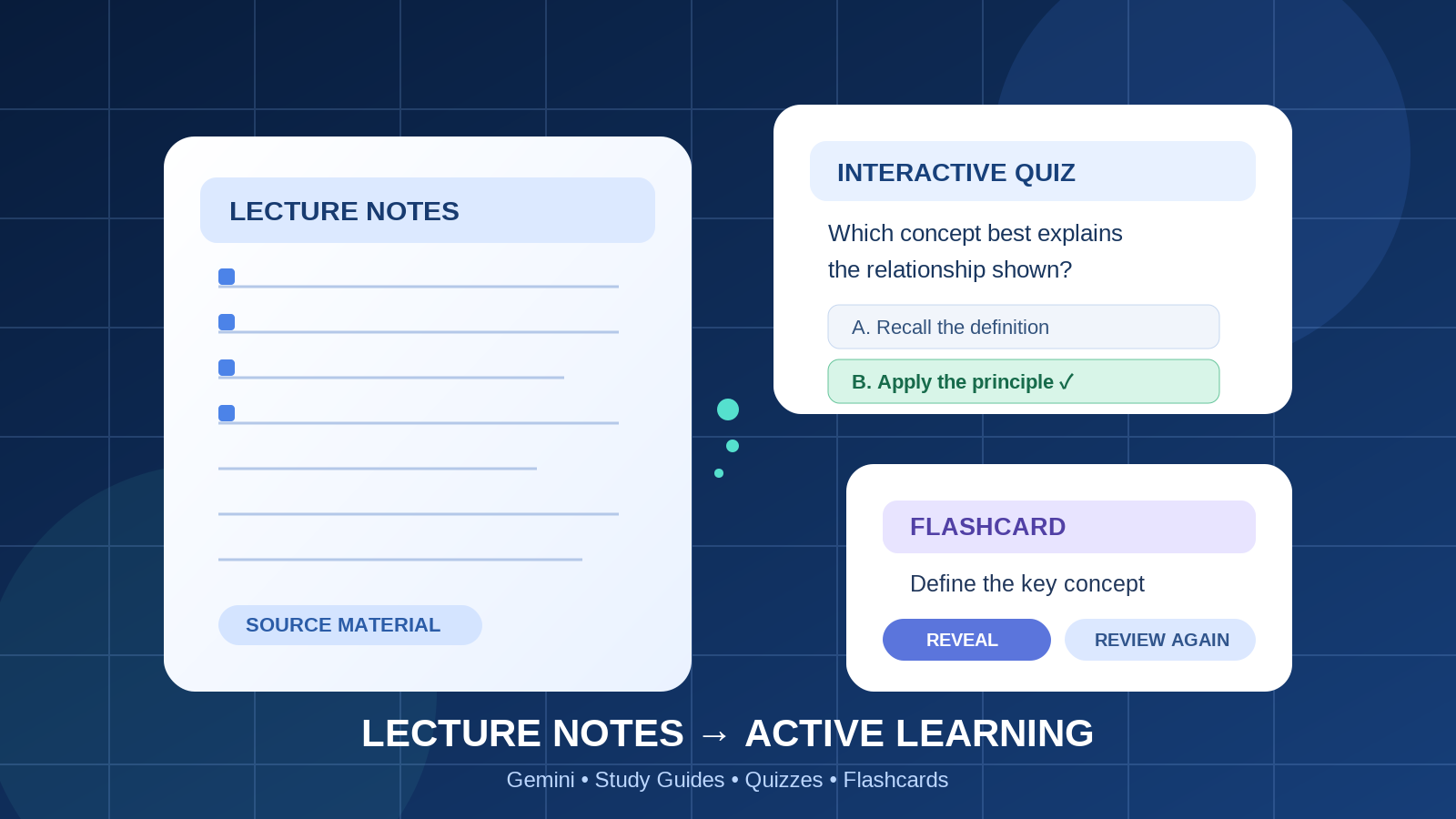
University lecture notes can be difficult to revise from when they contain dense paragraphs, scattered definitions, diagrams, formulas, and examples. Google Gemini can help turn those materials into more active study resources—such as quizzes, flashcards, structured study guides, explanations, and learning activities—so you can practice rather than simply reread.
This guide explains a practical workflow for turning lecture notes into interactive study materials with Gemini, including how to upload notes, choose a learning goal, generate resources, test yourself, improve weak areas, and verify the output against your original course materials. Features and access can vary by account, region, device, and rollout; check the Gemini interface and official help pages for the options available to you.
What you can create from university lecture notes
Depending on the Gemini feature you use and what is available to your account, you can transform course material into:
- Quizzes and practice questions: Multiple-choice, short-answer, conceptual, or application questions that test understanding.
- Flashcards: Key terms on one side and definitions, explanations, examples, or formulas on the other.
- Study guides: A structured outline of the lecture, organized by topics, concepts, and learning objectives.
- Interactive lessons: Guided explanations, questions, and follow-up practice designed around a learning goal.
- Visual explanations: Infographics, diagrams, concept maps, or other visual summaries where supported.
- Practice tests: Longer assessments that combine multiple topics and help you rehearse exam conditions.
- Audio-based review: Depending on the connected Google tools and available features, you may be able to turn course material into an audio overview for listening and review.
The best approach is not to ask Gemini to generate everything at once. Start by organizing the notes, then create one resource for each learning need.
Before you start: prepare your lecture notes
Better input usually leads to more useful study materials. You do not need perfect notes, but take a few minutes to make the source files easy to interpret.
1. Gather the material for one course or topic
Collect relevant files, such as:
- Lecture PDFs or exported slides.
- Typed notes in Google Docs or Word.
- Images of handwritten notes, if legible.
- A syllabus or list of learning objectives.
- Reading excerpts or instructor-provided definitions.
- Previous quizzes or practice questions, if you are permitted to use them.
Avoid mixing unrelated courses into the same study session. A focused set of sources makes it easier for Gemini to keep terminology and concepts consistent.
2. Check the notes for gaps
If a page is missing, a formula is cut off, or a diagram is difficult to read, identify it before generating materials. AI may try to fill gaps with plausible information. Ask it to mark uncertainty instead of inventing missing details.
3. Decide what you need to learn
A useful goal is specific and measurable. Instead of “study biology,” try:
- Explain the stages of cellular respiration in order.
- Compare two theories and identify their assumptions.
- Solve problems using a particular formula.
- Recall the definitions of 30 key terms.
- Interpret a diagram and explain the relationships it shows.
This gives Gemini a clear target for the materials it creates.
Method 1: Use Gemini to create a study guide from lecture notes
A study guide is a useful first output because it organizes the material before you create questions or flashcards.
Step 1: Open Gemini and add your source files
Go to Gemini, sign in, and use the file-attachment option to add the lecture notes or other permitted course materials. Available file types and upload limits may vary, so follow the options shown in your account.
If your notes are spread across several files, upload the material for one unit or topic together. Give the files descriptive names when possible.
Step 2: Ask Gemini to map the content before summarizing
Use this prompt:
I uploaded lecture notes for [COURSE / TOPIC]. First, analyze the material and create a topic map. Identify the main sections, key concepts, definitions, formulas, examples, and relationships between topics. Do not write the study guide yet. Flag unclear, incomplete, or contradictory information and tell me which parts of the source you used.
Review the topic map. If Gemini has missed a section or grouped concepts incorrectly, correct it before continuing.
Step 3: Generate a structured study guide
After reviewing the map, ask:
Using only the uploaded lecture materials as the primary source, create a university-level study guide for [TOPIC]. Organize it by learning objectives. For each section include: a concise explanation, key terms, important relationships or formulas, one example, common misconceptions, and two questions I should be able to answer without looking at my notes. Preserve important technical terminology. If the source does not contain enough information, mark the gap instead of inventing an answer.
The result should be a navigable revision resource—not a replacement for the lecture or textbook. Compare its headings and definitions with the original material.
Method 2: Turn lecture notes into an interactive quiz
Quizzes are most useful when they require you to retrieve information and apply it, not merely recognize a definition.
Step 1: Choose a question mix
Ask Gemini to use a balanced set of question types. For example:
- Recall: define a term or list steps.
- Understanding: explain why a process works.
- Comparison: distinguish two related concepts.
- Application: use a principle in a new scenario.
- Analysis: identify an error, interpret evidence, or evaluate a claim.
Step 2: Generate the quiz without revealing answers
Prompt:
Create an interactive study quiz from my uploaded lecture notes about [TOPIC]. Use 12 questions: 4 recall, 4 conceptual understanding, 2 application, and 2 analysis questions. Ask one question at a time and wait for my answer. Do not show the answer or hints before I attempt the question. After each answer, tell me whether it is correct, explain the reasoning briefly, and identify the relevant section of my notes. At the end, summarize my strengths and the three topics I should review.
If Gemini creates a quiz or practice-test interface in your account, use its available controls. If it responds in chat, you can still make the quiz interactive by asking it to present one question at a time and wait.
Step 3: Make the quiz harder
After completing the first round, use:
Create a second quiz that focuses on the concepts I answered incorrectly or only partially answered. Do not repeat the same wording. Use new examples and increase the difficulty gradually. Keep the answers hidden until I attempt each question.
This turns the quiz into targeted practice rather than a one-time test.
Method 3: Create flashcards for active recall
Flashcards work best for material that can be tested with a short, specific prompt: definitions, formulas, processes, dates, distinctions, vocabulary, and examples.
Step 1: Ask for a high-quality card set
Create 25 flashcards from the uploaded lecture notes on [TOPIC]. Each card should test one important idea. Use concise questions on the front and accurate answers on the back. Include a mixture of definitions, “why” questions, comparisons, formulas, and application prompts. Avoid vague questions and cards that contain several unrelated facts. Add a source-section label to each card so I can verify it.
Step 2: Review and edit the cards
Remove duplicate cards, split overly complicated cards, and make sure answers are short enough to recall. If a card requires a long essay, turn it into several smaller questions.
Step 3: Use the cards interactively
If Gemini provides a flashcard experience, use the controls available to reveal answers, shuffle, or review cards. Otherwise, ask it to quiz you one card at a time:
Show me the front of one flashcard only. Wait for my answer. Then reveal the correct answer, evaluate my response, and ask whether I want to mark the card as easy, uncertain, or difficult. Keep a list of difficult cards for a later review round.
Do not read the back before attempting to answer. That retrieval effort is the point of the exercise.
Method 4: Build a personalized lesson from your knowledge gaps
A study guide explains the material; a personalized lesson helps you work through it. Gemini’s Study notebooks feature, where available, is designed for a more learning-focused workflow. Official Google documentation describes study notebooks as a way to upload study materials and create diagnostic quizzes, personalized bite-sized lessons, and progress tracking. Access and interface availability may differ, and the feature is currently documented for Gemini on the web.
Step 1: Create a study notebook if the option is available
In Gemini on the web, look for the Notebooks area and the option to create a study-focused notebook. Follow the current interface to set a goal, such as preparing for a calculus midterm or mastering a chapter of anatomy. Add the relevant lecture notes.
If you do not see Study notebooks, use a normal Gemini conversation with the same uploaded sources and prompts in this article.
Step 2: Set a specific learning goal
Try a goal such as:
Help me prepare for my university exam on [TOPIC]. I need to be able to explain the key concepts, compare related ideas, solve representative problems, and identify common mistakes. Use my uploaded lecture materials as the main source. Begin with a diagnostic quiz, then recommend short lessons based on my answers.
Step 3: Work through one lesson at a time
Do not rush through every lesson or answer. After each explanation, close the material and try to summarize the concept in your own words. Ask follow-up questions when you cannot explain a step.
Step 4: Use progress information to choose what comes next
If a notebook or chat tracks your quiz performance, use it to prioritize weaker topics. Progress labels are useful signals, but they are not proof of mastery. Confirm improvement with a fresh question or problem you have not seen before.
Method 5: Make visual and interactive explanations
Some university concepts are easier to understand when you can see relationships rather than read paragraphs. Examples include:
- A flowchart showing the steps of a biological process.
- A timeline of historical events.
- A labeled diagram of a system or structure.
- A concept map connecting theories and definitions.
- A comparison chart showing similarities and differences.
- A simulation or interactive visualization for a mathematical or scientific concept, when Gemini supports it.
Prompt:
Using my lecture notes about [TOPIC], create a visual learning aid that explains the relationships between the main concepts. Start with a simple overview, then add labeled details and one worked example. Keep the terminology consistent with my notes. Include three questions that ask me to interpret the visual rather than merely memorize labels.
Check the visual against the original notes. AI-generated diagrams can omit relationships, mislabel arrows, or simplify a process in a misleading way.
Method 6: Create a practice exam from the lecture materials
A practice exam is useful when you want to assess several topics at once and rehearse the format or time pressure of a real assessment.
Prompt:
Create a practice exam from my uploaded course materials for [COURSE / UNIT]. Include [NUMBER] questions and a balanced distribution across the major topics. Use the question types that match my course: [MULTIPLE CHOICE / SHORT ANSWER / PROBLEM SOLVING / ESSAY / CASE STUDY]. Include point values and an estimated time for each section. Do not reveal the answer key until I finish. Avoid testing information that is not in the uploaded materials unless you clearly label it as outside knowledge.
After completing it, ask Gemini to grade your responses using a rubric. Review every incorrect answer against the source material, and ask for a new question testing the same learning objective.
For a dedicated walkthrough of another AI workflow, see How to Create Practice Exams with ChatGPT Using Your Lecture Notes.
A complete workflow for one lecture
You can use the following sequence each time you finish a lecture:
- Upload and organize: Add the lecture notes and any relevant slides or readings.
- Map the content: Ask Gemini to identify topics, concepts, and learning objectives.
- Verify the map: Check that it matches the instructor’s material.
- Generate a study guide: Create a concise structured explanation.
- Create flashcards: Target definitions, formulas, distinctions, and processes.
- Take a quiz: Answer questions one at a time without seeing solutions.
- Review errors: Identify the specific concepts behind mistakes.
- Create targeted practice: Generate new questions for weak areas.
- Test independently: Close Gemini and explain or solve the material from memory.
- Schedule a review: Revisit the lecture later with a short retrieval quiz.
This workflow turns static notes into a set of learning activities while keeping the original lecture material as the reference point.
Prompt templates you can reuse
Prompt for a complete study-material package
Analyze my uploaded lecture notes for [COURSE / TOPIC]. Create a study package with: (1) a topic outline, (2) a concise study guide, (3) 20 flashcards, (4) a 10-question quiz, (5) three application problems, and (6) a list of likely misconceptions. Use my notes as the primary source. Clearly identify any content that is not supported by the uploaded materials. Do not reveal quiz answers until I attempt the questions.
Prompt for difficult concepts
Identify the three most difficult or conceptually connected ideas in my lecture notes. Teach each one using a plain-language explanation, a university-level explanation, a concrete example, and a question that checks my understanding. Teach one concept at a time and wait for my response.
Prompt for a review session
Quiz me on [TOPIC] using my lecture notes. Ask one question at a time and vary the question type. Keep track of my errors and partial answers. At the end, give me a short review plan and create a second quiz that tests the same concepts with new wording and examples.
Prompt for checking AI-generated material
Audit the study guide, flashcards, and quiz you created against my original lecture notes. For every item, identify the source section or page if available. Flag unsupported claims, incorrect definitions, ambiguous questions, duplicate cards, and answer keys that do not match the notes. Do not silently correct errors; show me what needs review.
How to verify Gemini’s study materials
AI-generated resources can be helpful but may contain inaccuracies. Before relying on them for an exam:
- Check definitions and formulas against your lecture slides, textbook, or instructor’s notes.
- Verify that quiz questions have one clear answer when they are intended to be multiple-choice.
- Confirm that the answer key explains the reasoning, not just the correct letter.
- Check that flashcards do not combine several concepts into one vague question.
- Review diagrams, labels, equations, and units carefully.
- Ask Gemini to identify the source section for each item, then verify that reference yourself.
- Treat material that is not in your course notes as supplemental and confirm it with a trusted source.
Common mistakes to avoid
Uploading everything without a clear goal. Start with one course unit and one learning objective. Large, mixed collections can make the output less focused.
Making flashcards too long. One card should usually test one concept. Split complicated answers into smaller prompts.
Reading quiz answers before attempting the questions. This removes the retrieval practice that makes quizzes useful.
Accepting a polished study guide without checking it. A well-written explanation can still contain errors or omit details emphasized by your instructor.
Using AI materials as the only study source. Keep the lecture notes, textbook, and course instructions as your authoritative reference.
Ignoring course policies. Follow your university’s rules for AI use and avoid uploading confidential, restricted, or personal information without permission.
Frequently asked questions
Can Gemini turn lecture notes into flashcards?
Yes. Gemini can generate flashcards from prompts and uploaded study material, and Gemini Apps also has study-material creation features documented by Google. The exact interactive controls available may depend on your account and interface. You can also ask Gemini to present cards one at a time in a conversation.
Can Gemini make a quiz from a PDF?
You can attach supported course files and prompt Gemini to create a quiz from the content. Ask it to use the uploaded PDF as the primary source, present one question at a time, and withhold answers until you attempt each question.
Are Gemini-generated study materials accurate?
They are not guaranteed to be accurate. Check answers, definitions, formulas, diagrams, and explanations against the original lecture notes or trusted course sources. Ask Gemini to identify where each question or answer comes from, but verify the source references yourself.
What is the difference between Gemini and NotebookLM for studying?
Gemini can create study materials and support learning conversations. NotebookLM is centered on a collection of sources and offers source-grounded ways to explore and transform those materials. Google also describes connections between Gemini study notebooks and NotebookLM. The best workflow depends on which features are available to your account and whether you need a general AI tutor or a source-focused study workspace.
Can I use Gemini to prepare for university exams?
Yes, as a study assistant: use it to organize notes, create practice questions, explain difficult concepts, and review mistakes. Do not treat generated answers as a substitute for your syllabus, lectures, textbooks, or instructor guidance.
The bottom line
Gemini can help turn university lecture notes into a more active study system: structured guides, flashcards, quizzes, practice exams, visual explanations, and personalized review. Start with a focused set of notes, identify what you need to learn, create one resource at a time, and use the interactive activities to test yourself.
The most valuable part is not the material Gemini generates. It is the practice you do with it—and whether you can explain, recall, and apply the knowledge independently afterward.
Sources and further reading
- Google Gemini Help — Create quizzes, flashcards, practice tests & more. Official instructions for generating and using study materials from Gemini, including attaching source files and interactive flashcard controls.
- Google Gemini Help — Organize your projects with notebooks in Gemini Apps. Official guidance on study notebooks, uploaded study materials, diagnostic quizzes, personalized lessons, and progress tracking.
- Google Blog — 5 ways to learn with study notebooks in the Gemini app. Google’s overview of study notebooks and learning workflows.
- Google Blog — Sharpen your study routine with new Gemini Notebook tools. Official overview of study features and interactive learning tools announced in September 2026.
- Google Blog — 6 easy ways to study for finals with Gemini. Practical study workflows involving course materials, study guides, quizzes, and audio overviews.
This article is for educational purposes. Feature availability, supported file types, limits, and account access may change; check official Gemini documentation for the latest information.