
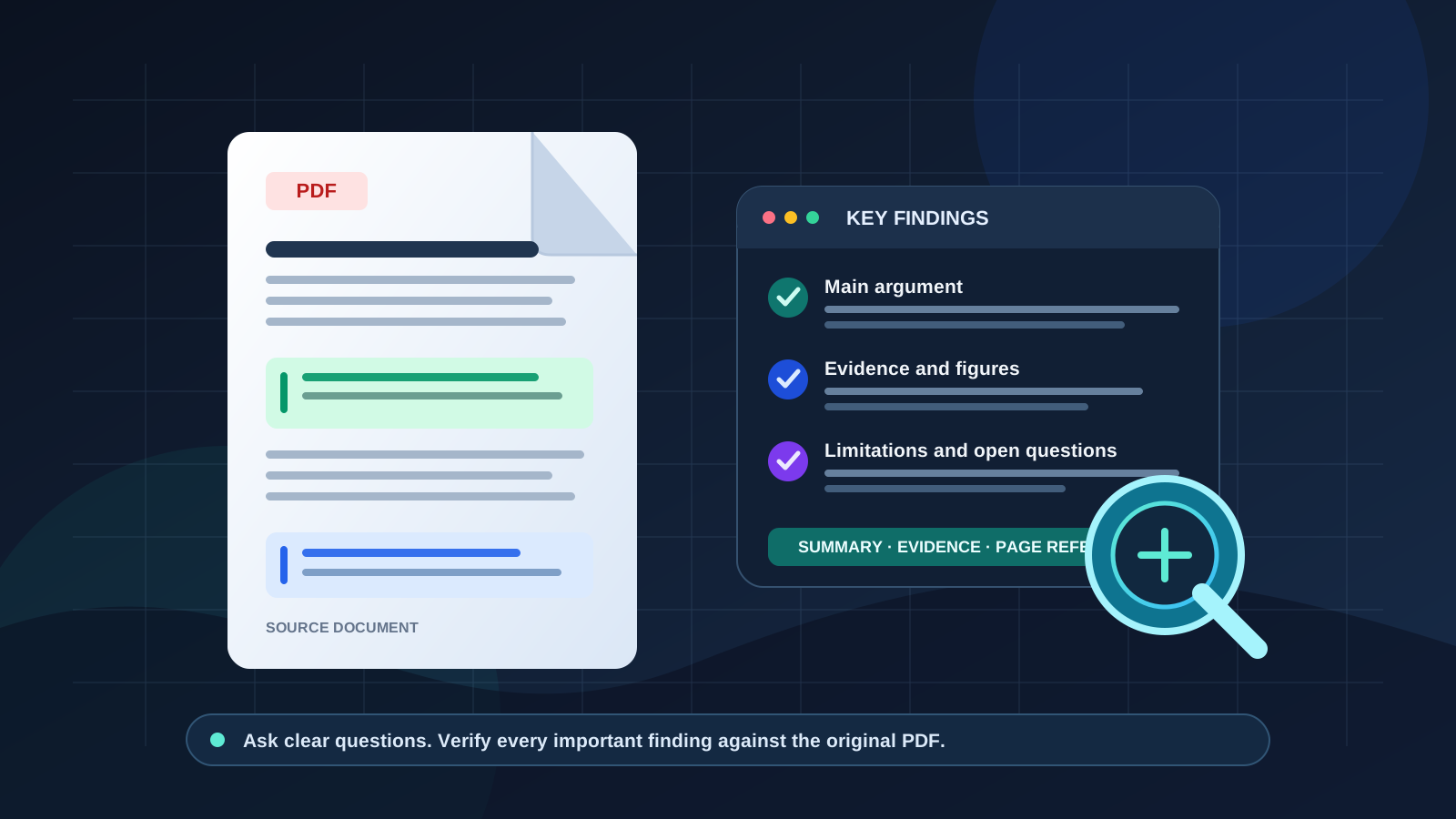
ChatGPT can help you turn a long PDF into a practical summary, extract its main findings, locate evidence, explain unfamiliar terms, and organize important details into a table. It can be useful when reviewing a research paper, business report, policy document, technical manual, meeting report, or other PDF file.
The quality of the result depends on the document, the tools available in your ChatGPT account, and how precisely you describe the task. A fluent summary is not automatically a complete or accurate one. The safest workflow is to ask focused questions, request evidence and page references, and check important claims against the original PDF.
This guide explains how to analyze a PDF with ChatGPT step by step, with copy-and-paste prompts for extracting key findings, statistics, limitations, and action items.
Can ChatGPT analyze a PDF?
Yes. OpenAI’s official documentation lists PDF among the file types that ChatGPT can work with. Depending on the features available to your account, you can attach a PDF and ask ChatGPT to summarize it, find specific information, extract passages, explain sections, compare documents, or answer questions about the file.
Start with OpenAI’s file upload instructions and its guide to data analysis with ChatGPT. Supported features and limits can vary by plan, model, workspace settings, and product version.
One distinction matters: a PDF containing selectable text is generally easier to analyze than a scanned document made up of page images. Complex tables, tiny labels, charts, unusual layouts, and low-quality scans can make extraction less reliable. Visual analysis of embedded PDF content can also depend on the product tier and how the file is provided. If a chart or table is important, ask about it specifically and inspect the original page yourself.
Step 1: Prepare the PDF before uploading it
A little preparation can improve PDF question answering and reduce avoidable mistakes.
- Use the clearest available file. If you have the original digital PDF, prefer it over a blurry scan.
- Check that the document opens correctly. Confirm that pages are not missing, rotated, password-protected, or corrupted.
- Know what you need to extract. A student reviewing a research paper may need the research question, methods, results, and limitations. A business reader may need financial figures, risks, recommendations, and deadlines.
- Split very large documents when necessary. If the response seems to omit sections, work through the document in smaller sections or ask ChatGPT to inspect specific chapters or page ranges.
- Protect sensitive information. Before uploading a contract, medical record, customer report, internal business document, or other confidential file, check your organization’s rules and the service’s privacy settings. Remove information that is not needed for the task.
OpenAI notes that file size, document complexity, image-heavy pages, and other limits can affect whether a file is processed completely. Do not assume that a successful upload means every page and visual element has been interpreted correctly.
Step 2: Upload the PDF to ChatGPT
The usual workflow is straightforward:
- Open ChatGPT in a supported web browser or app.
- Select the attachment or Add photos & files control near the message box.
- Choose your PDF and wait for it to finish uploading.
- State the task, the intended audience, and the format you want back.
- Review the response, then ask follow-up questions about specific findings.
Do not begin with only “Summarize this PDF” if you need a dependable research or business analysis. That instruction leaves the scope, level of detail, and evidence requirements unclear.
Instead, define the output. For example, ask for a short executive summary, five to ten key findings, supporting evidence, page references, important caveats, and unanswered questions. You can also request a table if you need to compare several findings at once.
Step 3: Use a strong prompt to extract key findings
A good PDF analysis prompt explains what counts as a finding and how the answer should be supported. Try this reusable prompt:
Copy-and-paste prompt
Analyze the attached PDF using only information supported by the document.
- Identify the document’s purpose, central question, and main conclusion.
- Extract the 5–10 most important findings.
- For each finding, provide the supporting evidence and the PDF page number or section heading, where available.
- Separate reported facts and results from the author’s interpretations and recommendations.
- Include important statistics, dates, names, and definitions exactly as presented.
- Identify limitations, assumptions, conflicts, missing information, and unanswered questions.
- If the PDF does not contain the answer to a question, say “not stated in the document” rather than guessing.
- End with a concise executive summary and a list of points I should verify manually.
Do not invent quotations, figures, page references, or citations. If you cannot confirm a detail from the PDF, label it as unverified.
This prompt helps turn a broad summary into a more traceable document review. Still, page references and quoted passages should be checked in the original PDF. Page numbering can differ between the PDF viewer and the printed page numbers shown inside a report.
Step 4: Extract different types of information with targeted prompts
The best ChatGPT PDF workflow is often a series of smaller requests rather than one giant prompt. Use the prompts below according to the kind of document you are reviewing.
For a research paper or academic PDF
Summarize this research paper under these headings: research question, background, methodology, sample or dataset, main results, authors’ conclusions, limitations, and future research. For each result, provide a supporting passage or a page/section reference. Distinguish correlation from causation and do not infer claims that the paper does not make.
This is useful for literature reviews, academic reading, scientific reports, and research-paper summaries. Check whether the reported sample, measurement method, and study design actually support the authors’ conclusions. A summary should not turn a preliminary result into an established scientific consensus.
For a business report or annual report
Analyze this PDF as a business analyst. Extract the key performance indicators, revenue or cost figures, percentage changes, risks, strategic priorities, recommendations, and deadlines. Return a table with: item, reported value, reporting period, page reference, and why it matters. Do not calculate a trend unless the required figures and periods are available; show any calculation and its assumptions.
This structure is helpful for business report analysis, management updates, financial summaries, and planning documents. Treat extracted numbers as a starting point, not as audited data. Check units, currencies, reporting periods, footnotes, and whether a number is actual, forecast, or adjusted.
For a policy, legal, or technical document
Extract the document’s requirements, definitions, exceptions, deadlines, responsible parties, and unresolved questions. For each item, quote only the minimum necessary wording and give the page or section reference. Do not provide a legal conclusion or technical guarantee that the document itself does not support.
For legal, regulatory, safety-critical, or contractual material, use ChatGPT to organize and locate text—not to replace qualified professional review. Small exceptions and definitions can change the meaning of a requirement.
For tables, charts, and statistics
Find every table or chart relevant to [topic]. For each one, report its title, the variables or measures shown, the key values, units, date range, and PDF page. If you cannot read a value clearly, mark it as uncertain rather than estimating it. Explain what the figure supports and what it does not establish.
Do not rely on an AI-extracted number when a small difference could affect a decision. Check the chart axis, footnotes, decimal places, denominators, and whether the chart shows absolute values or percentages.
Step 5: Turn the findings into a structured table
A table makes it easier to compare claims, evidence, and implications. After the first analysis, ask ChatGPT:
Convert the key findings into a table with these columns: Finding, Evidence from the PDF, Page or section, Evidence type, Limitation or caveat, and Practical implication. Keep each row focused on one claim. Use “not stated” when the document does not provide the information.
The “Evidence type” column can distinguish a measured result, an author interpretation, a recommendation, or a background statement. This reduces the risk of treating every sentence in a report as equally strong evidence.
If you are reviewing several PDFs, ask for a cross-document comparison only after each file has been summarized separately. Require a source label and page reference for each comparison point. If two reports use different definitions, periods, or methods, note that before comparing their numbers.
Step 6: Verify important findings against the original PDF
AI-generated summaries can omit qualifications, misread a table, confuse a recommendation with a result, or provide an inaccurate page reference. Use a verification pass before relying on the analysis.
- Check every consequential number. Reopen the cited page and confirm the figure, unit, period, and footnotes.
- Confirm the surrounding context. A sentence quoted without its preceding qualification may be misleading.
- Check negative findings and limitations. These are easy to lose in a short summary.
- Separate the source from outside knowledge. If you want current context, ask for a separate research step and distinguish it clearly from what the PDF itself says.
- Ask for missing evidence. If a finding has no supporting passage or reference, ask ChatGPT to locate the exact section or mark the claim as unsupported.
- Review the original for high-stakes decisions. For legal, medical, financial, regulatory, and safety-related matters, do not treat an AI summary as the final authority.
A useful follow-up prompt is:
Audit your previous answer against the attached PDF. For each key finding, show the shortest supporting excerpt and the page or section where it appears. Mark each item as supported, partially supported, not found, or uncertain. Correct any statement that goes beyond the document, and do not invent a reference if you cannot locate one.
This audit step is especially valuable when extracting research findings, policy requirements, financial metrics, or statements that will be quoted in a report.
Step 7: Ask follow-up questions to go deeper
Once you have the main findings, narrow the analysis to the decisions you need to make. Useful follow-up prompts include:
- “Which three findings are most important to the report’s main conclusion, and what evidence supports each one?”
- “What assumptions does the author make that are not directly tested?”
- “Which claims are supported by data, and which are opinions or recommendations?”
- “List all dates, deadlines, named organizations, and numerical thresholds mentioned in the PDF.”
- “What important questions remain unanswered after reading this document?”
- “Explain the methodology in plain English without changing its meaning.”
- “Compare the executive summary with the results and conclusion sections. Identify any important differences.”
- “Create a one-page briefing for a nontechnical reader, with page references for claims that matter.”
These prompts help you extract actionable insights rather than simply shortening the document. For a broader introduction to writing clearer instructions, see our guide on how to use ChatGPT effectively and our practical guide to writing better ChatGPT prompts.
Common problems when analyzing PDFs with ChatGPT
ChatGPT misses a section or gives a very short summary
Ask it to analyze a defined page range or named section, then combine the results into a final synthesis. For a long report, process the executive summary, methodology, findings, and appendices separately. Do not assume that an initial answer covered every page.
The PDF is scanned or contains images
If text cannot be selected in the PDF, it may be an image-based scan. Use a searchable or OCR-processed version if available. For charts or diagrams, upload a clear image of the relevant page when appropriate and ask a targeted question. Check the result against the original because OCR and visual extraction can confuse labels, minus signs, decimal points, and small text.
A statistic or quotation appears incorrect
Ask for the exact passage, page, table, or figure supporting the claim. If ChatGPT cannot locate it, do not use the claim until you have verified it yourself. Never use an AI-generated quotation as a direct quote without checking the wording in the source.
The answer mixes the PDF with general knowledge
Tell ChatGPT to use only the attached document for the first pass. If you later need outside context, request a separate section labeled “External context,” with independently verifiable sources. This keeps source-derived findings separate from interpretation.
You are concerned about confidential information
Do not upload material unless you are authorized to share it with the service. Review your organization’s policies and the relevant ChatGPT privacy and data-control guidance. For sensitive documents, remove unnecessary personal details or use an approved environment.
Is ChatGPT accurate enough to analyze a PDF?
ChatGPT can accelerate reading and information extraction, but it should not be treated as a perfect PDF reader or an independent verifier. Accuracy depends on the quality and structure of the file, the complexity of the content, the task, and the available features. Dense tables, scanned pages, specialized terminology, and long reports can create additional uncertainty.
The most reliable approach combines AI assistance with source verification: ask focused questions, require evidence and page references, separate findings from interpretation, and inspect the original wherever accuracy matters. OpenAI’s documentation also recommends reviewing analysis methods and assumptions rather than accepting a result without inspection.
Frequently asked questions
Can ChatGPT summarize a PDF for free?
File upload availability and usage limits can vary by plan, account, model, and workspace settings. Check the upload control and current plan limits in your own ChatGPT interface. Do not assume that every account has the same file-processing features.
Can ChatGPT extract key findings from a 100-page PDF?
It may be able to help, but document length alone does not guarantee complete coverage. If the response omits details, ask it to review named sections or page ranges and then synthesize the verified findings. For important work, use a coverage checklist to make sure all relevant sections were examined.
Can ChatGPT extract tables and statistics from a PDF?
It can help identify and summarize tables, but values in complex layouts or scanned pages may be misread. Verify important numbers, units, dates, footnotes, and calculations directly in the PDF.
Can ChatGPT provide page numbers for its findings?
Ask for PDF page numbers or section headings with every key finding. Then check the reference in your PDF viewer. Viewer page numbers may not match the printed page numbers in the document, so clarify which numbering system is being used.
Is it safe to upload confidential PDFs?
Only upload documents when you have permission and understand the applicable privacy and data-handling rules. Sensitive business, legal, medical, and personal documents may require an organization-approved workflow. Review your account’s data controls and avoid sharing information that is not needed for the task.
Can ChatGPT compare two PDF files?
You can attach both files when your account supports the required upload workflow and ask for a structured comparison. Request a source and page reference for each point, and ask ChatGPT to flag differences in definitions, dates, methods, and scope instead of treating unlike figures as directly comparable.
Final takeaway
To use ChatGPT to analyze a PDF and extract key findings, upload a readable file, define the exact information you need, request a structured table with evidence and page references, and verify every consequential claim against the source. Use follow-up prompts to uncover limitations, missing details, and unanswered questions.
ChatGPT is most useful as a reading and analysis assistant: it can help you move through long documents faster, but the original PDF remains the authority for what the document actually says.