
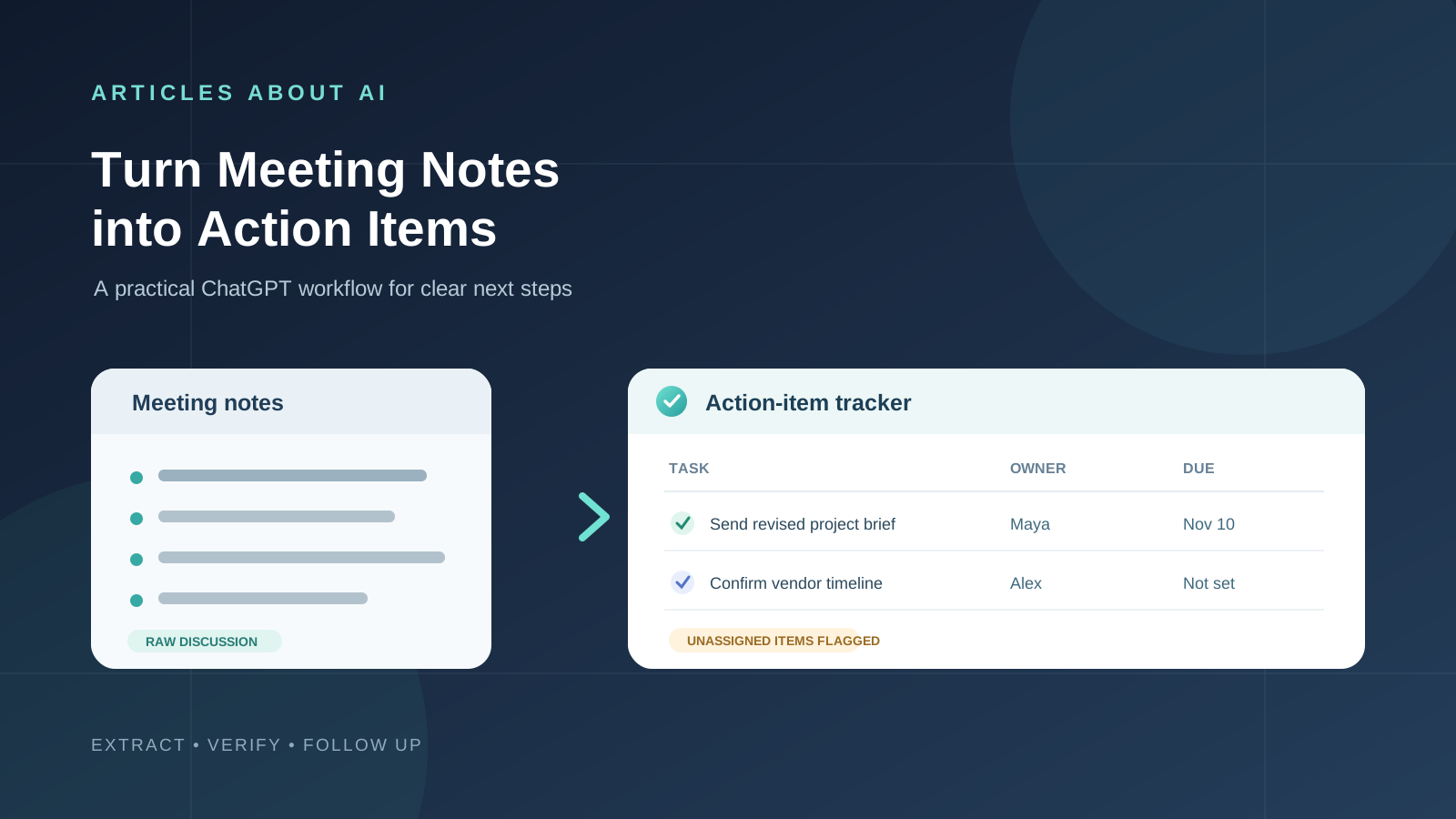
Meeting notes are useful only when people can turn the discussion into clear next steps. A meeting may produce decisions, assigned tasks, tentative ideas, unresolved questions, and deadlines—but those details are often scattered across rough notes or a long transcript. ChatGPT can help organize that information into a practical action-item list that a team can review and use after the meeting.
The most reliable approach is to give ChatGPT the notes or transcript, define exactly what counts as an action item, and ask it to preserve missing information instead of guessing. You can then review the task owners, deadlines, and supporting context before moving the list into a project tracker or sending a follow-up message.
This guide explains how to use ChatGPT to turn meeting notes into action items, with practical prompts, a repeatable workflow, and checks that help prevent invented tasks or incorrect assignments.
Can ChatGPT turn meeting notes into action items?
Yes. You can paste meeting notes into ChatGPT or upload a supported document and ask it to extract decisions, tasks, owners, deadlines, and open questions. OpenAI’s ChatGPT for any role guide includes meeting workflows and example prompts for summarizing notes and creating action-item lists grouped by owner.
The output can be a simple checklist, a table, a meeting recap, a follow-up email draft, or a structured task register. ChatGPT can also help rewrite vague notes into clearer task descriptions—but it should not invent an owner, due date, or commitment that the meeting did not establish.
There are several ways to provide the meeting information:
- Paste notes directly: Best for short notes, bullet points, or a concise meeting recap.
- Upload a file: Useful for DOCX, PDF, TXT, or other supported formats containing meeting notes or a transcript. See OpenAI’s guide to working with files in ChatGPT.
- Use a transcript: Helpful when exact wording, speaker attribution, and context matter.
- Use ChatGPT Record: On supported accounts and the macOS desktop app, Record can transcribe and summarize a meeting recording, then let you ask ChatGPT to transform the notes into follow-up material.
Step 1: Prepare your meeting notes
Before asking ChatGPT to create tasks, collect the material you want it to analyze. This may be handwritten notes typed into a document, a meeting minutes file, or a transcript generated by a meeting platform.
Include the meeting date and context when available. This helps interpret relative expressions such as “next week” or “before the next review.” If the notes identify speakers, preserve their names or labels rather than removing them.
A useful source document may contain:
- Meeting title, date, and purpose
- Attendees or speaker labels
- Main discussion points
- Decisions made
- Tasks people explicitly accepted
- Deadlines and milestones
- Dependencies and blockers
- Questions that remain unresolved
Do not rewrite uncertain statements as confirmed decisions before uploading the notes. ChatGPT needs to see the original wording to distinguish a commitment from a suggestion.
If your notes contain confidential customer details, personnel information, financial data, or internal plans, follow your organization’s approved AI and data-handling policies before uploading them.
Step 2: Add the notes to ChatGPT
For short notes, open ChatGPT, start a new chat, and paste the text into the message box. For longer meeting minutes, select the attachment or tools option and upload the relevant file if file uploads are available to your account.
You can also provide a transcript as a file. If the transcript is very long, identify the meeting sections or agenda topics that matter most. Ask ChatGPT to process the material in sections if necessary, then consolidate the verified results.
Start with a clear instruction:
I am going to provide meeting notes. Read them carefully and identify the decisions, agreed action items, deadlines, dependencies, and unresolved questions. Do not create the task list yet. First, tell me whether the notes contain enough information to identify the meeting date, participants, and major topics. Mark anything unclear instead of making assumptions.
This first pass helps you catch missing context before generating the task register.
Step 3: Extract action items with a precise prompt
Once the notes are available, ask ChatGPT to extract only work that was explicitly assigned or clearly agreed to. A broad instruction such as “summarize this meeting and list next steps” can blur the difference between a proposal and an actual commitment.
Use this prompt:
Prompt 1: Extract action items from meeting notes
Analyze the meeting notes below and extract the action items that were explicitly assigned or clearly agreed upon.
Create a table with these columns:
- Action item: a specific description of the work.
- Owner: the person explicitly responsible.
- Deadline: the exact date or wording stated in the notes.
- Priority: include it only if the meeting stated or clearly established one.
- Dependency: any prerequisite or blocker mentioned.
- Evidence: a short quotation or note showing why this task belongs on the list.
- Status: agreed, proposed, unassigned, or needs confirmation.
Important rules:
- Do not invent task owners, deadlines, priorities, or deliverables.
- If no owner is stated, write “Unassigned.”
- If no deadline is stated, write “Not specified.”
- Do not turn suggestions or hypothetical ideas into agreed tasks.
- Keep decisions and open questions in separate sections.
- If two statements conflict, show the conflict and flag it for review.
Use only the meeting notes as evidence.
This prompt is designed to produce a task list that can be checked. The evidence column is especially important because it helps you trace each item back to the original discussion.
Step 4: Separate action items from decisions and discussion points
Not every important statement in a meeting is a task. Ask ChatGPT to separate the information into distinct categories so the team does not confuse a decision with work that someone must complete.
| Category | Meaning | Example |
|---|---|---|
| Action item | Work someone agreed to complete | “Maya will send the revised proposal to the client.” |
| Decision | A choice the group made | “The team approved the revised launch plan.” |
| Proposal | An idea that has not been approved | “The team could test a second onboarding flow.” |
| Open question | Something that still needs an answer | “Who will approve the final design?” |
| Dependency | Something that must happen before another task | “Engineering starts after the design is approved.” |
| Risk or blocker | A problem that may delay the work | “The vendor has not confirmed delivery.” |
Try this follow-up prompt:
Prompt 2: Classify meeting outcomes
Review the extracted information and organize it into five separate sections: confirmed decisions, agreed action items, proposals not yet approved, unresolved questions, and risks or dependencies.
Do not move an item into the action list unless the notes show that someone accepted responsibility or the group clearly assigned the task. Preserve ambiguous statements in the unresolved section.
This step reduces the risk of creating work that nobody agreed to do.
Step 5: Identify task owners without guessing
A task owner is the person responsible for moving the work forward. The person who mentions a task is not necessarily the person who owns it. For example, a manager may describe a problem while another participant volunteers to investigate it.
Ask ChatGPT to check owner assignments separately:
Prompt 3: Verify task ownership
Review every action item and check whether its owner is explicitly identified in the meeting notes.
For each task:
- Quote the wording that identifies the owner.
- Distinguish the person who discussed the task from the person who accepted responsibility.
- If ownership is shared, explain the responsibilities of each person.
- If the notes do not establish an owner, use “Unassigned.”
- Do not infer ownership from job titles, speaking frequency, or names mentioned in the discussion.
Return only the items that need owner confirmation in a separate table.
If a task has no owner, leave it unassigned and ask the meeting organizer or participants to confirm responsibility. An honest missing field is better than assigning work to the wrong person.
Step 6: Extract deadlines and clarify relative dates
Meeting notes often contain phrases such as “by Friday,” “next month,” “before launch,” or “at the next check-in.” ChatGPT can identify these expressions, but it should not convert them into calendar dates unless the meeting date and intended meaning are clear.
Use this prompt:
Prompt 4: Review deadlines
Extract every deadline and time reference connected to an action item.
For each one, provide:
- The task.
- The original date or phrase exactly as written.
- A normalized calendar date only when the meeting date and reference are unambiguous.
- Any missing context needed to confirm the deadline.
Do not assume a time zone or calculate an exact date from an ambiguous phrase. Mark uncertain deadlines as “Needs confirmation.”
For example, “send the report next Friday” may be clear if the meeting date is known, but it can be ambiguous if the notes omit the date or if participants use different work-week conventions. Preserve the original wording until the team confirms it.
Step 7: Rewrite vague notes as clear, trackable tasks
Rough meeting notes often contain incomplete phrases:
- “Follow up with the supplier.”
- “Check the launch numbers.”
- “Fix the onboarding problem.”
- “Prepare the presentation.”
ChatGPT can improve task wording, provided it does not add details that were never discussed.
Use this prompt:
Prompt 5: Improve action-item wording
Rewrite the action items so each one starts with a clear action verb and describes an observable deliverable.
Preserve the original meaning. Do not add a project scope, recipient, format, deadline, or acceptance criterion unless the notes support it.
If an item is too vague to rewrite accurately, keep the original wording and add a “Clarification needed” note.
For example, “prepare the presentation” should not automatically become “prepare a 15-slide investor presentation by Thursday” unless those details appear in the notes. Clear wording is useful; invented detail is not.
Step 8: Create a prioritized action-item tracker
After the tasks have been extracted and checked, ask ChatGPT to format them as a tracker that can be copied into a spreadsheet or project-management tool.
Use this prompt:
Prompt 6: Build an action-item tracker
Turn the verified action items into a clean project tracker with these columns:
- Task ID
- Action item
- Owner
- Deadline
- Priority
- Dependency
- Status
- Evidence or source note
Keep “Unassigned” and “Not specified” where information is missing. Do not invent priority levels. If the meeting did not establish a priority, use “Not set.”
Sort the list by confirmed deadline, placing tasks without a confirmed deadline in a separate group. Add a short section listing decisions and open questions after the table.
You can then ask ChatGPT to format the information as CSV or a spreadsheet-ready table. Review the result before importing it into another application, especially if the tracker will trigger notifications or assign work to colleagues.
Step 9: Draft a meeting follow-up email
Once the task list has been verified, ChatGPT can turn it into a concise follow-up message for attendees. The email should communicate what was decided and who is responsible for each next step.
Try this prompt:
Prompt 7: Write a meeting follow-up email
Draft a professional follow-up email based only on the verified meeting outcomes.
Include:
- A brief thank-you and meeting recap.
- The most important confirmed decisions.
- Action items grouped by owner.
- Confirmed deadlines.
- Open questions that need a response.
Do not present unassigned tasks as if someone owns them. Do not turn proposals into decisions. Keep the message concise and use a neutral, collaborative tone.
Before sending, verify names, recipients, dates, and task descriptions. If the notes contain sensitive information, share only what the recipients are authorized to see.
Use ChatGPT Record to capture and summarize meetings
If you want to reduce manual note-taking, ChatGPT also has a Record feature. According to OpenAI’s current ChatGPT Record documentation, Record can transcribe and summarize meetings, brainstorms, and voice notes. You can then ask ChatGPT to transform the generated notes into outputs such as project plans or follow-up messages.
OpenAI’s documentation currently describes Record as available in the macOS desktop app for eligible Plus, Pro, Business, Enterprise, and Edu workspaces. Availability and limits can change. The help page also notes that a Record meeting session is currently capped at four hours and that transcription accuracy can vary, so important details still need review.
A basic workflow is:
- Open the ChatGPT macOS desktop app and start a chat.
- Select the Record button, if it is available to your account.
- Obtain the required permissions and participant consent before recording.
- Record the meeting, pausing or resuming when needed.
- Stop the recording and select Send to submit it for transcription and summarization.
- Review the generated notes and transcript.
- Ask ChatGPT to extract action items using the prompts in this guide.
- Verify names, commitments, and deadlines before sharing the results.
OpenAI warns that ChatGPT can make mistakes in its transcriptions. It also instructs users to follow local laws and obtain appropriate consent when recording other people. You are responsible for making sure the recording process is permitted in your circumstances.
What about the ChatGPT Meetings feature?
OpenAI also documents a Meetings experience in the ChatGPT macOS desktop app. Its Meetings help page describes personalized meeting summaries and suggested action items based on the transcript, your notes, and relevant context from connected apps you have authorized.
The current help documentation describes Meetings as a beta feature for Pro and Business plans on macOS. It explains that users can review and edit suggested action items before starting them. Availability can change, so check the current help page and the features shown in your own app.
Record, Meetings, and manually uploading notes are different workflows. You do not need Record or Meetings to use the prompts in this article: you can still paste existing notes or upload a transcript and ask ChatGPT to organize them.
How to check ChatGPT’s action items for accuracy
A polished task table can still contain mistakes. A model may misread a speaker, overlook a correction, or turn a suggestion into a commitment. Before sharing the list, check the following:
- Verify the task: Does the source actually say that this work was agreed?
- Verify the owner: Did the person accept the task, or were they only mentioned?
- Verify the deadline: Is the date explicit and correctly interpreted?
- Check the context: Was the statement later changed, withdrawn, or qualified?
- Check the deliverable: Does the task preserve the agreed scope?
- Review missing information: Are unassigned tasks and unknown deadlines clearly labeled?
- Check sensitive information: Does the shared version contain only details appropriate for its audience?
If you have a transcript, ask ChatGPT to include a short supporting quotation or timestamp for each item. Then compare important entries with the original transcript or recording. For a high-impact commitment, have the meeting owner or responsible participant confirm it.
Common problems and how to fix them
ChatGPT creates tasks that were never agreed
Make the extraction rule stricter. Ask for explicitly assigned or accepted commitments only, and require a supporting quote for every item. Move proposals and ideas into a separate section.
ChatGPT assigns the wrong person
Ask it to identify the exact statement that establishes ownership. If the notes do not identify an owner, use “Unassigned” and confirm responsibility with the team.
Deadlines are missing or incorrect
Provide the meeting date and ask ChatGPT to preserve the original wording. Do not let it calculate a date from “next Friday” or “in two weeks” if the reference point is unclear.
The action-item list is too long
Ask ChatGPT to remove discussion points and retain only tasks with evidence of an agreed commitment. Keep decisions, risks, and open questions in separate sections.
The uploaded transcript is difficult to understand
Check speaker labels, names, dates, technical terms, and passages where people interrupt each other. If necessary, provide a corrected excerpt or process the meeting in smaller sections.
The Record button is missing
Check that you are using the ChatGPT macOS desktop app, that your account or workspace is eligible, and that the latest app version is installed. OpenAI’s Record help page lists the current availability and troubleshooting guidance.
Frequently asked questions
Can ChatGPT automatically create action items from meeting notes?
Yes. You can paste notes or upload a transcript and ask ChatGPT to extract tasks, owners, deadlines, decisions, and open questions. Review the result before assigning work or sharing it.
Can ChatGPT assign tasks to people automatically?
ChatGPT can identify owners when the notes clearly state who accepted responsibility. It should not infer an owner when the meeting record is unclear. Mark missing ownership as “Unassigned” and confirm it with the team.
Can ChatGPT turn meeting notes into an Excel or CSV task list?
You can ask ChatGPT to format verified action items as a spreadsheet-ready table or CSV. Check the column names, dates, and task assignments before importing the data into your project-management workflow.
Is ChatGPT Record available on Windows?
The current OpenAI Record help page describes availability in the macOS desktop app. It says Windows support is coming soon, but availability can change. Check the official documentation for the latest status.
Does ChatGPT Record work for meetings in languages other than English?
OpenAI says Record works best in English today and that accuracy for other languages can vary. Review names, dates, technical terms, and important statements in the transcript, especially when the meeting is not conducted in English.
Is it safe to upload confidential meeting notes to ChatGPT?
That depends on your organization’s policies, account type, and data controls. Check the applicable privacy and retention settings, use approved tools, and avoid uploading sensitive information unless you are authorized to do so.
Final thoughts
ChatGPT can turn scattered meeting notes into a clear action-item list, but the quality of the result depends on how carefully you define and verify the task extraction. Give it the original notes, ask it to separate commitments from proposals, preserve missing owners and deadlines, and include evidence for each task.
The most useful output is not simply a shorter meeting summary. It is a reliable record of what needs to happen next, who has agreed to do it, and what still needs confirmation. Use ChatGPT to organize the work, then let the people involved verify and own the final commitments.
Official OpenAI sources
- ChatGPT Record – OpenAI Help Center
- The Meetings plugin in ChatGPT – OpenAI Help Center
- ChatGPT for any role – OpenAI Academy
- Working with files in ChatGPT – OpenAI Academy
For more practical guidance, read How to Turn AI Meeting Transcripts Into Reliable Action Items, How to Use ChatGPT Effectively, and How to Use ChatGPT Voice Mode.