
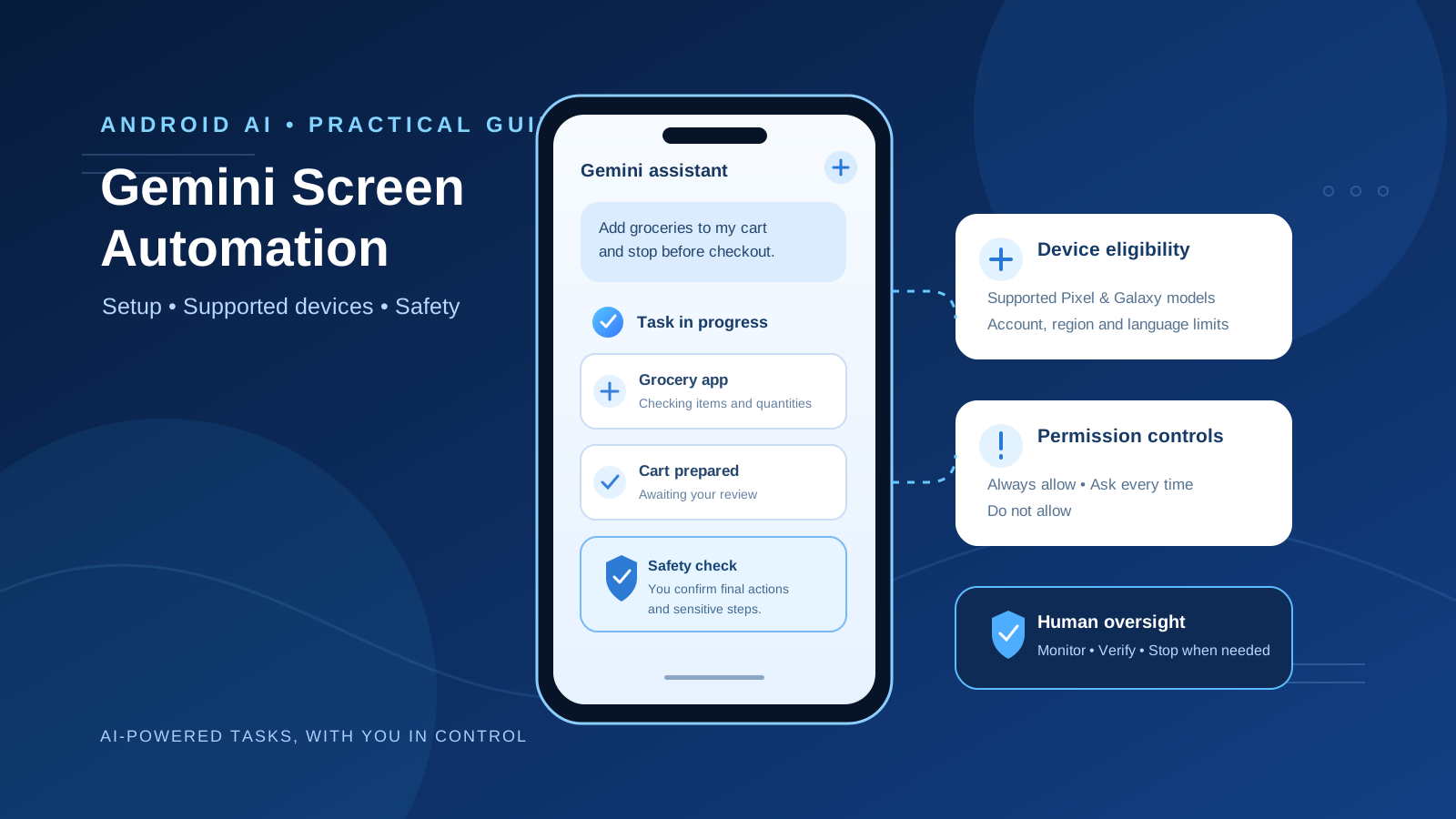
Gemini Screen Automation lets Google’s AI assistant interact with selected Android apps to carry out multi-step tasks. Instead of only explaining how to order food, book a ride, or add products to a cart, Gemini can open a supported app, read its screen, and perform parts of the workflow for you.
The feature is still in beta, and access depends on your phone, account, location, language, and the apps you use. It also has important limits: Gemini can make mistakes, some actions require your approval, and you remain responsible for checking what it does.
This guide explains how Gemini Screen Automation works, which devices and accounts are eligible, how to enable app permissions, how to monitor or stop a task, and how to troubleshoot common problems safely.
What Is Gemini Screen Automation?
Gemini Screen Automation is an Android feature that allows Gemini to operate selected apps through an on-device virtual phone environment. It can interact with an app’s visible interface, such as opening screens, selecting options, and adding items to a cart.
Google lists everyday examples including:
- Booking rides and arranging transportation.
- Ordering food and groceries.
- Buying tickets for events and experiences.
- Buying or selling products.
- Searching for flights and accommodation on supported devices.
For example, you could ask Gemini to reorder your usual coffee, add milk and eggs to a grocery cart, or find a ride to the airport. Gemini may ask follow-up questions, prepare an action plan, and then work through the app in the background.
The important distinction is that Screen Automation interacts with an app’s interface. It is not simply a chatbot response, and it is not the same as connecting a service directly to Gemini through a Connected App.
Google describes Screen Automation as a beta feature. Its availability and supported actions can change as the rollout expands.
Gemini Screen Automation: Supported Devices and Requirements
Before troubleshooting the feature, check whether your device and account meet Google’s current requirements.
Google’s Gemini Apps Help currently lists the following supported device families:
| Device family | Listed supported models |
|---|---|
| Google Pixel | Pixel 10, Pixel 10 Pro, Pixel 10 Pro XL, Pixel 11, Pixel 11 Pro, Pixel 11 Pro XL, and Pixel 11 Pro Fold |
| Samsung Galaxy | Galaxy S26 series, Galaxy Z Flip 8, Galaxy Z Fold 8, and Galaxy Tab S12 series |
The feature also has account and availability requirements:
| Requirement | Current requirement |
|---|---|
| Age | 18 or older |
| Google account | Personal Google Account |
| Work or school accounts | Not supported |
| Supervised accounts | Not supported |
| Supported countries | India, Japan, South Korea, the United Kingdom, and the United States |
| Languages | English, Japanese, and Korean for selected apps |
| Platform | Gemini mobile app on Android |
| Availability | Gradual rollout; access may not appear immediately |
South Korea exception: Pixel 10 devices are not supported for this feature in South Korea, according to Google’s current help page.
These requirements are specific to Screen Automation. A phone may support the Gemini app, Gemini Live, or Connected Apps without being eligible for Screen Automation.
Google is expanding Gemini Intelligence and task automation to more devices and markets over time. Its November 10, 2026 announcement specifically highlighted the expansion of task automation to the UK, India, and Japan. However, the support page is the better reference for the full current eligibility list.
If your phone is not listed, changing a prompt or reinstalling Gemini will not make the feature available. Check the official requirements again as Google updates the rollout.
How to Use Gemini Screen Automation
Once your device and account are eligible, you can start by asking Gemini to complete a task in an Android app.
Step 1: Open the Gemini app
Open the Gemini mobile app on your Android phone. You can also activate Gemini using your device’s supported touch shortcut or by saying “Hey Google.”
Make sure you are signed in with the personal Google Account that meets the eligibility requirements.
Step 2: Describe the task clearly
Tell Gemini what you want it to accomplish and identify the app or type of service when useful.
Examples include:
- “Order a pizza for delivery using a supported food app.”
- “Add milk and eggs to my grocery cart.”
- “Book a ride to the airport.”
- “Find a hotel for two people for next weekend.”
- “Help me buy a USB-C phone charger.”
A specific request is easier to evaluate than a vague instruction such as “Take care of my shopping.”
For purchases and bookings, include relevant constraints such as the product, quantity, delivery preference, date, or destination. Do not include passwords, payment card details, or other sensitive information in your Gemini prompt.
Step 3: Review Gemini’s action plan
Gemini may ask follow-up questions before it starts. It can then present an action plan describing the steps it intends to take.
Read the plan before allowing the task to continue. If Gemini misunderstood the request, explain what needs to change rather than letting it proceed with an incorrect plan.
For example, if you asked for two grocery items but Gemini selected the wrong size or quantity, correct that detail before the order progresses.
Step 4: Allow screen automation for the app
The first time Gemini uses Screen Automation, or the first time it uses the feature with a particular app, follow the on-screen permission instructions.
Google requires permission for the Google app to use Screen Automation with the relevant app. This permission allows Gemini to read and interact with that app’s screen content.
You can review or change these permissions later in Gemini settings.
Step 5: Monitor the task
Gemini can continue working in the background, even if you close the chat. Use the progress notification or the chat interface to check what it is doing.
Do not assume that a task has succeeded just because Gemini says it is finished. Check the actual app for the correct items, dates, addresses, quantities, and booking status.
Step 6: Complete any required confirmation
Some workflows pause and ask you to take over. You may need to sign in, enter information directly in the app, or confirm a final action.
For example, Gemini might prepare an order and add products to a cart, but you may still need to review the cart and place the order yourself.
An item left in a cart is not a completed purchase, and a prepared booking is not necessarily a confirmed reservation.
How to Enable or Change Gemini Screen Automation Permissions
You can control which apps Gemini is allowed to interact with.
The current settings path is:
- Open the Gemini mobile app.
- Tap the menu.
- Tap your profile picture or initials.
- Open Settings.
- Select Screen automation.
- Choose the app whose permission you want to change.
- Select the permission level you prefer.
Google lists three permission choices:
| Permission | What it means |
|---|---|
| Always allow | Allow Screen Automation for the selected app without asking each time |
| Ask every time | Request permission when Gemini needs to use that app |
| Do not allow | Prevent Gemini from using Screen Automation with that app |
For a new or unfamiliar app, Ask every time is a sensible starting point. It gives you an opportunity to review each request before Gemini interacts with the app.
You can change the setting later if you decide that a particular workflow is reliable and appropriate.
How to View, Stop, or Take Control of a Gemini Task
Monitoring is an important part of using an AI agent that can interact with apps.
View task progress
When Gemini is working, open the task’s chat or live update notification and tap View progress.
This opens a view of the on-device virtual phone environment Gemini is using. You can watch the steps it takes and compare them with the task you requested.
Stop a task
If Gemini selects the wrong item, follows an incorrect path, or does something you did not request, stop it.
You can generally do this by:
- Opening the task in Gemini or its live update notification.
- Tapping the stop control.
- Selecting Stop task when prompted.
Stopping is preferable to allowing an incorrect workflow to continue.
Take control of a task
On devices where the option is available, tap Take control from the task progress view and complete the required steps yourself.
There is an important device-specific limitation: Google’s current documentation says that users cannot take control of tasks on Pixel 10 or Galaxy S26 devices for now. On those devices, you can stop the task instead.
On Galaxy Z Flip 8 and Z Fold 8, if Gemini asks you to take over and you do not do so within 10 minutes, Gemini stops working on the task.
The available controls can vary by device and task. Follow the options displayed in your own Gemini interface.
Gemini Screen Automation vs. Gemini Tasks vs. Connected Apps
These features are related, but they solve different problems. Choosing the right one can prevent unnecessary permission requests and confusing results.
| Feature | Main purpose | How it works |
|---|---|---|
| Screen Automation | Operate selected Android apps | Gemini interacts with an app’s screen |
| Tasks in Gemini | Manage more complex workflows and schedules | Gemini coordinates work across supported capabilities |
| Connected Apps | Access supported services and their data | Gemini uses an available app connection |
Use Screen Automation when Gemini needs to interact with an app’s interface and that app is supported.
Use Connected Apps when a direct integration is available. Google says Gemini uses a connected app instead of Screen Automation when it can complete the request through that connection.
Use Tasks when your goal involves a broader workflow, recurring schedule, or ongoing work rather than simply operating a selected Android app.
These are not interchangeable features. Screen Automation has its own app permissions, device requirements, and limitations.
For a deeper explanation of scheduled workflows, see our guide: How to Use Gemini Tasks: Set Up and Manage AI Workflows.
You can also explore How to Use Gemini 4 Argon to Optimize a Large Python Codebase for a different example of Gemini-powered multi-step work in software development.
Practical Gemini Screen Automation Prompts
The following prompts are examples of how to express a task clearly. They do not guarantee that a particular app or action is supported.
Order food
“Open a supported food delivery app and find a medium vegetarian pizza. Show me the available options and total price before proceeding. Do not place the order without my final confirmation.”
Add groceries to a cart
“Open my grocery app and add one carton of milk and one dozen eggs to the cart. Check the product sizes and quantities. Stop before checkout so I can review everything.”
Find a ride
“Open a supported ride-hailing app and look for a ride to the airport. Show me the available ride options and estimated prices. Do not confirm the booking.”
Research a product
“Find a USB-C charger in the shopping app. Compare the available options by price, charging power, and seller information. Show me the best matches and wait for my decision.”
Find accommodation
“Search the supported travel app for a hotel for two people for the dates I provide. Compare the available options and show the total price and cancellation terms. Do not make a reservation.”
These examples deliberately include review and stopping instructions. For consequential actions, asking Gemini to prepare options is safer than giving it unrestricted authority to complete a transaction.
Gemini Screen Automation Privacy and Security
Screen Automation is powerful because it can read and interact with app interfaces. That also means it needs careful supervision.
Gemini can make mistakes
Google warns that Gemini may misunderstand a request, select the wrong item, add an incorrect quantity, or report that a task is complete when it is not.
Always review the task progress and verify the result in the original app.
Do not enter passwords or payment details in Gemini chat
If a task requires authentication or payment information, use the app directly when Gemini asks you to take control or when the interface provides a secure manual step.
Do not paste passwords, card numbers, security codes, or account recovery information into the conversation.
Understand screenshot handling
Google’s privacy documentation explains that Screen Automation can take screenshots of the app while completing a task. Those screenshots may include information visible on the screen.
Google states that screenshots are reviewed by trained reviewers and used to improve Google services when Keep Activity is enabled.
Before using automation, consider what information is visible in the app and review your Gemini activity settings. Avoid using the feature for tasks involving highly sensitive information.
Be aware of prompt injection
Prompt injection is a risk for AI agents that read webpages, messages, documents, or other content while performing a task.
For example, malicious text inside an app or webpage could attempt to instruct an agent to change an address, send a message, or perform an action that was not part of your original request.
Google describes safeguards such as user confirmation for certain actions, takeover steps for sensitive operations, and restrictions on the apps and actions relevant to a task. However, Google also warns that these safeguards do not eliminate every risk.
The practical rule is simple: monitor important tasks, review confirmation requests, and stop automation if it behaves unexpectedly.
Troubleshooting: Gemini Screen Automation Not Working
If Gemini cannot use Screen Automation, check the following causes before reinstalling the app or changing unrelated settings.
1. Screen Automation is missing
Check that:
- Your phone is listed among supported devices.
- You are at least 18.
- You are signed in with a personal Google Account.
- Your account is not supervised or managed by a school or workplace.
- Your country and app language are supported.
- The feature has reached your account through the gradual rollout.
A supported phone alone does not guarantee immediate access.
2. Gemini cannot interact with an app
Check whether the app is supported and whether Screen Automation permission has been granted for it.
If Gemini can use a Connected App integration to complete the request, it may use that connection instead of Screen Automation. The two features have separate settings.
3. Gemini asks for permission repeatedly
Open Settings, then Screen automation, and check the permission for the relevant app.
If the setting is Ask every time, repeated permission requests may be expected. Select Always allow only if you understand the access being granted and want to avoid repeated prompts.
4. The task stops unexpectedly
The feature is in beta, and not every task can be completed without user input.
Check whether Gemini requested clarification, permission, sign-in, or manual confirmation. On Galaxy Z Flip 8 and Z Fold 8, a takeover request that is not handled within 10 minutes causes the task to stop.
5. Gemini cannot complete checkout
Do not assume that Screen Automation can complete every payment or purchase flow. Some steps require you to take control, enter information directly into the app, or confirm the transaction.
Review the cart or booking in the original app and complete the final action yourself when required.
6. The feature works on one phone but not another
Screen Automation has device-specific availability and controls. For example, the current support documentation does not allow takeover on Pixel 10 or Galaxy S26 devices, even though task progress can be viewed and tasks can be stopped.
Compare the exact model, account, language, location, and app support rather than relying only on the phone brand.
Frequently Asked Questions
Is Gemini Screen Automation available on all Android phones?
No. Google lists selected Pixel, Samsung Galaxy, and Galaxy Tab models. The feature is also limited by account eligibility, country, language, and gradual rollout.
Is Gemini Screen Automation free?
Google’s current Screen Automation help page specifies device and account eligibility but does not establish a universal paid subscription requirement for this feature. Availability may still vary by account and rollout. Check the feature requirements in the official Gemini help page.
Can Gemini order food or buy products automatically?
Gemini can interact with selected apps to prepare orders and shopping carts. Some final actions, such as confirming a purchase or booking, may require you to review and complete the step yourself.
Can I use Screen Automation with a work or school Google Account?
No. Google’s current requirements specify a personal Google Account and exclude work, school, and supervised accounts.
Can I stop Gemini while it is working?
Yes. You can view progress and stop a task from the chat or live update notification. The ability to take control manually depends on the device and task.
Is Gemini Screen Automation safe?
It has safeguards, but it is not risk-free. Gemini can make mistakes, and screenshots may expose information visible in the app. Avoid sensitive tasks, do not share passwords or payment details in chat, and supervise important actions.
Why is Screen Automation different from Connected Apps?
Screen Automation interacts with an app’s visible interface. Connected Apps provide a direct integration with a supported service. Gemini may use a Connected App instead when it can complete the request through that integration.
Final Verdict: Should You Use Gemini Screen Automation?
Gemini Screen Automation is a meaningful step toward AI agents that can do more than answer questions. It can help with repetitive mobile tasks such as finding products, preparing grocery carts, arranging rides, and navigating selected apps.
But it is not an unrestricted phone operator. Access is limited to supported devices, accounts, locations, languages, and apps. The feature remains in beta, and important actions still require human review.
The best way to use it is to start with a simple, low-risk task, review the action plan, monitor the virtual phone, and verify the result in the original app. Keep sensitive information out of chat and take control—or stop the task—whenever something does not look right.
For the latest eligibility rules and instructions, consult Google’s official guide: Ask Gemini to handle your multi-step tasks in select Android apps.
Sources
- Google Gemini Apps Help — Ask Gemini to handle your multi-step tasks in select Android apps — official device, account, country, language, setup, permission, and task-control requirements. Accessed November 14, 2026.
- Google — Gemini Intelligence: New features, on more devices — November 10, 2026. Official announcement about device expansion and task automation availability.
- Google Gemini Apps Privacy Hub — last updated October 26, 2026. Official information about Screen Automation screenshots, review, and data handling.