
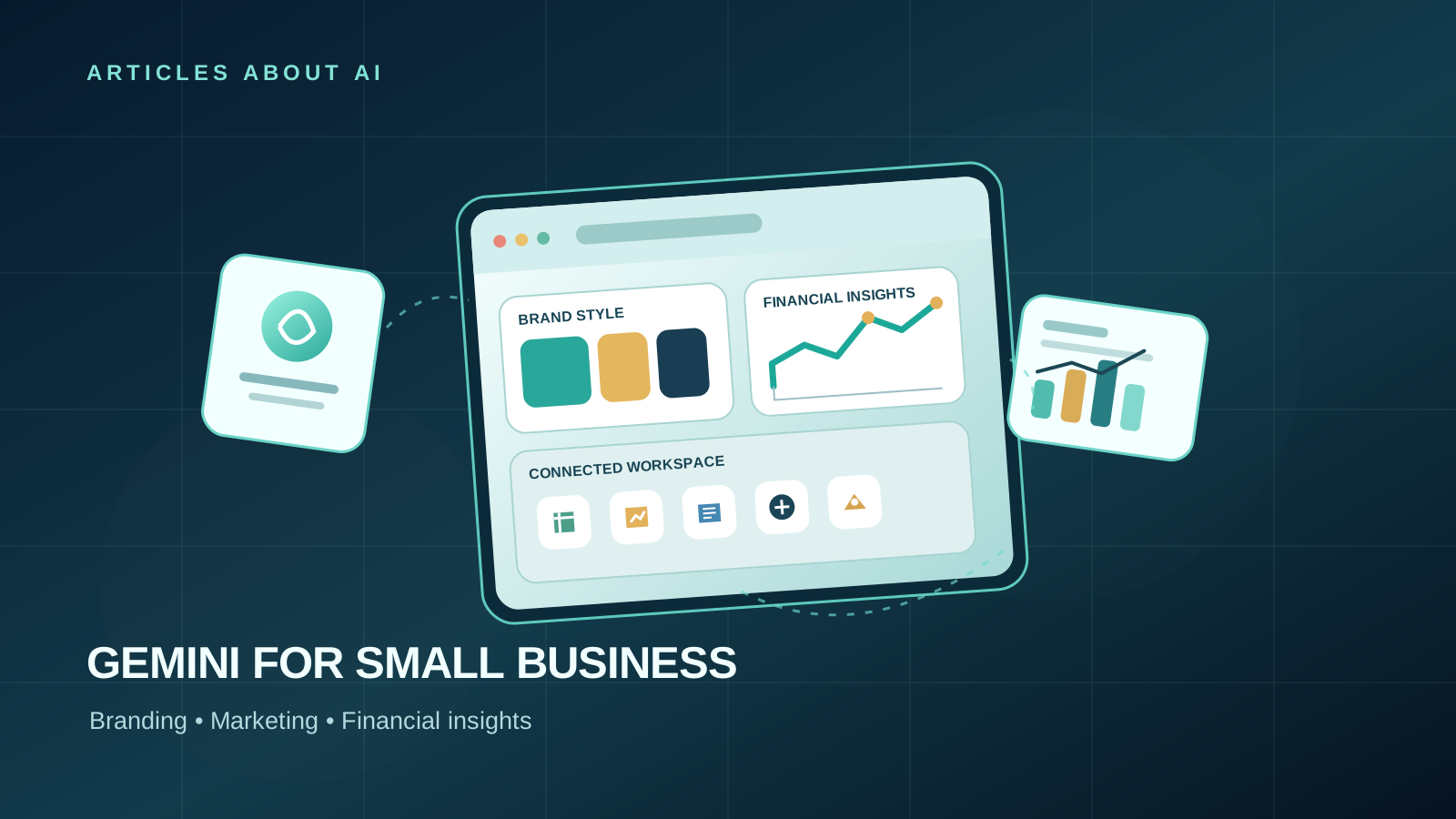
Google is adding a more focused set of business tools to the Gemini app. The October 20, 2026 announcement introduces a dedicated small-business landing page, reusable brand styling for marketing visuals, financial graphics and interactive models, and easier connections to Google and third-party apps. Google says the new tools are beginning to roll out globally in the coming days, so the full experience may not be visible in every account yet.
This guide explains how a small business could use the announced capabilities in practical workflows, what to check before connecting business data, and how to distinguish the latest additions from earlier Gemini business features.
What is new in Gemini for small businesses?
The new business landing page is intended to bring several tasks together: brand development, marketing, financial analysis, customer insights, and connected apps. Google says users can connect services including Google Business Profile, Google Ads, and Google Workspace, along with third-party tools such as Adobe, Canva, Dropbox, Shopify, Wix, Zoho, and Xero.
Three areas are particularly useful for a small team:
- Reusable brand styling: provide a website, brand kit, fonts, or color palette so Gemini can generate visuals that follow a more consistent visual identity.
- Financial summaries: turn spreadsheets, receipts, and purchase records into charts and interactive models that are easier to explore.
- Connected workflows: bring relevant tools closer to Gemini rather than repeatedly copying information between separate services.
Google also mentions Nano Banana 2.1 as the image-generation model supporting the new on-brand visual workflow. The announcement describes a rollout beginning in the coming days; it does not guarantee that every integration or feature is available to every user immediately.
What is genuinely new—and what is not?
This distinction matters because Google has announced Gemini business capabilities before. Earlier updates covered connecting Google Business Profile and using Business notebooks. The October announcement adds a more consolidated small-business hub and emphasizes reusable brand styles, marketing outputs, financial graphics, and a wider set of connected apps. It should not be described as the first time Gemini could help a business or connect to a Business Profile.
For background on Google’s wider AI model ecosystem, see our Gemini 4 Argon vs. Meta Muse Wonder comparison. That comparison covers a different question—model positioning and pricing—rather than this practical small-business workflow.
1. Prepare your brand materials first
Before asking Gemini to create campaign assets, collect the source materials that define your business:
- Your current website URL.
- Your approved logo and brand kit, if you have one.
- Brand fonts and color palette.
- A few examples of marketing assets that represent your preferred style.
- A short description of your audience, products, tone, and restrictions.
Use only assets you own or are authorized to use. Do not upload confidential customer information merely because it is convenient.
Once the new business tools appear in your Gemini app, look for the business landing page or the relevant brand-style workflow. Follow the interface prompts to provide the website or visual guidelines. The exact labels may change during rollout, so treat the steps below as a workflow rather than a guarantee that every control is already visible in every account.
2. Create marketing visuals that stay on-brand
The key practical benefit of reusable brand styling is consistency. Without a reference, separate AI-generated images can vary in color, typography, composition, and overall tone. A reusable style reference can reduce repeated setup and help a small team produce related assets more quickly.
Try a prompt like this after adding your approved brand materials:
Create three campaign concepts for [product or service]: one website hero visual, one square social post, and one wide email-banner concept. Follow the uploaded brand colors, fonts, visual tone, and logo rules. Keep the product accurate, leave readable space for a headline, and do not invent claims, prices, awards, or customer testimonials. Describe each concept before generating the final assets.
Review every output before publishing. Check logo accuracy, spelling, product details, contrast, crop safety, and whether any generated text is legible. AI-generated visuals should be treated as drafts requiring human review—not as automatically approved brand assets.
Make a small campaign from one approved concept
After choosing a visual direction, ask Gemini to adapt it for specific placements while keeping the core design consistent. For example, request a website banner, a social image, and an email header that share the same palette and mood but use compositions appropriate to their formats.
Do not assume every placement should use an identical crop. A design that works in a wide banner may fail in a square post. Ask for each format separately and inspect the results at the size where customers will actually see them.
3. Turn messy business records into useful financial views
Google says Gemini’s new financial workflow can turn spreadsheets, receipts, and purchase records into clearer financial graphics and interactive models. This can help an owner explore the data, but it should not replace bookkeeping software, an accountant, or verification of the underlying figures.
Start with a copy of a report that contains only the data needed for the task. Remove unnecessary customer details, bank information, tax identifiers, and other sensitive fields. Then ask Gemini to:
- Categorize expenses using categories you provide.
- Summarize monthly revenue and spending.
- Highlight unusual changes that deserve review.
- Create a chart comparing revenue, costs, and gross margin.
- List assumptions, missing values, and calculations that need checking.
Example prompt:
Analyze this business spreadsheet for the period shown. First describe the columns and identify missing or inconsistent values. Then summarize monthly revenue, spending, and gross margin using the definitions provided in the file. Create a chart of the monthly trend and list the five largest changes. Do not guess missing figures. Show the formula and source rows for each calculated result, and clearly label any interpretation that is not directly supported by the data.
Check totals against the source spreadsheet before relying on the result. Receipts may be duplicated, expenses may be recorded in different currencies, and revenue may be reported on a different basis from cash received. A polished chart does not prove that the underlying calculation is correct.
Important: do not use a general-purpose AI response as the final basis for tax filings, lending decisions, payroll, or other high-consequence financial actions without qualified review.
4. Connect apps only when there is a clear benefit
Google’s announcement names Google Business Profile, Google Ads, and Google Workspace, plus third-party services such as Canva, Adobe, Dropbox, Shopify, Wix, Zoho, and Xero. The actual list available to you may depend on rollout status, account type, region, and the connected app.
A useful rule is to connect one service at a time and start with a low-risk task. For example, a business owner might use relevant Business Profile data to draft a response to customer feedback, or use approved product information to prepare a first draft of a product description.
Before connecting any service:
- Confirm you are signing in to the correct Google account.
- Read the requested permissions.
- Check whether the connection can read information, make changes, or both.
- Avoid granting broader access than the task requires.
- Review any action that changes a public profile, campaign, product listing, or customer-facing content before it goes live.
- Disconnect services you no longer need.
Never paste passwords, recovery codes, private API keys, or payment credentials into a prompt. Follow the connected service’s own security and access controls.
5. Use Gemini for a repeatable weekly workflow
A practical workflow for a small business is to separate research, drafting, and approval rather than asking AI to run everything without oversight.
Monday — Review: examine the previous week’s approved performance data and identify questions worth investigating.
Tuesday — Plan: ask Gemini for three campaign concepts tied to a specific product, audience, and business objective.
Wednesday — Draft: create first versions of visuals, product descriptions, email copy, and social posts using the approved brand reference.
Thursday — Verify: confirm claims, prices, product specifications, links, and financial calculations against source records.
Friday — Publish and learn: have a person approve the final assets, then record the results so the next campaign can be evaluated against actual performance.
The schedule is a suggested process, not a built-in Gemini feature. Its purpose is to make the new capabilities useful without confusing generated content with verified business information.
6. What if the new tools are not visible?
Google says the small-business landing page, marketing and finance capabilities, and new connected apps are beginning to roll out globally in the coming days. If you do not see them:
- Check the Gemini app and official release announcements again later.
- Make sure you are signed in to the account you intend to use.
- Check whether the requested connected app is available for that account.
- Do not assume that a feature mentioned in an announcement is already enabled for every region or subscription.
- Use existing spreadsheet, design, or Business Profile workflows while waiting, without claiming they are the new hub.
Availability may change as the rollout progresses. Verify current access in the product rather than relying on screenshots or third-party posts.
7. How to measure whether the tools are helping
Measure outcomes instead of counting how many AI assets you generate. Useful indicators include:
- Time saved: minutes spent producing an approved campaign before and after adopting the workflow.
- Revision rate: how many outputs require substantial correction.
- Brand consistency: whether colors, typography, tone, and product details meet your guidelines.
- Financial accuracy: whether AI-generated totals and trends match independently checked calculations.
- Business performance: clicks, qualified leads, sales, or other metrics appropriate to the campaign.
A faster workflow is only useful if the final work remains accurate and effective. Compare similar tasks over several weeks and record where human review is still essential.
Frequently asked questions
Is Gemini’s small-business hub available to everyone?
Google says the new hub and related features are beginning to roll out globally in the coming days. That is not a guarantee of immediate availability for every account. Check the Gemini app and official announcement for the latest status.
Can Gemini create marketing images in my brand style?
The new workflow is designed to use materials such as a website, brand kit, fonts, or color palette to generate more consistent marketing visuals, with Nano Banana 2.1 supporting image generation. Review the results for accuracy, licensing, and brand compliance before publication.
Can I trust Gemini to calculate my business finances?
Use its output as an analytical aid. Verify source data, formulas, currencies, duplicates, and totals against the original records. Do not rely on generated summaries alone for tax, payroll, lending, or other high-impact decisions.
Are all connected apps available to every user?
Not necessarily. The announcement names a range of Google and third-party apps, but availability can vary. Check the connected-app options and permissions in your own account.
Is this the first time Gemini has offered business tools?
No. Google previously announced Business Profile connections and business notebooks. The October 2026 announcement focuses on a more consolidated hub and additional brand, marketing, finance, and app-connection workflows.
Official sources
- Google: New Gemini tools for small business owners — October 21, 2026 regional announcement
- Google: New Gemini business landing page and tools — October 20, 2026
- Google Gemini Help: Manage your Business Profile with Gemini
Editorial note: This guide is based on Google’s announcement and distinguishes newly announced workflows from earlier business capabilities. Feature availability and interface labels can change during rollout, so check official documentation before following a specific screen path.