
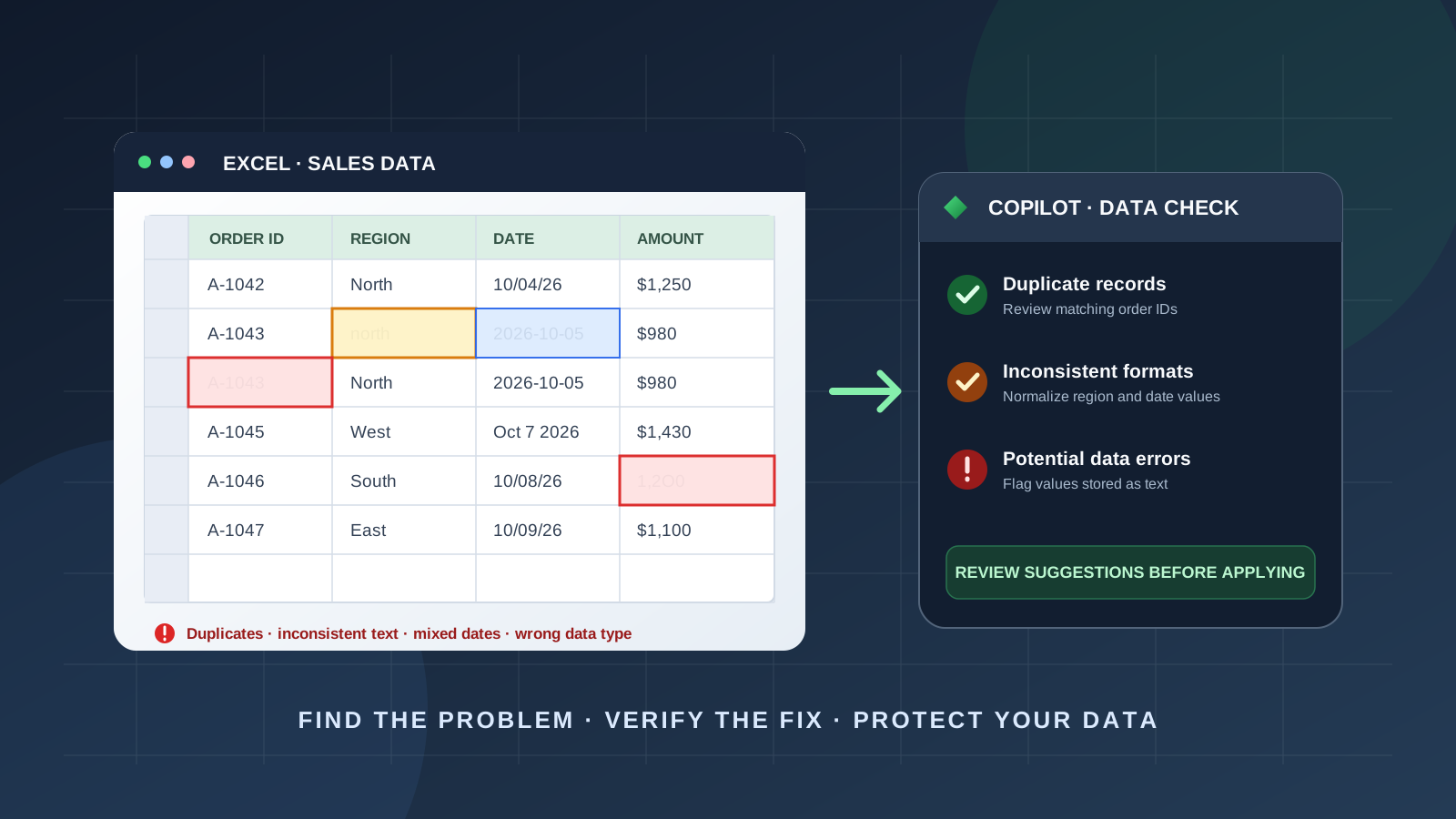
A spreadsheet can look perfectly normal and still contain errors that distort reports, break lookups, and produce incorrect calculations. A trailing space can split one region into two categories. A date stored as text may not sort chronologically. A duplicate order can inflate revenue. A number entered as text can be excluded from a calculation.
Microsoft Copilot in Excel can help identify several of these data-quality problems and suggest ways to correct them. Its built-in clean-data skill is designed to find issues such as extra spaces, inconsistent text and number formats, inconsistent dates, duplicate values, and values stored as the wrong data type. It explains the findings and proposes corrections for you to review before applying.
This guide shows how to use Microsoft Copilot in Excel to find data errors, write targeted prompts, review suggested fixes, and combine AI-assisted cleaning with Excel’s native error-checking tools. The goal is not to let AI rewrite a workbook without supervision. It is to make problems easier to find while keeping every important change auditable.
What kinds of data errors can Copilot find in Excel?
Microsoft documents the clean-data skill as a way to find and correct issues that can affect formulas, lookups, PivotTables, reports, and AI-generated insights. The skill checks for:
- Extra spaces: Leading, trailing, or repeated spaces that make apparently identical text values different.
- Inconsistent text formats: Variations in capitalization or spelling, such as
North,north, andNORTH. - Inconsistent number formats: Values represented differently within the same field.
- Inconsistent dates: Different date formats that can complicate sorting, filtering, and time-based analysis.
- Duplicate values: Repeated entries that may represent duplicate records or legitimate repeated values, depending on the business rules.
- Incorrect data types: Values stored as text when they should be numeric or date values, for example.
Copilot can also help investigate unusual patterns and outliers in a dataset. Microsoft’s data-insights guidance describes asking Copilot questions such as whether there are outliers or anomalies in the data. That is different from proving that a value is wrong: an unusually large transaction may be a valid exception, not a data-entry error.
Availability note: Microsoft says the clean-data skill is enabled by default in Copilot in Excel, but it is still rolling out and may not be available to every customer yet. The feature set can also vary by subscription, platform, and organization settings. See Microsoft’s official guide to built-in Copilot skills in Excel for current availability.
Before you start: prepare a safe copy of your workbook
Before asking Copilot to make changes, protect the original data. This is especially important for sales ledgers, inventory records, customer lists, payroll files, and operational reports.
- Save a separate copy of the workbook or confirm that version history is available.
- Identify the worksheet and table that should be checked.
- Confirm that the first row contains clear column headers.
- Check that each row represents one record and that unrelated notes or subtotals are not mixed into the data range.
- Record important totals, such as the number of records and total revenue, so you can compare them after cleanup.
- Decide which fields define a duplicate. Two rows with the same customer and amount are not necessarily duplicates if they represent separate transactions.
Copilot works more effectively when it can identify the columns and structure of the data. Microsoft’s Get started with Copilot in Excel guide explains the supported workbook-editing and analysis experience.
Step 1: Open Copilot in Excel
Open the workbook in an Excel version and account that support Copilot. Select the Copilot icon in Excel to open the Copilot pane. Microsoft’s current interface may show the icon in the lower-right area of the workbook or in another location depending on the platform and version.
If Copilot is not visible, check your Microsoft 365 license, signed-in account, application version, and organization settings. A feature may not be included in your subscription or may not have reached your account yet. Microsoft’s Copilot in Excel setup guide explains the current supported experience.
For this task, work with a structured data table where possible. If the workbook contains several sheets, tell Copilot exactly which table or worksheet to inspect rather than asking it to check everything without context.
Step 2: Run the clean-data skill
The clean-data skill is the most direct Copilot feature for finding common data-quality problems. Microsoft says it can check for extra spaces, inconsistent text and number formats, inconsistent dates, duplicate values, and incorrect data types. It then explains what it found and why it matters, and proposes corrections in the workbook.
To invoke the skill:
- Open the Copilot pane in Excel.
- Select the Add menu in the prompt field.
- Choose Choose plugins & skills.
- Find the Data and analysis category.
- Select
clean-data, if it is available. - Alternatively, type
@clean-datadirectly in your request to invoke the skill. - Ask it to inspect a specific table or range and explain the issues it finds.
Microsoft’s official instructions for using skills in Copilot in Excel document the Add menu and the @clean-data mention. Its built-in skills reference describes the checks and the review-before-apply process.
If you cannot find clean-data, do not assume that you are doing something incorrectly. Microsoft notes that the skill is rolling out to production and may not yet be available for all customers.
Step 3: Ask Copilot to audit the worksheet before changing anything
Start with an inspection-only request. This helps you understand the scope of the problems before allowing edits.
Try this prompt:
Prompt 1: Audit the data without changing it
Use the clean-data skill to inspect the [table or worksheet name].
Identify:
- Extra leading, trailing, or repeated spaces.
- Inconsistent spelling, capitalization, or text formats.
- Inconsistent date and number formats.
- Values stored as the wrong data type.
- Duplicate values or records that may need review.
Return a findings table with the column name, affected value or row, issue type, number of affected records, why the issue matters, and your proposed correction.
Do not apply any changes yet. Keep uncertain cases separate from confirmed formatting inconsistencies.
A good audit should make it clear what Copilot found, where it found it, and why the proposed correction is appropriate. If it gives only a general statement such as “the data needs cleaning,” ask it to identify the exact columns and examples.
Step 4: Find duplicate values and duplicate records
Duplicates are a common source of incorrect totals and misleading reports, but not every repeated value is an error.
For example, a customer name can legitimately appear in hundreds of order rows. An order ID repeated twice may be a duplicate transaction, but you should inspect the rest of the row before removing anything.
Use a prompt that defines the record key:
Prompt 2: Check for duplicate records
Review the [table name] for possible duplicate transactions.
- Treat [Order ID] as the primary identifier.
- List exact repeated Order IDs and show all matching rows.
- Separately identify possible duplicates where the IDs differ but customer, transaction date, product, and amount match.
- Distinguish exact duplicates from records that merely share some values.
- Recommend which rows need manual review.
Do not delete, merge, or overwrite any records. Return the worksheet row numbers and the fields used to identify each match.
For a customer list, use an email address or customer ID as the matching key if that is how the organization identifies a unique customer. For inventory, a product ID and warehouse location may be more meaningful than a product name alone.
If you prefer Excel’s built-in duplicate highlighting, Microsoft also documents Home > Conditional Formatting > Highlight Cells Rules > Duplicate Values. Its Find and remove duplicates guide explains how to review duplicates and remove them. Microsoft warns that the Remove Duplicates command permanently deletes duplicate data, so preserve a copy first.
Step 5: Detect inconsistent dates, numbers, and text
Inconsistent formats can cause records to be grouped incorrectly or excluded from calculations. Consider a date column containing all of these values:
10/04/20262026-10-05Oct 6, 2026
These may represent valid dates, but they are not stored or displayed consistently. A number column can have a similar problem when some cells contain numeric values and others contain text such as "1,250".
Use this prompt:
Prompt 3: Find inconsistent formats and data types
Inspect the [Date], [Amount], and [Region] columns in the [table name].
- Identify dates that use inconsistent formats or appear to be stored as text.
- Find numeric values stored as text or mixed with nonnumeric characters.
- Identify inconsistent region names, capitalization, and extra spaces.
- Show the original values and the normalized format you recommend.
- Flag ambiguous dates or values that cannot be converted safely.
Do not guess whether an ambiguous date uses month/day/year or day/month/year. Do not change the source values until I approve the proposed mapping.
This is important for international workbooks. For example, 04/05/2026 can mean April 5 or May 4 depending on the date convention. Ask Copilot to flag ambiguity rather than silently selecting one interpretation.
Step 6: Find missing values and suspicious outliers
Blank cells and unusual values need a different review from formatting inconsistencies. A blank discount field might mean zero, unknown, or not applicable. An unusually high invoice may be a genuine large order rather than an error.
Copilot’s data-insights feature can help identify outliers and anomalies, but the analyst still needs to decide whether an observation is invalid.
Try this prompt:
Prompt 4: Investigate missing values and anomalies
Analyze the [table name] and inspect the [Quantity], [Unit Price], [Order Date], and [Region] columns.
- Count blank or missing values in each column.
- Identify values outside the expected range, including negative quantities or unusually high prices.
- Look for dates outside the reporting period.
- Compare unusual values with the surrounding records and relevant categories.
- Explain why each item may need investigation.
Separate confirmed data-format problems from possible business exceptions. Do not replace blanks with zero or remove outliers automatically. Do not assume an unusual value is wrong without evidence.
The expected range should come from your business rules, not from an arbitrary threshold invented by the AI. If negative quantities are valid for returns, for example, they should not automatically be classified as errors.
For more insight prompts, see Microsoft’s Get data insights with Copilot in Excel. Microsoft recommends naming the columns you want analyzed and reviewing AI-generated content before relying on it.
Step 7: Investigate formula errors separately
The clean-data skill focuses on data-quality issues such as formats, duplicates, spaces, and data types. Formula errors require additional checks.
Excel may display errors such as:
- #DIV/0! — a formula attempts to divide by zero or a blank denominator.
- #N/A — a lookup or function cannot find a required value.
- #VALUE! — a formula uses an unexpected type of argument.
- #REF! — a formula contains an invalid cell reference.
- #NAME? — Excel does not recognize text in the formula, such as a misspelled function name or undefined name.
- #NUM! — a formula has an invalid numeric value or argument.
You can ask Copilot to investigate a selected formula or a specific range:
Prompt 5: Review formulas for potential problems
Inspect the formulas in [range or calculated column].
- Identify cells that return Excel error values.
- Look for formulas that differ unexpectedly from the pattern used in adjacent rows.
- Check for inconsistent cell references and ranges that may omit relevant records.
- Explain the likely cause of each issue and show the affected cell addresses.
- Suggest a corrected formula, but do not replace formulas until I review the explanation.
Distinguish a confirmed Excel error from a formula that merely looks different. Some rows may intentionally use different logic.
For a separate, native Excel check, use Formulas > Formula Auditing > Error Checking in the desktop application. Excel’s background error checking can also flag issues such as formulas inconsistent with neighboring formulas or formulas that omit cells in a region. See Microsoft’s Detect formula errors in Excel documentation.
This distinction matters: Copilot can help explain and investigate a formula, but Excel’s built-in formula auditing rules are a separate mechanism. Do not assume that running @clean-data replaces the native Error Checking tool.
Step 8: Review and apply the suggested corrections
After Copilot reports its findings, inspect each proposed change. Microsoft’s built-in skill documentation says Copilot explains the issue and proposes corrections, and you review the proposed fixes and select which changes to apply.
Use this prompt to organize the review:
Prompt 6: Prepare a correction plan
Based on the issues found in [table name], create a correction plan.
For each proposed fix, show:
- Column and affected rows
- Original value
- Proposed value
- Reason for the change
- Whether the change is reversible
- Any uncertainty or business rule that needs confirmation
Group safe formatting corrections separately from changes that could alter the meaning of a record. Do not apply any changes automatically.
Apply only the corrections you understand and approve. If a suggested change could affect financial totals, customer identity, reporting categories, or transaction history, verify it against the source system or an authoritative record first.
For high-risk workbooks, apply changes to a copy and compare the results before replacing the original. Keep a record of the corrections so another person can understand what changed and why.
Step 9: Verify the workbook after cleaning
A successful cleanup should improve consistency without silently changing the meaning of the data. After applying approved corrections:
- Compare the row count before and after cleanup.
- Recheck duplicate counts using the correct record identifier.
- Confirm that date and number columns use the intended data types.
- Recalculate important totals and compare them with the original.
- Test formulas and lookups that depend on the cleaned columns.
- Check filters, PivotTables, and charts for unexpected changes.
- Review a sample of corrected rows against the original source.
- Save the cleaned workbook as a new version.
Use this final audit prompt:
Prompt 7: Verify the cleaned workbook
Review the changes applied to [table name].
Compare the workbook before and after cleanup, if the original copy is available.
Report:
- Number of rows and columns before and after
- Duplicate records identified and removed, if any
- Formatting and data-type corrections applied
- Remaining blank or ambiguous values
- Changes to important totals
- Formula errors or inconsistent formulas still requiring attention
- Any correction that could not be verified
Do not claim the workbook is error-free unless every relevant check has been completed. List the remaining limitations.
A final AI-generated statement that the data is “clean” is not a guarantee. Check the underlying rows, formulas, and business rules yourself.
Useful Copilot prompts for Excel data quality
Here are additional prompts you can adapt to common spreadsheet tasks:
Find inconsistent categories
List every distinct value in the Department column. Group values that appear to be spelling or capitalization variants, and recommend a standard label. Do not merge categories that may have different business meanings.
Check product identifiers
Find blank, duplicated, or malformed Product IDs. Show the affected rows and compare them with the expected ID pattern. Do not create replacement identifiers.
Review a financial table
Check the Revenue, Cost, Tax, and Total columns for missing values, inconsistent formats, negative amounts, and arithmetic inconsistencies. Show the formula or calculation used to identify each issue.
Check imported CSV data
Inspect this imported dataset for numbers stored as text, extra spaces, inconsistent date formats, and columns with mixed data types. Provide a correction plan without changing the original data.
Prepare a data-quality report
Create a data-quality report for this table. Summarize each issue type, the affected column, the number of affected records, the likely impact, the recommended action, and the number of unresolved cases.
Copilot in Excel vs. Excel’s built-in data tools
Copilot is useful for describing patterns, identifying potential issues in natural language, and proposing corrections. Excel’s built-in features remain important for deterministic checks and direct control over data.
| Task | Useful tool |
|---|---|
| Find extra spaces and inconsistent formats | Copilot @clean-data, when available |
| Review proposed cleanup changes | Copilot clean-data skill |
| Highlight duplicate cell values | Conditional Formatting |
| Remove confirmed duplicate records | Data > Remove Duplicates |
| Inspect formula errors | Formulas > Error Checking |
| Apply repeatable rules to input fields | Data Validation |
| Investigate unusual trends and outliers | Copilot data insights plus manual review |
For a broader introduction to Excel’s AI features, read our guide to How to Use Microsoft Copilot in Excel: Formulas, Data Analysis, and Charts. It covers formula generation, data analysis, charts, PivotTables, and workbook preparation. This article focuses specifically on detecting and reviewing data errors, rather than repeating the general Copilot workflow.
Common mistakes to avoid
Treating every duplicate as an error
Repeated customer names, product names, and categories may be normal. Define the fields that uniquely identify a record before removing anything.
Letting AI guess ambiguous dates
Date formats can be interpreted differently across regions. Confirm the intended date convention before converting values.
Replacing every blank with zero
A blank may mean unknown, not applicable, or not yet entered. Preserve that distinction unless the business rules explicitly define it as zero.
Assuming outliers are invalid
An unusual transaction can be legitimate. Investigate the source and context before excluding it.
Applying every proposed correction at once
Review changes in groups and keep an original copy. Large automatic edits can create problems that are difficult to trace.
Assuming Copilot replaces Excel’s formula auditing
Data cleaning and formula error checking are related but separate tasks. Use both where appropriate.
Frequently asked questions
Can Microsoft Copilot automatically clean data in Excel?
Copilot’s clean-data skill can identify common data-quality issues and propose corrections. Microsoft says users review the proposed fixes and select which changes to apply. The skill is rolling out, so it may not be available to every account.
What data errors can Copilot find?
Microsoft documents checks for extra spaces, inconsistent text and number formats, inconsistent dates, duplicate values, and values stored as the wrong data type. Copilot data insights can also help investigate outliers and anomalies.
How do I use @clean-data in Excel?
Open the Copilot pane, select Add, choose plugins and skills, and find clean-data under Data and analysis. You can also type @clean-data in the prompt field. Availability may vary during Microsoft’s rollout.
Can Copilot find duplicate rows in Excel?
It can help identify duplicate values and potential duplicate records. Tell it which columns define a unique record, and ask it to show matching rows before making changes. Similar-looking records are not always duplicates.
Can Copilot fix Excel formula errors?
Copilot can help explain formulas and investigate potential problems, but use Excel’s native Formulas > Error Checking feature as a separate check. Verify any suggested formula against known results before replacing the original.
Does Copilot in Excel work for every Microsoft 365 user?
No. Access depends on the Microsoft 365 subscription, account, organization settings, platform, and feature rollout. Some skills, including clean-data, may not yet be available to all customers.
Final takeaway
Microsoft Copilot in Excel can make data-quality reviews faster by identifying extra spaces, inconsistent formats, duplicate values, and incorrect data types, then proposing corrections for review. It can also help investigate outliers and explain formula problems.
The safest workflow is to preserve the original workbook, run an inspection before editing, define what counts as a duplicate or invalid value, review every proposed correction, and verify the results with Excel’s own tools. Copilot can help you find likely errors—but the workbook is only ready to use after the data and the fixes have been checked.