
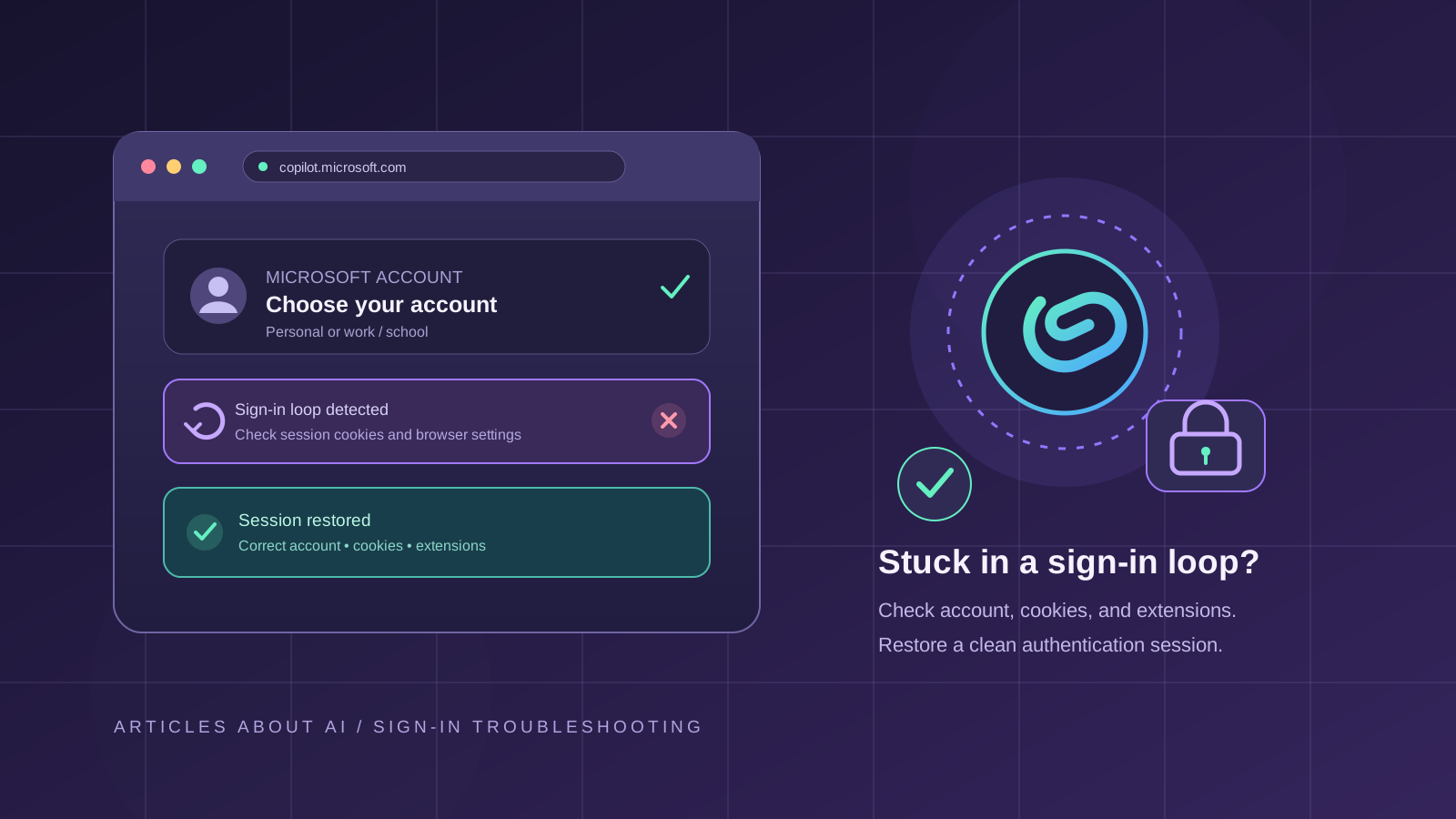
Microsoft Copilot should normally keep you signed in for a session, but some users find that it repeatedly asks them to sign in, returns to the login page, or fails to remember their account. This can happen because of stale browser data, blocked cookies, conflicting accounts, browser extensions, or an account-specific access issue.
This guide explains how to troubleshoot the Microsoft Copilot keeps asking me to sign in problem on the web. Menu names can vary slightly by browser and version. Try the steps in order and stop when the issue is resolved.
1. Confirm that you are using the right Microsoft account
If you have a personal Microsoft account and a work or school account, make sure you are signing in with the account intended for that Copilot experience. Switching between accounts can leave the browser using a different session than you expect.
- Open Copilot in a new browser tab.
- Sign out if the page shows an account you do not intend to use.
- Sign in again with the correct account.
- If your organization manages your account, check whether your organization provides access to the Copilot experience you are opening.
Do not share your password or verification codes with anyone. If the sign-in page reports that the account is blocked or needs additional verification, follow Microsoft’s official account-recovery or verification process rather than repeatedly retrying.
2. Test Copilot in a private or InPrivate window
A private browsing window helps determine whether the problem is related to existing cookies, cached site data, or an extension.
- In Microsoft Edge, open an InPrivate window.
- In Google Chrome, open an Incognito window.
- Navigate to the official Copilot website and sign in.
If Copilot works in the private window but not in your normal browser window, the cause may be stored site data or a browser extension. Private browsing is a diagnostic test, not necessarily a permanent fix.
3. Clear site cookies and cached data
A damaged or outdated sign-in session can cause a login loop. First, try removing site data for Copilot and the Microsoft sign-in pages rather than clearing all browser data.
- Open your browser’s settings.
- Find the privacy, cookies, or site-data section.
- Search for Microsoft and Copilot site data.
- Remove relevant cookies and site data.
- Close and reopen the browser, then sign in again.
This will sign you out of affected Microsoft websites, so make sure you can access your account and complete any required multi-factor authentication before proceeding. Browser steps differ, so use the official help page for your browser if needed.
4. Allow cookies required for sign-in
Strict cookie settings or privacy tools may interfere with authentication across Microsoft sign-in pages and Copilot. Review your browser’s cookie settings and make sure you have not blocked the site data required for the sign-in flow.
If you use a privacy extension or content blocker, test with it temporarily disabled for the relevant Microsoft pages. Avoid disabling browser security protections globally, and re-enable any extension after testing if it is not responsible.
5. Temporarily disable conflicting browser extensions
Some extensions modify page scripts, block tracking-related requests, or change cookie behavior. To test this possibility:
- Open the browser’s extensions page.
- Temporarily disable extensions that filter content, manage cookies, or modify pages.
- Reload Copilot and sign in.
- Re-enable extensions one at a time to identify a conflict.
Only install browser extensions from sources you trust. Do not install an extension or utility that claims it can repair your Microsoft account by asking for your password.
6. Update your browser and try another supported browser
An outdated browser or a browser-specific configuration can interfere with a website’s sign-in flow. Install available browser updates, restart the browser, and try Copilot again.
If the issue continues, test the same account in another up-to-date browser. If Copilot works there, focus on the original browser’s cookies, extensions, and privacy settings instead of repeatedly changing your Microsoft account.
7. Check whether the issue is account-specific or service-related
Try opening another Microsoft service that uses the same account. If sign-in fails across several Microsoft services, the issue may be related to the account or authentication rather than Copilot alone.
For a work or school account, your organization’s administrator may need to check access policies or account status. You can also check Microsoft’s official service-health information where it is available to you. A temporary service issue cannot be fixed by repeatedly clearing cookies.
8. If you use the Copilot app on Windows
If the repeated sign-in prompt occurs in a Windows app rather than the website, first check whether the same account works in a browser. This comparison helps isolate an app-specific issue.
Then install available Windows and app updates and restart the app. Avoid deleting credentials or resetting unrelated Windows components unless a reliable, version-specific Microsoft instruction recommends that step.
9. When these fixes do not work
Record the exact message shown, whether the issue occurs in one browser or several, and whether you are using a personal or work/school account. Do not include passwords, security codes, or other sensitive account information.
If the sign-in page reports an account restriction, organization policy, or verification requirement, follow the message’s official instructions or contact the relevant Microsoft or organizational support channel. Generic browser troubleshooting will not override an account restriction.
Frequently asked questions
Why does Microsoft Copilot keep asking me to sign in?
Common possibilities include expired or conflicting sessions, blocked cookies, browser extensions, switching between Microsoft accounts, or an account-specific access issue. The private-window test is a useful first way to narrow down the cause.
Will clearing cookies delete my Microsoft account?
No. Clearing browser cookies removes local website session data; it does not delete your Microsoft account. It may sign you out and require you to authenticate again.
Why does Copilot work in Incognito but not in my normal browser?
That pattern points toward normal-window site data, cookie settings, or extensions. Clear the relevant site data first and then test extensions individually.
Should I reset Windows to fix a Copilot sign-in loop?
No. A full Windows reset is disproportionate for a browser sign-in loop. Start with account selection, browser session data, cookie settings, extensions, and browser updates.
Related Microsoft Copilot troubleshooting
If you are seeing a different Copilot sign-in or connection error, use the steps that match the exact message rather than applying every fix at once. Our guide to fixing the Copilot “Workspace Routing Discovery Timed Out” error on Windows covers a separate connection-timeout issue.
For authoritative guidance, consult Microsoft’s Microsoft account help, Microsoft Edge support, and Microsoft 365 support.
Final checklist
- Confirm the correct personal or work/school account.
- Test in a private browsing window.
- Clear relevant Microsoft/Copilot site data if the private-window test works.
- Review cookie settings and extensions.
- Update the browser and compare with another browser.
- Check for account restrictions or a wider service issue.
The key is to identify whether the sign-in loop follows the account, the browser, or the specific Copilot app. That makes troubleshooting faster and avoids unnecessary system resets.