
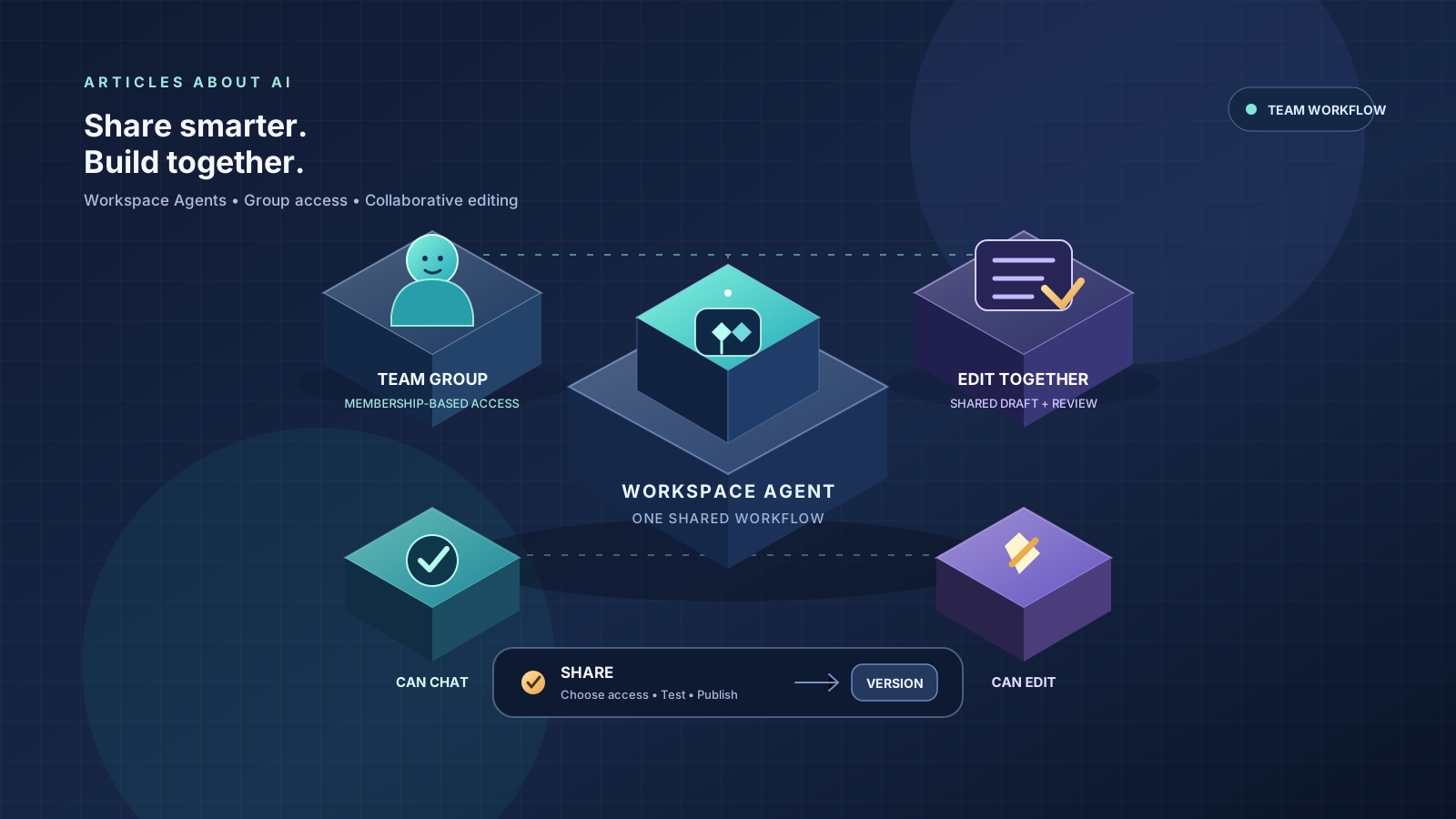
ChatGPT Workspace Agents can turn a repeatable team process into a reusable workflow, but sharing an agent safely requires more than sending a link. You need to decide who can run it, who can change its instructions, and how the team will handle updates. OpenAI’s current documentation describes group-based sharing for eligible managed workspaces, separate Can chat and Can edit access levels, and a shared draft that multiple teammates can maintain.
This guide explains how to share a ChatGPT Workspace Agent with a group, invite individual collaborators, choose the right permissions, publish changes, resolve save conflicts, and reduce the risk of exposing connected business data. The exact controls available can depend on your workspace plan, administrator settings, and rollout status. If a setting described below is missing, check your workspace’s current configuration rather than assuming every account has identical access.
What is a ChatGPT Workspace Agent?
A Workspace Agent is a reusable AI workflow configured for a defined job. A team might use one to summarize incoming customer feedback, prepare a weekly project brief, classify support requests, review a document against a checklist, or assemble information from approved workplace tools. Instead of asking every teammate to recreate the same prompt and process, an owner can build the workflow once, test it, and make it available to the appropriate people.
Depending on the workspace and configuration, an agent can have instructions, conversation starters, files, skills, supported apps or connectors, a selected model, and other settings. Some agents can also be used through supported channels such as Slack or scheduled workflows. These capabilities make access control important: the agent’s audience should match its purpose, and the connections it uses should expose only the information and actions required for that job.
Workspace Agents are different from a personal chat or a shared conversation. Sharing an agent grants access to a reusable workflow and, depending on the permission level, some of its configuration. It does not automatically mean every user has the same rights to change the agent, manage its distribution, or administer connected services.
For general background on organizing ongoing work in ChatGPT, see our guide to using ChatGPT Projects. Projects organize related chats, files, and instructions; Workspace Agents are designed for repeatable workflows that teammates can run and, when authorized, maintain collaboratively.
Before you share an agent with a group
First confirm that the agent and the target group meet the documented requirements. OpenAI says group sharing is available in eligible managed workspaces where Groups are enabled. The agent must be owned by a workspace account, must already have been created, and the group must belong to the same workspace. The person sharing it must be the agent owner and have permission to search workspace members and groups. Personal agents cannot be shared with workspace groups.
Use this preparation checklist:
- Confirm the workspace. Make sure you are working in the managed ChatGPT workspace that owns the agent.
- Create the agent first. Sharing controls may not be available while the agent is only an uncreated draft.
- Confirm that Groups are enabled. If group search is unavailable, ask your workspace administrator whether the feature and your access to groups are enabled.
- Identify the correct group. Choose the existing group whose membership matches the intended audience, such as Support, Reviewers, or Agent Editors.
- Decide what members need to do. Most users who only run the workflow need chat access. Only people responsible for maintaining the workflow should receive edit access.
- Review connected tools and data. Before expanding the audience, inspect the agent’s instructions, files, apps, connectors, and possible write actions.
Do not create a new group merely to make sharing easier without checking your organization’s access-management practices. Group membership is normally managed separately by workspace administrators, and sharing an agent should follow the same internal rules as granting access to other team resources.
How to share a ChatGPT Workspace Agent with a group
Once the agent exists and the appropriate group is available, use the sharing controls in the agent builder.
- Open ChatGPT in the managed workspace that owns the agent.
- Open Agents and select the agent you want to share.
- Open the agent in the workspace agent builder.
- Select Share.
- Search for the group by name. Group results can appear alongside individual people and may show the group’s member count.
- Select the intended group.
- Choose the appropriate access level: Can chat or Can edit.
- Select Send invite to grant access.
- Reopen the sharing panel and verify that the group appears with the expected permission.
The sharing flow can allow you to add several people and groups in the same invitation. Before sending it, check the exact group name and the permission shown in the interface. Similar group names can make it easy to grant access to the wrong audience.
What happens when group membership changes?
Group-based access follows the group’s current membership. When a person joins the group, they receive the agent access granted to that group. When a person leaves or is removed from the group, they lose the access that came from that group. You do not need to edit the agent every time the group membership changes.
There is an important qualification: a user may still have access through another route. For example, someone could have individual access, membership in another group that can use the agent, or access through workspace-wide sharing. OpenAI’s documentation explains that the highest applicable access level can apply when a user receives access from multiple sources. Removing one group therefore does not necessarily revoke all access.
If a teammate should no longer use an agent, review every access route rather than assuming that removing them from one group is sufficient. Coordinate with the workspace administrator when the underlying group membership is managed outside the agent builder.
Can chat vs. Can edit: which permission should you choose?
The two main group permissions are intended for different jobs. Choosing the narrowest permission that allows a person to do their work is a practical way to keep an agent stable and reduce accidental changes.
| Permission | What it allows | Best fit |
|---|---|---|
| Can chat | Run the agent and view its configuration, including instructions and tools | People who use the workflow but do not maintain it |
| Can edit | Chat with the agent, update its shared draft, and publish new versions | Teammates responsible for maintaining and improving the workflow |
| Owner | Full control over the agent, including sharing, workspace distribution, and deletion | The person accountable for the agent and its access |
Editors can update elements such as instructions, agent details, conversation starters, files, Builder skills, and supported apps or connectors, subject to the capabilities and restrictions of the specific setup. They can save draft changes and publish new versions. However, Can edit is not the same as ownership.
Owner-only controls remain restricted. Editors cannot grant another person edit access, change or remove another editor’s permissions, transfer ownership, delete the agent, or manage certain workspace-wide distribution and channel settings. Some connector or skill dependencies may also remain tied to the owner. This separation helps teams collaborate without giving every editor full administrative control.
A practical permission model
For a support team, a reasonable starting point might be:
- Support agents: Can chat, so they can use the published workflow to draft or classify responses.
- Support operations lead: Can edit, so they can update instructions and test improvements.
- Workspace agent owner: Retains ownership and handles sharing, distribution, and other owner-only settings.
- Workspace administrator: Manages the workspace’s broader permissions and group membership where required.
This is an example, not a mandatory structure. A small team may need only one editor, while a regulated or larger organization may require a documented review process before changes are published. Avoid granting Can edit to everyone simply because collaboration is useful; most users do not need to change the underlying workflow to benefit from it.
How to invite an individual teammate to edit an agent
Group sharing is useful when access should follow a team’s membership. For a small number of collaborators, individual invitations may be more appropriate.
- Open the created agent in the workspace agent builder.
- Select Share.
- Search for the teammate who belongs to the workspace.
- Select the person and choose Can edit if they need to maintain the shared draft, or Can chat if they only need to run the agent.
- Select Send invite.
- Verify that the teammate appears in the access list with the intended role.
Only active members of the workspace that owns the agent can be invited in the documented flow. If you cannot search for teammates or groups, your role may not include permission to view workspace members, or the relevant workspace feature may not be enabled. Ask an administrator to review access rather than attempting to bypass the restriction.
An individual invitation can coexist with group access. That flexibility is useful, but it also means access reviews should consider both individual and group permissions. If a user has Can edit through one source and Can chat through another, removing the chat-only source will not remove their edit access.
How collaborative editing works
Workspace Agent collaborators work on a shared draft. This allows authorized teammates to maintain the same agent rather than exchanging separate copies of instructions and manually reconciling changes. An editor can update supported parts of the configuration, test the agent, save draft changes, and publish a new version.
However, shared editing does not mean every simultaneous change is merged in real time. If another editor saves before your own changes are saved, ChatGPT may display a Save conflict message. This is a signal that the version on the server has changed since your local draft was loaded.
How to resolve a Save conflict safely
Follow this sequence when a conflict appears:
- Stop making additional edits. Continuing to change the stale draft can make it harder to determine which changes need to be preserved.
- Copy any unsaved work you want to keep. Put your new instructions or edits in a temporary document before refreshing.
- Select Refresh agent. This loads the latest saved version of the shared agent.
- Review the refreshed draft. Identify what the other editor changed and confirm whether those changes should remain.
- Reapply your edits carefully. Merge your intended changes into the current version instead of assuming your older draft is still authoritative.
- Test the result. Run representative prompts and check the output, tools, and instructions affected by the change.
- Save and publish when ready. Follow your team’s review process before making the new version available to users.
Refreshing replaces your local draft with the latest saved version. That is why copying unsaved work first is essential: do not assume the refresh operation will preserve local changes that were never saved.
Reduce conflicts with a lightweight team process
For routine edits, a short coordination practice can prevent most avoidable conflicts:
- Assign one person to make a substantial instruction change at a time.
- Tell other editors when you are updating the same agent.
- Keep a short change note describing what changed and why.
- Test the agent with a small set of repeatable prompts after significant edits.
- Have another teammate review high-impact changes before publishing.
- Avoid editing the same instructions or connector settings simultaneously when possible.
For a deeper framework for testing agent quality, see How to Evaluate AI Agents: A Practical Reliability Checklist. It covers task success, tool use, reliability, safety, cost, and repeatability—useful criteria for deciding whether a collaboratively edited agent is actually improving.
Review app connections before sharing
An agent’s access permissions are only one part of its security model. The tools and connections configured on the agent can affect what it can retrieve or do on behalf of users. Before sharing with a wider group, inspect every app, connector, uploaded file, and action available to the agent.
Pay special attention to authentication. OpenAI distinguishes between end-user connections, where each person runs the app using their own account, and agent-owned connections, where a shared connection is used. Shared connections can be useful for team workflows, but they must be scoped carefully. If an agent uses a personal account connection belonging to its creator, other people who invoke the agent could potentially cause it to access data or perform actions through that account.
Use these safeguards:
- Prefer a service account for shared operational connections when the integration supports it.
- Grant only the minimum data access and actions required for the agent’s job.
- Review whether an app can read, create, update, send, or delete information.
- Keep confirmation or approval requirements for consequential write actions.
- Avoid connecting personal mailboxes, drives, or other sensitive accounts to an agent shared broadly.
- Test the agent with a non-sensitive example before giving the group access.
- Review the configuration again after adding a new connector or changing permissions.
Do not assume that the agent’s natural-language instructions alone enforce security boundaries. Access should be controlled through the workspace, app permissions, authentication configuration, and available action controls. For more context on protecting chats and shared information, read our guide Are ChatGPT Conversations Private? What You Need to Know.
Publish changes without surprising the team
Giving someone Can edit access allows them to maintain the shared draft and publish new versions, but teams should still agree on what counts as a ready-to-publish change. A minor wording improvement may need only a quick test; a change to data sources, connectors, or write actions deserves more scrutiny.
Before publishing an important revision:
- State the expected outcome of the change.
- Test the agent with realistic prompts that represent its intended use.
- Check for incorrect assumptions, missing information, and unexpected tool calls.
- Confirm that connected apps and actions still have the intended scope.
- Record the change in a brief internal note.
- Tell the people who rely on the agent if their workflow or expected output has changed.
If the team maintains multiple agents, use consistent names and descriptions so members can identify the correct workflow. Add starter prompts that demonstrate the agent’s intended use, and keep instructions focused on the task rather than trying to cover every possible situation. Our guide to using Custom Instructions in ChatGPT explains how clear, reusable instructions can make behavior more consistent, although workspace agent instructions and personal Custom Instructions serve different purposes.
Troubleshooting: group sharing or editing is unavailable
If you cannot share an agent with a group, cannot find a teammate, or cannot publish a change, check the cause systematically.
The Share option is missing. Confirm that the agent has been created and that you are the owner or have the necessary permissions. An uncreated draft may not expose sharing controls.
The group does not appear in search. Verify that Groups are enabled, the group belongs to the same workspace, and you have permission to search workspace members and groups. Ask your administrator to confirm the group’s status if necessary.
The agent is personal rather than workspace-owned. The documented group-sharing flow requires a workspace-owned agent. Check which account owns the agent before trying again.
A teammate cannot edit. Check whether they have Can edit access rather than Can chat. Also confirm that they are an active member of the workspace and that another policy or configuration is not limiting their role.
An editor cannot manage sharing or delete the agent. This is expected: Can edit does not grant owner-only controls. Ask the owner to make the access or distribution change.
Publishing is unavailable. Check the editor’s permissions, workspace settings, and any restrictions associated with the agent’s channels or connected tools. Some owner-only configuration remains unavailable to editors.
The agent’s behavior changed after an edit. Compare the current instructions and configuration with the prior expected behavior, test with representative inputs, and inspect connected apps and actions. If results are inconsistent, use a repeatable evaluation checklist rather than relying on one successful run.
A Save conflict appears repeatedly. Coordinate editing so only one person makes substantial changes at a time. Copy unsaved work, refresh to the latest version, reapply edits, and test before publishing.
If the interface differs from this guide, use the official OpenAI Help Center article linked below. Product controls and availability can change, and the official documentation is the best place to verify the current workflow.
Frequently asked questions
Can I share a ChatGPT Workspace Agent with an entire group?
Yes, when group sharing is available in your managed workspace and Groups are enabled. The agent must be owned by a workspace account, created before sharing, and shared with a group in the same workspace. Personal agents cannot be shared with workspace groups through this flow.
What is the difference between Can chat and Can edit?
Can chat lets members run the agent and view its configuration. Can edit also lets them update the shared draft and publish new versions. It does not give them full owner privileges, such as managing all sharing controls or deleting the agent.
Do new group members automatically receive access?
OpenAI’s documentation says group access follows current membership. New members receive the access granted to the group, while people who leave or are removed lose access that came from that group. They may still retain access granted through another group, an individual invitation, or workspace-wide sharing.
Can two people edit the same agent at once?
Multiple teammates can maintain the same shared draft, but simultaneous edits are not merged in real time. If a Save conflict appears, copy unsaved work, refresh the agent, review the latest draft, and reapply your changes.
Does sharing an agent automatically share my personal connected accounts?
Do not assume that sharing is safe simply because the audience is limited. Shared or agent-owned connections can allow other users to invoke actions through the configured account. Review authentication, data access, and write-action permissions before sharing, and prefer appropriately scoped service accounts for shared operational workflows.
Can an editor invite more editors or delete the agent?
No. Can edit is separate from ownership. Editors cannot grant another person Can edit access, change another editor’s permissions, transfer ownership, delete the agent, or manage certain workspace-wide distribution controls.
Where can I verify the current requirements?
Use OpenAI’s official guide, ChatGPT Workspace Agents for Enterprise and Business. Check your own workspace settings as well, because plan eligibility, admin controls, and rollout status may affect which options appear.
Final checklist
Before sharing a Workspace Agent with a group, confirm that the agent is workspace-owned and already created, the target group belongs to the same workspace, and you have permission to share it. Choose Can chat for users who only need to run the workflow, and reserve Can edit for the people responsible for maintaining it. Review group membership and individual invitations together, inspect connected apps and authentication, and agree on a process for testing and publishing changes.
When multiple teammates edit the same agent, coordinate substantial changes and remember that conflicts require a refresh rather than an automatic merge. Copy unsaved work before refreshing, then test the updated draft before publishing. These steps make ChatGPT Workspace Agents easier to maintain as a team while keeping access and accountability clear.