
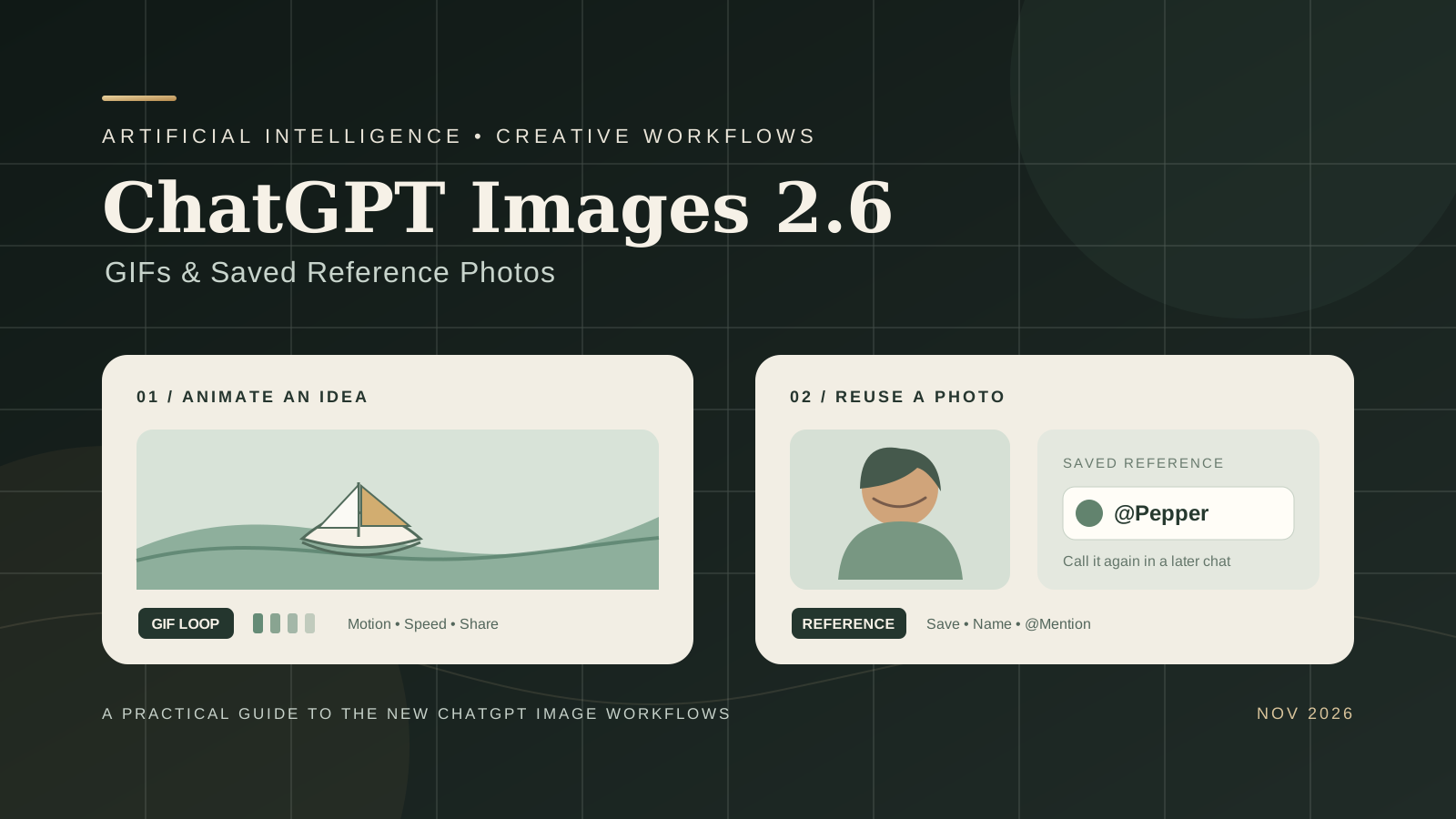
OpenAI’s ChatGPT Images 2.6 update adds two practical creative workflows to ChatGPT: making and sharing animated GIFs, and saving a photo as a reusable reference that you can call into a later conversation. Instead of uploading the same picture every time, you can give a saved reference a name and mention it with an @ reference in a new prompt.
The GIF feature is also more than a one-shot generator. You can ask ChatGPT to animate an idea, turn a still image or sketch into a short loop, describe changes to a GIF it created, and adjust playback speed before saving or sharing it.
This guide focuses on using the features inside ChatGPT on the web, iOS, and Android. It is not an API tutorial: developers looking for code, output parameters, SVG generation, and token pricing should use our separate GPT Image 2.6 API guide.
What is new in ChatGPT Images 2.6?
OpenAI announced Images 2.6 on November 4, 2026. The company says the model generates images 50% faster than the previous generation and is better at preserving details across editing rounds—for example, keeping a character’s outfit consistent while changing the background. Those speed and quality statements are OpenAI’s published claims, not independent benchmark results.
For everyday ChatGPT users, two additions are especially notable:
- GIF creation: ask ChatGPT for a looping animation, or upload a still image and ask it to animate the subject. You can adjust the playback speed of a GIF ChatGPT created, save it to your device, and share it.
- Saved reference photos: ask ChatGPT to save an uploaded photo under a name. In a later chat, use
@followed by that name to reuse the saved photo without uploading it again.
ChatGPT Images is available on all ChatGPT plans and on web, iOS, and Android. However, OpenAI says GIF creation is rolling out, so the GIF controls may not appear in every account immediately. Feature availability can vary during a rollout.
1. How to create a GIF with ChatGPT Images 2.6
The simplest way to create an animated GIF is to describe the subject and the movement you want. You do not need to write code or specify animation frames manually.
Step-by-step: generate a looping GIF
- Open ChatGPT on the web or in the mobile app.
- Start a conversation and ask for a GIF. If the Images experience is available in your interface, you can also open Images and begin there.
- Describe the subject, the action, and the loop. Be explicit about what should move and what should remain still.
- Review the generated animation.
- Open the GIF to access its playback controls. Adjust the speed, then save it to your device or share it.
For example, you could prompt:
Create a seamless looping GIF of a small paper boat bobbing gently on a pond. Keep the camera fixed, add subtle ripples and moving reflections, and make the final moment flow naturally back into the first.
A useful GIF prompt usually specifies four things:
- Subject: the person, animal, object, or scene being animated.
- Action: the exact movement, such as waving, blinking, turning, bouncing, or floating.
- Camera: whether the view should stay fixed or move.
- Loop: whether the final moment should connect smoothly to the opening moment.
If the result feels too busy, simplify the action. A short loop with one clear movement is often easier to read and reuse than an animation in which several objects move at once.
2. Turn an existing photo or sketch into an animated GIF
You do not have to begin with a text prompt alone. OpenAI’s Images 2.6 help guide says you can upload a still image and ask ChatGPT to animate it. OpenAI also demonstrates turning a simple hand-drawn sketch into an animated character.
To try it:
- Upload the still image or sketch to a ChatGPT conversation.
- Describe the movement you want while asking ChatGPT to preserve the important visual details.
- Specify which parts should move and which should stay unchanged.
- Ask for a short, looping GIF.
- Review the animation and adjust it with another instruction if needed.
For a portrait, for example, you might ask:
Animate this illustrated character with a natural blink and a small friendly wave. Keep the face, hairstyle, clothing, colors, and background consistent. Use a fixed camera and make the motion loop smoothly.
For a product image, keep the request restrained:
Create a subtle looping GIF from this product image. Rotate the product slightly while keeping its shape, label, color, and proportions unchanged. Do not add objects or change the background.
These are prompt examples, not guarantees that every detail will remain identical. Inspect the output carefully, especially when the image contains a person’s likeness, a product label, a logo, or other details that must not change.
Important limitation: uploaded GIFs versus GIFs created by ChatGPT
OpenAI makes a specific distinction: you can describe edits to a GIF that ChatGPT created, but ChatGPT cannot edit an animated GIF that you upload. If you need to work from an existing animation, you may need to provide a still frame or use a dedicated video or animation editor instead.
3. Change GIF playback speed, save it, and share it
After ChatGPT creates a GIF, open the animation to access its playback options. The official help documentation says you can adjust playback speed, save the GIF to your device, or share it.
Playback speed changes how quickly the animation appears to move. Use a slower setting when viewers need to notice a small gesture or detail. A faster setting can make a simple reaction or movement feel more energetic.
Before sharing, check:
- Does the animation loop without an awkward pause?
- Is the movement easy to understand at the selected speed?
- Are faces, text, product details, and logos still accurate?
- Does the GIF look acceptable on a small mobile screen?
- Is the file appropriate for the platform where you plan to post it?
OpenAI’s current user-facing guide documents speed adjustment, saving, and sharing, but it does not promise a specific export resolution, frame count, or file-size limit for the ChatGPT interface. Do not confuse these consumer controls with the separate parameters available through the developer API.
4. Save a reference photo in ChatGPT
Saved reference photos solve a different problem from GIF creation. They let you reuse a picture in later chats without repeatedly uploading the same file.
For example, you might save a photo of a pet, a character design, a product, or another visual reference that you expect to use again. ChatGPT assigns the reference a name that you can call in a future prompt.
Step-by-step: save a photo as a reference
- Upload the photo in a ChatGPT conversation.
- Ask ChatGPT to save it as a reference. You can say something like: “Save this photo as a reference named Pepper.”
- If ChatGPT offers to save a photo after you describe it—for example, as a picture of your dog—choose a name for the reference and save it.
- Use a clear, memorable name that you will recognize later.
The reference name is important because you will use it to call the photo in another conversation.
How to reuse a saved photo with an @mention
In a later chat, type the @ symbol followed by the saved reference name. For example, if you saved your dog’s photo as Pepper, you can write:
Create a watercolor portrait of @Pepper sitting in a garden. Keep the dog’s distinctive coat pattern and facial features recognizable, but use a soft watercolor style.
The @Pepper reference tells ChatGPT which saved photo you mean. You can then describe the new image or edit you want.
This is useful when you want to create several images based on the same subject:
- Make a watercolor, oil-painting, or pencil illustration of the same pet.
- Place a recurring character in different settings.
- Explore different outfits or visual styles for a character.
- Create a set of product concepts using the same reference object.
- Maintain a visual point of reference across separate conversations.
A saved reference is an input to a new generation, not a promise of pixel-identical reproduction. The model may interpret details differently depending on the prompt and requested style. For important identity, product, or brand details, compare the result with the original photo.
5. How to write better prompts with saved references
A useful reference-image prompt has two parts: identify the saved reference, then state what should remain consistent and what should change.
A simple structure is:
“Use @ReferenceName as the visual reference. Preserve [important features]. Change [the requested elements]. Create the result in [style, setting, or composition].”
Examples:
For a recurring character
Use @Mira as the character reference. Keep the same face, hairstyle, and clothing colors. Show the character reading beside a window in a softly lit room.
For product concepts
Use @Product as the reference. Preserve the product’s proportions, color, and visible branding. Create a clean studio product image with a neutral background and soft shadows.
For a pet illustration
Use @Pepper as the reference. Keep the coat markings and face recognizable. Create a detailed children’s-book illustration of the dog playing in autumn leaves.
Avoid asking for too many unrelated changes at once. If the first result is close but not right, make a focused follow-up edit rather than rewriting the entire request.
6. GIF creation versus saved reference photos: what should you use?
| Feature | GIF creation | Saved reference photos |
|---|---|---|
| Main purpose | Add motion to an image or idea | Reuse a photo in later chats |
| Starting point | Text prompt, still image, or sketch | Uploaded photo |
| Output or result | Animated GIF | Named reusable image reference |
| How to use it | Describe movement and looping | Mention the saved name with @ |
| Useful for | Reactions, mascots, short loops, storyboards | Recurring characters, pets, products, visual consistency |
| Key limitation | GIF creation is rolling out; uploaded animated GIFs cannot be edited | A reference guides generation but does not guarantee exact reproduction |
The two features can also complement each other. You could save a character photo as a reference, call it in a later conversation, and ask ChatGPT to create a short animated GIF based on that character—provided the relevant features are available in your account.
7. Availability and practical limitations
There are several details worth checking before you build a workflow around these features:
- GIF rollout: GIF creation is rolling out in ChatGPT. If you cannot create a GIF yet, the feature may not have reached your account.
- Platform support: ChatGPT Images is documented for web, iOS, and Android. The exact interface can differ between platforms.
- Reference naming: save the photo with a name you can remember, then use that exact name after the
@symbol. - Uploaded animations: ChatGPT can edit GIFs it created, but its current help documentation says it cannot edit an animated GIF you upload.
- Visual consistency: Images 2.6 is designed to preserve more details across edits, but generated results still need review.
- API versus ChatGPT: the consumer ChatGPT interface and the developer API have different workflows and controls.
For a broader look at how ChatGPT compares with other image tools, read our Best AI Image Generators in 2026: Full Comparison. If you are a developer who wants to generate GIFs programmatically, export SVG, or understand API billing, see GPT Image 2.6 API: Flare vs Sunburst, GIF Output, SVG Export, and Pricing.
Frequently asked questions
Can ChatGPT Images 2.6 create GIFs from a text prompt?
Yes. Ask ChatGPT to create a looping GIF and describe the subject and movement. GIF creation is rolling out, so it may not be visible in every account yet.
Can I animate a photo I already have?
Yes. Upload a still image and ask ChatGPT to animate it. Explain which elements should move and which visual details should remain consistent.
Can ChatGPT turn a drawing into an animation?
Yes. OpenAI demonstrates turning a simple sketch into an animated character. Upload your sketch and describe the motion you want.
Can I change the speed of a GIF in ChatGPT?
Yes. Open a GIF created by ChatGPT to adjust its playback speed. You can also save it to your device or share it.
Can ChatGPT edit a GIF that I upload?
The current OpenAI help guide says ChatGPT cannot edit an animated GIF you upload. It can, however, edit a GIF that ChatGPT created when you describe the changes in the conversation.
How do I save a reference photo in ChatGPT?
Upload the photo and ask ChatGPT to save it as a reference. Choose a name for it when prompted or when you request the save.
How do I use a saved reference photo in a new chat?
Type @ followed by the name you gave the reference. For example, if the photo is saved as Pepper, write @Pepper in your prompt.
Does a saved reference guarantee the same face or product in every image?
No. It provides a reusable visual reference, but generated images can still vary. Review important identity, product, and brand details in every result.
Is ChatGPT Images 2.6 available on the free plan?
OpenAI’s Images in ChatGPT help page says ChatGPT Images is available on all tiers. GIF creation is a separate feature that is rolling out, so availability may differ while the rollout continues.
Official sources
- OpenAI: Introducing Images 2.6 — announcement dated November 4, 2026.
- OpenAI Help Center: Images in ChatGPT — instructions for creating GIFs, adjusting playback speed, saving reference photos, and using
@mentions. - OpenAI Help Center: ChatGPT Release Notes — November 4, 2026 feature announcement and rollout notes.
Editorial note: This guide was checked against OpenAI’s announcement and Help Center documentation on November 5, 2026. GIF creation is described by OpenAI as rolling out. Availability and interface details may change as the rollout progresses.