
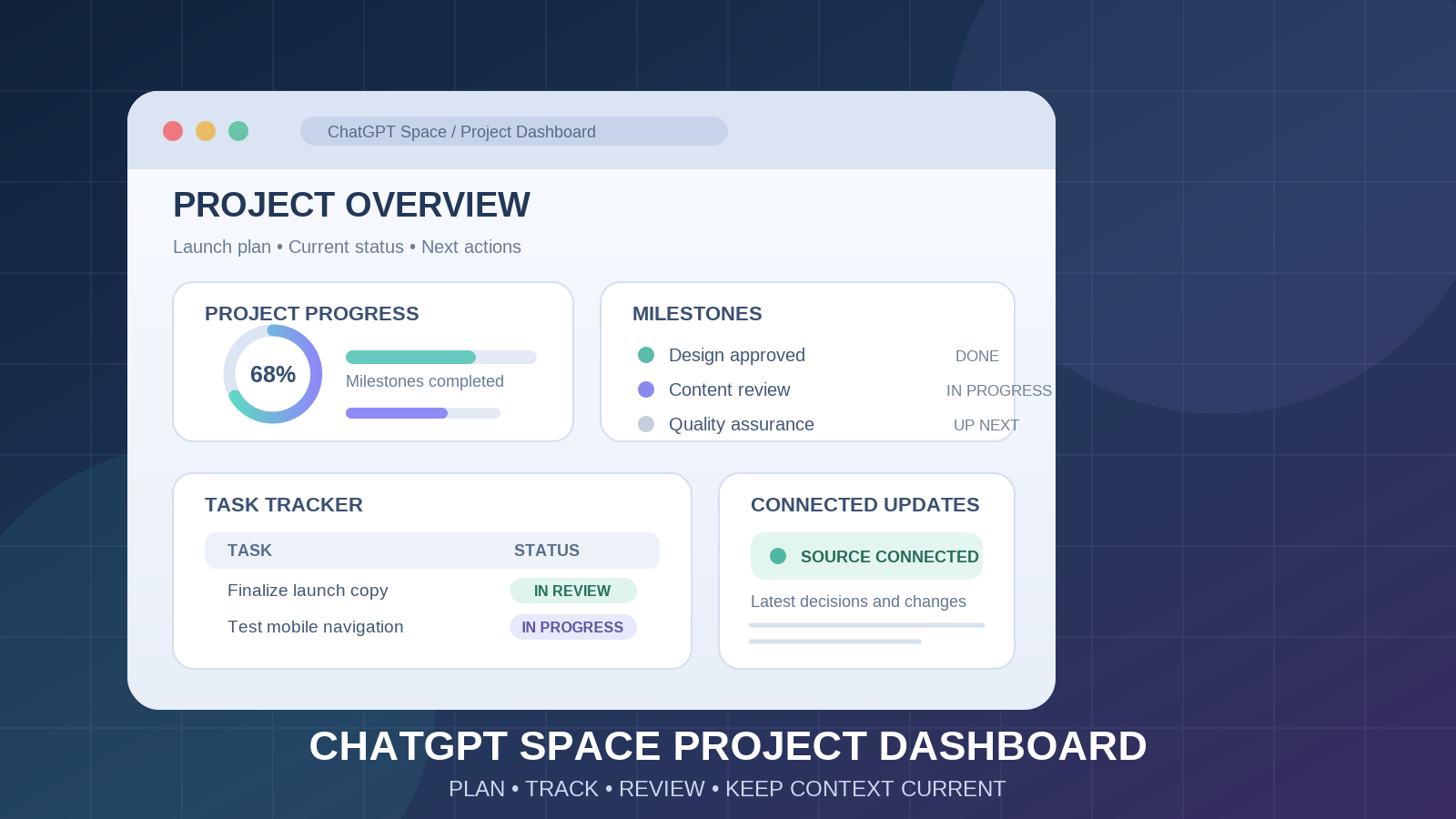
A project dashboard is useful only when it is easy to keep current. Project goals, task owners, deadlines, decisions, and risks can quickly become scattered across meeting notes, chat messages, documents, and spreadsheets. ChatGPT Space offers a way to bring project pages and related work together—and, where supported, set pages to update from connected apps and tools.
This guide shows how to build a practical project dashboard in ChatGPT Space. It covers the initial setup, a dashboard structure, reusable prompts, connected-source updates, review checks, and limitations to understand before relying on it. Space is a flexible workspace for creating pages; it is not a dedicated project-management system with every feature of a traditional task tracker.
What a project dashboard in ChatGPT Space can do
ChatGPT Space is a workspace for pages, files, and related work. Pages can be created and edited with ChatGPT, organized into spaces, and shared with people who have access. OpenAI says pages can include charts, trackers, and interactive tools created by ChatGPT. It also describes pages and slides that can be set to update automatically based on connected apps and tools.
For a project, that can mean keeping a central page with:
- Project brief: purpose, scope, success criteria, and key stakeholders.
- Milestones: major stages, target dates, and dependencies.
- Task tracker: work items, owners, deadlines, and status.
- Decision log: decisions made, date, rationale, and impact.
- Risks and blockers: issue, owner, mitigation, and next review.
- Latest updates: relevant changes pulled from connected sources when configured.
- Next actions: the small set of tasks that should receive attention now.
The result can be an interactive, editable overview that you ask ChatGPT to revise as the project changes. Automatic updates depend on the available connected apps, permissions, and account features; do not assume a page refreshes continuously or that every source is supported.
Before you start: check Space access
Space availability and its interface can vary by account and rollout. Open ChatGPT and look for Space in the sidebar. If it is not available, check the official Getting started with Space guide and update the desktop app if you use it.
OpenAI’s November 20, 2026 release notes say Space is rolling out globally to Plus users aged 18 and older. Shared pages require permission and an eligible signed-in account with Space access; Free users cannot open shared pages, and public links are not available. Review the current official availability information before planning a collaboration workflow.
You will also need the project information you want the dashboard to reflect. Useful starting materials include a project brief, milestone list, meeting notes, a task export, and relevant discussions from a connected app. Only connect sources you are authorized to use.
Step 1: Create a dedicated Space for the project
Start with one Space for one project or clearly related workstream. Keeping unrelated projects together makes the dashboard harder to maintain and increases the risk of mixing context.
- Open ChatGPT and select Space in the sidebar.
- Ask ChatGPT to create a Space with a descriptive name.
- Use a name that is easy to recognize, such as Website Launch, Product Migration, or Q4 Marketing Campaign.
- Open the new Space and confirm it is the destination for the project pages and files.
You can use a prompt like this:
Create a Space named Website Launch. It will be the workspace for our website launch project. Keep the project brief, dashboard, meeting notes, decision log, and supporting pages organized in this Space. Do not invent project information. If a date, owner, metric, or decision is missing, mark it as not provided and ask me to confirm it.
Space is designed to organize pages and related work. Your existing ChatGPT Projects remain separate; Space does not replace them.
Step 2: Gather the project source material
Before asking for a dashboard, collect the information that should be treated as the project’s source of truth. You do not need to upload every document. Begin with the most current and relevant materials.
A practical source set might include:
| Source | Information to extract |
|---|---|
| Project brief | Goal, scope, success criteria, stakeholders |
| Project plan | Milestones, dates, dependencies |
| Task list | Tasks, owners, statuses, due dates |
| Meeting notes | Decisions, changes, unresolved questions |
| Connected project channel | Relevant updates, blockers, and decisions |
| Budget or metrics file | Approved figures and performance measures |
If a source contains confidential information, confirm that you are permitted to connect or upload it. A page can expose information copied into it to everyone who can view that page, even if those readers cannot access the original connected file.
For file-based work, see our guide to uploading files to ChatGPT and analyzing them.
Step 3: Create the project overview page
Ask ChatGPT to create a dashboard page in the Space. Be specific about the sections, how information should be displayed, and which source material takes priority.
Reusable prompt: project dashboard
Create an interactive Project Dashboard page inside my Website Launch Space using the project files and connected sources I have authorized.
Organize the page into these sections:
- Project at a glance: objective, scope, success criteria, project lead, current phase, and target launch date.
- Status summary: overall status, progress summary, and the three most important current updates.
- Milestones: milestone, owner, target date, status, and dependency.
- Tasks: task, owner, due date, status, priority, and next step.
- Decisions: decision, date, rationale, and affected work.
- Risks and blockers: issue, impact, owner, mitigation, and review date.
- Next actions: the five most important actions, with owners and dates only when supported by the source.
- Source notes: where each important update came from and when it was last checked, if that information is available.
Use clear headings, concise summaries, tables, and interactive elements where useful. Do not invent dates, owners, progress percentages, metrics, decisions, or status labels. Mark missing information as Not provided and conflicting information as Needs confirmation. Keep the dashboard readable and make it easy to identify overdue, blocked, and upcoming work.
Review the first version before adding automation. A dashboard built from incomplete or inconsistent information can look polished while still being wrong.
Step 4: Make the task tracker usable
A task table is easier to maintain when it uses a small, consistent set of status labels. You can start with:
| Status | Meaning |
|---|---|
| Not started | Work has not begun |
| In progress | Someone is actively working on it |
| Blocked | Progress depends on an unresolved issue |
| In review | The deliverable is waiting for review or approval |
| Done | The agreed completion criteria have been met |
Ask ChatGPT to keep each task specific and verifiable. “Improve website” is too broad; “approve the homepage copy and publish the final version” is easier to assign and track.
You can use this prompt to refine the task section:
Review the task table. Split vague tasks into concrete deliverables only when the source supports the split. Keep the original task wording in a separate field if you change it. Identify missing owners, dates, dependencies, and acceptance criteria. Do not assign work to a person based only on who mentioned it in a conversation.
If the project requires detailed task dependencies, workload management, notifications, recurring tasks, or formal reporting, use a dedicated project-management tool as the system of record and treat the Space page as a convenient overview.
Step 5: Add a decision log and risk register
Task status alone does not explain why the project is moving—or why it is stuck. A decision log helps preserve the reasoning behind changes.
Use a decision table with these fields:
- Decision ID
- Date
- Decision
- Decision owner or approver
- Reason
- Alternatives considered
- Impact on scope, schedule, or budget
- Source
For risks, use:
- Risk or blocker
- Probability or likelihood, if assessed
- Impact
- Owner
- Mitigation
- Trigger or warning sign
- Next review date
- Status
Ask ChatGPT to distinguish an approved decision from a suggestion or unresolved question. If meeting notes contain tentative statements, do not convert them into confirmed decisions. Our guide to turning AI meeting transcripts into reliable action items explains how to separate commitments, proposals, decisions, and open questions.
Step 6: Connect relevant apps and sources
If your account supports connected apps that contain project updates, connect only the sources needed for the dashboard. OpenAI’s release notes give a project plan that stays current with decisions from Slack as an example of Space’s connected-app update capability.
The general workflow is:
- Open ChatGPT’s connected-app settings or the app connection flow shown in your account.
- Connect the relevant service and authorize only the permissions you need.
- Confirm that ChatGPT can access the intended project channel, files, or records.
- Ask it to identify the updates relevant to the dashboard.
- Review the source material and confirm that the extracted updates are accurate.
- Ask it to add the verified updates to the dashboard without overwriting the decision log or original task records.
A connected app’s access rules still matter. A page may contain a summary of source information that viewers can read even if they cannot open the original file or channel. Review page permissions before sharing.
Reusable prompt: update from connected sources
Review the connected sources that I have authorized for the Website Launch project. Find only updates since the last review that materially affect project status, milestones, tasks, decisions, risks, or blockers.
For each candidate update, include:
- The update in one sentence.
- The source and relevant date, if available.
- The dashboard section it affects.
- Whether it is a confirmed fact, proposal, or needs confirmation.
- The change you recommend making.
Do not change the dashboard yet. Show me the proposed changes first, and do not treat discussion as an approved decision.
This review-first approach is useful when connected sources contain informal conversations or conflicting information.
Step 7: Configure automatic updates carefully
Where the Space interface offers automatic updates from connected apps and tools, define a narrow update rule. Avoid asking it to refresh everything or rewrite the entire page without a clear scope.
For example, you might want a weekly status update based on a project channel, or a milestone section refreshed when a connected source changes. The available scheduling and source controls depend on the feature and account.
Use this prompt to specify the update behavior:
Keep the Latest Updates section of my Website Launch dashboard current using the connected project sources I have authorized.
When updating:
- Add a dated summary of new information.
- Include a source reference when available.
- Update task or milestone status only when the source clearly supports the change.
- Preserve the decision log and previous status history.
- Do not invent owners, deadlines, progress percentages, or approvals.
- Flag conflicting updates for my review.
- Do not send messages, change source apps, or take external actions.
If automatic updates are available for this page, configure them using the frequency and source controls shown in my account. Tell me exactly what is configured and what is not supported.
Important: Writing a cadence into a prompt is not itself proof that a recurring update has been scheduled. Confirm the saved update configuration in the interface. If the feature does not offer the requested schedule or source, use a manual update prompt instead.
Step 8: Build a useful status summary
A status summary should help a project lead understand what needs attention without reading every task.
Ask ChatGPT to produce a concise section with:
- Overall status: On track, At risk, Blocked, or Needs review—only when supported by evidence.
- Completed since last update: verified accomplishments.
- Upcoming milestones: the next dates and dependencies.
- Top blockers: issues that prevent progress.
- Decisions needed: questions requiring approval.
- Next actions: prioritized tasks with confirmed owners.
Prompt:
Create a status summary from the current dashboard. Use only confirmed information. Explain the basis for the overall status in one or two sentences. Highlight the three most important risks or blockers and the next three actions. If there is not enough evidence to assign a status, use Needs review instead of guessing.
Step 9: Ask ChatGPT to maintain the dashboard—not replace your source of truth
A dashboard is a summary. It should not silently become the only record of a task, decision, or deadline.
When updates arrive, ask ChatGPT to show a change summary:
Compare the current dashboard with the previous version. List every proposed change to tasks, milestones, decisions, risks, and dates. For each change, show the old value, new value, source, and reason. Do not overwrite the page until I approve the changes.
This makes updates easier to review and helps prevent a new message from erasing important history.
Step 10: Review sharing and privacy
Before sharing a project dashboard:
- Review the entire page for sensitive information.
- Check whether source summaries reveal information that readers cannot access in the original app.
- Confirm the intended viewers and whether they need view or edit access.
- Check inherited permissions from the Space or parent page.
- Remove confidential information that is not required for collaboration.
- Confirm that the current sharing settings match the project’s policies.
OpenAI’s Space documentation explains that shared pages are permission-based and that public links are not available. It also notes that information written onto a shared page can be visible to people who can view it, even when the original connected source remains private.
Example: a website launch dashboard
A small website launch project might use this structure:
| Section | Example contents |
|---|---|
| Project objective | Launch a new website with approved content and working navigation |
| Current phase | Content review |
| Success criteria | Approved pages, tested links, responsive layout, successful launch |
| Milestones | Design approval, content freeze, QA, launch |
| Tasks | Owner, deliverable, due date, status |
| Decisions | Approved design, launch scope, hosting choice |
| Risks | Missing content, unresolved bugs, delayed approvals |
| Latest updates | Verified changes from authorized connected sources |
| Next actions | The highest-priority work to complete |
The entries above are an example of structure—not a project plan to copy blindly. Replace every placeholder with information from your actual project.
Troubleshooting
Space is missing from the sidebar
Space is rolling out gradually. Check the official availability guidance, update the desktop app if applicable, and confirm you are signed in to the correct account. If it has not reached your account, you may need to wait for rollout.
ChatGPT cannot find the connected project information
Check that the correct app account is connected, that the relevant source is within the authorized scope, and that you have access to the material. Ask ChatGPT to identify what it can access before requesting a dashboard update.
The dashboard contains incorrect or invented details
Ask ChatGPT to compare each questionable item against the source and mark unsupported values as Needs confirmation. Remove unverified progress percentages, owners, dates, and decisions. Rebuild the affected section from the approved source rather than editing several dependent fields based on a guess.
Automatic updates are not appearing
Check the saved configuration, connected app permissions, and whether the source actually changed. Confirm the update frequency and whether the page supports the desired automation. If no automatic-update control is available, use a manual review prompt; do not assume the page will refresh on its own.
Collaborators cannot open the page
Check whether they have Space access, are signed in to an eligible account, and have the correct page or inherited permissions. Sharing a page does not automatically grant access to the original connected files.
Frequently asked questions
Can ChatGPT Space replace a project-management app?
For a lightweight project overview, it may be useful. However, Space should not automatically be treated as a full project-management system. If you need formal dependencies, audit trails, resource planning, advanced permissions, notifications, or robust task execution, keep those records in a dedicated system.
Can a project dashboard update automatically?
OpenAI says pages and slides can be set to update automatically based on connected apps and tools. What you can configure depends on the current account and interface. Confirm the saved settings and test an update before relying on it.
Can I use Space to create charts and trackers?
OpenAI’s Space help documentation says pages can include charts, trackers, and interactive tools created by ChatGPT. Ask for the specific visualization you need and review its underlying data and calculations.
Does Space replace ChatGPT Projects?
No. OpenAI says Projects remain separate and continue to organize chats, files, and project instructions. Space is the home for pages, files, and related work for accounts with access.
Can I share a dashboard publicly?
OpenAI’s current documentation says public links are not available for shared Space pages. Sharing requires permissions and an eligible signed-in account with Space access.
Final checklist
Before relying on your project dashboard, confirm that:
- The project objective and success criteria are clear.
- The dashboard uses the latest approved source material.
- Tasks have specific deliverables and confirmed owners where available.
- Milestones and deadlines are supported by the project plan.
- Decisions are separated from proposals and open questions.
- Risks and blockers have reviewable next steps.
- Connected-app access is limited to sources you are authorized to use.
- Automatic-update settings are saved and tested.
- The page preserves important history rather than silently overwriting it.
- Sharing permissions have been reviewed.
- The dashboard’s status and metrics have been verified by a human.
ChatGPT Space can make a project overview easier to create, collaborate on, and maintain. The most reliable setup is a focused dashboard, clear source rules, carefully scoped updates, and a review process that keeps the AI’s summary aligned with the actual project records.
Official sources
- OpenAI Help Center: Getting started with Space in ChatGPT
- OpenAI Help Center: ChatGPT release notes — November 20, 2026
- ChatGPT Space
Related guides
- How to Use ChatGPT Projects: A Practical Step-by-Step Workflow
- How to Create and Edit Presentations with ChatGPT Slides
- How to Use ChatGPT Effectively: A Practical Beginner’s Guide
- How to Write Better ChatGPT Prompts
- How to Turn AI Meeting Transcripts Into Reliable Action Items
- How to Upload Files to ChatGPT and Analyze Them