
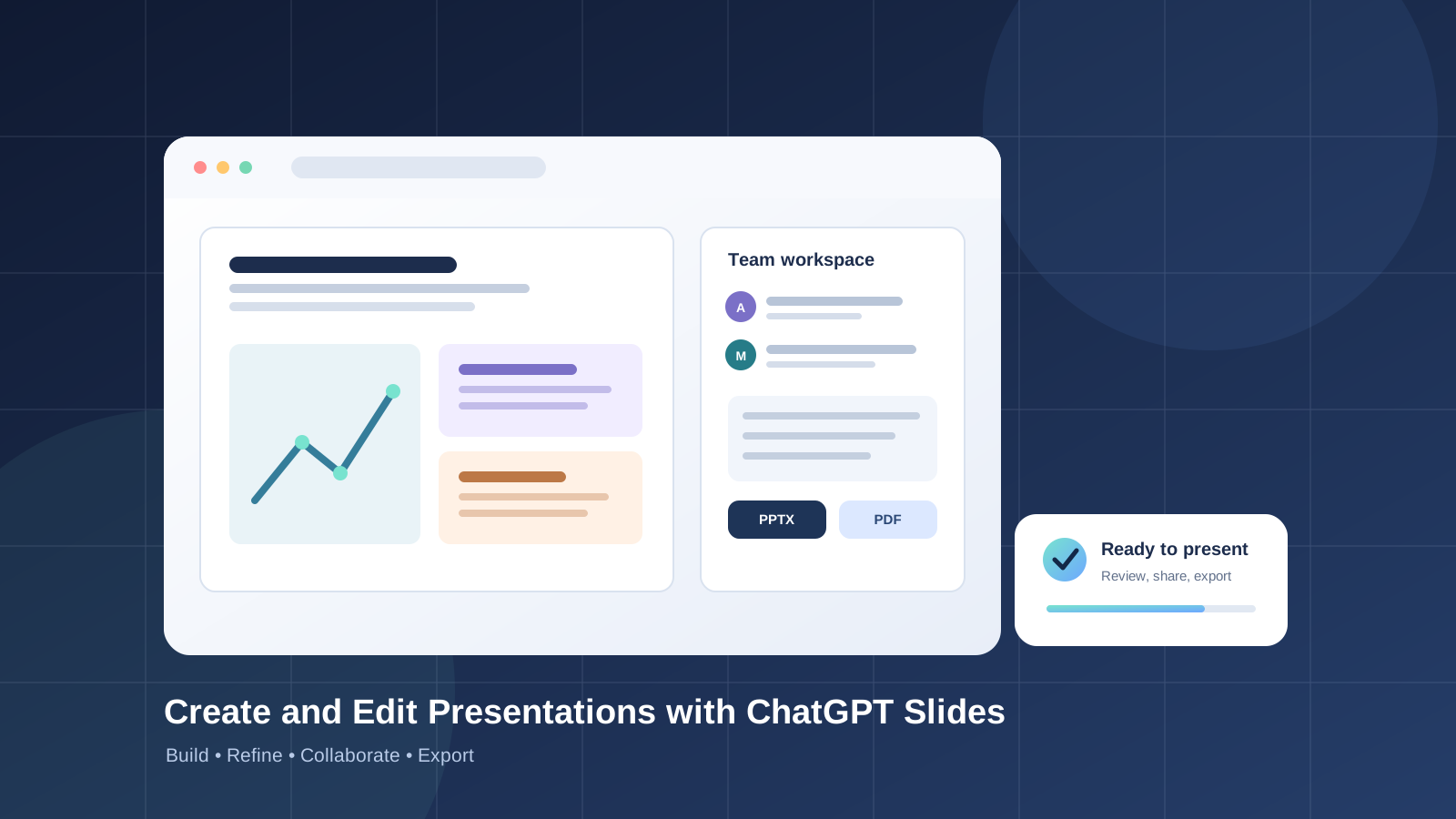
Creating a useful presentation takes more than turning a paragraph into a set of slides. You need a clear story, appropriate visuals, accurate figures, and a layout that helps an audience understand the point. ChatGPT Slides is designed to help users create a presentation, refine its content, collaborate with teammates, and present or export the finished deck from ChatGPT.
This guide explains how to create and edit presentations with ChatGPT Slides, use templates and reference files, collaborate with colleagues, and review the final presentation before sharing it. Availability and interface details can change as the feature rolls out, so use the official documentation linked below to confirm what your account supports.
What is ChatGPT Slides?
ChatGPT Slides lets eligible users create a presentation and continue working on it with ChatGPT and teammates in Space. You can start from a conversation, source files, an outline, or an example deck that helps guide the desired style. You can edit text, images, shapes, tables, and charts directly, or ask ChatGPT to revise parts of the presentation.
The feature also supports presenting directly from ChatGPT and exporting presentations from the web to PowerPoint, PDF, or Google Slides. Exported files should be opened and checked before use, because formatting or content may need further adjustment.
For the current feature description and rollout information, see OpenAI’s official guide to creating and collaborating on slides in ChatGPT.
Who can use ChatGPT Slides?
OpenAI says Slides is rolling out to eligible ChatGPT Pro, Business, and Enterprise users with Space access. Availability may vary by account and rollout status, so not everyone will see the feature at the same time.
Windows users should note a specific limitation: without the required MXC component, local AI slide creation and editing in the desktop app use PowerPoint (.pptx) files instead of collaborative Slides. Windows 10 does not support that component, and Windows 11 users may need an update or their organization to enable it. The web version or cloud mode may be the appropriate option for collaborative Slides.
If you cannot find the feature, check your plan, workspace permissions, app version, and the official availability guidance before assuming something is broken.
Step 1: Decide what the presentation needs to achieve
Before generating slides, define the audience and the decision or takeaway the presentation should support. A short project update, a training deck, and a sales presentation require different structures.
Prepare a brief that includes:
- Topic: What is the presentation about?
- Audience: Who will read or hear it?
- Purpose: What should the audience understand or do?
- Length: How many slides or how much presentation time do you have?
- Source material: Which reports, notes, spreadsheets, or documents should be used?
- Constraints: What facts, terminology, branding, or required sections must be preserved?
A focused brief is usually more useful than a vague instruction such as “make a professional presentation.” If you need help improving the instruction itself, read our guide to writing better ChatGPT prompts.
Step 2: Create a presentation in ChatGPT
Open ChatGPT and use one of the creation paths supported by your account.
Option A: Start from ChatGPT Work
Open Work and ask ChatGPT to create a slide, presentation, or deck. Describe the topic, audience, structure, and material to cover. You can continue from an existing conversation or attach source files. ChatGPT can create an editable presentation that you can open in Space when that workflow is available.
Option B: Start in Space
Open Space and choose Create > Slide if the option is available. Start with a blank slide or select a template. The exact controls can change, so follow the labels shown in your account.
Example prompt
Create an eight-slide project update for a non-technical leadership team. Use the attached project notes as the source of truth. Include the objective, progress, key metrics, risks, decisions needed, and next steps. Keep each slide focused on one main message. Do not invent metrics or fill gaps with assumptions; flag missing information for me to review.
After the first draft appears, review the slide order and narrative before spending time polishing individual design details.
Step 3: Use a template or example presentation
A template or example deck can help communicate your preferred visual style. If your workflow supports it, provide an existing presentation and ask ChatGPT to use it as a reference for layout, tone, and hierarchy.
For example:
Use the attached presentation as a visual reference. Keep the same general typography and color palette, but make the new slides easier to scan. Do not copy outdated figures or unrelated content from the example.
Treat the reference as guidance rather than a guarantee of exact template matching. Check fonts, spacing, colors, and slide layouts after generation.
Step 4: Edit text, images, charts, and layouts
You can refine the presentation directly or ask ChatGPT to make targeted changes. On the web, select an element and choose Request edits when that control is available, then describe the change. You can also use the prompt bar to request changes to the deck.
Specific requests are easier to review than broad instructions. Examples include:
- “Shorten this slide to three concise bullets without changing the meaning.”
- “Add a risks slide after the project overview.”
- “Update the chart using the figures in the attached spreadsheet, and show the source.”
- “Improve the visual hierarchy while preserving the current title and key numbers.”
- “Explain which slides repeat the same point before suggesting removals.”
For a large change, ask for a plan first and review the proposed edits before applying them. Keep a copy of important source material so you can verify any changes to facts, numbers, or wording.
Step 5: Collaborate with teammates
Eligible users can share a presentation with teammates and work on the same deck. People with edit access can edit slides at the same time, and shared comments can be used to discuss changes. You can also mention ChatGPT or an eligible dot to request further edits when supported by your workspace.
Before sharing, check the access settings and make sure the presentation contains only material intended for those collaborators. OpenAI’s current documentation notes that comment-only access is not available at launch, so confirm the available permissions in your workspace.
Step 6: Present or export the deck
When the presentation is ready, you can present it directly from ChatGPT. On the web, the documented export options include:
- PowerPoint (.pptx): for continued editing in PowerPoint.
- PDF: for sharing a viewing copy.
- Google Slides: for continuing work in Google Slides.
After exporting, open the file in its destination application. Check slide order, fonts, image placement, charts, tables, and any formatting changes. Do not assume that an exported deck will look exactly the same in every presentation app.
Step 7: Check accuracy and presentation quality
AI-generated slides are drafts, not a substitute for editorial review. Before presenting or publishing the deck:
- Verify every important number, date, quotation, and factual claim against the source material.
- Confirm that charts use the correct labels, units, and data.
- Check that each slide contributes to the presentation’s main objective.
- Remove repeated points and overly dense paragraphs.
- Review images, citations, layout, and readability on the intended screen.
- Confirm that no confidential or irrelevant source material was included.
- Ask a colleague to review the presentation if it will support a high-stakes decision.
ChatGPT can make mistakes, and its edits may be incomplete or incorrect. OpenAI recommends reviewing content and formatting before sharing or relying on the deck.
Common ChatGPT Slides problems
ChatGPT Slides does not appear
The feature may not have reached your account, or your plan or workspace may not have the required access. Check the official rollout details, sign in to the correct account, and ask your workspace administrator about permissions if applicable.
The desktop app does not offer collaborative Slides
On Windows, the required MXC component affects local AI slide creation and editing. If it is unavailable, use the web experience or cloud mode where supported, or follow the documented PowerPoint workflow.
The design does not match the reference
Provide a clearer example and state which properties matter most: typography, colors, spacing, layout, or the number of elements per slide. Review the result rather than assuming every detail of a reference deck will be reproduced perfectly.
Exported slides look different
Open the exported file in the target application and inspect fonts, charts, images, and spacing. Make corrections in the destination app if needed, and keep the original ChatGPT presentation as a reference.
ChatGPT Slides vs. a traditional presentation workflow
ChatGPT Slides can speed up outlining, drafting, revisions, and collaboration. Traditional presentation software remains useful for detailed manual control, advanced formatting, and final quality checks. The most reliable workflow combines AI assistance with human review of the story, evidence, and design.
If your task starts with documents or spreadsheets, you may also find our guide to uploading files to ChatGPT and analyzing them useful. For longer projects that require reusable context, see how to use ChatGPT Projects.
Frequently asked questions
Can ChatGPT create a complete presentation from a prompt?
Yes, eligible users can ask ChatGPT to create a presentation from a prompt, outline, conversation, or supported source files. You should still review the structure, claims, and design before using it.
Can I edit individual slides after generation?
Yes. ChatGPT Slides supports direct editing of text, images, shapes, tables, and charts, as well as requesting changes from ChatGPT. Available controls may vary by interface.
Can I export ChatGPT Slides to PowerPoint?
OpenAI documents export to PowerPoint (.pptx) on the web. Open the exported file and check the formatting before presenting it.
Can I export a presentation to PDF or Google Slides?
The documented web export options include PDF and Google Slides, in addition to PowerPoint. Check your account interface for the current options.
Is ChatGPT Slides available to every ChatGPT user?
No. OpenAI describes a rollout to eligible Pro, Business, and Enterprise users with Space access. Availability may vary by account and workspace.
Does ChatGPT guarantee accurate slides?
No. Verify all important claims, calculations, citations, and edits against reliable source material before sharing the presentation.
Final thoughts
ChatGPT Slides can help turn a brief, outline, or set of source files into an editable presentation and make iterative revisions easier. The best results come from a clear brief, reliable source material, targeted editing requests, and a careful final review. Confirm that the feature is available to your account, verify the content, and inspect the exported file before presenting it.