
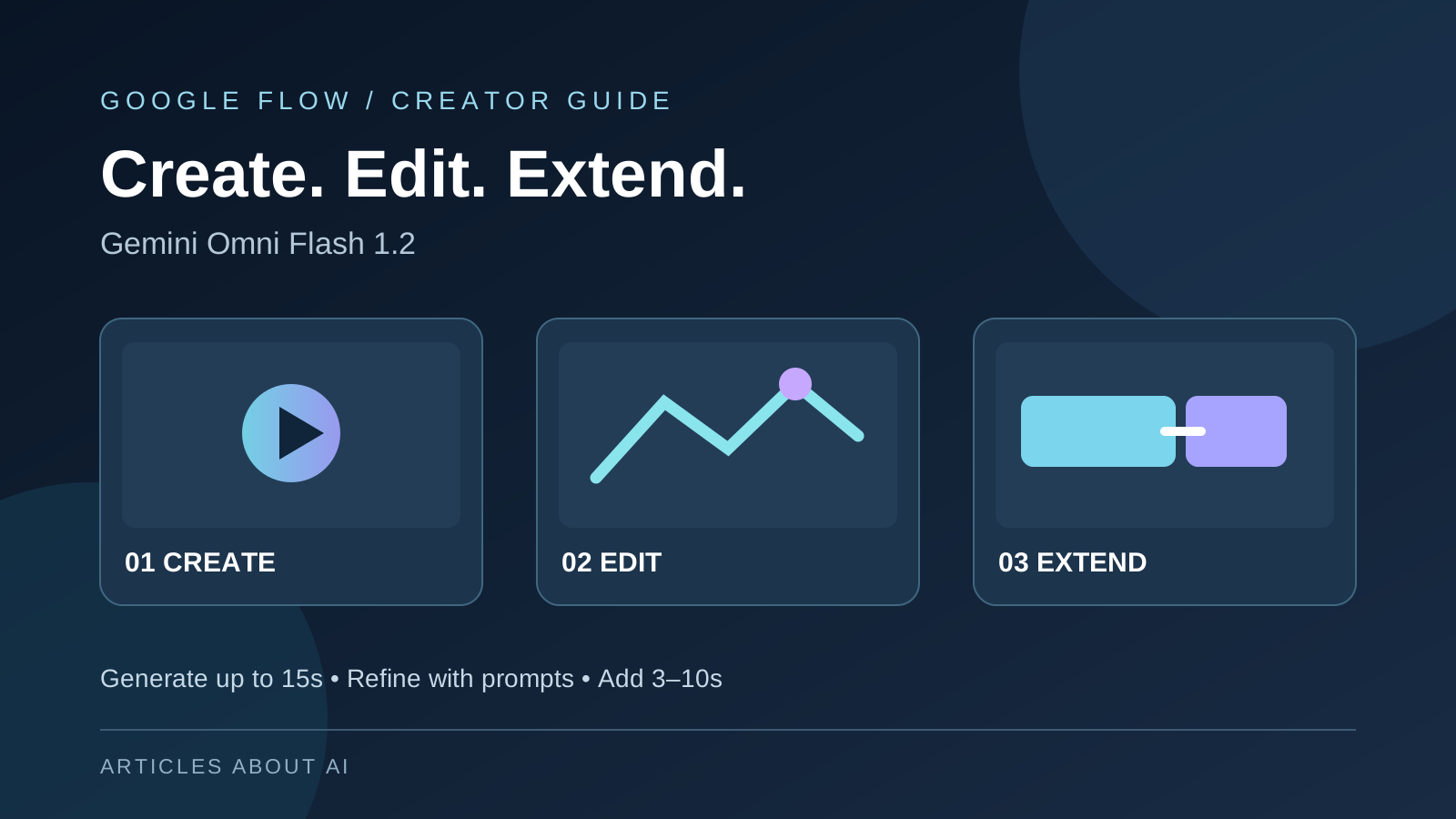
Google Flow now lets creators generate, revise, and continue videos with Gemini Omni Flash 1.2 without writing API code. The important distinction is that creating a 15-second video is not the same as extending a video by 15 seconds. According to Google’s current Flow documentation, eligible subscribers can generate or edit clips up to 15 seconds, while Omni Extend adds 3–10 seconds to the end of an existing clip.
This step-by-step guide covers the Google Flow interface, not the Gemini API or Google Cloud. Developers who need programmatic generation should instead read our Gemini Omni 1.2 Flash API tutorial.
What you can do with Omni Flash 1.2 in Google Flow
- Text to video: Describe a scene and generate a clip.
- Frames to video: Use an image to guide a moving scene (currently supported in Flow on the web).
- Ingredients/references to video: Supply visual references to guide subjects, environments, or styling.
- Video-to-video editing: Upload a clip or edit one already created in Flow.
- Omni Extend: Add footage to the end of a clip, with optional image references for continuity.
- Scenebuilder: Arrange, trim, preview, and download a sequence of clips.
Google’s supported-models guide identifies the available features by subscription. Some features also depend on country and device.
Before you start: subscription and duration limits
| Feature | Without Google AI subscription | Google AI Plus, Pro, or Ultra |
|---|---|---|
| Text to video | 3–10 seconds | 3–15 seconds |
| Frames to video | 3–10 seconds | 3–15 seconds |
| References/ingredients to video | 3–10 seconds | 3–15 seconds |
| Video-to-video editing | 3–10 seconds | 3–15 seconds |
| Omni Extend | Not available | Adds 3–10 seconds |
| Upscale Omni 360p output | Not available | Up to 1080p; 4K for Ultra |
Note: Omni Extend and frames-to-video are currently listed as web-only features. Availability and account entitlements may vary by region. Check the model, duration, resolution, and credits in Flow before generating.
How to create a video with Gemini Omni Flash 1.2 in Google Flow
- Open Google Flow and sign in with your Google account.
- Open a project or create a new one.
- Open the generation settings below the prompt field and choose Video.
- Select Omni Flash 1.2 as the video model.
- Choose the available aspect ratio, generation length, and number of outputs. Your account determines whether you can select up to 10 or 15 seconds.
- Write a specific scene prompt, then generate and inspect the results.
- Save a promising clip to the project or use it as the basis for editing or extending.
A useful prompt states the subject, action, camera movement, environment, lighting, and desired audio. For example:
A single continuous cinematic shot of a ceramic coffee cup on a wooden table at dawn. The camera slowly pushes in while steam rises naturally. Warm window light, realistic reflections, quiet café ambience, no dialogue, no cuts.
For vertical social videos, select the portrait aspect ratio when available. For wide website or YouTube footage, choose landscape. Use short, visually achievable actions before attempting complex multi-scene prompts.
How to use reference images and frames
If you want more consistent subjects, products, or settings, choose the relevant Frames to Video or Ingredients/References to Video workflow available in your Flow settings. Attach the supported images and describe what must remain consistent.
For example:
Animate the person from the reference image walking slowly through the same greenhouse. Preserve the jacket, hairstyle, and plant arrangement. Use a gentle tracking shot and natural daylight.
For repeatable results, describe what should move and what should stay unchanged. You can also pause an existing clip and save a frame to the project, then reuse that frame as an ingredient or starting/ending frame in a later generation. See Google’s Flow editing and scene-building instructions.
How to edit an existing video in Google Flow
Google supports edits to generated clips and uploaded videos. To use the dedicated video-editing workflow:
- Open an existing Flow project.
- Open generation settings, select Video, and choose Omni Flash 1.2.
- Upload, drag in, or select a video. Google lists supported formats as MOV, MP4, AVI, and WMV, with an upload limit of 60 seconds and 1 GB.
- If an uploaded video exceeds 30 seconds, trim it to 30 seconds in Flow before editing.
- Select the portion you want to change: up to 10 seconds without a qualifying subscription, or up to 15 seconds with Google AI Plus, Pro, or Ultra.
- Enter a focused editing instruction, optionally add references, and generate the revised result.
- Inspect the output and refine it with follow-up instructions.
Example editing prompts:
- “Change the lighting to a warm sunset; preserve the subject, framing, and camera motion.”
- “Remove the small sign in the background; keep everything else the same.”
- “Make the atmosphere misty and cinematic without changing the clothing or location.”
Google documents up to three conversational editing turns that retain the previous editing context. Your original version and prior prompts remain available through the History panel, so you can compare iterations rather than overwriting your source clip.
Editing with the Google Flow Agent
For a conversational workflow, open a project, turn on Agent in the prompt box, drag the video (or multiple videos) into the prompt, and describe the desired changes. The Flow Agent can help manage iterative changes, while the asset’s history retains earlier versions. Google’s help page currently labels the submission control Generate Image in some editing and extension steps, even when the output is a video; follow the control displayed in your interface.
How to extend a video with Omni Extend
Omni Extend requires Google AI Plus, Pro, or Ultra and Omni Flash 1.2. It appends new footage to the end of the original clip; it does not insert footage into the middle.
- Open a Flow project containing the clip you want to continue.
- Select that clip and choose Extend at the bottom.
- Select the extension duration, between 3 and 10 seconds.
- Describe exactly how the scene should continue.
- Optionally attach up to three reference images to help preserve the character, object, or environment.
- Generate the continuation and inspect the transition.
Example extension prompt:
Continue the same uninterrupted shot for 6 seconds. The cyclist rides farther down the wet street as the camera follows from behind. Preserve the same bicycle, clothing, street layout, and overcast lighting. Maintain the existing ambient traffic sound.
Important limitation: Google says other edit modes, including insert, remove, and camera, cannot be applied to extended clips. Plan your original edit before extending when possible.
Google retired Veo Extend on November 5, 2026. The supported Flow extension route is now Omni Flash 1.2 for eligible subscribers, according to the official model feature list.
How many Google Flow credits does Omni Flash 1.2 use?
Google’s published Flow credit schedule uses credits per generated second, not the separate developer API’s dollar-per-second rate:
| Action | 360p | 720p |
|---|---|---|
| Generate or edit up to 10 seconds | 1 credit/second | 3 credits/second |
| Generate or edit seconds 11–15 (subscribers) | 2 credits per additional second | 6 credits per additional second |
| Extend by 3–10 seconds (subscribers) | 1 credit per added second | 3 credits per added second |
For example, a 10-second 720p generation costs 30 credits; a 15-second 720p generation costs 60 credits (30 for the first ten seconds plus 30 for the additional five); and a 6-second 720p extension costs 18 credits. These are calculated from Google’s published per-second schedule, assuming one output. Selecting multiple outputs may multiply usage.
Google also lists upscaling of Omni 360p videos to 1080p for eligible subscribers, and 4K for Ultra. Credit costs and available features can change, so check Flow’s current settings before starting a large batch.
Build a longer video with Scenebuilder
For a multi-shot project, generate several clips and add them to Scenebuilder. You can arrange their order, trim the beginnings and ends, preview the sequence, and download the scene. This is different from Omni Extend: Scenebuilder assembles clips, while Extend generates a continuation of one clip.
A practical workflow is to generate a clean opening shot, edit it until the subject and lighting are stable, extend it if continuity is essential, and then use Scenebuilder for separate camera angles or scene changes. Keep reference frames and prompts in the project so subsequent shots have a consistent visual brief.
Troubleshooting: common Google Flow Omni Flash 1.2 problems
Extend is missing or disabled
Check that you have Google AI Plus, Pro, or Ultra, that the selected model is Omni Flash 1.2, and that you are using Flow on the web. Also check whether the feature is supported in your country.
You can only generate 10 seconds, not 15
Google lists 3–10 seconds for users without a Google AI subscription and 3–15 seconds for Plus, Pro, and Ultra subscribers. Confirm the account and model shown in generation settings.
A long uploaded video will not edit
The uploaded file may be up to 60 seconds and 1 GB, but clips longer than 30 seconds must be trimmed to 30 seconds first. You then select a shorter editing segment, up to 10 or 15 seconds depending on your plan.
Your subject changes between clips
Reuse reference images, simplify the prompt, specify persistent clothing and environmental details, and save a suitable frame for the next generation. Reference images guide the result; they do not guarantee perfect continuity.
Your credits disappear faster than expected
Check output count, resolution, duration, and whether you generated or edited multiple variants. Credit charges apply per generation. Review Google’s official credit documentation.
FAQ
Can I use Gemini Omni Flash 1.2 in Google Flow for free?
Google’s model table lists text-to-video, frames-to-video, references-to-video, and video editing for users without a Google AI subscription, with 3–10-second limits. Credit availability and regional restrictions still apply.
Can Google Flow make 15-second videos?
Yes, Google AI Plus, Pro, and Ultra subscribers can generate or edit up to 15 seconds with Omni Flash 1.2. This is different from the 3–10 seconds added by Omni Extend.
Can I extend an uploaded video?
Google’s Flow help explains how to extend an existing clip in a project. Whether a particular uploaded asset can use Extend depends on Flow’s eligibility and feature restrictions; check the Extend control for that asset.
Does extending a clip replace the original?
No. Google describes extending as adding footage to the end of the existing clip, and Flow keeps earlier editing versions in History.
Is Google Flow the same as the Gemini Omni API?
No. Google Flow is the creator-facing interface with projects, Agent, Scenebuilder, and Flow credits. The Gemini Omni API is a developer integration with its own authentication, request structure, and pricing. Read our separate API implementation guide if you want code rather than the Flow interface.
Official sources and further reading
- Google Flow Help: Edit videos and build scenes
- Google Flow Help: Models and supported features
- Google Flow Help: Credit costs
- Google DeepMind announcement: Gemini Omni 1.2 Flash
Bottom line: Start with a short, specific prompt, choose the correct Omni Flash 1.2 duration for your plan, refine the clip before extending, and use Scenebuilder when you need a sequence of distinct shots.