
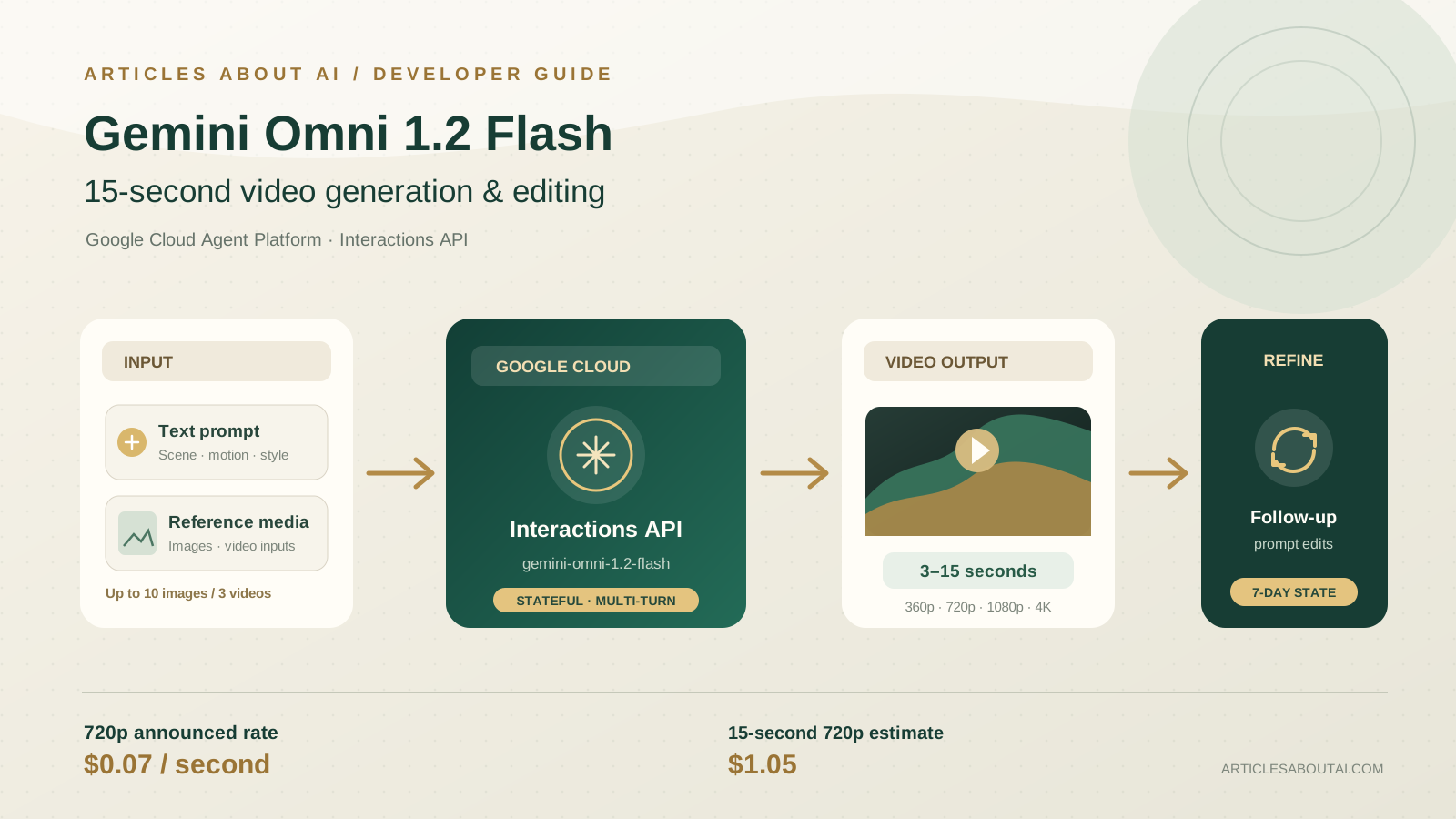
Google’s Gemini Omni 1.2 Flash update makes one change especially useful to developers: generated and edited clips can now run up to 15 seconds, rather than the 10-second ceiling of the previous Omni 1.1 Flash release. The model also supports conversational, multi-turn video editing, improved reference following, and video output at resolutions up to 4K. Google announced general availability on November 5, 2026, and listed a 720p generation rate of $0.07 per second—a 30% reduction from Omni 1.1 Flash.
This guide shows how to use the model through the Google Cloud Agent Platform Interactions API. That distinction matters: Google’s model reference lists Interactions API as supported and GenerateContent API as unsupported for this Agent Platform model route. The examples below use the documented Agent Platform REST endpoint, Google Cloud authentication, and Cloud Storage output. They are not examples for the separate Gemini API-key endpoint.
If you are comparing multimodal systems before choosing an implementation, see our Gemini 4 vs GPT-6 multimodal workflow comparison. For another way to build video workflows through an AI assistant, see how Runway works with Grok Bot.
What changed in Gemini Omni 1.2 Flash?
The November 5 release adds a more flexible video workflow in several areas:
- Longer clips: text-to-video and standard video editing support durations from 3 to 15 seconds, in one-second increments.
- Conversational editing: store an interaction and pass its ID into a follow-up request to refine the previous result without re-uploading the entire conversation.
- Reference adherence: use reference images and supported video inputs to guide the generated result.
- More output choices: the Agent Platform model reference lists 360p, 720p, 1080p, and 4K output, with 16:9 and 9:16 aspect ratios.
- Lower published 720p rate: Google lists $0.07 per second for 720p video, 30% below the Omni 1.1 rate.
The model is generally available, but the exact API surface and account requirements still matter. The steps here target Google Cloud Agent Platform, not the consumer Gemini app or Google Flow interface.
Gemini Omni 1.2 Flash API: the supported route
For the Google Cloud route used in this tutorial, the model ID is:
gemini-omni-1.2-flash
The documented endpoint is:
POST https://aiplatform.googleapis.com/v1beta1/projects/PROJECT_ID/locations/global/interactions
The model reference lists the global region for this model. It also marks the Interactions API as supported and the GenerateContent API as unsupported on this Agent Platform route. Do not copy a standard Gemini GenerateContent example and simply replace its model name; use the Interactions API request shape documented for Omni video generation.
Google also announced availability across the Gemini API and Google Cloud. This article deliberately uses the Cloud Agent Platform route because its current model-specific documentation provides the request schema, output delivery options, and video limits used below.
Prerequisites: Google Cloud project, API access, and storage
Before sending a request, prepare:
- A Google Cloud account and a project you are allowed to use.
- Billing enabled for the project.
- The Gemini Enterprise Agent Platform API enabled.
- Google Cloud CLI installed and authenticated.
- A Cloud Storage bucket if you want the generated video delivered to a GCS URI.
- IAM permissions that allow your identity to invoke the model and write to the selected bucket.
Select your project and enable the API:
gcloud config set project YOUR_PROJECT_ID
gcloud services enable aiplatform.googleapis.com
For local REST requests, authenticate with Application Default Credentials:
gcloud auth application-default login
The access token used by the examples can then be obtained with:
gcloud auth application-default print-access-token
Replace the project and bucket placeholders with resources in your own Google Cloud environment. The account used for the request must have the necessary project permissions; creating a bucket or enabling an API may require additional IAM permissions.
For background on Google’s enterprise model environment, see our guide to Gemini 4 Argon on Google Cloud and our practical Gemini API setup guide. The exact model and endpoint configuration in this article remains specific to Omni 1.2 Flash.
Generate a 15-second video from a text prompt
The simplest workflow sends a text prompt and asks the model to return a video. The example stores the interaction state so that you can use it in a later editing turn.
Create a file named request.json:
{
  "model": "gemini-omni-1.2-flash",
  "background": false,
  "store": true,
  "stream": false,
  "input": [
    {
      "type": "user_input",
      "content": [
        {
          "type": "text",
          "text": "Create a polished 15-second product film for a minimalist stainless-steel water bottle. Begin with a close-up of water droplets on the brushed metal, move to a slow rotating hero shot on a warm neutral studio set, then finish with the bottle centered in frame. Use realistic reflections, controlled camera movement, and no captions or logos."
        }
      ]
    }
  ],
  "response_format": [
    {
      "type": "video",
      "delivery": "uri",
      "gcs_uri": "gs://YOUR_BUCKET/gemini-omni-output/",
      "aspect_ratio": "16:9",
      "resolution": "720p",
      "duration": "15s"
    }
  ],
  "generation_config": {
    "video_config": {
      "task": "text_to_video"
    }
  }
}
Send the request:
PROJECT_ID="YOUR_PROJECT_ID"
TOKEN="$(gcloud auth application-default print-access-token)"

curl -X POST \
  -H "Authorization: Bearer $TOKEN" \
  -H "Content-Type: application/json; charset=utf-8" \
  -d @request.json \
  "https://aiplatform.googleapis.com/v1beta1/projects/$PROJECT_ID/locations/global/interactions"
A successful response includes an interaction ID, a status, usage information, and a model-output step containing the video result. With URI delivery, the output points to the Cloud Storage location you supplied. Keep the interaction ID: it is needed for retrieval and stateful follow-up editing.
Video generation can take more than a minute. For a long-running job, use the documented asynchronous mode by setting background to true, then retrieve the interaction using its ID. For a synchronous request like the example above, inspect the returned status and output before treating the job as complete.
Edit a generated video with a follow-up prompt
One of the most useful changes in Omni 1.2 Flash is multi-turn editing. Instead of starting a new generation for every small change, store the first interaction and pass its ID to the next request.
For example, after the initial product video has completed, submit a second interaction:
{
  "model": "gemini-omni-1.2-flash",
  "previous_interaction_id": "YOUR_PREVIOUS_INTERACTION_ID",
  "input": "Keep the same bottle, composition, and camera movement. Change the background from warm beige to a dark emerald studio, add a soft rim light, and preserve the brushed-metal texture."
}
Send this JSON to the same project and global Interactions endpoint with the same Google Cloud authorization header. The previous_interaction_id field tells Agent Platform to continue from the stored interaction context. Review the returned interaction and video output; each follow-up creates a new interaction record.
A few practical rules matter:
- The first interaction must be stored. If you set store to false, the server does not retain the state needed for previous_interaction_id.
- Keep the follow-up request in the same endpoint location as the original interaction. The documented stateful workflow does not support chaining stored interactions across different locations.
- Stored interactions are retained for up to seven days. Do not treat them as permanent project assets.
- Change one or two visual variables per turn. This makes it easier to see whether the model preserved the parts of the clip you wanted to keep.
A useful editing prompt states both what should change and what must remain unchanged. For example: “Replace the background with a bright outdoor garden, but keep the same person, clothing, camera angle, product shape, and timing.” Avoid contradictory instructions such as asking for a static camera and a fast tracking shot in the same sentence.
Generate a video from an image or visual references
Omni 1.2 Flash can use image inputs to guide video generation. This is useful when you already have a product photograph, a character design, a first frame, or a visual style reference.
For a first-frame image-to-video request, add an image content item to the input. The image should be available through a supported Cloud Storage URI or another input method documented for the API.
A representative input structure is:
{
  "model": "gemini-omni-1.2-flash",
  "store": false,
  "input": [
    {
      "type": "text",
      "text": "Animate the supplied product image into a 10-second studio shot. Keep the product proportions, label placement, and colors unchanged. Use a slow camera push-in."
    },
    {
      "type": "image",
      "uri": "gs://YOUR_BUCKET/product-reference.png",
      "mime_type": "image/png"
    }
  ],
  "response_format": [
    {
      "type": "video",
      "delivery": "uri",
      "gcs_uri": "gs://YOUR_BUCKET/image-to-video-output/",
      "aspect_ratio": "16:9",
      "resolution": "720p",
      "duration": "10s"
    }
  ],
  "generation_config": {
    "video_config": {
      "task": "image_to_video"
    }
  }
}
For more complex reference-based requests, the model supports up to 10 images and up to three video inputs per prompt according to the model specification. Video references are not a substitute for an unrestricted multi-video editing workflow: follow the input and duration limits in the current documentation.
When using references, explain each asset’s role in the prompt. For example:
- “Use Image 1 as the first frame.”
- “Use Image 2 as the product appearance reference.”
- “Keep the logo position and package colors consistent with the reference.”
- “Use the supplied short clip only as a motion reference.”
Do not assume that uploading a reference guarantees exact reproduction. Check faces, text, product details, and brand colors in the finished output before using it commercially.
Edit an uploaded video directly
You can also provide an existing video and describe the changes you want. For this direct edit workflow, the input video duration must match the requested output duration. The model-specific documentation lists a maximum input video length of 15 seconds for editing with Omni 1.2 Flash.
The request uses a video input and the edit task:
{
  "model": "gemini-omni-1.2-flash",
  "store": false,
  "input": [
    {
      "type": "text",
      "text": "Keep the scene and subject unchanged. Make the lighting softer, reduce harsh highlights, and use a more natural cinematic color grade."
    },
    {
      "type": "video",
      "uri": "gs://YOUR_BUCKET/source-clip.mp4",
      "mime_type": "video/mp4"
    }
  ],
  "response_format": [
    {
      "type": "video",
      "delivery": "uri",
      "gcs_uri": "gs://YOUR_BUCKET/edited-output/",
      "resolution": "720p",
      "duration": "15s"
    }
  ],
  "generation_config": {
    "video_config": {
      "task": "edit"
    }
  }
}
The input video must be stored in a location the request can access. Use the correct MIME type for the uploaded file. The example uses MP4; the documentation lists other accepted video MIME types as well.
Extend a video beyond its original ending
Video extension is different from editing. Editing changes an existing clip while keeping the output duration aligned with the input; extension appends a new continuation to the end.
For Omni 1.2 Flash, the documented extension output is 3 to 10 seconds. The model uses the end of the source video as context for the continuation. Describe the next action clearly and specify how the camera, subject, and environment should continue.
For example:
Continue from the final moment. The camera slowly pulls back as the same product remains centered on the table. Keep the lighting, surface, reflections, and background consistent. Do not introduce new objects or text.
Extension is end-only: it does not prepend a new opening or insert footage into the middle of a clip. Check the current video-extension guide for input-specific constraints before building an automated pipeline.
Choose resolution, aspect ratio, and duration
The Agent Platform model reference lists the following output settings for Omni 1.2 Flash:
| Setting | Supported options |
|---|---|
| Duration for generation and editing | 3–15 seconds |
| Duration for video extension | 3–10 seconds appended |
| Resolution | 360p, 720p, 1080p, 4K |
| Aspect ratio | 16:9, 9:16 |
| Maximum images per prompt | 10 |
| Maximum videos per prompt | 3 |
| Maximum uploaded video length for editing | 15 seconds |
The first-and-last-frame workflow has its own duration constraints, so do not assume every task mode supports the full 15 seconds. If you need a specific output format, set it explicitly in response_format rather than relying on an inferred aspect ratio or default resolution.
For social video, 9:16 is a natural starting point. For product explainers, presentations, and website content, 16:9 may be easier to reuse. Choose resolution based on the delivery target: a 720p draft can be more economical for review, while 1080p or 4K may be appropriate when the final asset requires more detail.
Estimate Gemini Omni 1.2 Flash video costs
Google’s November 5 announcement lists a 720p rate of $0.07 per second and says this is 30% lower than Omni 1.1 Flash.
At that published rate, a 15-second 720p output has a simple estimated generation charge of:
15 × $0.07 = $1.05
This is an arithmetic estimate using Google’s announced 720p per-second rate, not a quote for every possible request. Other resolutions, input modalities, storage, and any additional Google Cloud services may affect the final bill. Confirm the current price table and the usage recorded for your own project before setting a production budget.
A sensible production workflow is to generate a short or lower-resolution draft, review the composition and motion, then spend more on a final render only when the prompt is ready. This reduces avoidable re-generations, although the exact savings depend on your workflow.
Common errors and practical fixes
Permission denied or 403 response
Check that the request is authenticated as the intended Google Cloud identity, that the project is correct, and that the identity has permission to invoke Agent Platform. If you are writing output to Cloud Storage, confirm that the identity can write to the destination bucket.
API not enabled
Enable the Agent Platform API for the project and wait for the service configuration to take effect. Make sure the project in the endpoint matches the project you configured.
Invalid model or unsupported API
Use the exact model ID gemini-omni-1.2-flash and the Agent Platform Interactions endpoint shown in this guide. The Agent Platform model page does not list GenerateContent API as supported for this model route.
Video takes longer than expected
Google notes that generation can take more than a minute. For longer-running jobs, use background: true and retrieve the interaction status with its ID. Do not assume that a request has failed simply because it has not completed immediately.
The follow-up edit loses an earlier detail
Use a stored interaction and reference its ID with previous_interaction_id. Keep the follow-up prompt specific, state what must remain unchanged, and alter fewer elements per turn.
The output does not match the reference
Check that the image or video URI is accessible, the MIME type is correct, and the prompt explains the reference’s role. Review the generated result rather than assuming the model will preserve every small detail exactly.
Privacy, storage, and production considerations
Stateful interactions make multi-turn editing convenient, but they also mean that interaction data is stored by Agent Platform for the documented retention period. Stored interactions have a seven-day time-to-live. If your application requires a stateless workflow, set store to false and manage the necessary context yourself; a stateless request cannot use previous_interaction_id.
Use Cloud Storage locations with access controls appropriate to the media. Avoid placing confidential or customer video in a broadly accessible bucket. Keep API credentials out of source files, use least-privilege IAM, and review generated clips for inaccurate details, unintended changes, and rights or consent issues before publication.
For a wider view of multimodal model selection, our Gemini 4 vs GPT-6 comparison explains why a model should be evaluated against the actual input and output workflow rather than a broad brand-level claim. If your team is comparing creator tools, our Runway and Grok Bot workflow guide provides a separate integration path.
Frequently asked questions
Can Gemini Omni 1.2 Flash generate a full 15-second video in one request?
Yes. The Agent Platform model documentation lists 3 to 15 seconds for video generation and editing with gemini-omni-1.2-flash. Some specialized modes, such as first-and-last-frame generation or extension, have different duration limits.
Which API should I use?
This tutorial uses the Google Cloud Agent Platform Interactions API. The model reference lists Interactions API as supported and GenerateContent API as unsupported for this Agent Platform route. Follow the separate Gemini API documentation if you are implementing a different API surface.
Can I edit a video without uploading it again?
For a generated video, use a stored interaction and pass its ID in previous_interaction_id for a follow-up turn. For an independently uploaded video, provide the video input URI and an edit prompt.
How long are stored interactions retained?
Google documents a seven-day retention period for stored and asynchronous interactions. They are not permanent storage for finished video assets; save final outputs to your own managed storage.
Does a 15-second 720p video cost $1.05?
At Google’s announced rate of $0.07 per second for 720p, the arithmetic estimate is $1.05 for 15 seconds. This does not establish the cost for other resolutions or every request configuration. Check the current price table and actual project usage.
Is Gemini Omni 1.2 Flash available through the consumer Gemini app?
Google’s announcement covers several distribution channels, but this article explains the developer API route. Consumer app availability, Google Flow features, and API access are separate product surfaces with their own plans and limits.
Official documentation and sources
- Google: Introducing Gemini Omni 1.2 Flash — November 5, 2026 announcement, 15-second generation, conversational editing, reference following, and the published 720p rate.
- Gemini Omni 1.2 Flash model reference — model ID, supported APIs, regions, modalities, and technical limits.
- Generate videos from text prompts — REST request structure, duration, resolution, and output delivery.
- Edit videos with Gemini Omni — uploaded-video editing and input constraints.
- Generate videos from references — reference media inputs and supported formats.
- Interactions API developer guide — stateful interactions, previous_interaction_id, retention, and authentication.
- Gemini video generation overview — available video-generation workflows.
Final take
Gemini Omni 1.2 Flash is most useful when a workflow needs more than a one-shot text-to-video prompt. The 15-second ceiling, reference inputs, stateful follow-up editing, and multiple output resolutions make it possible to build a repeatable generation-and-refinement pipeline.
For developers, the most important implementation detail is to use the correct API surface. On Google Cloud Agent Platform, call the Interactions API with the gemini-omni-1.2-flash model ID, configure video output explicitly, and store interaction state only when you need follow-up editing. Validate access, storage permissions, regional support, and current pricing before moving from a prototype to production.