
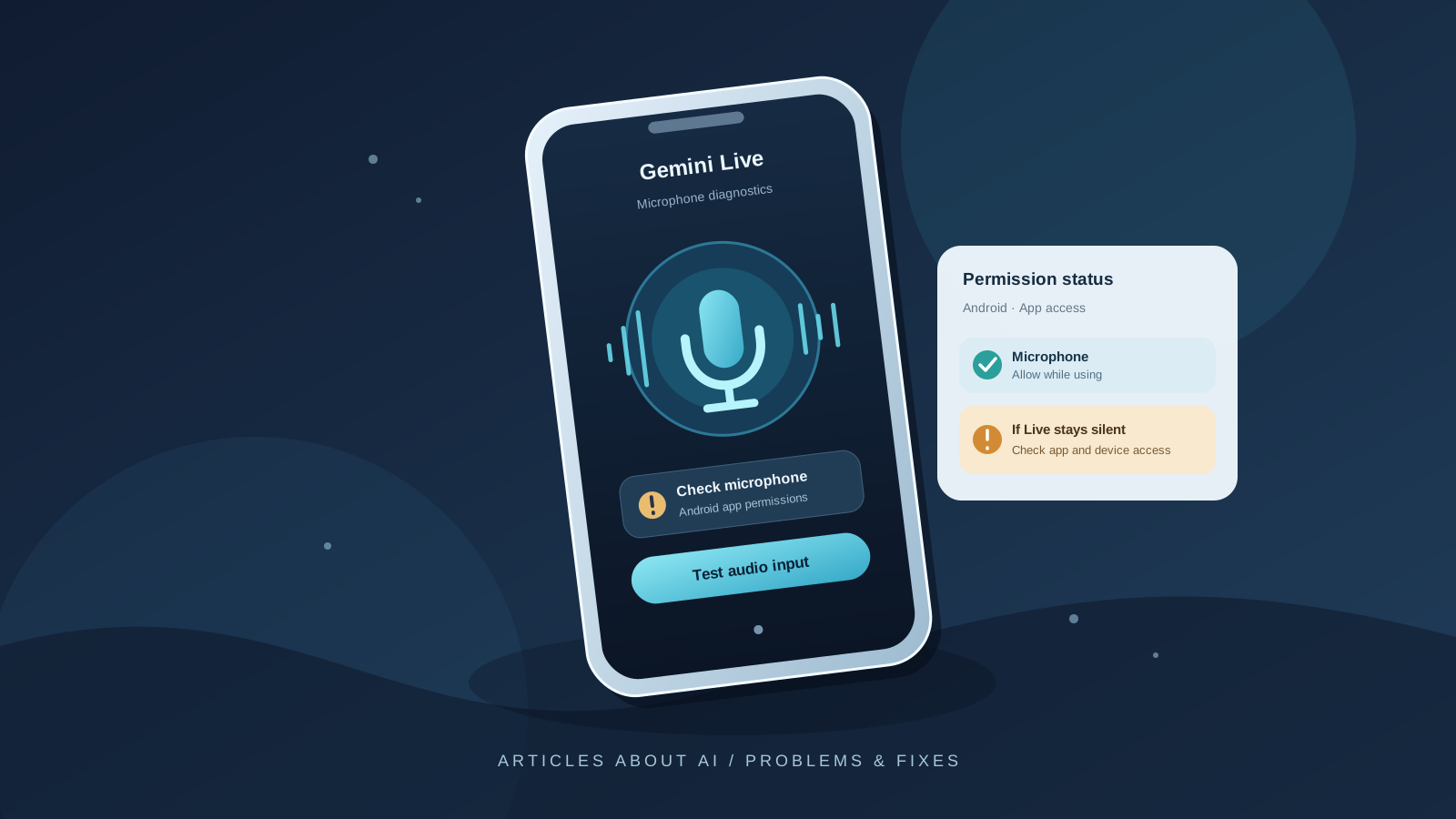
When Gemini Live cannot hear you, stays silent after you speak, or appears to start a conversation without detecting your voice, the cause is not always a problem with Gemini itself. Android may be blocking microphone access, the phone-wide microphone control may be switched off, another audio device may be receiving your voice, or the app may need an update or restart.
This guide explains how to diagnose Gemini Live microphone problems on Android in a sensible order. Start with the quick checks, then change one setting at a time. That makes it easier to identify the actual cause instead of resetting your phone or reinstalling apps unnecessarily.
The instructions apply to Android phones and tablets. Menu names vary by manufacturer and Android version, so your device may use slightly different labels.
Quick fixes to try first
Before changing advanced settings, work through these checks:
- Confirm that you are using Gemini Live in the mobile app. Google says Gemini Live is available in the Gemini mobile app on Android; it is not currently available in the Gemini web app. Open the Gemini app and start Live from its Live control.
- Check the microphone permission. Make sure the Google app—and the Gemini app if your device presents it as a separate permission entry—has microphone access.
- Check Android’s system-wide microphone control. Some Android versions include a Microphone access tile in Quick Settings. Make sure it is on.
- Disconnect Bluetooth audio temporarily. Earbuds, a headset, or a car system can change which microphone Android uses.
- Close and reopen Gemini. End the Live session, close the app, reopen it, and try again.
- Update the relevant apps. Check for updates to Gemini and the Google app in Google Play.
If the microphone works in another recording app but not in Gemini Live, focus first on permissions, app state, and the Live feature itself. If it fails in every app, investigate Android’s microphone access, the physical microphone, and connected accessories.
1. Make sure the problem is actually in Gemini Live
Gemini has more than one way to use voice. A microphone button for dictating a prompt is not necessarily the same as a live, back-and-forth conversation. Identify which feature is failing before following the rest of the guide.
Open the Gemini mobile app on your Android phone or tablet. Start a new Live conversation using the Live control at the bottom of the screen, then speak a short sentence at a normal volume. If the Live interface is unavailable, first confirm that you are signed in and using the mobile app rather than the website.
Google notes that Gemini Live availability and updates can roll out gradually. The feature also has account and device requirements. If you cannot find Live at all, that is a different problem from a Live session that opens but cannot hear you. Review Google’s official Talk naturally with Gemini Live guide for current availability and setup requirements.
Try a simple phrase such as, “Hello Gemini, can you hear me?” Avoid testing with a long request at first. A short test makes it easier to tell whether audio is being detected.
2. Allow microphone permission for the Google app
On Android, Gemini’s mobile experience is closely integrated with the Google app. Google’s privacy documentation explains that Gemini is hosted by the Google app and can use device capabilities according to the Google app’s permissions. Depending on how Gemini is installed and integrated on your device, check the Google app first and also inspect Gemini if it appears separately in your app list.
To check permission:
- Open Settings on your Android device.
- Select Apps or Apps management.
- Find and open Google.
- Tap Permissions.
- Select Microphone.
- Choose Allow only while using the app if that option is available and appropriate for your device.
- If Gemini appears as a separate app with its own microphone permission, check that entry too.
- Return to Gemini and start a new Live session.
Do not grant unrelated permissions simply to troubleshoot audio. The microphone permission is the relevant one for capturing speech. If microphone access was already allowed, leave it enabled and move to the next check rather than repeatedly toggling it.
If your phone uses different menu names, press and hold the Google app icon, tap App info, and look for Permissions. This shortcut is available on many Android devices. Google’s Gemini Apps Privacy Hub explains how to review Google app permissions on Android.
3. Check Android’s system-wide microphone access
An app can have permission while Android’s overall microphone control is disabled. On supported Android versions, a privacy control can block microphone access for apps at the system level.
Try this:
- Swipe down from the top of the screen to open Quick Settings.
- Swipe down again if needed to see all available tiles.
- Look for Microphone access or a similarly named privacy control.
- If it is off, turn it on.
- Return to Gemini Live and test again.
The tile may not be present on every Android version or device. If you cannot find it, open Settings and search for “Microphone access” or “Privacy.” Avoid changing unrelated privacy settings.
Also check whether Android displays a microphone indicator when you start speaking in Live. On supported versions, the privacy indicator can help show when an app is using the microphone. It is a diagnostic clue, not proof that Gemini is receiving clear audio. If the system control is enabled and the app permission is allowed, continue with a physical microphone test.
4. Test the microphone outside Gemini
Testing another app helps separate an Android or hardware problem from a Gemini-specific problem.
Open your phone’s built-in Recorder app, if available, and record a short sentence. Play the recording back. You can also make a brief voice recording in another trusted app that you already use and that has microphone permission.
Interpret the result carefully:
- The recording is clear: The microphone hardware is probably functioning. Focus on Gemini permissions, the Live session, app updates, and audio routing.
- The recording is silent: Check the system-wide microphone control, app permission for the recorder, and whether an accessory is connected. Test again after disconnecting Bluetooth.
- The recording is very quiet or distorted: Remove anything covering the microphone openings, check for dirt without inserting objects into them, and test in a quiet room.
- Only one microphone-dependent app fails: That points more strongly toward that app’s permissions or configuration than toward a complete hardware failure.
Some phones have multiple microphones for calls, noise reduction, and video. A recording test cannot prove that every microphone is healthy, but it is a useful first diagnostic step. If several apps consistently record no sound, consult the device manufacturer’s support guidance before assuming Gemini is at fault.
5. Disconnect Bluetooth headphones and other audio devices
Gemini may receive audio through a connected headset rather than the phone’s built-in microphone. A headset with a depleted battery, a poor connection, or a malfunctioning microphone can make a Live session appear broken even when the phone itself works.
For a clean test:
- End the Gemini Live session.
- Temporarily turn Bluetooth off in Quick Settings.
- Reopen Gemini and start Live again.
- Speak toward the phone’s built-in microphone.
- If the microphone now works, reconnect your headset and test it separately.
If you need Bluetooth for other reasons, open your Bluetooth settings and disconnect only the relevant headset or accessory. You do not need to forget or unpair every device.
When the problem occurs only with a particular headset, check its battery, microphone openings, and connection. If the headset offers separate call-audio settings, verify that call audio is enabled. The exact options depend on the accessory and Android version.
If the phone microphone and headset both fail in Gemini but work in a recorder, move on to app updates and session troubleshooting.
6. Update Gemini and the Google app
Outdated app components can cause behavior that differs from the current documented experience. Google identifies the latest Google app as a requirement for Gemini Live, so check both relevant apps rather than updating only the icon you normally open.
- Open the Google Play Store.
- Search for Google and open its app listing.
- If an Update button is available, install the update.
- Search for Google Gemini or Gemini and update it if an update is available.
- Restart the phone if an update requests it, or if the problem continues after installation.
- Open Gemini and test a new Live conversation.
The exact listing name can vary by region and device. If an update is not available, do not download an APK from an unfamiliar website. Wait for the official Play Store release or follow Google’s official help instructions.
An update is not a guaranteed fix. If the same problem persists on the latest available versions, continue with the next steps instead of repeatedly reinstalling the apps.
7. Force-stop Gemini and clear its cache
A stuck app process or temporary cached data can sometimes cause an app to behave incorrectly. Restart the app before deleting any data.
To force-stop it:
- Open Settings → Apps.
- Select Gemini, or the relevant Google app if that is the app handling the failing feature.
- Tap Force stop.
- Confirm if Android asks.
- Open Gemini again and test Live.
If the problem continues, return to the app’s Storage & cache screen and select Clear cache, if available. Menu labels vary between manufacturers.
Do not start by selecting Clear storage or Clear data. Those actions can reset local app state and may require you to configure the app again. Clearing the cache is the less disruptive first step. After clearing it, reopen the app and allow it to load normally before testing.
If neither force-stopping nor clearing the cache changes anything, avoid repeating these actions over and over. Move to the account, availability, and service checks below.
8. Check account access and Gemini Live availability
Microphone troubleshooting will not solve a feature-access restriction. Google says Gemini Live requires a signed-in Google account with access to Gemini Apps, and the available experience can depend on account type, age requirements, device, language, and rollout status.
Check the following:
- You are signed in to the intended Google account in Gemini.
- Your personal, work, or school account is eligible to use Gemini Apps.
- If you use a managed work or school account, its administrator has not restricted access to the feature.
- You are using the Gemini mobile app on Android rather than expecting Live to work in the web app.
- The feature is available for your account and device.
If Live is missing entirely, consult the official Gemini Live requirements and setup instructions. If Live opens but does not hear speech, continue to treat microphone access and audio routing as the primary suspects.
Do not create another account or change your account’s country details just to test a microphone. First establish whether the feature is available to your current account and whether the app can access the device microphone.
9. Check whether the problem is temporary
A service-side issue or a temporary app failure can sometimes affect a feature even when your settings are correct. Do not assume an outage from a single failed attempt, and do not assume your phone is defective either.
Try one controlled test:
- Close the current Live session.
- Switch between Wi-Fi and mobile data if a suitable connection is available.
- Reopen Gemini and begin a new Live session.
- If the issue remains, check Google’s official Gemini Help resources for current guidance.
- If the problem appears to affect many users, wait and retry later rather than repeatedly changing device settings.
Changing networks is mainly useful when the app cannot establish or maintain a session. It is less likely to solve a microphone permission problem, so do not treat it as a substitute for the earlier checks.
If Gemini can hear you but its spoken reply is silent, distinguish an input problem from an output problem. Check the phone’s media volume, Bluetooth output device, and whether audio is being routed to a connected headset. If Gemini cannot detect your speech at all, return to microphone permissions and input tests.
10. What to do if Gemini Live still cannot hear you
If the steps above do not help, collect a few details before contacting support. Specific evidence makes troubleshooting more useful than simply reporting that “Gemini is broken.”
Record:
- Your phone manufacturer and model.
- Your Android version.
- Whether the issue affects Gemini Live only or every recording app.
- Whether the microphone permission is allowed for Google and Gemini where applicable.
- Whether the system-wide microphone control is enabled.
- Whether the issue changes when Bluetooth is off.
- Whether the problem began after an app or system update.
- The exact error message, if one appears.
Then use the official Gemini Help resources to seek assistance. Do not include passwords, verification codes, private conversations, or unnecessary personal information in a support request. If multiple apps cannot record sound, the device manufacturer may be better placed to diagnose a system or hardware issue.
Avoid factory-resetting the phone as an early troubleshooting step. A reset is disruptive and is not justified by a single app’s microphone problem. Exhaust the targeted permission, accessory, update, and app-state checks first.
Frequently asked questions
Why can Gemini hear me in voice typing but not in Gemini Live?
The features may use different app states or session flows even when they rely on the same device microphone. Confirm that the Google app’s microphone permission is allowed, start a fresh Live session, and test with Bluetooth disconnected. Success in voice typing is useful evidence, but it does not guarantee that a Live session is configured correctly.
Does Gemini Live work in a mobile browser?
Google’s current help documentation says Gemini Live is available in the Gemini mobile app on Android and is not currently available in the Gemini web app. Use the supported mobile app to test Live rather than troubleshooting a browser session that does not offer the feature.
Should I reinstall Gemini?
Not as the first step. Check permissions, Android’s microphone access, Bluetooth routing, app updates, and cache first. Reinstalling can take time and may not fix a system-level microphone restriction. Use official app distribution channels if reinstalling becomes necessary.
Is the microphone broken if Gemini Live cannot hear me?
Not necessarily. The problem may be a permission, a disabled system control, a connected headset, an app issue, or feature availability. Test the microphone with a recorder and another trusted app before drawing a hardware conclusion.
Will clearing the cache delete my conversations?
Clearing an app cache is different from clearing app storage or deleting account activity. Avoid clearing storage unless you understand its effects, and do not delete your Gemini activity as a microphone troubleshooting step. Check Google’s official privacy and activity guidance if you need to manage saved conversations.
Final checklist
Before concluding that Gemini Live is broken, confirm each of these items:
- Gemini Live is being opened in the Android mobile app.
- The Google app has microphone permission, and Gemini has permission if separately listed.
- Android’s system-wide microphone access is enabled.
- A recorder app can capture clear audio.
- Bluetooth headphones and other audio accessories have been ruled out.
- Gemini and the Google app are up to date.
- The app has been restarted and its cache checked if necessary.
- The signed-in account and Live availability have been verified.
The most useful first test is simple: check Google app microphone permission, turn on Android microphone access, and test Gemini Live with Bluetooth disconnected. If the phone records audio normally but Gemini Live still cannot hear you, focus on the app session, account eligibility, and official support guidance rather than resetting the device.
Official sources
- Google Gemini Apps Help: Talk naturally with Gemini Live
- Google Gemini Apps Privacy Hub: Microphone permissions and audio
- Google Android Help: Use Gemini