
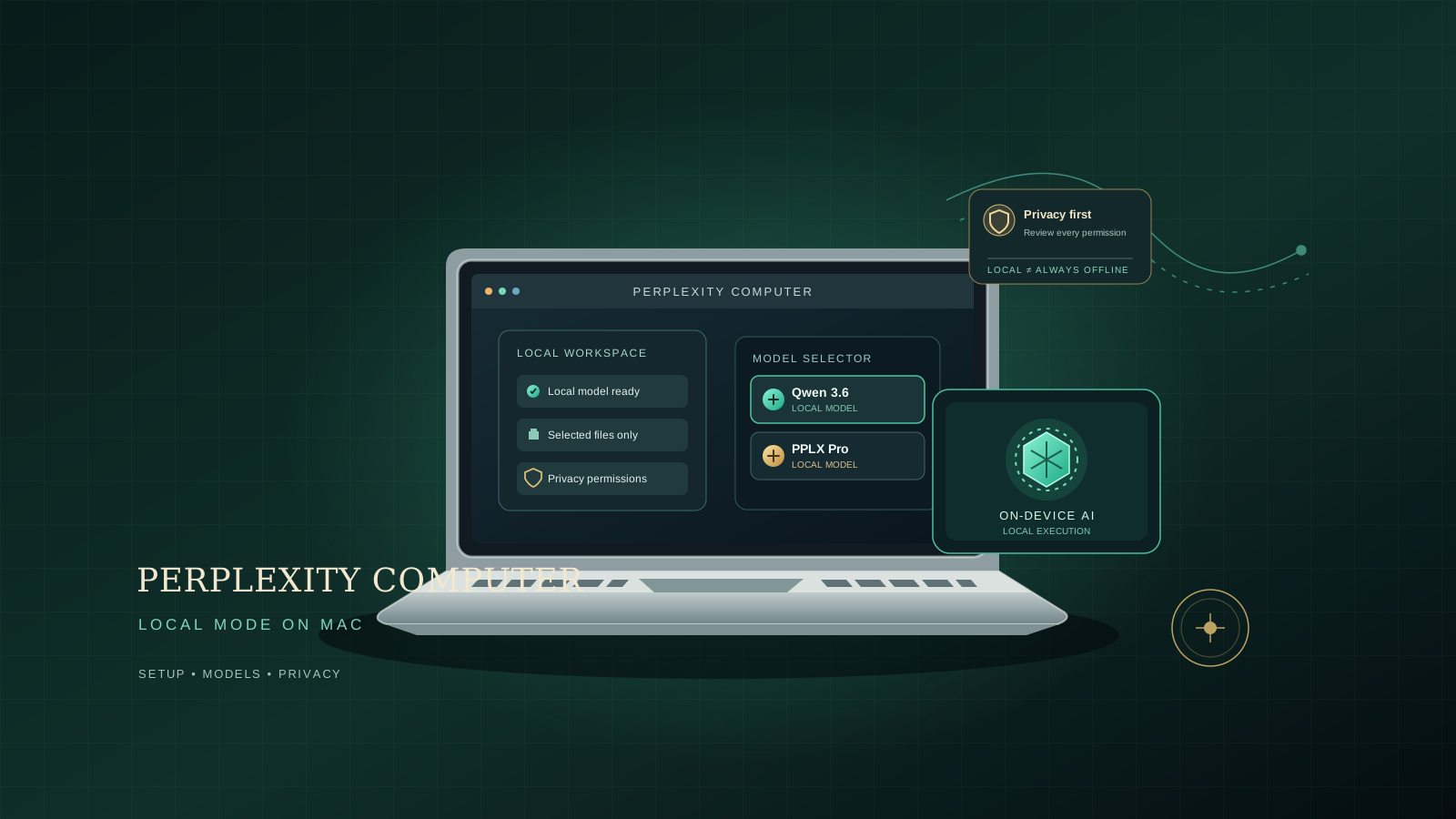
Perplexity’s new fully local mode for Perplexity Computer on Mac changes where an AI agent can do its work: compatible models, the agent harness, and task execution can run on the Mac rather than relying entirely on remote processing. That matters for people who want an AI assistant to work with local files and supported Mac apps while keeping more of the workflow on their own machine.
This guide explains what the announcement means, the hardware to check before getting started, how to approach setup, and how to verify whether a task is actually running locally. Availability and controls can vary by account, app version, and supported hardware, so use the current controls in the official Perplexity app rather than assuming every Mac has the same options.
What does Perplexity Computer’s local mode do?
Perplexity Computer is an AI agent designed to carry out multi-step tasks, not just answer a question in a chat. In its fully local Mac mode, Perplexity says the model, agent harness, and task execution can run on-device. The announcement names Qwen 3.6 and PPLX Pro as supported model options.
Local execution can be useful when a workflow involves documents or other files stored on your Mac. With the appropriate macOS permissions, the experience can work with supported local apps and data, including apps such as Notes, Messages, Mail, and Numbers. Grant access only to the files and applications required for a task.
“Fully local” should not be read as a promise that every feature works without an internet connection. Tasks that need current web information, a browser, connected services, or other cloud resources may still require network access. Perplexity also describes a hybrid approach in which local execution can be combined with approved cloud access when a task needs it.
Check Mac compatibility and memory first
Before changing settings, check these requirements and practical considerations:
- Mac hardware: The announced local mode targets supported Apple Silicon Macs. Do not assume an Intel Mac or every Apple Silicon configuration is eligible.
- Unified memory: Perplexity recommends 36 GB or more of unified memory for the local experience. A Mac with less memory may not be supported or may not deliver a suitable experience; check the latest in-app eligibility information.
- App and account access: The announcement says local mode is available for eligible Pro, Max, and Enterprise users on supported Macs. Availability may change, so confirm what your account actually offers.
- Storage and workload: Keep enough free storage and close memory-intensive apps if your Mac is under pressure. Larger models and longer agent workflows can be demanding.
- macOS permissions: The agent may ask for permission to access selected files or apps. Review each request before allowing it.
Memory capacity is not the only factor in performance. The specific model, task complexity, available memory, other running apps, and whether a workflow uses cloud services can all affect speed and resource use.
How to get started with Perplexity Computer on Mac
The exact interface may change as Perplexity rolls out local mode. Use these steps as a safe setup checklist, and follow the current prompts shown in your installed app.
1. Update and open the official Mac app
Install or update Perplexity’s official Mac application using Perplexity’s own download and product instructions. Avoid unofficial installers or downloads that claim to unlock local models. Sign in with an account that has access to Computer and check that your Mac meets the current hardware requirements.
If the local option is not visible, do not assume you have missed a hidden setting. Confirm that your app is current, your account is eligible, and your Mac is supported. Rollouts can be account- or device-dependent.
2. Find the local execution controls
Open Perplexity Computer and inspect its available model or execution settings. If local mode is offered for your account and device, choose the local option presented in the app. Interface labels can change; rely on the current product UI rather than a third-party screenshot or an outdated menu path.
If the app offers both local and hybrid/cloud execution, treat them as different modes. Local mode prioritizes on-device execution; hybrid mode may use a remote service when a task needs capabilities that are not available locally.
3. Choose an available local model
The announcement identifies Qwen 3.6 and PPLX Pro for the local experience. Select only a model that the app explicitly makes available for local use on your device.
Do not infer that every model in Perplexity’s cloud model selector can be downloaded or run locally. Cloud model availability and local model availability are different things. If the model selector does not identify a model as local, check the current Perplexity documentation before assuming that inference stays on your Mac.
4. Review app and file permissions
When macOS or Perplexity requests access to local files or supported applications, read the prompt and allow only what is necessary. Start with a non-sensitive test folder or a disposable document. Avoid granting broad access to private messages, financial records, work files, or other sensitive information unless the task genuinely requires it.
A practical least-privilege approach is to:
- Use a dedicated test folder with sample files.
- Grant app access only when a workflow needs it.
- Revisit macOS privacy settings if you want to revoke access.
- Avoid asking the agent to send, delete, or overwrite information until you understand its confirmation and review steps.
Local execution can reduce the need to send task content to a remote model, but privacy also depends on permissions, connected services, the task itself, and whether you approve cloud access. Read the product’s current privacy disclosures before using it with confidential data.
5. Run a small local task
Begin with a task that is easy to inspect and does not require the web. For example:
Review the sample notes in my designated test folder and produce a short summary in a new draft file. Do not send messages, access other folders, or overwrite existing files.
Use a harmless test folder and confirm any proposed file changes before approving them. A task that asks for recent facts or web research is not a good first test because it may legitimately require cloud access.
6. Verify the execution mode
Do not use the quality or speed of an answer as proof that a task ran locally. Instead, check the mode and model shown by the app, look for any cloud-access request, and review the task’s activity or status indicators if the app provides them. If a workflow asks to access the internet or a connected service, decide whether to approve that step.
For a stronger test, repeat a simple task with network access unavailable only if the app supports that workflow safely and you understand the consequences. Some app functions may stop working without a connection even when the model and agent execution are local. Do not treat a failed network-dependent step as evidence that local inference is broken.
Qwen 3.6 vs. PPLX Pro: which should you choose?
Perplexity’s announcement lists both models for local use, but model choice should follow the options and descriptions actually displayed in your app. Avoid assuming one is universally faster, more accurate, or more private without a reliable, task-specific comparison.
A sensible selection process is:
- For a first test: Use whichever model the app recommends for your hardware and a short, low-risk task.
- For longer multi-step work: Compare the models on the same representative task, then inspect accuracy, completion quality, memory use, and whether the agent requests cloud access.
- For sensitive files: Prioritize the execution mode and permissions, not the model name alone. Verify that the task is staying local and do not approve unneeded remote services.
- For a resource-constrained Mac: Check the app’s compatibility guidance before experimenting. Do not assume that switching models removes the hardware requirements.
A model can be local while a surrounding workflow still reaches the internet or a connected app. Keep the distinction between local model inference, local agent execution, and external tool access clear.
Local mode vs. hybrid mode
| Workflow need | Local mode | Hybrid or cloud-assisted mode |
|---|---|---|
| Work with selected local files | Designed for on-device processing, subject to permissions | May combine local work with remote capabilities |
| Tasks requiring current web information | May need a separately approved online step | Better suited when cloud/browser access is required |
| Minimize remote processing of task content | Can reduce reliance on remote model execution | Some task steps may be processed remotely |
| Use connected services | Depends on the supported integration and permissions | May use cloud access where approved |
| Work without internet | Only for tasks and app features that truly do not need a connection | Generally depends on network access for cloud steps |
These are general distinctions, not a guarantee that every task behaves identically. Always inspect the actual mode and access requests for the workflow you are running.
Common problems and how to troubleshoot them
Local mode does not appear
Check the installed app version, account eligibility, and Mac hardware. The feature may not have rolled out to every account or device. Consult Perplexity’s official announcement and in-app help before reinstalling the app or changing system settings.
The Mac becomes slow or memory pressure rises
Close unnecessary applications, reduce the size of the test task, and check Activity Monitor’s Memory tab. Avoid running several demanding AI workloads at once. If the device does not meet Perplexity’s recommended memory level, use the supported option offered by the app instead of forcing an unsupported configuration.
The task asks for internet access
This can be expected when the task needs current information, browser access, or a connected service. Read the request and approve it only if that access is appropriate. If the task is supposed to be local-only, cancel the step and simplify the task to use local sample files.
The agent cannot access a file or app
Confirm that the file is in the location you intended to share and that macOS permissions allow the requested access. Start with a simple test file. Do not disable system protections or grant broad access merely to make a test pass.
You cannot tell whether processing is local
Check the selected execution mode, model label, and any cloud-access prompts or activity details the app exposes. If the interface does not clearly confirm the mode, do not assume the task is local; consult the current official documentation or Perplexity support.
Privacy checklist before using local AI on personal files
Local AI can be valuable, but it is not a substitute for permission hygiene. Before using Perplexity Computer on Mac with personal or work information:
- Start with sample files and a dedicated test folder.
- Grant the minimum macOS permissions required for the task.
- Check whether the task requires web browsing or connected services.
- Review file edits and external actions before confirming them.
- Keep sensitive material out of test prompts until you understand the data flow.
- Recheck the selected mode when switching models or changing task types.
For a broader view of AI agent risk, see our guide to the biggest AI challenges in 2026 and our practical coverage of AI agent API budgets and rate limits.
How this differs from Perplexity SPACE
Perplexity Computer’s local mode should not be confused with a sandbox setup or a general-purpose deployment guide. Our separate tutorial, How to Set Up Perplexity SPACE: Deploy a Sandbox and Run Your First Command, covers SPACE and its sandbox workflow. This article focuses on Computer’s on-device Mac execution, model options, memory considerations, and permissions.
For an enterprise-focused discussion, see Perplexity Computer Enterprise Deployment: How to Evaluate Valarian and Air-Gapped AI. That article addresses organizational deployment considerations rather than a personal Mac setup.
Frequently asked questions
Can Perplexity Computer run fully locally on a Mac?
Perplexity announced a fully local mode for supported Apple Silicon Macs. Eligibility depends on hardware, account access, and app availability. Some tasks can still require internet or cloud services.
How much memory does local Perplexity Computer need?
Perplexity recommends 36 GB or more of unified memory. Check the latest compatibility information in the official app before relying on a particular Mac configuration.
Which models are available locally?
The announcement names Qwen 3.6 and PPLX Pro. Use the current model selector to confirm which options are available for local execution on your device.
Is local mode completely offline?
Not necessarily. Local model and agent execution do not automatically make web search, connected apps, or every application feature available offline. Online tasks may still need a connection.
Does local mode guarantee complete privacy?
No software mode can guarantee that on its own. Local execution can reduce remote processing, but permissions, external tools, cloud access, and your task choices still matter. Review each access request and the current privacy documentation.
The bottom line
Perplexity Computer’s local mode gives supported Apple Silicon Mac users a way to run more of an AI agent workflow on-device, with Qwen 3.6 and PPLX Pro among the announced local model options. Start by checking eligibility and memory, choose an explicitly local model, grant narrow permissions, and validate the mode with a harmless test task. For work that needs current web information or connected services, make a deliberate choice about hybrid or cloud access rather than assuming every step remains local.
Official source: Perplexity: Perplexity Computer now runs fully local on Mac.