
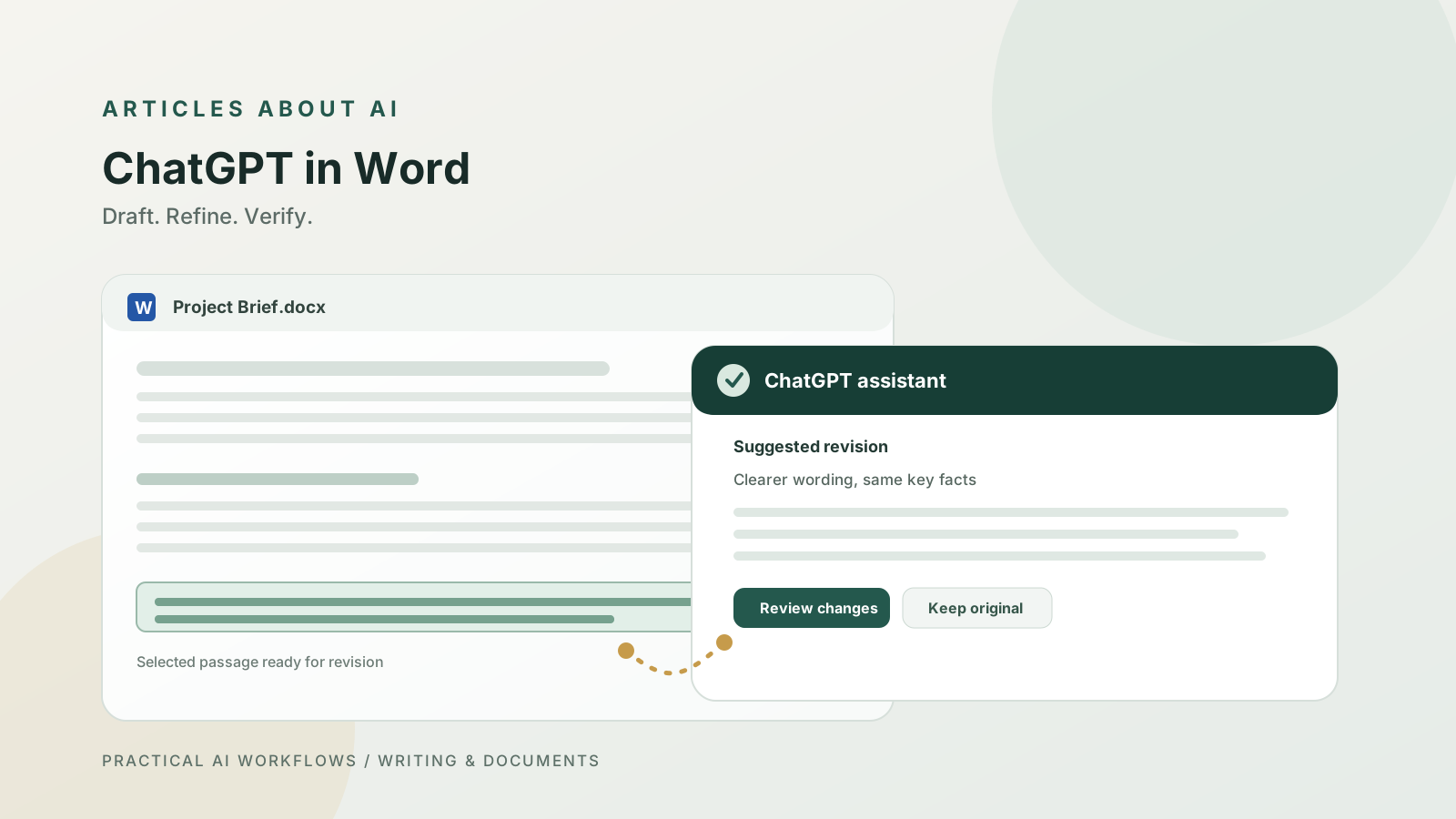
ChatGPT for Word brings an AI assistant into a sidebar inside Microsoft Word, so you can work on a document without repeatedly switching to a separate browser tab. It can help turn notes into a first draft, summarize an open document, revise selected passages, and reorganize headings or formatting. The useful question is not simply what the add-in can do, but how to use it without losing control of the facts, wording, and structure that matter.
This guide explains how to install the official ChatGPT Microsoft add-in, apply it to realistic writing tasks, use prompts that produce reviewable changes, and troubleshoot common access problems. It also covers the limitations and account controls to check before using it for sensitive or business-critical documents.
What is ChatGPT for Word?
ChatGPT for Word opens ChatGPT in a Word sidebar. You can ask questions about the document you have open, select text for revision, or provide notes and source text for a new draft. OpenAI says the same Microsoft add-in can provide access across Word, Excel, and PowerPoint; you do not need a separate ChatGPT add-in for each of those applications.
Common use cases include:
- Drafting a memo, proposal, report, or client document from notes.
- Summarizing a long document or preparing an executive summary.
- Revising a selected passage for clarity, tone, length, or audience.
- Finding unclear language and inconsistent terminology.
- Reorganizing headings, numbering, and document structure.
The add-in is a writing and document-workflow assistant, not a guarantee that every change will be correct. Review its suggestions and verify important claims before using the result.
How to install ChatGPT in Microsoft Word
Step 1: Install the official add-in
Open the ChatGPT listing in Microsoft Marketplace and follow the installation instructions. Check that the publisher is OpenAI, LLC, rather than installing an unrelated third-party tool with a similar name.
Step 2: Open ChatGPT in Word
Launch Microsoft Word and look for ChatGPT in the ribbon or add-ins area. Open the ChatGPT sidebar. Exact labels and placement can vary with the Word version, platform, and organizational setup.
Step 3: Sign in to the right account
Sign in with the ChatGPT account you intend to use. If you belong to more than one workspace, select the appropriate one. If ChatGPT does not appear, your Microsoft 365 administrator may need to allow the add-in, and your ChatGPT workspace administrator may need to enable access.
Step 4: Open a document and start with a small task
Open the document you want to work on and give ChatGPT a specific instruction in the sidebar. For a first test, ask it to identify unclear sentences or summarize the document before requesting extensive edits. This lets you evaluate the output before making larger changes.
For the current installation instructions and availability details, consult OpenAI’s official ChatGPT for Word help page.
Practical workflows for ChatGPT in Word
1. Turn notes into a structured first draft
Use this workflow when you have bullet points, meeting notes, or source material but no finished document. Provide the notes in the prompt and describe the audience, purpose, format, and information that must not be invented.
Prompt to try:
Turn the notes below into a professional project update for senior managers. Use a short opening summary, clear section headings, completed work, current risks, and next steps. Preserve all names, dates, figures, and commitments exactly as supplied. Do not invent missing details; list any gaps at the end.
Notes: [Paste your notes here.]
Review the draft against the original notes before sharing it. In particular, check dates, owners, deadlines, and whether a tentative idea has accidentally become a firm commitment.
2. Summarize a report or long document
An executive summary should surface the main conclusions and decisions—not simply shorten the opening paragraphs. Ask for a defined output and make the assistant distinguish what the document states from what it infers.
Prompt to try:
Write an executive summary of the open document in no more than 250 words. Include the purpose, three main findings, the decision required, and the most important risks or limitations. Use only information supported by the document. If the document does not answer a question, say so.
Check that the summary represents the whole document and does not omit a qualification buried in a later section. If exact evidence matters, ask for the relevant heading or passage and confirm it in the original.
For workflows that involve uploading files into a separate ChatGPT conversation, see our guide to uploading files to ChatGPT and analyzing them. For PDF-specific tasks, use our practical guide to analyzing PDFs in ChatGPT.
3. Edit selected text without changing its meaning
Select the passage you want to improve, then state what should change and what must stay intact. Narrow instructions make it easier to judge whether the revision is useful.
Prompt to try:
Revise the selected passage for clarity and concision for a nontechnical audience. Preserve its meaning, factual claims, defined terms, numbers, and caveats. Do not add new evidence. Return the revised text and briefly identify any change that could affect the meaning.
Compare the revision with the original. Watch for changed qualifiers such as “may,” “usually,” or “subject to,” because small wording changes can alter the meaning of a policy, contract, or technical explanation.
4. Improve headings and organization
If a document feels repetitive or difficult to scan, ask for a proposed structure before applying extensive changes.
Prompt to try:
Review the structure of this document. Suggest a clearer order for the existing sections and more informative headings. Do not delete substantive content or introduce new claims. First show the proposed outline and explain the main changes; wait for my review before rewriting the document.
After agreeing on the outline, revise one section at a time. This reduces the risk of losing material that is important but not obvious from the heading.
5. Check terminology and unclear statements
Long documents often use several terms for the same concept or make claims that are hard to interpret. Ask for a diagnostic review rather than an unrestricted rewrite.
Prompt to try:
Review this document for inconsistent terminology, ambiguous sentences, unexplained acronyms, and claims that need supporting evidence. Return a table with the section or phrase, the issue, and a suggested correction. Do not silently rewrite factual claims or assume that two terms mean the same thing.
Treat the results as an editing checklist. A suggested change may be inappropriate when a term has a specific legal, technical, or organizational definition.
ChatGPT for Word prompts: a reusable formula
A reliable prompt usually identifies five things:
- Task: What should ChatGPT do—draft, summarize, revise, reorganize, or review?
- Audience: Who will read the document?
- Scope: Which passage, section, or document should it use?
- Constraints: Which facts, numbers, terms, tone, and formatting must remain unchanged?
- Output: What format should the response take, and how should uncertainty be reported?
For more general prompt-writing methods, read How to Write Better ChatGPT Prompts and How to Use ChatGPT Effectively. The goal is not to add unnecessary instructions to every request; it is to make the intended result testable.
Why is ChatGPT not showing in Word?
If you cannot find the ChatGPT sidebar, check these points in order:
- Confirm the add-in was installed. Return to the official Microsoft Marketplace listing and check the installation status.
- Check the Word interface. Look in the ribbon or add-ins area; placement can vary by platform and version.
- Check organizational restrictions. A Microsoft 365 administrator may block add-ins, while a ChatGPT workspace administrator can control access to ChatGPT for Word.
- Verify the account and workspace. Sign in with the intended ChatGPT account and select the workspace that should have access.
- Check the official instructions. Interface labels and deployment behavior can change, so compare your setup with the current OpenAI help page.
If you use a managed work or school device, do not try to bypass administrator controls. Ask the relevant administrator to confirm whether the add-in is permitted.
Plans, usage limits, and availability
OpenAI’s current documentation says ChatGPT for Word is available across ChatGPT plans, including Free. Availability in a particular environment can still depend on region, rollout, Microsoft 365 configuration, workspace permissions, and administrator settings.
Usage limits apply. OpenAI notes that Word draws from the relevant plan’s usage allowance, including shared allowances for Codex and other premium features on plans that include them. Do not assume that using the add-in is unlimited or that every model and feature has identical limits. Check the current ChatGPT for Word documentation for the latest terms.
Limitations, privacy, and accuracy
Complex formatting may need manual repair. Tables, charts, and intricate layouts can require additional work after an AI-assisted edit. Inspect the finished document in Word rather than assuming the layout is unchanged.
The assistant can alter content unintentionally. It may introduce an error, remove a qualification, or change a detail you intended to preserve. Verify figures, dates, citations, names, and key wording after substantial revisions. Keep a copy of important documents before making large changes.
The open document is not the same as unrestricted access to your computer. OpenAI says ChatGPT for Word can work with the document you have open, but it cannot automatically reference every other local file on your device. Provide relevant notes or source text in the prompt, or use a supported connected app when available and authorized.
Privacy depends on your plan and data controls. Before using confidential business material, client information, personal records, or unpublished research, review the data policies that apply to your account and organization. Upload or share only information you are authorized to use with the service. Business, Enterprise, and Education workspaces have specific data-handling commitments described by OpenAI; do not assume that every plan has identical settings.
For consequential documents—especially legal, financial, compliance, or technical material—treat ChatGPT as a drafting and review aid, not as the final authority.
Frequently asked questions
Is ChatGPT for Word free?
OpenAI lists ChatGPT for Word as available on all ChatGPT plans, including Free. Usage limits apply, and the availability of specific features may depend on your account and workspace settings.
Do I need a separate add-in for Word, Excel, and PowerPoint?
No. OpenAI says the same Microsoft add-in provides ChatGPT access in Word, Excel, and PowerPoint.
Can ChatGPT edit an existing Word document?
It can help revise selected text, review the open document, and suggest changes to structure and formatting. Review the output to ensure that the meaning, facts, and layout remain correct.
Can ChatGPT for Word read other files on my computer?
It does not automatically access every local file on your computer. Provide relevant source text in the prompt or use supported connected sources when available and permitted.
Why can’t I access my ChatGPT workspace in Word?
Check that you signed in with the account associated with that workspace and selected the correct workspace. An administrator may also need to enable the add-in.
Does ChatGPT for Word remember my regular ChatGPT conversations?
OpenAI says conversations in the add-in are separate from your ChatGPT conversation history, and ChatGPT memory and skills do not automatically carry over to the add-in.
Conclusion
ChatGPT in Microsoft Word is most useful when it is given a specific, reviewable job: turn notes into a draft, summarize a report, revise a selected passage, or identify structural and terminology problems. Define what must be preserved, start with a manageable task, and verify the result before accepting major changes. That workflow can save editing time while keeping the author responsible for accuracy, meaning, and final quality.