
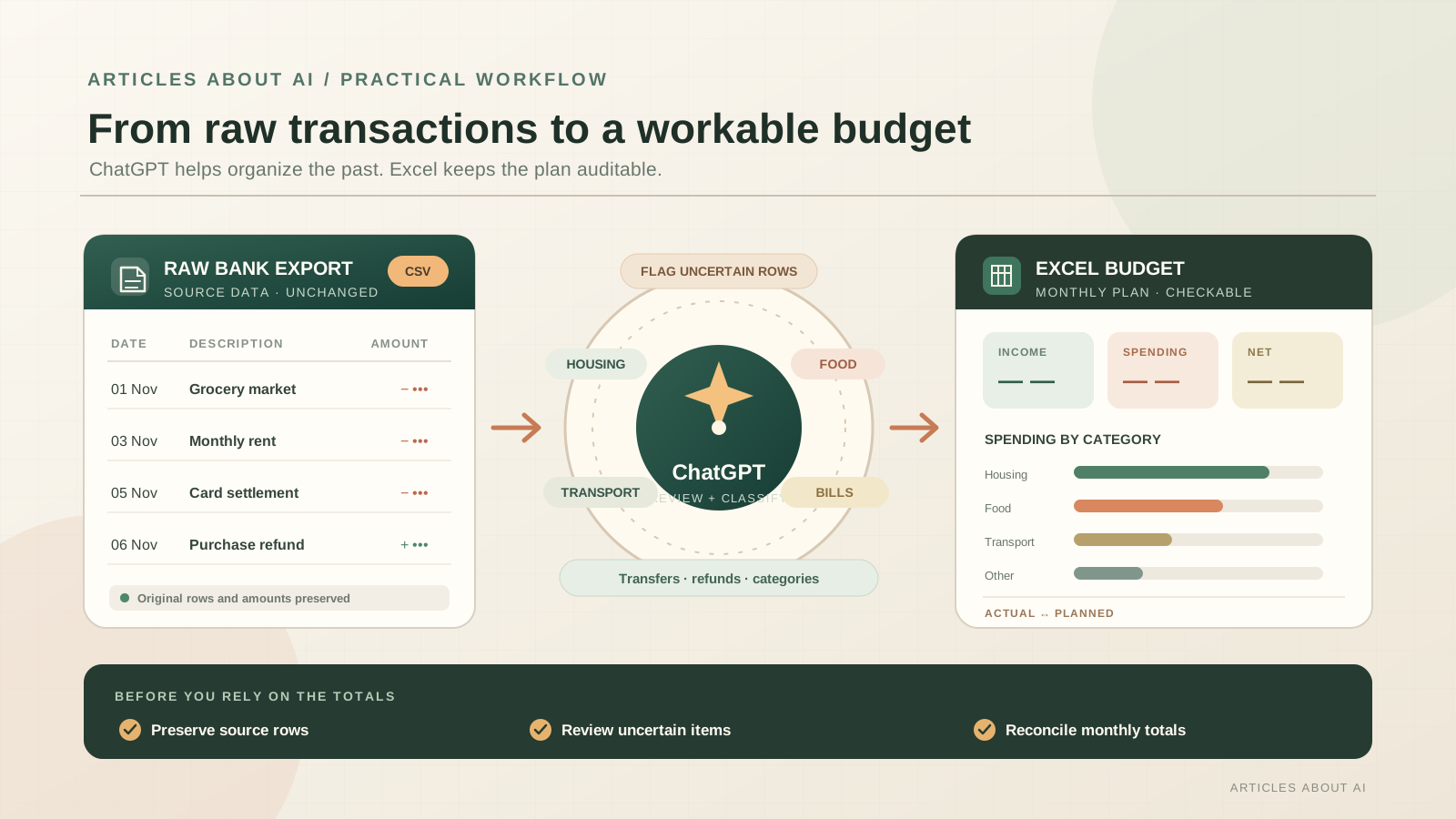
A bank export can contain hundreds of transactions, inconsistent merchant descriptions, refunds, transfers, and payment records that are difficult to turn into a useful monthly plan. ChatGPT can help turn that raw data into an Excel budget by cleaning the transaction list, suggesting categories, building summaries, and explaining the formulas behind the results.
The important distinction is that historical spending and a future budget are not the same thing. A transaction export shows what happened; it does not tell an AI assistant how much you intend to spend next month, which transfers should count as expenses, or whether a purchase belongs to groceries, household supplies, or another category. You need to define those rules and review the output.
This guide explains two ways to use ChatGPT with Excel, how to prepare raw transaction data, how to structure a budget workbook, and how to check the calculations before relying on them.
Can ChatGPT create an Excel budget from raw data?
Yes. There are two practical routes, depending on whether you want ChatGPT to work inside Excel or analyze a file in a regular ChatGPT conversation.
ChatGPT for Excel is a spreadsheet add-in that opens in a sidebar inside Microsoft Excel. OpenAI says it can create spreadsheets from scratch, build budgets, clean messy sheets, explain formulas, and update workbooks using natural-language instructions. It can work with multi-tab files, formulas, references, and assumptions. OpenAI currently lists the feature for Free, Go, Plus, Pro, Business, Enterprise, Edu, and K–12 users, although usage limits and workspace controls vary. See the current ChatGPT for Excel and Google Sheets guide for availability and setup details.
A second option is to upload a CSV or Excel file to a regular ChatGPT chat and use Data Analysis. OpenAI lists .xls, .xlsx, and .csv among supported spreadsheet formats. ChatGPT can summarize rows and columns, identify trends and outliers, create charts, and run Python-based calculations. That route is useful for inspecting and transforming data before you build or update the workbook. Read the official Data Analysis guide for file preparation and feature limitations.
| Method | Best use | Where the work happens |
|---|---|---|
| ChatGPT for Excel add-in | Build or update the budget workbook directly | Inside Excel, in the ChatGPT sidebar |
| Regular ChatGPT with Data Analysis | Inspect a CSV or XLSX, clean transactions, test categories, and explore spending | In a ChatGPT conversation; transfer or reuse the verified output in Excel |
If your goal is a finished, editable Excel budget, the add-in is the more direct workflow. If you mainly need to understand a raw export first, start with Data Analysis. You can also use both: inspect the source file in ChatGPT, then build the workbook in Excel.
Step 1: Prepare the raw transaction data
Start with a CSV or XLSX export from your bank, card provider, or accounting system. Use the original export rather than copying figures manually from a statement. Keep an untouched copy so you can compare the final workbook with the source.
A useful transaction table usually has one row per transaction and clear columns such as:
| Column | What it contains |
|---|---|
| Date | The transaction or posting date; keep the original date field |
| Description | The merchant, payee, or bank-provided transaction description |
| Amount | The original amount and sign as exported |
| Currency | The currency code, especially if accounts use different currencies |
| Account | A neutral account label if several exports are combined |
| Transaction ID | A reference that can help identify exact duplicates, if available |
Do not combine currencies until you have chosen a conversion method and supplied the exchange rates you want to use. ChatGPT should not silently convert currencies or assume that a rate from an unrelated date is appropriate.
Before uploading, check the file structure:
- Put descriptive column headers in the first row.
- Keep one transaction per row.
- Remove blank spacer rows and unrelated tables.
- Make sure dates and amounts are stored consistently.
- Keep the original amount column so that any normalization can be audited.
- If you combine multiple accounts, add an account label and check for duplicated transactions.
These steps follow OpenAI’s recommendations for spreadsheet analysis: use clear headers and one record per row, and avoid unrelated tables, blank separators, and images containing values. If you need a broader walkthrough of attaching and inspecting files, see our guide to uploading files to ChatGPT and analyzing them.
Protect personal and financial information
A transaction export can reveal more than spending totals. It may include account numbers, names, addresses, reference numbers, or sensitive descriptions. Remove identifiers that are not needed for categorization, and do not upload banking passwords, authentication codes, full card numbers, or credentials.
If you use a personal ChatGPT workspace, review Settings → Data Controls before uploading financial records. OpenAI explains how to turn off Improve the model for everyone for new conversations in its Data Controls documentation. That setting is separate from deleting chats or files, and your organization’s policies may apply if you use a managed workspace. For the Excel add-in, also review the data-handling information in OpenAI’s ChatGPT for Excel documentation.
Step 2: Ask ChatGPT to audit the export before categorizing it
Do not begin by asking ChatGPT to “make a budget.” First, ask it to inspect the raw file and explain what it contains. This catches missing columns, mixed date formats, duplicated rows, unexpected currencies, and sign conventions before they affect the totals.
Upload the file in a regular ChatGPT conversation, or open the ChatGPT sidebar in Excel and select the source table. Use a prompt such as:
Prompt: Audit my raw transaction export
Inspect the attached transaction data before changing it.
- Identify the date, description, amount, currency, account, and transaction-reference columns.
- Report the number of rows, date range, currencies, blank fields, and exact duplicate transaction IDs.
- Explain whether debits and credits appear as positive or negative amounts. Do not change their signs yet.
- Identify possible transfers, credit-card payments, refunds, reversals, cash withdrawals, fees, and recurring payments.
- List ambiguous records that need my decision.
- Do not delete rows, invent missing values, or assign categories yet.
Return a short audit summary and a table of issues to review. Preserve the original transaction descriptions and amounts.
Review the audit before continuing. If ChatGPT reports that a date column contains text, for example, correct the date values or ask it to show the affected rows. If the export includes several currencies, separate them or define the conversion rules first.
A successful upload does not prove that every row has been interpreted correctly. OpenAI notes that large, complex, formula-heavy, or poorly structured spreadsheets can be processed incompletely. If a result looks incomplete, ask ChatGPT to inspect a specific sheet or range, or split the file into smaller parts.
Step 3: Define the categories and transaction rules
ChatGPT can suggest expense categories, but you should approve the category list before it classifies the full dataset. A simple household budget might use:
- Housing: rent, mortgage, building fees, and essential home costs.
- Utilities: electricity, water, gas, internet, and mobile service.
- Food: groceries and household food purchases.
- Transport: fuel, public transport, parking, and vehicle maintenance.
- Health: medical costs, pharmacy purchases, and insurance.
- Debt and fees: loan payments, bank fees, and interest.
- Subscriptions: software, streaming, memberships, and recurring services.
- Personal and discretionary: clothing, dining out, entertainment, and non-essential shopping.
- Income: salary, freelance payments, and other genuine income.
- Transfers: movements between your own accounts, kept outside ordinary spending totals.
- Review needed: records that cannot be classified confidently.
You can make the categories more detailed, but avoid creating dozens of labels that differ only slightly. The purpose is to make monthly spending understandable and comparable.
Several transaction types need explicit rules:
Transfers between your own accounts are not new income or spending. If you include a checking-account export and a savings-account export, moving money between them should not inflate either total.
Credit-card payments can cause double counting. If you include the individual card purchases and also include the payment from your bank account to the card provider, classify that payment as a transfer or card settlement—not as a second expense.
Refunds should usually offset the original spending category. A grocery refund, for example, should reduce grocery spending rather than appear as salary or unrelated income. If the original purchase cannot be identified, flag the refund for review.
Cash withdrawals need a consistent treatment. If you also record what the cash was spent on, do not count the withdrawal and the later purchases as two expenses. If you do not track cash purchases, classify the withdrawal once as cash spending and label it accordingly.
Uncertain merchant names should remain uncertain. A short bank description may not reveal whether a transaction was food, transport, a business purchase, or a transfer. Use a review flag instead of forcing a guess.
Use this prompt after you approve the category list:
Prompt: Classify transactions using my rules
Add a suggested Direction, Category, and Subcategory to each transaction.
Direction must be one of: Income, Expense, Transfer, or Review.
Use only these approved categories: [paste your category list].
Preserve the original Date, Description, Amount, Currency, Account, and Transaction ID fields. Add a separate normalized Signed Amount column using this convention: income is positive, ordinary expenses are negative, and refunds are positive but remain classified as Expense so they offset the original category. Transfers must be excluded from income and expense totals.
Do not treat credit-card settlements or transfers between my own accounts as new spending. Do not guess when the merchant description is ambiguous. Mark uncertain rows as Review and explain why.
Return a count of rows in each Direction and Category, plus a separate review list. Do not remove any original records.
Check the classifications before asking ChatGPT to build the summary. A few incorrectly classified transfers or refunds can materially distort the monthly totals.
Step 4: Build the Excel budget workbook
Once the transaction table is clean and the category rules are approved, ask ChatGPT for Excel to build a workbook with separate sheets. Keeping the source records apart from the plan makes the budget easier to audit and update.
A practical structure is:
| Worksheet | Purpose |
|---|---|
Transactions |
Original fields, normalized signed amount, direction, category, month, and review status |
Category Rules |
Approved merchant patterns and the category assigned to each |
Monthly Summary |
Income, expenses, net cash flow, and cash-flow margin by month |
Budget Plan |
Planned amount by month and category |
Dashboard |
Spending by category, monthly trends, and actual-versus-plan comparisons |
Review |
Ambiguous records, possible duplicates, and items awaiting confirmation |
Ask ChatGPT to keep the original transaction data intact and put new fields in separate columns. It should explain which sheets and ranges it plans to change before making broad edits. OpenAI’s guidance also recommends being explicit about what to preserve, what to update, and which parts of a workbook should remain untouched.
Use this build prompt:
Prompt: Create my monthly Excel budget
Using the approved Transactions table, create an editable personal budget workbook with these sheets: Transactions, Category Rules, Monthly Summary, Budget Plan, Dashboard, and Review.
Preserve every original transaction row and its original amount. Use the approved Direction and Category values. Keep transfers out of income and expense totals. Keep refunds in their original expense category as positive adjustments so they reduce net spending.
In Monthly Summary, calculate monthly income, monthly expenses, net cash flow, and cash-flow margin. In Budget Plan, create one row per month and category with a Planned amount, Actual amount, Variance, and Remaining amount. Leave planned amounts blank for me to enter unless I explicitly provide a target.
In Dashboard, show monthly income and expenses, spending by category, and actual versus planned spending. Add a visible count of transactions marked Review.
Explain the formulas, assumptions, sign conventions, and any rows excluded from totals. Do not invent budget targets or silently delete data. Before editing, list the sheets and ranges you intend to create or change.
The distinction between Actual and Planned is essential. Actual spending can be calculated from the transaction history. Planned spending is a decision you make. ChatGPT can suggest a starting point based on a clearly stated historical average, but it should label that figure as a suggestion and wait for your approval before treating it as a budget limit.
Microsoft’s guide to managing a household budget in Excel also recommends separating income and expenses, grouping spending into categories, and comparing projected costs with actual costs over time.
Step 5: Check the Excel formulas
A budget workbook should remain understandable after the AI session ends. Ask ChatGPT to show the formulas it created, explain each input range, and identify how it handles blanks, refunds, transfers, and months with no income.
For example, suppose the Transactions sheet contains an Excel table named Transactions with these fields:
Month: the first day of the transaction month, stored as a real date.Direction: Income, Expense, Transfer, or Review.Category: the approved budget category.Signed Amount: income is positive; expenses are negative; refunds are positive but remain classified as Expense.
If the Monthly Summary sheet has a month in cell A2, the following formulas illustrate the calculation:
Monthly income
=SUMIFS(Transactions[Signed Amount],Transactions[Direction],"Income",Transactions[Month],$A2)
Monthly expenses
=-SUMIFS(Transactions[Signed Amount],Transactions[Direction],"Expense",Transactions[Month],$A2)
Net cash flow
=B2-C2
If B2 contains income and C2 contains expenses, the result is income minus expenses. A positive result means more money came in than went out during that month; a negative result means spending exceeded income.
Cash-flow margin
=IFERROR(D2/B2,0)
This example uses net cash flow divided by income. It is a cash-flow margin, not a true savings rate unless you have also defined how savings transfers and other cash movements are tracked. If you want a separate savings-rate metric, define it explicitly in the workbook’s assumptions.
For category-level spending, the same SUMIFS approach can filter by month and category:
=-SUMIFS(Transactions[Signed Amount],Transactions[Direction],"Expense",Transactions[Month],$A2,Transactions[Category],B$1)
Microsoft documents SUMIFS for adding values that meet multiple conditions. The formula is deterministic once the ranges, labels, and sign conventions are correct. The difficult part is making sure the transaction classification and criteria actually represent your budget rules.
For the Budget Plan sheet, use:
- Variance: Actual minus Planned. A positive number means you spent more than planned.
- Remaining: Planned minus Actual. A negative number means the category is over its plan.
Do not accept a formula only because it produces a plausible-looking number. Check that the formula points to the intended month, category, and transaction direction.
Step 6: Reconcile the totals before relying on the dashboard
Use a second prompt to make ChatGPT verify the workbook rather than merely describe it:
Prompt: Audit the completed budget
Review the workbook calculations without changing the source transactions.
- Compare the number of source rows with the number of rows in the Transactions sheet.
- Reconcile monthly income and expense totals with the normalized transaction rows.
- Confirm that transfers are excluded and refunds reduce the correct expense categories.
- Check for duplicate transaction IDs, missing dates, blank amounts, unsupported currencies, and rows marked Review.
- Test the summary formulas on at least three manually selected transactions and one complete month.
- Check that Actual minus Planned is positive when spending is over budget.
- List any formula errors, inconsistent category labels, and assumptions that still need my approval.
Return the issues and suggested corrections first. Do not change values or delete rows without my confirmation.
Then perform a manual check in Excel. Select several transactions and calculate their category totals independently. Compare the workbook’s monthly totals with the bank or card statement for the same period. If multiple accounts are included, reconcile each account separately before combining them.
Pay particular attention to the first and last days of each month, refunds posted in a later month, duplicate exports, and card settlements. A dashboard can look polished while still containing a sign error or a double-counted payment.
Step 7: Turn historical spending into a realistic monthly plan
After the actuals are correct, decide how you want to set planned amounts. You can use the last three to six complete months as a starting reference, but the period should reflect your circumstances. A short period may be distorted by annual insurance, school fees, travel, repairs, or other irregular costs.
Ask ChatGPT to show:
- The average monthly amount for each category.
- The lowest and highest month.
- Recurring fixed commitments.
- Variable categories that change substantially.
- One-off or unusual transactions that should not automatically become a monthly target.
Then decide which figures to keep, increase, reduce, or leave blank. A historical average is evidence about past behavior, not a recommendation about what you should spend. Your income, obligations, local prices, household size, debt commitments, and savings goals determine the plan.
You can also ask ChatGPT to create a separate irregular-expenses section for annual or occasional costs. Dividing a known annual bill by 12 can help you reserve a monthly amount, but only if the bill and payment schedule are accurate and you have chosen to fund it that way.
Common mistakes to avoid
- Treating every outgoing bank entry as an expense: transfers and card settlements can inflate spending if they are counted twice.
- Mixing currencies: totals across different currencies are meaningless until a conversion rule is defined.
- Letting the AI guess missing information: uncertain transactions should be flagged, not silently categorized.
- Using historical averages as automatic spending limits: a budget is a plan, not just a report of past behavior.
- Ignoring refunds and reversals: these can make category totals misleading if their signs are wrong.
- Overwriting the original export: preserve a source copy so that every transformation can be checked.
- Trusting a dashboard without checking formulas: inspect the calculations and reconcile totals with the original statements.
If you want to compare spreadsheet assistants, our guides to Microsoft Copilot in Excel and using Copilot in Excel to summarize a large dataset cover related workflows. The key difference is the tool you use inside the spreadsheet; the need to preserve source data and verify calculations remains the same.
Final checklist
Before using or sharing the budget, confirm that:
- The workbook contains every intended transaction from the source export.
- Original dates, descriptions, amounts, and currencies remain available.
- Income, expenses, refunds, and transfers follow one documented sign convention.
- Credit-card settlements and account transfers are not double-counted.
- Uncertain transactions are visible on a Review sheet.
- Planned amounts are your own approved targets, not invented AI values.
- Monthly totals reconcile with the source statements.
- Formulas and charts update when you add a new month of transactions.
- Sensitive identifiers have been removed or handled under the appropriate data policy.
ChatGPT can make the first pass at turning raw transactions into an organized Excel budget much faster. The reliable result, however, comes from a clear category system, an auditable workbook structure, and a final reconciliation that you control. Treat AI-generated classifications and formulas as work to review—not as a substitute for checking your own financial records. ChatGPT is not a financial, legal, or tax adviser, so use the workbook as a recordkeeping and planning aid rather than professional advice.