
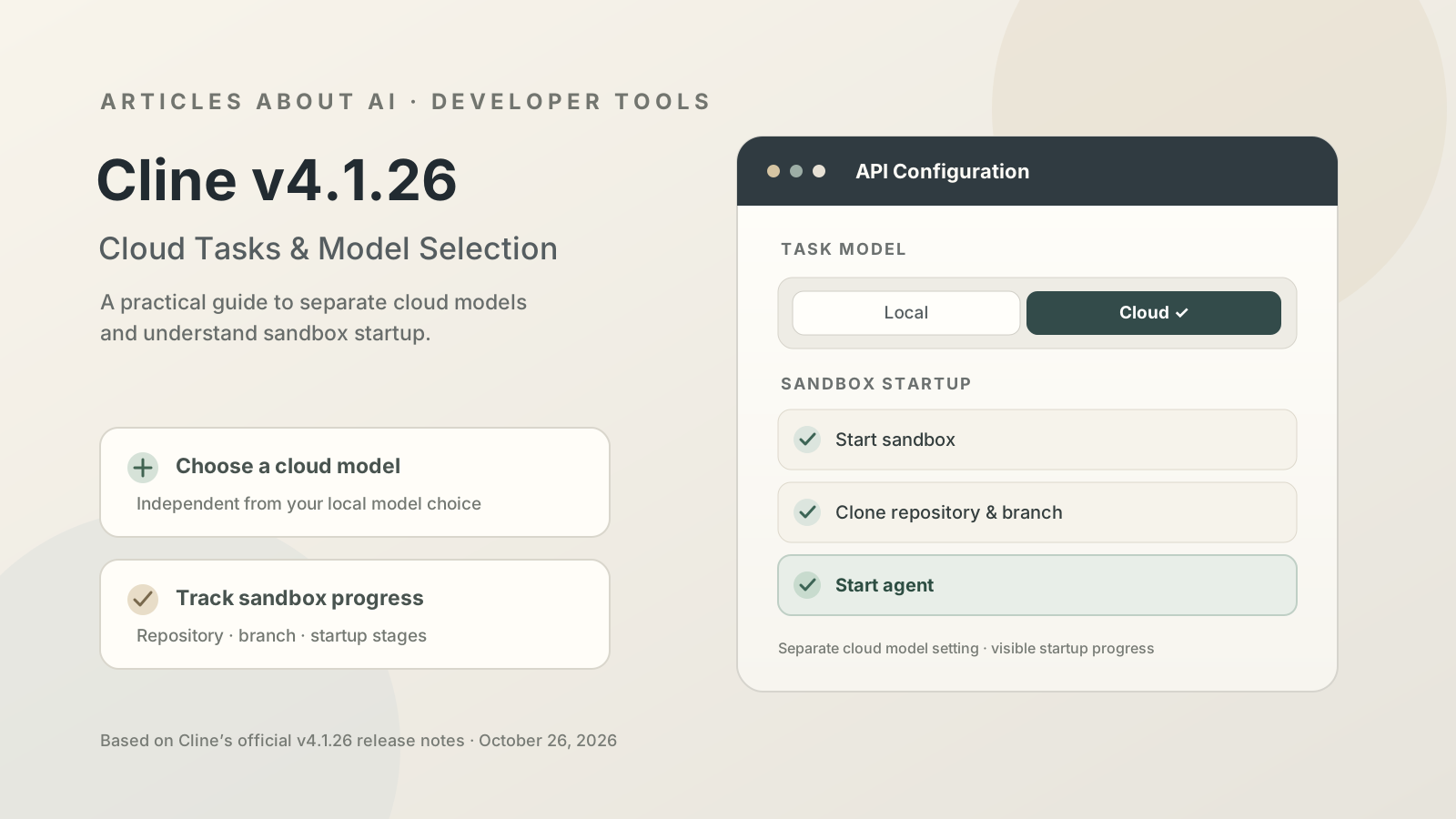
Cline v4.1.26 adds two useful refinements to its cloud-task workflow: a separate model choice for cloud sessions and a progress card that explains what happens while a cloud sandbox starts. The changes matter because the model you prefer for local development does not always need to be the model used for a hosted task, and a visible startup sequence makes it easier to understand whether Cline is preparing the repository or has started the agent.
This guide explains how to find the new controls, choose a model deliberately, understand the sandbox startup stages, and troubleshoot common problems. It is based on Cline’s official v4.1.26 release notes, published on October 26, 2026. It is a practical walkthrough of the documented behavior, not a claim that every account has the feature enabled: Cline’s previous release described cloud sessions as an opt-in, gradual rollout, so availability may depend on your installation and account.
What changed in Cline v4.1.26?
The official release notes identify two cloud-task additions.
| Separate Local and Cloud model settings. When cloud sessions are enabled, Settings → API Configuration gains a Local | Cloud toggle. The Cloud setting chooses the Cline model used by new cloud tasks and is saved separately from your local model choice. In a cloud session, selecting the model label in the composer opens that setting. |
A sandbox startup progress card. When you start or resume a cloud sandbox, Cline displays a progress card with the repository, branch, and startup stages: start sandbox, clone repository, and start agent. The card collapses after the agent starts.
The release also changes the cloud-session interface: the Plan/Act toggle and auto-approve bar are hidden rather than displayed as disabled controls. Other changes in v4.1.26 include a refreshed model catalog, provider compatibility fixes, and reliability improvements. Those broader changes are relevant because an update can affect which model a provider selects when you have not pinned a specific model.
Primary source: Cline v4.1.26 release notes.
Before you start: confirm that cloud tasks are available
Cline’s VS Code extension is distinct from Cline Desktop and the command-line tools. This guide concerns the extension’s cloud-session workflow, not the Desktop Changes pane described in our separate Cline Desktop 0.0.49 code-review guide.
- Open VS Code and check that the Cline extension is installed and updated.
- Review the official Cline installation page if you need to install or update the extension.
- Confirm that cloud sessions are enabled and available in your current Cline setup.
- Select a repository and branch that you are authorized to use.
- Make sure local work is committed or otherwise backed up before you begin a task that may modify code.
If you cannot see cloud-session controls, do not assume that you missed a hidden button. The feature may not be enabled for your account or installation, or you may be using a different Cline product surface. Check the official release notes and current extension UI before troubleshooting further.
Step 1: Choose a model specifically for cloud tasks
| In Cline, open Settings → API Configuration. When cloud sessions are enabled, v4.1.26 adds a **Local | Cloud** selector. |
The important distinction is that the Cloud selection is stored separately from the local model selection. You can therefore use one model for work performed in your local environment and a different model for newly launched cloud tasks. This is not simply a display preference: it determines which Cline model new cloud tasks use.
To configure it:
- Open Settings and go to API Configuration.
-
Find the Local Cloud selector. - Choose Cloud.
- Select the model and provider configuration you want cloud tasks to use.
- Return to your cloud session and check the model label in the composer if you need to reopen the setting.
The release notes also state that clicking the model label in a cloud session’s composer opens the cloud model setting. This gives you a direct route from the task to the relevant configuration.
How should you choose a cloud model?
Choose based on the task, reliability, latency, context needs, and cost—not just the model’s name or benchmark reputation.
- Small, well-defined changes: A cost-efficient model may be sufficient for a narrow documentation edit, a simple test, or a straightforward refactor.
- Complex debugging: Consider a model with strong reasoning and coding performance, while keeping the task bounded and reviewing its proposed changes.
- Large repositories: Check the model’s context capabilities and whether the task can be divided into smaller, independently verifiable steps.
- Sensitive or production code: Follow your organization’s rules for data handling, approved providers, repository access, and human review.
- Repeatable workflows: Pin a model when predictable behavior matters, instead of relying on a provider’s changing default.
Model quality is only one part of a successful cloud task. A clear prompt, a correct repository and branch, suitable tests, and careful review can matter as much as the model selection itself.
Step 2: Understand the cloud sandbox startup card
When you start or resume a cloud sandbox, Cline v4.1.26 shows a progress card containing the repository, branch, and startup steps. The documented sequence is:
Start sandbox → Clone repository → Start agent
The card collapses after the agent starts. Use it to understand where setup stands, especially when a task appears to be taking time before producing code.
Start sandbox
Cline begins preparing the cloud environment for the task. If this stage does not progress, check whether cloud sessions are available and whether the application reports a setup or connection error. Avoid launching duplicate tasks repeatedly before you know whether the first attempt is still starting.
Clone repository
The cloud environment retrieves the repository associated with the task. Confirm that the selected repository and branch are the ones you intended. A task operating on the wrong branch can produce technically plausible changes that do not belong in your intended workstream.
Start agent
After the sandbox and repository setup steps, Cline starts the coding agent. The card then collapses according to the release notes. Once the agent is running, continue to monitor the task output and inspect the eventual code changes rather than interpreting a completed startup as proof that the task itself succeeded.
The card improves visibility into setup; it does not guarantee that a repository cloned successfully in every environment or that the agent will complete its request correctly.
Step 3: Prepare a cloud task that is easy to verify
Cloud agents work best when the requested outcome is explicit and the success criteria are testable. Before starting a task, specify:
- Goal: What behavior should change?
- Scope: Which files or components are relevant, and what should remain untouched?
- Acceptance criteria: What must be true when the task is complete?
- Validation: Which tests, linters, type checks, or build commands should be run?
- Constraints: Are there restrictions on dependencies, APIs, credentials, network access, or generated files?
For example, instead of asking “fix the login system,” write a bounded request: “Investigate why an expired session is not redirected to the sign-in page. Identify the relevant code, implement the smallest safe fix, add a regression test for expired sessions, and report the checks you ran. Do not change unrelated authentication behavior.”
A focused request gives you a better basis for reviewing the result. It also makes it easier to identify when an agent has expanded the scope without a clear reason.
Step 4: Review cloud-task output before merging
Treat cloud execution as a development workflow, not an automatic approval pipeline. When the agent finishes:
- Read its summary and compare it with your original acceptance criteria.
- Inspect every changed file and the actual diff.
- Look for unrelated modifications, new dependencies, configuration changes, and unsafe handling of secrets.
- Run the relevant tests or confirm the evidence the agent provides. Do not report a test as passing unless the result is visible and successful.
- Test the user-facing behavior where practical.
- Review the target branch and repository state before merging or opening a pull request.
Cline Desktop 0.0.49 offers a separate Changes pane and Project Files viewer for inspecting Desktop sessions; those controls should not be assumed to be the same interface as the VS Code extension’s cloud tasks. For broader background on choosing coding agents, read our Claude Code vs. Codex vs. Gemini CLI comparison. For a related security topic, see our guide to GitHub AI secret detection.
Step 5: Know what else changed in v4.1.26
Although cloud model selection and sandbox progress are the focus of this guide, the same release contains several other changes worth knowing about.
The default Cline model changed back
The release notes say that when no model is selected, the Cline provider uses Claude Sonnet 5.5 again, placing it back at the top of Cline’s recommended list. The model catalog and defaults for other providers were also refreshed.
If you rely on a provider without pinning a specific model, the model used by your workflow may change after updating. Check your settings after the update rather than assuming that a provider name always maps to the same underlying model.
GPT-6 and Gemini provider fixes
Cline reports that GPT-6 models work on OpenAI and Azure OpenAI-compatible endpoints after the request parameter was changed to max_completion_tokens. It also reports a Gemini API-key fix: the gemini provider no longer sends native Google Search, addressing reported failures involving Gemini free-tier requests and dropped tools.
These are implementation fixes documented by Cline, not a guarantee that every custom endpoint or account configuration will work. If you use a compatible endpoint, verify the provider configuration and check the actual error output if requests still fail.
Reliability and safety improvements
The release also includes changes to retries, auto-compaction, question handling, and task startup behavior. The changelog says model requests now retry at most three times instead of five, and it lists fixes for task startup mode switching, disabled rules, terminal focus, and several other edge cases.
For the full list and exact wording, use the official v4.1.26 changelog rather than relying on a third-party summary.
Troubleshooting common problems
I cannot see the Local | Cloud toggle
Check that you are using the Cline VS Code extension and that cloud sessions are enabled. The release notes explicitly condition the toggle on cloud sessions being available. Update the extension if needed, then check the official release page. If the feature has not been enabled for your account, repeatedly changing local model settings will not make the cloud selector appear.
The cloud task is still starting
Use the progress card to see which startup stage is shown. If it remains at sandbox setup or repository cloning, verify the selected repository and branch and look for an explicit error. Avoid assuming that the model itself is the problem when the agent has not started yet.
The cloud task uses a different model than my local session
That separation is expected. v4.1.26 stores the cloud model selection independently. Open API Configuration and choose Cloud, or click the model label in the cloud-session composer, to inspect the cloud-specific setting.
The provider’s default model changed
The release refreshes the model catalog and changes defaults for multiple providers. If a stable model choice is important, explicitly select and pin the intended model where supported. Then test the workflow after updates, especially if model behavior, cost, or context limits affect your project.
The agent finishes but the result is incorrect
Review the diff, run relevant checks, and provide a narrow follow-up request describing the observed failure. Do not treat the collapsed startup card or a completed agent run as proof of correctness. Completion of environment setup and correctness of generated code are different things.
Safety notes for cloud coding agents
Before using cloud tasks on a real project, confirm your organization’s policies for source-code access and third-party processing. Avoid including secrets, production credentials, private customer data, or unrelated sensitive information in prompts. Use the least access necessary, inspect generated commands and dependency changes, and require human review before merging changes into protected or production branches.
A sandbox can isolate parts of execution, but the word “sandbox” alone does not establish the exact security boundary. Consult Cline’s current documentation and your organization’s configuration to understand what repository data, network resources, and tools the environment can access.
Frequently asked questions
Does Cline v4.1.26 let me use a different model for cloud tasks?
| Yes. The release adds a Local | Cloud selector in Settings → API Configuration when cloud sessions are enabled. The cloud model is stored separately from local model choices and is used for new cloud tasks. |
What does the sandbox progress card show?
It identifies the repository and branch and displays the stages for starting the sandbox, cloning the repository, and starting the agent. The card collapses once the agent starts.
Does the new progress card mean the task is complete?
No. It describes sandbox startup. You still need to follow the task’s execution, review the changes, and run appropriate tests.
Is this the same feature as Cline Desktop’s Changes pane?
No. This article covers cloud tasks in the Cline VS Code extension. The Desktop Changes pane is a separate interface feature covered in our Desktop 0.0.49 review guide.
Should I rely on the default model after updating?
Only if you are comfortable with defaults changing. Cline v4.1.26 refreshes its model catalog and changes defaults for multiple providers. Pin a model where supported if you need repeatable behavior.
Sources and further reading
- Cline v4.1.26 official release notes — primary source for cloud model settings, sandbox progress, model catalog changes, and fixes.
- Official Cline installation page — installation and extension information.
- Cline Desktop 0.0.49: Reviewing AI Code Changes — related but distinct guide to Desktop review features.
- Claude Code vs. Codex vs. Gemini CLI — coding-agent comparison.
- GitHub AI Secret Detection — related AI security coverage.
Editorial note: Feature details were checked against Cline’s official v4.1.26 release notes and official installation page. Cloud-session availability may vary. Confirm the current interface and account access before following version-specific steps.