
Writing an Excel formula is often less difficult than deciding exactly what the formula should mean. A sales team may need a margin calculation that treats zero revenue safely. An operations manager may want to flag orders that are overdue but not yet paid. A finance analyst may need to retrieve a product price from another worksheet and show a clear message when the product ID is missing. The calculation can be described in ordinary language, but translating that description into the correct Excel syntax requires a precise understanding of columns, conditions, references, and exceptions.
Copilot in Excel can turn plain-English instructions into formula suggestions and calculated columns. You can describe the result you need, identify the relevant fields, review the proposed formula and its explanation, and then insert it into the workbook. The feature is useful for building formulas such as IF statements, percentage calculations, lookups, and conditional totals without having to remember every function argument.
The important distinction is that Copilot is a formula assistant, not an independent accounting or data-control system. A formula can be syntactically valid and still express the wrong business rule. This guide explains how to prepare a workbook, write precise prompts, generate common formula types, inspect the result, and test it before relying on the numbers.
What Copilot can generate in Excel
Microsoft documents several formula-related tasks in the Copilot pane. Copilot can suggest a formula for a single cell, create a calculated column or summary row, explain how a generated formula works, and build lookups that retrieve values from elsewhere in a workbook. Examples in Microsoft’s support guidance include calculating profit margin, finding a region’s percentage of total sales, calculating an increase between two cells, extracting a first name, and looking up inventory quantities.
That makes the current Copilot pane useful for two related jobs:
- Formula design: translate a written calculation rule into an Excel formula.
- Workbook application: add a formula column or row to the workbook when you approve the suggested change.
The exact controls and available features can vary by Microsoft 365 subscription, platform, account type, and organization settings. Microsoft currently describes edit, plan, and chat modes in Copilot in Excel. Edit mode can make workbook changes, plan mode lets you review an approach before it is carried out, and chat mode keeps the response in the conversation rather than directly editing the workbook. For a first attempt at a formula, chat or plan mode can be useful when you want to inspect the proposed logic before inserting anything.
One naming detail matters. The old =COPILOT() worksheet function is not the current way to generate formulas. Microsoft says that preview function stopped being available in Excel on September 14, 2026. The supported route described in current documentation is to use the Copilot pane and describe the task in your own words. If you open an older workbook containing the retired function, a recalculation can return #NAME?; cached results may remain until recalculation. Do not build a new workflow around that retired function.
Prepare the workbook before writing a prompt
Copilot has a much better chance of understanding a workbook when the data has a clear structure. Before asking for a formula, take a few minutes to make the source table understandable to both Excel and the person reviewing it.
Convert the source range into an Excel table
Select a cell in the data range and use Insert > Table, or press Ctrl+T on Windows. Confirm that the table has headers. Give the table a meaningful name, such as Sales, rather than leaving several unrelated tables named Table1, Table2, and Table3.
Use short, descriptive column headings such as Order Date, Region, Quantity, Unit Price, Revenue, Cost, and Status. Avoid blank headers, duplicate names, and headings that change halfway down the dataset. Keep one type of information in each column: dates should be dates, amounts should be numeric values, and status fields should use consistent labels.
Excel tables support structured references. Instead of referring to a moving range such as C2:C500, a formula can refer to a table and a named column, such as Sales[Revenue]. In a calculated column, [@Quantity] means the Quantity value in the current row. Structured references make formulas easier to read and are designed to adjust as table data is added or removed.
Check the meaning of each field
A heading such as Amount is not enough if it could mean gross sales, net sales, tax-inclusive sales, or a payment received. Rename it or explain its meaning in the prompt. If Date means order date in one table and delivery date in another, state that distinction.
Also check for:
- Numbers stored as text, including values with currency symbols typed into the cell.
- Dates that are inconsistent or stored as text.
- Blank values that have a specific meaning.
- Duplicate IDs in a lookup table.
- Different spellings of the same status, such as
Paid,paid, andPayment complete. - Hidden filters or totals that could affect the result you are reviewing.
Do not ask Copilot to infer a business definition that the workbook does not contain. If margin means profit divided by revenue, say so. If it means profit divided by cost, say that instead.
Open Copilot and choose the right mode
Open the workbook in an Excel version and account that support Copilot, then select the Copilot icon in the Excel window. Microsoft’s current guidance describes the pane as the place to request formula columns and single-cell formulas.
Choose the mode according to the amount of control you want:
| Mode | When to use it |
|---|---|
| Chat | Ask Copilot to propose a formula and explain it without directly changing the workbook |
| Plan | Ask for a multi-step formula or workbook change, then review the proposed approach before it runs |
| Edit | Let Copilot make the requested change in the workbook, then inspect the result before keeping it |
The default experience and the exact labels can change as Microsoft updates Excel. If the pane offers a Create formulas prompt or suggestion, select it and describe the columns or rows the formula should use. You can also write the request directly in the prompt box.
For a cautious first attempt, ask for the formula and its explanation before asking Copilot to insert a new column. This separates deciding the calculation from applying it.
Use a prompt that defines the calculation
A vague request such as “calculate profit” leaves several important questions unanswered. Does profit mean revenue minus cost, or does it include shipping, tax, discounts, and refunds? Should missing costs return zero, a blank, or a warning? Should the result be a number or a percentage?
A more reliable prompt identifies the output, inputs, calculation rule, exceptions, and expected format.
Use this reusable structure:
Add a column named [output name] to the [table name] table. For each row, calculate [business definition] using [exact column names]. If [edge case], return [specified result]. Format the result as [number, percentage, date, or text]. Explain the formula and its references before inserting it. Do not change the source columns.
The most useful parts are:
- Output name: tells Copilot where the new result belongs.
- Source fields: removes ambiguity about which columns to use.
- Business definition: states the actual calculation, not just its label.
- Edge cases: defines how blanks, zeros, missing matches, and invalid dates should behave.
- Output format: prevents a decimal ratio from being mistaken for a percentage or a date serial from appearing as an ordinary number.
- Review instruction: asks for an explanation before the formula is applied.
You do not need to name a function if you do not know which one is appropriate. You can describe the logic and ask Copilot to recommend a formula. If you already know that you want XLOOKUP, SUMIFS, or IF, you can mention it as a preference, but still inspect the formula it returns.
Practical examples: turn everyday requests into formulas
The examples below use a fictional Excel table named Sales. Its columns include Order Date, Region, Product ID, Quantity, Unit Price, Revenue, Cost, Due Date, and Status. A separate table named Products contains Product ID and Unit Price.
The prompts are examples to adapt to your actual workbook. The formulas shown are reference logic for checking the output; Copilot may return a different formula that is equivalent for the workbook’s structure.
1. Calculate a line total
Suppose each row records the quantity sold and the price per unit. Ask:
Add a column named Line Total to the Sales table. Multiply Quantity by Unit Price for each row. Keep the result numeric and explain the formula before inserting it.
A structured-reference formula for this calculation is:
=[@Quantity]*[@[Unit Price]]
This is a straightforward calculated column. Check that Quantity and Unit Price are numeric, and confirm whether the price is before or after tax and discounts. If the workbook uses a separate discount field, the business rule must state whether that discount should be applied.
2. Calculate gross profit and margin
Profit and margin are not interchangeable. If Revenue is the amount earned and Cost is the direct cost, gross profit is Revenue minus Cost. Gross margin is gross profit divided by Revenue.
Ask Copilot:
Add two columns to Sales. Gross Profit should equal Revenue minus Cost. Gross Margin should equal Gross Profit divided by Revenue and be formatted as a percentage. If Revenue is zero or blank, leave Gross Margin blank. Explain both formulas and do not change Revenue or Cost.
Reference formulas:
=[@Revenue]-[@Cost]
=IF([@Revenue]=0,"",([@[Gross Profit]])/[@Revenue])
The second formula uses a blank result for zero revenue. If the business requires a different treatment for missing revenue, specify it. A zero margin and an unavailable margin are not the same thing.
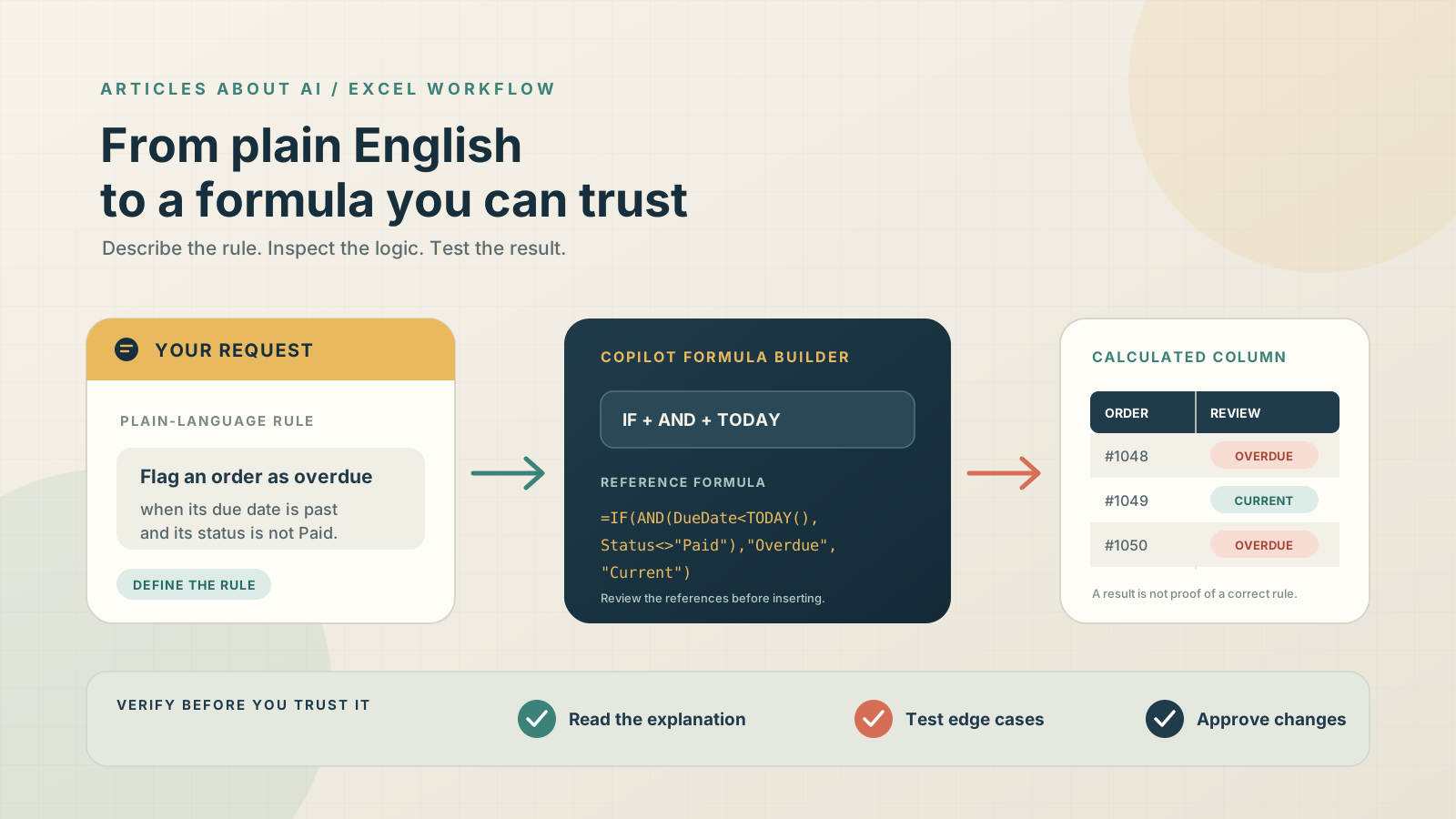
3. Flag overdue orders
A status column may contain Paid, Pending, or Cancelled. The due date should only trigger an overdue label when the order is not paid.
Prompt:
Add an Order Review column. Return “Overdue” when Due Date is earlier than today and Status is not “Paid”. Otherwise return “Current”. Treat a blank due date as “Check date” rather than as overdue.
A reference formula is:
=IF([@[Due Date]]="","Check date",IF(AND([@[Due Date]]<TODAY(),[@Status]<>"Paid"),"Overdue","Current"))
This example demonstrates why edge cases belong in the prompt. Without the blank-date instruction, Copilot might create a formula that treats incomplete records in an unintended way. If cancelled orders should be excluded too, state that as an additional condition.
4. Retrieve a value from another table
If the Sales table contains a Product ID and the Products table stores the current unit price, ask Copilot to create a lookup column:
Add a column named Current Unit Price to Sales. Match each Product ID to the Product ID column in Products and return the corresponding Unit Price. Use an exact match. If no product is found, return “Not found”. Explain the lookup formula.
A reference formula is:
=XLOOKUP([@[Product ID]],Products[Product ID],Products[Unit Price],"Not found",0)
XLOOKUP searches one range and returns the corresponding value from another. The final 0 explicitly requests an exact match. The Not found argument makes missing IDs visible instead of leaving an unexplained error. Microsoft notes that XLOOKUP is not available in Excel 2016 or Excel 2019, so check workbook compatibility if the file must be opened in those older versions.
5. Calculate each region’s share of revenue
A regional share is not the same as the percentage of the entire workbook total if the intended denominator is only the selected region or reporting period. Define the denominator clearly.
Prompt:
Add a Region Share column to Sales. For each row, divide its Revenue by the total Revenue for all rows with the same Region. Return zero if the regional total is zero, and format the result as a percentage. Explain the criteria used in the total.
A reference formula is:
=IFERROR([@Revenue]/SUMIFS(Sales[Revenue],Sales[Region],[@Region]),0)
SUMIFS adds values that meet one or more criteria. Here, it sums Revenue only for rows whose Region matches the current row. If the calculation should be limited to a month, product, or sales channel as well, include that condition in the prompt and verify that the formula uses matching ranges.
6. Build a single-cell formula
Not every task needs a new table column. For a one-off calculation, select the destination cell and ask:
Suggest a formula for the percentage change from the previous month in A2 to the current month in B2. If A2 is zero or blank, return a blank. Explain the formula and do not insert it until I approve.
A reference formula is:
=IF(OR(A2=0,A2=""),"",(B2-A2)/A2)
Format the result as a percentage. This formula calculates change relative to the previous value, not the percentage of the current value represented by the previous month. If the business question uses a different baseline, specify it.
Review the formula before inserting it
When Copilot returns a suggestion, do not judge it only by whether the displayed answer looks plausible. Read the formula and its explanation. Check the following:
- Does it refer to the intended table and columns?
- Does it calculate the business definition you gave?
- Does it use the correct denominator for ratios and percentages?
- Does it distinguish a blank from a zero?
- Does it use exact-match lookup logic where exact IDs are required?
- Does it handle missing records and invalid dates in the requested way?
- Does the formula use the correct relative, absolute, or structured references?
If Copilot offers Show explanation, open it. If it offers Insert column, apply the change only after reviewing the proposed logic. In edit mode, Copilot can modify the workbook, so use plan or chat mode when you want to keep the first stage non-destructive.
Test the result with known examples
A generated formula should pass a small set of checks before it is filled through a large dataset or used in a report. Choose rows where you can calculate the expected answer independently.
For a margin formula, test a normal sale, a zero-revenue row, a blank revenue cell, and a row with a negative adjustment if negative values are valid in the business. For a lookup, test a known product ID, an ID that does not exist, and any IDs with leading zeros. For a date formula, test yesterday, today, tomorrow, and a blank due date.
Use a short verification table:
| Test case | What to check |
|---|---|
| Typical row | The result matches a manual calculation |
| Zero value | The formula follows the requested zero rule |
| Blank input | The result is blank, flagged, or defaulted as specified |
| Missing lookup | The result clearly identifies an unmatched key |
| Boundary date | Today and the reporting cutoff are treated correctly |
| Added row | The table’s calculated column extends as expected |
For a critical calculation, compare several results with an independently written formula or a manual calculation. You can also use Excel’s formula display and auditing tools to inspect references and evaluate a formula step by step. Microsoft explains the underlying formula syntax and table references in its Excel documentation.
Do not assume that a formula is correct because Copilot explains it confidently. The explanation is another AI-generated output and needs the same scrutiny as the formula itself.
Common problems and how to fix them
Copilot uses the wrong column
Replace vague labels such as Amount or Date with exact column names and describe what each field represents. If the workbook has two tables with similar headings, name the table explicitly.
The formula works for one row but not the whole column
Ask Copilot to create a calculated column in the named Excel table, not just a formula for a single cell. Inspect whether the formula uses structured references and whether Excel fills the formula down consistently.
A lookup returns an error
Check whether the lookup keys have the same data type and formatting. A product code stored as text may not match a numeric-looking code in another table. Check for extra spaces, leading zeros, duplicate IDs, and missing records. Ask Copilot to explain the lookup arrays and the not-found behavior.
A percentage is unexpectedly high or low
Confirm the denominator. Gross margin usually divides profit by revenue, while markup divides profit by cost. A percentage of regional revenue should use the regional total, not automatically the entire workbook total. Put the definition in the prompt and compare it with a manual example.
The Copilot button is missing
Copilot availability depends on the Microsoft 365 license, app version, platform, and organization settings. Check the current Copilot in Excel FAQ and your account or administrator settings rather than assuming every Excel installation includes the same features.
The formula uses separators or functions that do not work in your Excel setup
Excel’s regional settings can affect formula separators and number formats. Some functions also depend on the Excel version. Ask Copilot to explain the syntax for your version and locale, then use Excel’s formula bar and function guidance to identify the specific error.
Important limitations and responsible use
Copilot can make mistakes, misread a column, or produce a formula that does not match the intended business rule. Microsoft explicitly advises users to review, edit, and verify AI-generated content. Its FAQ also warns that generated insights and formulas can be inaccurate or inappropriate and advises against relying on them for sensitive financial, legal, or medical decisions.
That warning does not make formula generation useless. It defines the correct role for the feature: accelerate drafting and explanation, while the workbook owner remains responsible for the calculation, testing, and approval. Keep an untouched copy or use version history before applying broad changes. In shared workbooks, remember that accepted edits become visible to people who have access to the file.
For financial reporting, payroll, tax, regulatory calculations, or contractual decisions, have the formula and its assumptions reviewed through the normal control process. Do not paste confidential data into an account or environment unless its data-handling terms and your organization’s policies permit it.
Frequently asked questions
Can Copilot generate Excel formulas from plain English?
Yes. Microsoft’s current Copilot in Excel guidance describes generating formula columns and rows, suggesting single-cell formulas, creating lookups, and explaining how formulas work. You describe the columns and calculation in the Copilot pane, then review the result.
Can Copilot create an entire formula column?
Yes. You can ask it to add a calculated column to an Excel table. Specify the output heading, source columns, business rule, and how to handle blanks, zeros, or missing values. Review the proposed formula and the inserted results.
Can Copilot write an XLOOKUP formula?
Copilot can create lookups that retrieve values from elsewhere in a workbook, and Microsoft’s examples describe XLOOKUP as a lookup option. State the lookup key, lookup table, return column, and behavior when there is no match.
Is the old =COPILOT() formula still available?
No. Microsoft states that the preview COPILOT() worksheet function stopped being available on September 14, 2026. Use the Copilot pane instead of adding that retired function to a new workbook.
Does Copilot guarantee that a generated formula is correct?
No. Copilot can suggest and explain formulas, but it can misunderstand the data or the calculation. Test the formula against known rows and edge cases, inspect its references, and use your normal review process before relying on the result.
Related Excel and Copilot guides
For a broader introduction to workbook editing, charts, and data analysis, read our guide to How to Use Microsoft Copilot in Excel: Formulas, Data Analysis, and Charts. If your main goal is to interpret a large table rather than create a calculation, see How to Use Copilot in Excel to Summarize a Large Dataset.
Official Microsoft sources
- Get started with Copilot in Excel
- Get data insights with Copilot in Excel
- Frequently asked questions about Copilot in Excel
- COPILOT function: availability and replacement
- Using structured references with Excel tables
- XLOOKUP function
- SUMIFS function and multiple criteria
- Overview of formulas in Excel
- Use Copilot in Excel with a screen reader
Copilot can shorten the distance between a business question and an Excel formula. The dependable workflow, however, is not simply to ask for a calculation and accept the first answer. Define the rule, name the fields, specify the exceptions, inspect the formula, and test it against known data. That combination makes natural-language formula generation useful without treating an AI suggestion as proof that the spreadsheet is correct.