
Instinct AI is designed to be used like a personal assistant: tell it what you need in a message or call, give it the relevant details, and let it work through the task. Unlike a conventional chatbot that mainly returns advice or text, Instinct can interact with websites and connected services to attempt actions on your behalf.
This beginner’s guide explains the practical workflow—from checking access and opening a conversation to writing useful requests, connecting services only when necessary, and reviewing what the agent actually did. The exact interface and available channels can change, so use the options shown in your own account and the official Instinct website.
Before you begin: access and account setup
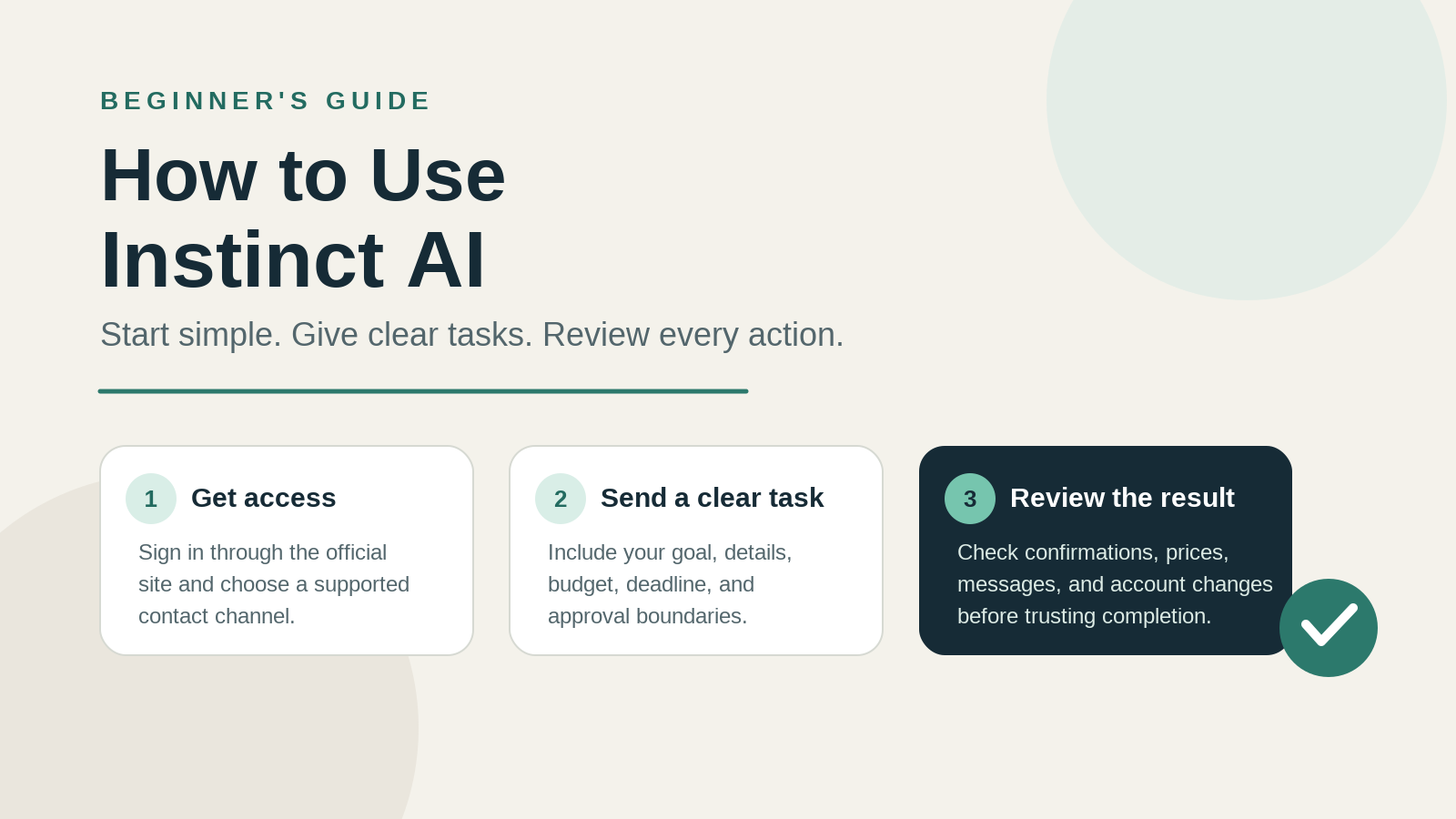
Start at instinct.com and use the official Text Instinct or account link. The public site also has an Invite a friend option. Access may be limited; if the sign-in flow does not activate an account, follow the access instructions shown by Instinct rather than using unofficial invite-code sellers or third-party setup tools.
The official site describes messaging or calling Instinct as its main interface. Its current status page lists messaging channels including SMS/iMessage and WhatsApp, plus email and web-browsing/task capabilities. Which options you can use may depend on your account and rollout.
- Open the official website and select the account or Text Instinct entry point.
- Follow the sign-in or access flow shown on the official app domain.
- Keep your account and verification messages private. Do not forward authentication codes to anyone.
- Once your account is active, use the contact method presented in your workspace to start the conversation.
There is no need to install an unofficial app or browser extension to use the core service. If a channel is not shown in your account, do not assume a workaround is supported.
Step 1: Start with a small, low-risk task
For your first request, choose something that does not involve money, sensitive personal information, or irreversible changes. For example:
Find three coffee shops near [your area] that are open this afternoon. Compare their opening hours and reviews, and send me the links. Do not contact them or make a booking.
This lets you see how Instinct interprets a request, searches, reports sources, and asks follow-up questions. Review the response before moving on to tasks that require account access or external actions.
Step 2: Give instructions that are specific enough to act on
A vague request such as “plan my weekend” leaves the agent to guess about budget, location, timing, and preferences. A useful task message includes the goal, constraints, and the boundary between research and action.
Use this simple structure:
- Goal: What outcome do you want?
- Context: What details should it know?
- Constraints: Budget, dates, location, preferences, or exclusions.
- Action boundary: What may it do, and what must it ask you to approve first?
- Deliverable: How should it report the result?
For example:
Find two refundable hotel options in central Chicago for March 12–15. Keep the total under $700, include taxes, and compare cancellation policies. Do not book anything. Send me the official links and your recommendation.
This is more useful than asking it to “find a good hotel” because it defines what “good” means and prevents an unwanted booking.
Step 3: Use follow-up messages to refine the task
You do not need to write the entire instruction perfectly in one message. Keep the conversation focused and correct details as the agent works.
Useful follow-ups include:
- “Exclude options that require a non-refundable deposit.”
- “Use the earlier arrival time, but keep the budget unchanged.”
- “Show me the source for that price.”
- “Stop searching and summarize what you have so far.”
- “Do not send the message until I approve the final wording.”
If the task changes, state the change explicitly. For example, “Keep the same dates; change only the destination to Boston.” This helps reduce ambiguity in multi-step requests.
Step 4: Connect accounts only when a task needs them
Instinct can interact with third-party websites and services. Some workflows may require you to connect an account or provide access through the supported setup. The official Terms explain that connected services and browser interactions can allow Instinct to exchange information and take actions on your behalf.
Do not connect your entire digital life during the first session. Instead:
- Begin with a task that needs no account connection.
- When a task genuinely requires email, calendar, files, or another service, open the account/workspace settings and review the connection offered.
- Read the permissions and decide whether they are appropriate for the task.
- Connect only what you need, and review the result after the task.
The official Privacy Policy describes what information may be collected from connected services and how it is used. A connection can expose more context than a single task requires, so use the least access practical.
Step 5: Set an approval boundary for real-world actions
Research and recommendations are different from sending a message, making a reservation, buying something, or changing an account. For consequential tasks, explicitly ask Instinct to prepare the work and wait for your approval.
Try this:
Research the options and prepare the booking. Before you submit anything, show me the final price, cancellation terms, details, and the exact action you plan to take. Wait for my approval.
Instinct’s Terms state that users remain responsible for actions and must maintain meaningful human oversight, including reviewing actions and using approval workflows where appropriate. They also warn that actions can contain errors and may not be reversible.
For purchases, bookings, emails to other people, account changes, or anything involving sensitive data, do not rely on a vague instruction such as “handle it.” Define the approval point.
Step 6: Check the result, not just the agent’s summary
When Instinct says a task is complete, verify the outcome independently when it matters.
- Reservations: Check the confirmation number, date, time, name, price, and cancellation policy.
- Purchases: Confirm the item, total, delivery details, and payment.
- Messages: Review what was actually sent and to whom.
- Calendar changes: Check the event details and time zone.
- Account changes: Verify the change on the service itself.
If the task was only research, make sure links and cited details support the recommendation. If an action failed, ask for the exact step that failed and what remains unfinished. A completion message is not proof that an external service accepted the action.
Beginner prompts you can copy
These examples are deliberately low-risk or require approval before a consequential action.
Research a local service
Find three [service] options near [location]. Compare their price range, hours, and official websites. Do not contact anyone. Tell me what information you could not verify.
Organize a schedule
Review the events I provide for next week and identify conflicts. Suggest a revised schedule, but do not move or delete any events until I approve the changes.
Prepare an email
Draft a polite email to [recipient] asking about [topic]. Show me the draft first. Do not send it until I approve.
Plan a trip
Research a two-day trip to [destination] for [dates]. Keep the total budget under [amount]. Compare transport and accommodation, include official links, and do not purchase or reserve anything.
Track a task
Help me track [task]. List the steps, what is complete, what is blocked, and the next action. Ask me before contacting anyone or changing an account.
If Instinct does not respond or a task gets stuck
First, check whether you are using the contact channel currently shown in your account. If messaging is unavailable, use the official Instinct status page and the account/workspace rather than random third-party instructions.
If a task stalls:
- Ask for a brief status report: what it has completed, what it is trying to do, and the exact blocker.
- If the request is ambiguous, restate the goal and constraints in one message.
- If a website asks for a verification code, CAPTCHA, or confirmation, follow the service’s legitimate process yourself rather than trying to bypass it.
- If the agent has taken an unexpected action, tell it to stop further actions and review what happened independently.
Do not repeatedly send the same instruction if you cannot tell whether the first attempt is still running.
A few safety settings to review early
Before using Instinct for personal errands, read its current Terms of Service and Privacy Policy.
The Privacy Policy says information may be used to improve AI models, with an opt-out available in the account settings at app.instinct.com/settings. The opt-out applies going forward and has exceptions described in the policy. Materials placed in the Vault are treated differently under the policy. Review these details before connecting accounts or uploading private files.
A practical first-session checklist:
- Start with a low-risk task.
- Give a clear goal, budget, date, and location when relevant.
- Ask for links or evidence for factual claims.
- Connect only the service needed for the task.
- Require approval before spending, booking, sending, or changing anything.
- Verify important actions directly with the destination service.
- Review privacy and model-training settings.
What to read next
If you are new to personal AI agents, begin with our explanation of what Instinct AI is and how the personal agent works. For a broader framework to test whether an agent completes tasks reliably, see our AI agent reliability checklist.
Bottom line
The best way to learn Instinct is to begin with a small request, make the constraints explicit, and gradually introduce account access only when needed. Treat the agent as a task assistant—not an authority. Keep approval and independent verification in place for consequential actions, and consult the official instructions when its interface or access options change.
Sources
- Instinct — official website
- Instinct — status
- Instinct — Terms of Service (revised November 17, 2026)
- Instinct — Privacy Policy (revised November 17, 2026)
- TechCrunch: Instinct brings its AI agent to group chats, even for friends without an account