
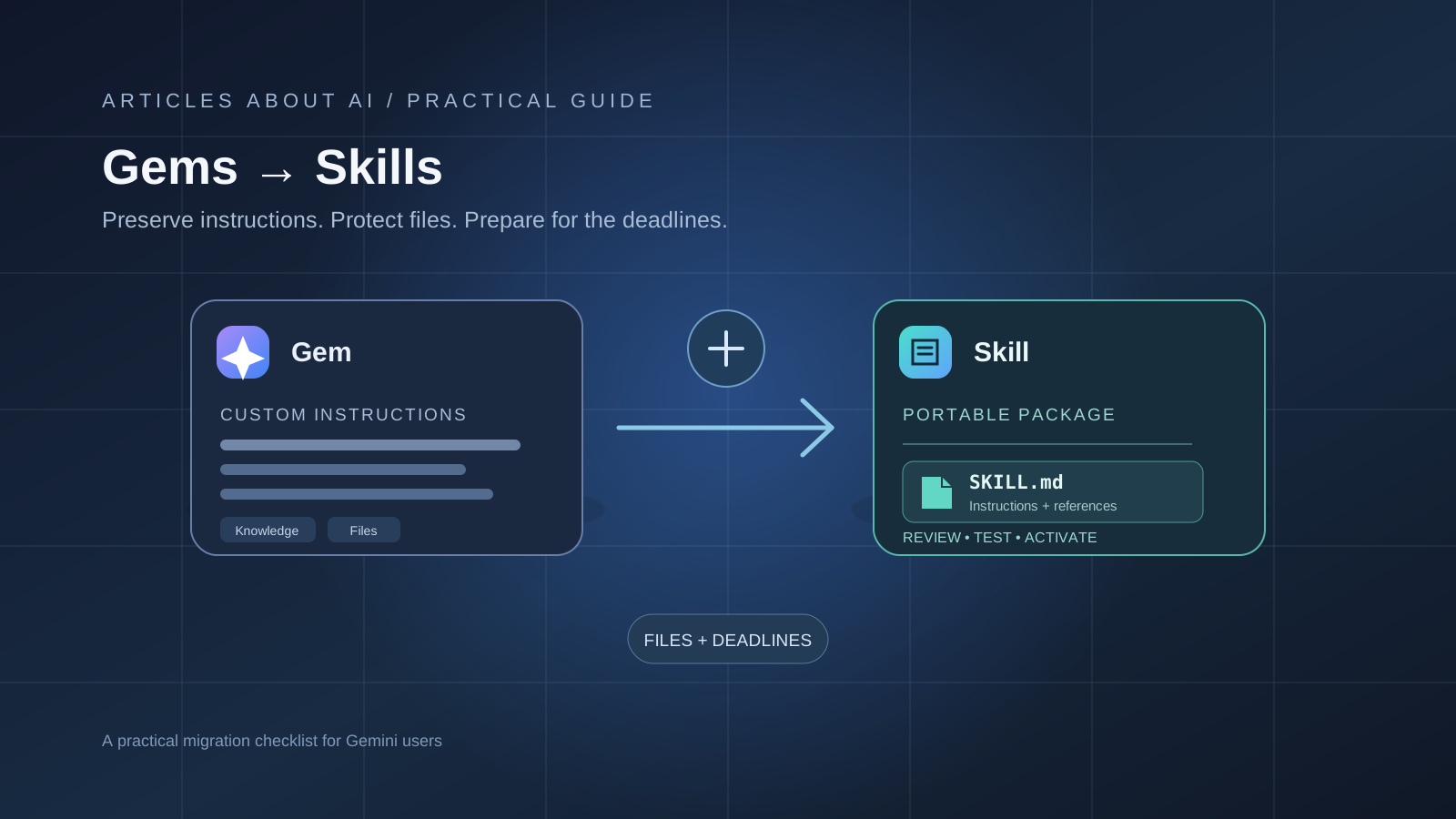
Google is replacing Gemini Gems with Skills, a more flexible way to save reusable instructions and apply them across conversations. For people with personal Google Accounts who are 18 or older, the change has an important first deadline: November 17, 2026, when Gems become read-only. Google says those Gems will be removed from Gemini Apps on December 17, 2026.
The transition is not identical for every account. Google Workspace business, enterprise, and nonprofit accounts have a later transition in 2027, while education accounts have a separate schedule. The file rules also matter: Google will automatically migrate supported knowledge files, but certain formats—including audio, video, GitHub files, older Office documents, and archives—will not carry over.
This guide explains how to prepare, manually recreate a Gem as a Skill, preserve its knowledge files, understand the account-specific deadlines, and troubleshoot common migration problems. It follows Google’s current help documentation, rather than assuming that every account sees the same interface or deadline.
Gemini Gems vs. Skills: What Is Changing?
A Gem is a saved Gemini configuration with a name, instructions, and—when needed—knowledge files. It is useful for a recurring job such as editing articles, explaining course material, or summarizing documents using a consistent process.
A Skill is also a reusable set of instructions, but it is designed to work inside ordinary Gemini chats and tasks. Gemini can recognize when an activated Skill is relevant, you can call one directly with a shortcut, and you can combine several Skills in a single workflow.
| Capability | Gemini Gems | Gemini Skills |
|---|---|---|
| Reusable custom instructions | Yes | Yes |
| Use inside the current chat | Gems have their own entry and workflow | Skills can be used inline in a chat |
| Combine multiple instruction sets | More limited | Multiple Skills can be stacked |
| Automatic selection when relevant | Not the central Gems workflow | Gemini can automatically use relevant active Skills |
| Portable instruction format | Gem configuration | Markdown-based SKILL.md |
| Knowledge files | Supported Gem file sources | Supported reference files, subject to Skills limits |
| Dedicated recent-chat list | Gem-specific workflow | Skill use appears in the relevant chat history |
The key change is not simply a new name. Skills are intended to make reusable instructions more modular: for example, you can combine a writing-style Skill with a brand-guidelines Skill instead of maintaining one large Gem for every task.
For background on creating the original assistant, see our guide to creating a Google Gemini Gem. This article focuses on the migration and the differences you need to check before the deadlines.
Gemini Gems Migration Deadlines: Personal vs. Workspace Accounts
First identify which Google Account you use. The dates for personal accounts and managed Workspace accounts are different.
| Account type | Google’s current transition schedule |
|---|---|
| Personal Google Account, age 18 or older | November 17, 2026: Gems become read-only. December 17, 2026: Gems are removed from Gemini Apps. |
| Personal Google Account, under 18 | Google says a later transition date will be announced. |
| Workspace business, enterprise, and nonprofit | Transition in 2027; Google’s Workspace announcement says no sooner than March 1, 2027. |
| Workspace education | Transition in 2027; Google’s Workspace announcement says no sooner than June 1, 2027. |
Important distinction for Workspace users: Google’s Workspace Updates announcement says that on November 17, Gems move to the Gemini app’s Settings panel, but users can continue creating, editing, and using them. The later Workspace retirement dates apply to business, enterprise, nonprofit, and education accounts. Do not apply the personal-account November 17 read-only deadline to every managed Workspace account.
For personal accounts aged 18 or older, plan around both dates. November 17 is the point after which you cannot use or edit the old Gems or create new ones; December 17 is the final removal date, after which the old Gems and their files are no longer accessible in Gemini Apps.
Google says it will automatically recreate Gems as Skills when it removes them. You do not have to manually rebuild every Gem simply to preserve the supported configuration. However, manual preparation is useful if you want to start using Skills earlier, check the result yourself, or protect files that are not supported by Skills.
Official schedule: Google’s Gems-to-Skills transition notice and Google Workspace’s transition announcement.
Before You Migrate: Make an Inventory of Your Gems
Do not start by copying everything indiscriminately. Review your Gems and decide which ones are still useful.
For each Gem you want to keep, record:
- Its exact name.
- Its description and purpose.
- The complete instruction text.
- The files listed under Knowledge.
- Any Google Drive or Notebook references it depends on.
- A few example prompts that show how it should behave.
- Any sharing or permission settings that matter to your workflow.
Delete or leave behind test Gems and one-off assistants you no longer use. This keeps the Skills page easier to manage and reduces the chance of carrying outdated instructions into a new workflow.
If a Gem is important, open it in the Gemini web app and keep its editor available while you create the Skill in another tab. That makes it easier to compare the old instructions with the new configuration.
How to Manually Recreate a Gemini Gem as a Skill
Google documents a manual process for people who want to start using Skills before the automatic transition. The workflow has three parts: download the Gem’s knowledge files, create the Skill with the same instructions, and then attach the files to the Skill package.
Step 1: Open the Gem and download its knowledge files
- On a computer, open Gemini.
- Open the sidebar and select Gems. If Gems is not visible, open More first.
- Find the Gem you want to migrate and select Edit.
- Under Knowledge, open each file and use the Download control.
- Create a folder on your computer using the Skill’s intended name. Use lowercase words separated by hyphens, such as
editorial-style-guide. - Move the downloaded knowledge files into that folder.
Google’s manual instructions say to download the knowledge files individually before adding them to a Skill. You can then upload the collected files together as part of the Skill folder.
Step 2: Create a Skill and copy the Gem’s instructions
- Open a new browser tab and go to gemini.google.com.
- In the sidebar, select Customize, then Skills. If Customize is hidden, open More.
- At the top of the Skills page, select Create, then Create manually.
- Copy the Gem’s name, description, and instructions into the new Skill.
- Review the Skill name. Gemini automatically adjusts it to the required format.
- Select Create.
If the Gem did not contain knowledge files, the manual recreation is complete. You can now test the Skill in a normal chat.
Step 3: Add the knowledge files to the Skill
If the Gem used reference files, Google documents an additional packaging step:
- On the Skills page, find the Skill you just created.
- Open More options, then select Download. Gemini downloads a ZIP file containing the Skill’s
SKILL.mdfile. - Extract the ZIP file.
- Move
SKILL.mdinto the folder that contains the knowledge files you downloaded from the Gem. - Make sure the folder name matches the Skill name.
- Return to the Skills page and open More options for that Skill.
- Select Replace skill.
- Choose the folder containing
SKILL.mdand the reference files. - Select Upload, then review the Skill.
The result is one Skill package containing its instructions and the reference files that you chose to keep. Follow Google’s current interface labels if they change during the rollout.
Official step-by-step instructions: Recreate your Gem as a Skill.
Which Gem Files Will Not Transfer to Skills?
This is the most important part of the migration for users who rely on uploaded reference material.
Google says it will automatically migrate supported files with Gems. The following file types are currently listed as unsupported and will not be included in the automatic transition:
| Unsupported file type | Examples |
|---|---|
| GitHub files | Files linked or added through GitHub |
| Audio | Audio recordings and audio files |
| Video | Video files |
| Legacy Microsoft Office | .doc, .xls, .ppt |
| Archives and compressed files | .zip, .tar, .7z, .rar, .gz, .tgz |
Skills also have a 100 MB total file-size limit. If a Gem contains more than 100 MB of files when Google migrates it, Google says it will remove the largest files first until the remaining files fit within the limit.
For personal Google Accounts, download any unsupported files you need before December 17, 2026. After that date, Google says the Gems and their files will no longer be available in Gemini Apps.
What should you do with unsupported files?
Do not assume that an unsupported file will be converted automatically. Download it from the Gem while it is still accessible, then convert or replace it with a supported reference format if that makes sense for your workflow.
For example:
- Export an old Word document as
.docxrather than keeping only.doc. - Export an old Excel workbook as
.xlsxrather than.xls. - Save a PowerPoint presentation as
.pptxrather than.ppt. - Extract the relevant documents from an archive and add the individual supported files.
- Keep a separate copy of audio and video material, then prepare a text transcript or written notes if the Skill needs to reference its contents.
- For GitHub-based material, save the relevant documentation or source notes in a supported file rather than assuming the GitHub connection itself will migrate.
These are practical workarounds, not a promise that every converted file will preserve all original functionality. Check the content after uploading it.
For a separate workflow focused on document analysis, see how to use Gemini to analyze a PDF and extract important details.
How to Use a Gemini Skill After Migration
Skills are designed to work inside the chat rather than requiring you to switch to a separate Gem each time.
You can use a Skill in three ways:
- Call it directly: In a Gemini chat, type
/followed by the Skill name and select the matching Skill. Google notes that an@shortcut is also being introduced for updated experiences. - Ask for it by name: Tell Gemini to use a particular Skill for the task.
- Let Gemini select it: Gemini can automatically apply an active Skill when it recognizes that the current request matches its instructions.
You can also combine Skills. For example, a writing-style Skill can be used with a separate editorial fact-checking Skill in one workflow. This is one of the main practical differences from the older Gems experience.
Google says you can create as many Skills as you need, but only 100 can be active at one time. If you reach that limit, disable a Skill before activating another one.
Gemini Skills vs. Google Workspace Skills: Do They Sync?
No. Google says Skills in the Gemini app and Skills in Workspace apps do not currently sync automatically. If you want to use the same workflow in both environments, you need to create it separately in each.
This distinction matters for people who use Gemini in a personal chat and also use Skills inside Gmail, Docs, Sheets, Slides, or other Workspace apps.
Workspace administrators should also review their existing Google Workspace Studio flows. Google says existing flows that use an Ask a Gem step will need to be updated to use Ask Gemini before the Workspace Gems retirement. The current Workspace announcement gives the later retirement schedule as no sooner than March 1, 2027 for business and enterprise accounts and no sooner than June 1, 2027 for education accounts.
For a broader workflow overview, see our guide to Gemini Tasks and scheduled AI workflows.
What Skills Still Cannot Do?
Skills add flexibility, but Google says they do not yet support every tool that was available with Gems.
According to the current Gemini Apps Help page, Skills do not yet work with features such as:
- Canvas.
- Deep Research.
- Guided Learning.
- Create video.
- Create music.
Skills can work with some Connected Apps, including Workspace apps, but access to connected services depends on the relevant activity and account settings. For example, Google says that if Keep Activity is off, Skills can still work, but features that require Keep Activity—such as Connected Apps access to Google Calendar or Google Drive—will not be available.
The ability to upload a Skill folder or ZIP containing SKILL.md is currently documented for the Gemini web app and the Gemini app on Mac. If you do not see the upload option on mobile, use the web interface rather than assuming your Skill is broken.
Troubleshooting: Gemini Skills Migration Problems
I cannot find the Skills page
Open Gemini on the web, expand the sidebar, and look for Customize. If it is hidden, select More, then choose Skills. Skills availability can depend on age, account type, and rollout status.
My Gem’s knowledge files are missing
Check the original Gem’s Knowledge section. Download files individually before the old Gem is removed, then add supported files to the Skill package. GitHub files, audio, video, older Office formats, and archives are not included in the automatic migration.
Gemini says the Skill folder is invalid
Check that the main folder contains a file named exactly SKILL.md. The Skill name inside the file must use lowercase words separated by hyphens. When replacing a Skill with a folder package, Google also says the folder name must match the Skill name.
My Skill upload exceeds the size limit
The total size of all uploaded files must not exceed 100 MB. Remove unnecessary files, compress or convert content only when the resulting format is supported, and upload a smaller set of relevant reference material.
My Skill does not activate automatically
Check that the Skill is active and that its description clearly explains when Gemini should use it. Google recommends describing the situations that should trigger the Skill, keeping instructions concise, and providing concrete examples. You can also invoke it directly with / and its name.
A Skill does not work with Canvas or Deep Research
This is a current product limitation, not necessarily an account error. Google says Skills do not yet work with Canvas and Deep Research, and lists several other unavailable default tools. Use the relevant Gemini feature directly until Google adds support.
My Skills do not appear in Google Workspace
Gemini app Skills and Workspace Skills do not automatically sync. Recreate the Skill in the Workspace environment if you need it in Workspace apps, and check whether your administrator has enabled the relevant Skills features.
Frequently Asked Questions
Will Google automatically migrate my Gemini Gems?
Yes. Google says it will automatically recreate Gems as Skills when it removes Gems. Manual recreation is optional, but it lets you start using Skills earlier and gives you a chance to download files that are not supported.
When do Gemini Gems become read-only?
For personal Google Accounts where the user is 18 or older, Google lists November 17, 2026 as the date Gems become read-only. Google lists December 17, 2026 as the date Gems are removed from Gemini Apps.
Do Workspace users have the same November 17 deadline?
No. Google’s Workspace announcement says Workspace users can continue creating, editing, and using Gems after November 17. The Workspace transition is scheduled for 2027: no sooner than March 1 for business and enterprise, and no sooner than June 1 for education.
Will my Gem’s shared permissions transfer?
Google says sharing permissions automatically carry over when Gems transition to Skills. Gems shared with you will appear in the Skills page under All as inactive items that you can review and accept.
Can I import a Skill from another AI platform?
Yes. Google supports importing a Skill by uploading its SKILL.md file, or a folder or ZIP that contains SKILL.md in its main folder. Check the current upload requirements before importing reference files or scripts.
How many Gemini Skills can I activate?
Google says you can create as many Skills as you want, but only 100 can be active at one time.
Do Gemini Skills work on mobile?
Google’s current help page lists the Gemini mobile app, the Gemini app on Mac, and the Gemini web app as supported Skills environments. However, the file or folder upload flow is currently documented for the web app and Mac app.
Final Checklist: Prepare Your Gems Before the Deadline
Before the transition, work through this checklist:
- Identify whether your account is personal, Workspace business, enterprise, nonprofit, or education.
- Record the names, descriptions, and instructions of the Gems you still use.
- Download knowledge files you cannot afford to lose.
- Check for GitHub, audio, video, legacy Office, and archive files.
- Keep each Skill’s total file package under 100 MB.
- Recreate high-priority Gems manually if you want to use Skills earlier.
- Test each Skill with real prompts and verify that its files are available.
- If you use Workspace Studio, identify flows that still contain Ask a Gem steps.
- Keep a separate copy of important source files outside Gemini.
Google’s automatic migration should reduce the amount of manual work for supported Gems and files. The safest approach is still to inventory important Gems, save unsupported files before access ends, and test the resulting Skills rather than assuming every old workflow will behave identically.
Official Sources
- Google Gemini Apps Help — About the transition from Gems to Skills — account-specific deadlines, manual migration, unsupported files, file limits, and sharing behavior. Accessed November 15, 2026.
- Google Gemini Apps Help — Create and manage Skills — current Skills interface, upload methods, file types, active limit, and feature compatibility. Accessed November 15, 2026.
- Google Workspace Updates — Introducing Skills in the Gemini app and Workspace, plus what’s next for Gems — September 30, 2026; updated November 9, 2026. Workspace-specific rollout and retirement dates.
- Google Blog — Let Skills in Gemini tackle your most repetitive tasks — September 30, 2026. Product overview of reusable Skills and the Gems transition.