
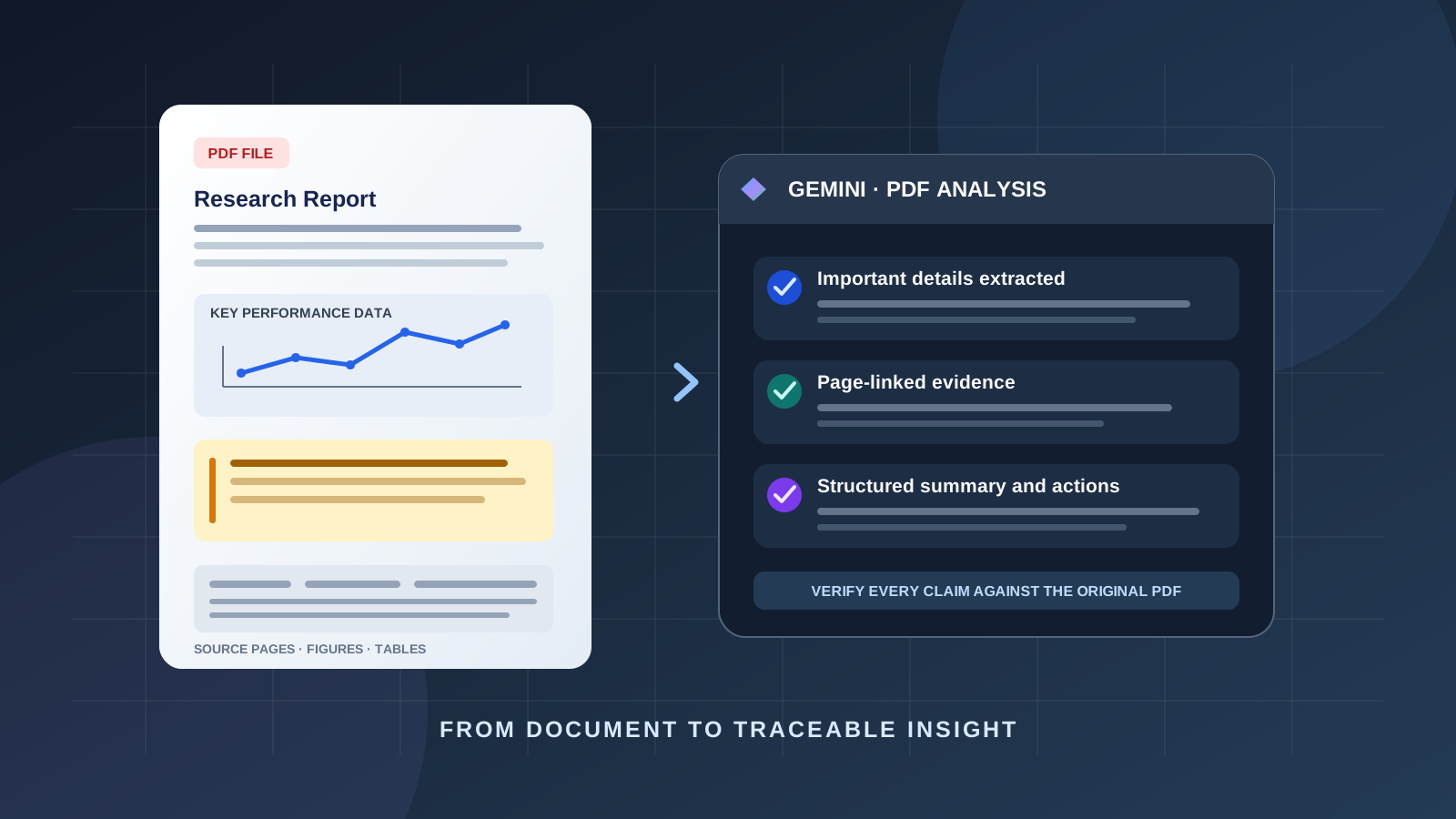
A PDF can contain far more than paragraphs. Research papers include methods, tables, and citations; business reports combine figures, recommendations, and financial data; manuals contain procedures, warnings, and technical specifications. Finding the few details that matter can take longer than reading the document itself.
Google Gemini can help you summarize an uploaded PDF, answer questions about its contents, identify important facts, and interpret visual information such as charts and tables. The most useful results come from a structured workflow: give Gemini a clear objective, ask for evidence and page references, inspect important figures, and verify the final output against the original file.
This guide explains how to use Gemini to analyze a PDF and extract important details, with practical prompts for research papers, reports, contracts, manuals, and other documents.
Can Google Gemini analyze PDF files?
Yes. Google’s official Gemini Apps file-upload guide explains that users can upload documents and other supported files to Gemini to receive answers, summaries, and insights about their contents. The web app supports uploading up to 10 files in one prompt, subject to availability. For Gemini Apps, supported non-video files can be up to 100 MB each; usage limits and available features can vary.
Gemini can do more than produce a short summary. Depending on the document and the task, you can ask it to:
- Summarize a complete PDF or a selected topic.
- Extract names, dates, figures, definitions, requirements, and recommendations.
- Locate evidence for a specific question.
- Explain technical terminology and unfamiliar passages.
- Review tables, charts, diagrams, and other visual elements.
- Compare information across multiple uploaded documents.
- Convert findings into a structured table, checklist, or briefing.
Google’s separate Gemini API document-understanding documentation describes PDF processing that can interpret text and visual elements, extract structured information, and answer questions about documents. Its API limits are not the same as the consumer Gemini app’s upload limits. Do not assume that a limit documented for the API automatically applies to Gemini Apps.
Step 1: Prepare the PDF before uploading it
A clear source document improves the quality of the analysis. Before uploading, check that:
- The PDF opens correctly and is not password-protected in a way that prevents access.
- Scanned pages are readable and correctly oriented.
- Important charts, tables, footnotes, and page numbers are visible.
- The file is within the current upload limit shown by Gemini.
- You are permitted to share the document with the service.
If the PDF is a scan, image quality matters. Blurry text, rotated pages, low-resolution charts, and faint annotations can make extraction less reliable. If a page is particularly important, keep a separate copy of that page so you can inspect it directly or ask about it specifically.
Also consider confidentiality. Reports may contain personal information, customer records, unpublished research, financial details, or internal business information. Follow your organization’s AI-use policy and the data controls that apply to your account. Do not upload sensitive material unless you are authorized to do so.
Step 2: Upload the PDF to Gemini
To analyze a PDF in the Gemini web app:
- Open Gemini and sign in.
- Start a new chat or open the conversation in which you want to work.
- Select the attachment or Add files control in the prompt area.
- Choose the PDF from your device, or select an available connected source such as Google Drive.
- Wait for the file to finish attaching.
- Enter a specific instruction and submit it.
The exact labels and available upload sources can differ between the web app, mobile app, account type, and product version. Google’s file-upload instructions provide the current interface guidance.
Do not begin with a vague request such as “Read this PDF.” First tell Gemini what you need to learn and what kind of output would be useful.
Step 3: Ask Gemini to map the document
Before extracting conclusions, ask Gemini to identify the document’s structure. This is particularly useful for long research papers, annual reports, policy documents, and technical manuals.
Use this prompt after attaching the PDF:
Prompt 1: Create a document map
Review the attached PDF and create a structured map of its contents before writing a summary.
- Identify the document title, author or organization, publication date, purpose, and intended audience when available.
- List the main sections and explain briefly what each section covers.
- Identify important tables, charts, diagrams, appendices, and references.
- List the key topics, entities, dates, definitions, and technical terms.
- Identify sections that appear especially relevant to this question: [insert your question].
- Provide the PDF page number and section heading for each important item when available.
Use the PDF as the source. Do not fill gaps with assumptions. Mark information that is missing or unreadable.
Review the document map before moving on. It helps you see whether Gemini has recognized the sections that matter and whether it has overlooked an appendix, methodology section, or important table.
Step 4: Extract the most important details
Once you understand the document’s structure, ask Gemini to extract the facts that are relevant to your purpose. A table is often easier to verify than a long narrative answer.
Prompt 2: Extract key details
Analyze the attached PDF and extract the most important information about [insert topic or question].
Return a table with these columns:
- Important detail or claim
- Exact value, date, name, or definition, if stated
- Supporting explanation or short quotation
- PDF page number and section heading
- Why this detail matters
- Any qualification, uncertainty, or missing context
Prioritize the 10–15 most relevant details. Preserve units, dates, names, and qualifiers exactly. Distinguish facts explicitly stated in the PDF from interpretations or conclusions. Do not invent information. If you cannot locate supporting evidence, write “not found in the document.”
This prompt works for extracting key findings from research papers, product specifications, policy documents, financial reports, and business plans. Adjust the number of details to the size and purpose of the PDF rather than asking for an exhaustive list when only a few facts are needed.
Step 5: Generate a focused PDF summary
A useful PDF summary should preserve the document’s central argument and important qualifications, not merely shorten every section.
Prompt 3: Write an evidence-based summary
Summarize the attached PDF for [intended reader].
Organize the answer into:
- Executive summary
- Main objective and scope
- Five to ten key findings
- Important statistics, dates, and definitions
- Methodology or approach
- Limitations, risks, and unresolved questions
- Recommendations or next steps stated by the document
Add page references for consequential findings. Preserve the author’s level of certainty. Separate the document’s own recommendations from your suggestions. Do not introduce outside facts unless I explicitly ask for external research.
For an academic paper, emphasize the research question, study design, sample, results, limitations, and conclusion. For a business report, focus on performance indicators, trends, risks, decisions, and recommendations. For a user manual, prioritize procedures, prerequisites, warnings, and troubleshooting instructions.
Step 6: Extract numbers, tables, and chart insights
Important details are often embedded in tables and figures rather than the main text. Ask Gemini to inspect each relevant visual element separately.
Prompt 4: Analyze tables and charts
Find the tables, charts, and diagrams relevant to [topic] in the PDF.
For each item, provide:
- Figure or table number and title
- PDF page number
- What the visual represents
- Important values, labels, units, and comparisons
- The conclusion that the document draws from it
- Any caveat, footnote, or ambiguity
Do not estimate unreadable values. If you cannot inspect a visual clearly, say so and identify what needs manual review.
When checking the result, pay attention to units, time periods, axis labels, sample sizes, and footnotes. A percentage may use a different denominator from another percentage in the same report. A chart may show correlation rather than causation. Gemini’s explanation is a starting point; the original figure remains the authority.
Google’s document-understanding guide for the Gemini API specifically describes document processing that can use visual and textual PDF content. That is API documentation, however, and should not be read as a guarantee that every chart in every consumer-app upload will be interpreted perfectly.
Step 7: Find answers to specific questions
You do not need to summarize an entire PDF if you only need a few answers. Ask direct questions and require source locations.
Prompt 5: Answer questions using the PDF
Answer the following questions using only the attached PDF:
- [Question one]
- [Question two]
- [Question three]
For every answer, provide the PDF page number, section heading, and the evidence that supports it. If the PDF does not answer a question, state “The document does not provide this information.” Do not use outside knowledge or infer an answer without labeling it.
This is useful when reviewing a contract, checking a technical specification, studying a research paper, or locating a requirement in a lengthy policy document. If you need current information beyond the PDF, run a separate research task and clearly distinguish external findings from the document’s contents.
Step 8: Compare multiple PDFs
Gemini Apps can accept multiple files in one prompt, subject to the current upload limit and availability. This makes it possible to compare versions of a report, competing proposals, research papers, or policy documents.
Prompt 6: Compare the uploaded PDFs
Compare the attached PDF documents on [topic].
Create a table showing:
- The point being compared
- What each document states
- Relevant page and section in each PDF
- Agreements and contradictions
- Differences in dates, definitions, assumptions, or methodology
- Information present in one document but missing from another
Do not assume that similar terms have identical meanings. Preserve each document’s wording and identify any comparison that cannot be made fairly because the sources use different methods or definitions.
For important comparisons, verify that the documents cover comparable periods, populations, versions, or test conditions. A newer report is not automatically more accurate, and a difference between two figures may result from different definitions rather than a contradiction.
Step 9: Verify the extracted information
AI-generated summaries can omit details, misread a table, or present an inference as though it were explicitly stated. Before relying on the output, perform a source check.
Use this verification prompt:
Prompt 7: Audit the extracted findings
Review your previous answers against the attached PDF.
For each important claim:
- Locate the supporting passage, table, or figure.
- Confirm the PDF page number and section heading.
- Check names, dates, numbers, units, and quoted wording.
- Label the claim as directly stated, calculated from stated data, inferred, or not supported.
- Correct any claim that is inaccurate or too broad.
- List important details that may have been missed.
Do not defend an earlier answer if the PDF does not support it. If you cannot verify a claim, mark it as unverified.
Open the cited pages yourself, especially for legal, medical, financial, regulatory, scientific, or safety-related information. A page reference is a navigation aid, not proof that the interpretation is correct.
Step 10: Work with very long or complex PDFs
A large context window does not eliminate the need for careful review. Google’s Gemini Apps help explains that files that are too large for the available context can lead to missed connections or details, particularly when a question depends on information scattered across a document. The available context and upload limits can vary by plan and feature.
For a long PDF, use this staged workflow:
- Upload the document and request a document map.
- Identify the sections and page ranges relevant to your task.
- Analyze those sections in manageable groups.
- Keep a running table of findings, page references, and uncertainties.
- Ask Gemini to reconcile repeated terms, conflicting figures, and cross-references.
- Request a final synthesis only after the relevant sections have been reviewed.
- Compare the final synthesis against the document map to check coverage.
If a single upload is not working, check the file size, upload status, account limits, and whether the PDF is readable. You can also split a large document into logical sections if doing so preserves the context needed to interpret each section.
Newer Gemini PDF features: previewing and editing files
On October 29, 2026, Google announced that Gemini can generate, preview, and edit files directly in a chat. Google’s announcement says PDF preview and editing are supported on both web and mobile, and that the capabilities are available to users in the languages where Gemini is available. See Google’s announcement about creating, previewing, and editing files in Gemini.
These document-creation and editing features are related to, but different from, analyzing an existing PDF. If you ask Gemini to produce or revise a document, check the generated file’s wording, formatting, figures, and references before using it. Do not assume that editing a PDF automatically verifies the accuracy of its contents.
Common mistakes to avoid
Asking for a generic summary
A broad summary may miss the exact information you need. State your question, intended reader, and preferred output.
Accepting numbers without checking their source
Ask for page references, units, and supporting context. Verify consequential figures in the original PDF.
Confusing the PDF’s claims with external facts
If you want an analysis of the document itself, tell Gemini to use only the uploaded file. If you request outside research, ask it to label external sources separately.
Assuming every visual was interpreted correctly
Charts, scanned pages, small labels, and complex diagrams can be difficult to read. Inspect the original figure and ask about important visuals individually.
Treating a summary as a substitute for professional review
Do not use an AI-generated summary as the sole basis for legal, medical, financial, security, or other high-stakes decisions.
Gemini vs. other AI tools for PDF analysis
Gemini is one option for analyzing PDFs, but the best tool depends on the document, workflow, and features available to your account. If you also use ChatGPT, see our guide to using ChatGPT to analyze a PDF and extract key findings. For a longer technical document, you may also find our guide to using Claude to analyze a long technical report useful.
Compare tools using the same PDF and the same questions. Evaluate whether each one finds the correct details, preserves numerical accuracy, identifies limitations, and provides evidence that you can verify. Avoid choosing a tool based only on the length or fluency of its summary.
Frequently asked questions
Can Gemini summarize a PDF for free?
Gemini Apps supports file uploads, but availability and usage limits can vary by account, plan, and feature. Check the upload controls and current limits in your own Gemini account.
What is the maximum PDF size Gemini can analyze?
For the Gemini Apps interface, Google’s help page currently lists a 100 MB limit for supported non-video files and up to 10 files per prompt, subject to availability. The Gemini API has separate technical limits, so do not apply API limits to the consumer app.
Can Gemini read charts and tables in a PDF?
Gemini’s document-understanding capabilities can process visual and textual PDF content. Results still need checking, especially for dense charts, small labels, scanned pages, and footnotes.
Can Gemini extract specific information from a PDF?
Yes. Ask for particular fields such as dates, names, figures, definitions, requirements, or recommendations. Request page references and ask Gemini to mark information that is absent or uncertain.
Can Gemini compare two PDF files?
You can upload multiple supported files in one prompt, subject to the current file limit and availability, and ask Gemini to compare their contents. Check that the documents use comparable definitions, dates, and methods.
Is Gemini reliable for analyzing important documents?
Gemini can accelerate document review and help locate information, but it can make mistakes or omit context. Verify important claims against the source and use qualified professional review for high-stakes decisions.
Final takeaway
To use Gemini to analyze a PDF and extract important details, upload a readable document, map its structure, request a focused extraction table, inspect relevant charts and tables, and ask specific questions with page references. Finish by auditing the findings against the original PDF.
The essential rule is simple: use Gemini to make document review faster, but keep the PDF as the source of truth. Every important figure, quotation, and conclusion should be traceable to the original document.