
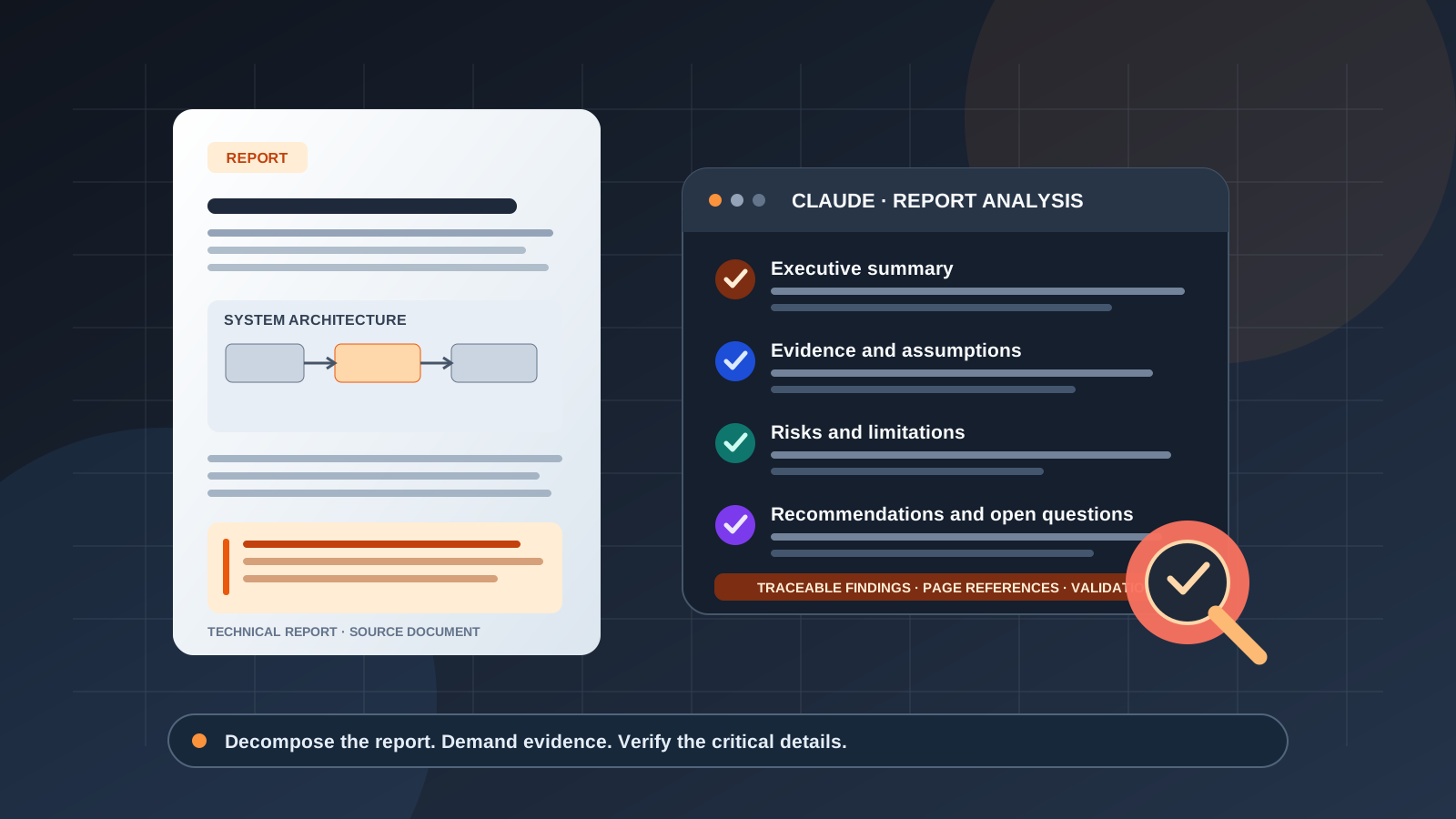
Long technical reports are difficult to review quickly. An engineering assessment, architecture review, research report, security audit, implementation plan, or performance analysis can contain dozens of sections, dense tables, diagrams, assumptions, and recommendations. Claude can help organize that material, locate relevant evidence, explain technical passages, and turn a lengthy document into a structured briefing.
The most reliable approach is not to ask Claude for a generic summary and accept the first response. Define the decision or question the report needs to support, analyze the document in stages, request evidence and page references, and verify consequential details against the source. This guide shows how to use Claude for long technical report analysis with reusable prompts, practical workflows, and checks for omissions and unsupported claims.
Can Claude analyze a long technical report?
Claude supports document uploads, including PDFs, and can answer questions about document contents. Anthropic’s official Claude file-upload guide describes supported formats, upload steps, and document limits. Its PDF support documentation explains how Claude can analyze text and visual elements such as charts, tables, and diagrams in supported PDFs.
The limits depend on where you use Claude and the model or feature available. Claude’s consumer interface has its own file and page limits, while the Claude API has separate request-size and page limits. Anthropic’s current help documentation says Claude.ai can process PDFs of up to 1,000 pages, with visual analysis available for PDFs of 100 pages or fewer; longer PDFs are processed as text only. API PDF limits are documented separately and can vary by context-window configuration. Check the current instructions for your own interface before planning a large review.
This distinction matters for technical reports: an analysis may cover extracted text without interpreting every diagram, chart, or visual annotation. If a key conclusion depends on a figure, ask Claude about that figure specifically and check it yourself.
Step 1: Define the report’s purpose before uploading it
A technical report can support different tasks: deciding whether an architecture meets requirements, identifying project risks, comparing test results, evaluating a research method, or preparing a leadership briefing. Decide which outcome you need before asking Claude to summarize the entire document.
Write down three things:
- The decision or question: What must the report help you understand or decide?
- The reader: Is the output for an engineer, a technical lead, a project manager, or a nontechnical executive?
- The required evidence: Do you need page references, exact figures, quotations, assumptions, risks, or action items?
For example, “Review this report for an engineering manager deciding whether the proposed system is ready for deployment” is more useful than “Tell me about this PDF.” It gives Claude a purpose without telling it what conclusion to reach.
Before uploading, confirm that you are permitted to share the report with the service. Technical reports may contain customer data, credentials, vulnerability details, internal architecture, or confidential business information. Remove unnecessary sensitive details and follow your organization’s approved AI and data-handling policies.
Step 2: Upload the report and establish a source-grounded workflow
In Claude.ai, open a conversation, use the + control or file-attachment option, and select the report. You can also use project files when you need to work with documents across multiple conversations; available controls can vary by interface and plan. See Anthropic’s file-upload instructions for current steps.
Start with a document inventory rather than immediately requesting conclusions. Use this prompt:
Prompt 1: Map the report
Read the attached technical report and create a document map before drawing conclusions.
- Identify the report’s stated purpose, intended audience, date, and scope, if provided.
- List its major sections and subsections in the order they appear.
- Identify the methodology, system components, datasets or test environments, results, assumptions, risks, recommendations, and appendices.
- Note which sections contain important tables, charts, diagrams, or technical specifications.
- Flag missing sections, unclear terminology, conflicting statements, or areas that need closer review.
- Give PDF viewer page numbers or section headings for the items you identify, where available.
Use only the report for this first pass. If a detail is not stated or cannot be located, say so rather than guessing.
Review the map and decide which sections need deeper analysis. This step makes it easier to detect if Claude has overlooked an appendix, limitations section, or table that is central to the report.
Step 3: Extract the key findings and supporting evidence
After establishing the document structure, ask Claude to identify the findings that matter to your objective. Avoid vague requests such as “give me everything important.” Define what a useful finding looks like and require supporting evidence.
Prompt 2: Extract and substantiate key findings
Analyze the report for the most important findings relevant to this question: [insert your question or decision].
Return a table with these columns:
- Finding or claim
- Supporting evidence from the report
- PDF page number or section
- Evidence type: measured result, observation, assumption, interpretation, or recommendation
- Confidence or unresolved uncertainty
- Why the finding matters to the stated objective
Include the 5–10 most decision-relevant findings. Preserve important units, dates, test conditions, and qualifiers. Separate what the report directly demonstrates from what its authors infer. Do not invent figures, quotations, references, or causal explanations. If evidence is missing, label the claim as unsupported or uncertain.
This produces a more useful result than a prose-only summary because each conclusion is tied to a traceable part of the source. The evidence-type column also helps distinguish a test result from a design assumption or the author’s recommendation.
If the report contains multiple subsystems, work through them separately before asking Claude to synthesize them. A single high-level answer can hide important differences between components, test environments, or versions.
Step 4: Analyze the technical methodology and assumptions
Technical conclusions are only as strong as the methods and assumptions behind them. Ask Claude to examine how the report reached its conclusions, not just what those conclusions are.
Prompt 3: Review methodology and assumptions
Examine the report’s methodology and technical assumptions. Identify:
- The methods, tools, test environment, datasets, and evaluation criteria described.
- The assumptions required for the results to hold.
- Important variables, dependencies, constraints, and possible sources of bias or measurement error.
- Whether the reported evidence supports each major conclusion.
- What the report does not test or establish.
- Any missing baseline, control, reproducibility detail, uncertainty estimate, or validation step that is relevant to the report’s stated goals.
For each concern, cite the relevant page or section and explain whether it is explicitly stated in the report or is an analytical question that needs further investigation. Do not present an unverified concern as a confirmed defect.
Use this method for engineering design reviews, software performance assessments, scientific reports, security assessments, and system evaluations. The purpose is not to make Claude invent flaws; it is to identify evidence gaps and questions a qualified reviewer should consider.
For example, a report may show that a system passed a benchmark under one configuration. That alone does not establish performance under a different workload, production environment, or failure condition. Ask Claude to identify exactly which test conditions the report documents.
Step 5: Review tables, charts, architecture diagrams, and numerical results
Visual material can carry the most important information in a technical report. Ask about individual figures or tables by number, title, or PDF page instead of assuming that a general summary has interpreted them all.
Prompt 4: Inspect technical figures
Review the report’s tables, charts, and diagrams that are relevant to [topic]. For each item, provide its title or identifier, PDF page, what it represents, the important values or relationships, and the conclusion it supports.
Preserve units, axes, ranges, sample sizes, legends, test conditions, and footnotes. Distinguish a direct observation from an interpretation. If a label or value is unreadable, or if you cannot inspect the visual element, state that limitation instead of estimating it.
When interpreting results, check whether axes are truncated, units change between tables, percentages use different denominators, or the report compares unlike test conditions. For architecture diagrams, ask Claude to list the components and connections it can actually identify, then compare the description with the diagram.
If you are using a PDF longer than the visual-analysis limit in Claude.ai, remember that text extraction alone may not capture chart details. Consider uploading the relevant pages separately if policy permits, or review those figures manually.
Step 6: Extract risks, limitations, dependencies, and recommendations
Technical reports often scatter risks across several sections. Ask Claude to consolidate them while preserving the source and the difference between an explicit warning and a risk inferred from the evidence.
Prompt 5: Build a risk and action register
Extract the report’s stated risks, limitations, dependencies, unresolved issues, and recommendations.
Return a table with: item, category, source page or section, evidence or explanation, stated impact, mitigation or next action, owner (only if specified), and deadline (only if specified).
Separate risks explicitly identified by the authors from additional questions inferred from the report. Do not invent risk ratings, owners, dates, or mitigation commitments. Use “not specified” when the document does not provide a value.
This output can become a starting point for a technical review meeting or project plan. However, a risk register generated by AI is not automatically complete. Compare it with dedicated risk sections, appendices, and relevant tables in the original document.
If you need prioritization, ask Claude to propose a transparent prioritization method and label the result as an analytical recommendation rather than a rating stated by the report.
Step 7: Create an executive summary for a nontechnical reader
Once the technical details have been checked, ask Claude to translate them into a short briefing. Do not begin with executive-summary writing if you have not yet established which findings are supported.
Prompt 6: Write the executive briefing
Using only the findings already traced to the report, prepare a one-page executive briefing for [audience].
Include the report’s purpose, the three to five most important findings, the strongest supporting evidence, material limitations and risks, decisions or actions that may be needed, and unanswered questions.
Keep technical terms understandable, but do not remove qualifications that affect the meaning. Include PDF page or section references for consequential claims. Clearly separate documented conclusions from suggested next steps.
For a technical audience, retain relevant architecture details, performance metrics, test conditions, and dependencies. For leadership, emphasize the implications and decisions without overstating certainty. The same report may require different summaries for different readers, but the underlying facts should remain consistent.
Step 8: Verify Claude’s findings before relying on them
Claude can make mistakes, omit qualifications, misread figures, or produce a page reference that does not support a claim. Treat citations and page references as a way to speed up review, not as a substitute for review.
Use this verification prompt after the first analysis:
Prompt 7: Audit the analysis against the source
Recheck every key finding in your previous response against the attached report.
For each finding, show the shortest relevant supporting passage and the PDF viewer page number or section heading, where available. Mark it as supported, partially supported, not found, or uncertain.
Check numerical values, units, dates, version numbers, and qualifications. Correct statements that go beyond the report. If you cannot locate the evidence, do not fabricate a citation or quotation; mark the item as unverified.
Then manually inspect the source pages for all high-impact claims. Pay particular attention to:
- Performance figures, benchmark results, and calculations.
- Security vulnerabilities, safety conclusions, and deployment-readiness claims.
- Requirements, deadlines, dependencies, and contractual obligations.
- Negative results and limitations that could change the interpretation.
- Differences between the report’s executive summary and its detailed results.
For additional grounding in the API context, Anthropic explains its document citation functionality in the official citations documentation. Product-interface answers and API citation features are not necessarily identical, so confirm which citation behavior your workflow actually provides.
Step 9: Handle very long reports without losing important details
If a report is too long to review reliably in one pass, use a staged workflow rather than repeatedly asking for a shorter summary.
- Create a document map. List the report’s sections and identify which ones are relevant to the question.
- Analyze sections in batches. Ask for findings, evidence, assumptions, and open questions from each section or page range.
- Keep a running evidence table. Record each finding with its source page and any uncertainty.
- Reconcile cross-section references. Check whether a conclusion in one section depends on a method, definition, or limitation in another.
- Synthesize only after the batches are reviewed. Ask Claude to combine the verified findings and preserve their original references.
- Run a coverage check. Compare the final summary against the document map and confirm that all relevant sections were addressed.
If you use Claude Projects for ongoing work, consult Anthropic’s file-upload guide for how project files and document limits work. Do not assume that a file stored in a project will always fit in every conversation or that every visual element is processed in the same way.
Common mistakes when using Claude for technical report analysis
Asking for a summary before defining the objective
A general summary may emphasize background while omitting the details relevant to a decision. State the question, audience, and output format first.
Treating every finding as equally certain
A measured result, a hypothesis, an author interpretation, and a recommendation are different types of statements. Ask Claude to label them and preserve the report’s level of certainty.
Trusting citations without opening the source
A reference is useful only if the cited passage actually supports the claim. Check page numbers, surrounding context, footnotes, and the report’s own definitions.
Assuming every chart was analyzed
Long PDFs may be processed as text only in Claude.ai, depending on their length and the available features. Ask about critical figures individually and inspect them directly.
Asking Claude to fill in missing technical details
If a report does not specify a test environment, owner, deadline, or risk rating, the analysis should say so. An inferred recommendation can be useful, but it must not be presented as a fact stated in the source.
Uploading confidential technical material without approval
Architecture diagrams, source-code excerpts, vulnerability details, and customer information can be sensitive. Follow organizational rules and review the applicable account and data controls before uploading.
Claude vs. a manual technical report review
Claude is useful for navigating a long document, identifying candidate findings, grouping repeated issues, explaining terminology, and preparing a first draft of a summary. A human reviewer remains responsible for validating evidence, understanding the domain, judging whether the methodology is appropriate, and making decisions that require professional accountability.
A practical division of work is to let Claude organize and locate information while the reviewer checks the source, challenges assumptions, and decides what the evidence means. If your task is specifically about comparing long-form writing or synthesis workflows, see our Claude vs. Gemini guide for long-form content. For a related workflow using another assistant, read how to use ChatGPT to analyze a PDF and extract key findings or our guide to uploading files to ChatGPT and analyzing them.
Frequently asked questions
Can Claude summarize a 200-page technical report?
Claude.ai supports long PDFs, but the way it processes them matters. Anthropic’s current help documentation says PDFs up to 1,000 pages can be uploaded, while visual analysis is available for PDFs of 100 pages or fewer; longer PDFs are processed as text only. Check current limits in the interface you use, and review a long report in sections when completeness matters.
Can Claude analyze charts and diagrams in a technical PDF?
Claude can analyze visual elements in supported PDFs, but availability depends on the PDF length, model, and product or API workflow. Ask about important figures directly and verify values and relationships in the original report.
How do I make Claude cite evidence from a report?
Ask it to provide the shortest supporting passage, the PDF viewer page number, and the section heading for each consequential claim. Check the reference yourself. Citation functionality in the Claude API has specific documented behavior and should not be assumed to match every consumer-interface response.
Can Claude identify technical risks in a report?
Claude can extract risks stated in the document and help surface questions about assumptions, dependencies, and missing evidence. Require it to distinguish explicit risks from inferred concerns. Have a qualified technical reviewer assess severity and decide on mitigations.
Should I upload an entire report or split it into sections?
If the file is within the current upload limits, you can start with the whole report to create a document map. For very long or complex reports, analyze relevant sections separately and then synthesize the results. Splitting is especially helpful when you need detailed coverage of tables, appendices, or specific technical components.
Is Claude’s analysis reliable enough for engineering decisions?
It can accelerate document review, but it should not be the sole basis for safety-critical, security, regulatory, financial, or deployment decisions. Verify important claims, inspect the supporting evidence, and use qualified review where needed.
Final takeaway
To use Claude to analyze a long technical report, begin with a document map, extract findings with evidence and page references, review the methodology and assumptions, inspect important figures, and consolidate risks and recommendations. For very long documents, work in sections and reconcile the findings before writing the final briefing.
The key principle is traceability: every important conclusion should lead back to evidence in the original report, and any missing or uncertain information should remain clearly labeled rather than guessed.